1. Giriş
This manual provides essential information for the safe and efficient operation of your suevery SV240ZA 24-inch 165Hz IPS Gaming Monitor. Please read this manual thoroughly before using the product and retain it for future reference. This monitor is designed for gaming, home office, and general computing tasks, offering a Full HD 1080p resolution, a high refresh rate, and fast response time for a smooth visual experience.
2. Güvenlik Bilgileri
- Yangın veya elektrik çarpmasını önlemek için monitörü yağmur veya neme maruz bırakmayın.
- Monitörü açmayınasing. İçerisinde kullanıcı tarafından bakımı yapılabilecek parça bulunmamaktadır. Tüm bakımlar için yetkili personele başvurun.
- Düşmesini önlemek için monitörü sabit ve düz bir yüzeye yerleştirin.
- Monitörün etrafında yeterli havalandırma olduğundan emin olun. Havalandırma açıklıklarını kapatmayın.
- Yalnızca monitörle birlikte verilen güç adaptörünü kullanın.
- Monitör uzun süre kullanılmayacaksa elektrik fişini prizden çekin.
3. Paket İçeriği
Paketin içinde tüm öğelerin mevcut olduğundan emin olun:
- 1 x suevery SV240ZA Monitor
- 1 x Stand Base
- 1 x HDMI Kablosu
- 1 x DisplayPort Kablosu
- 1 x Kullanım Kılavuzu
- 1 x Güç Adaptörü
4. Kurulum Talimatları
4.1 Standın Montajı
Attach the stand base to the monitor neck, then secure the neck to the back of the monitor. Ensure all screws are tightened securely.
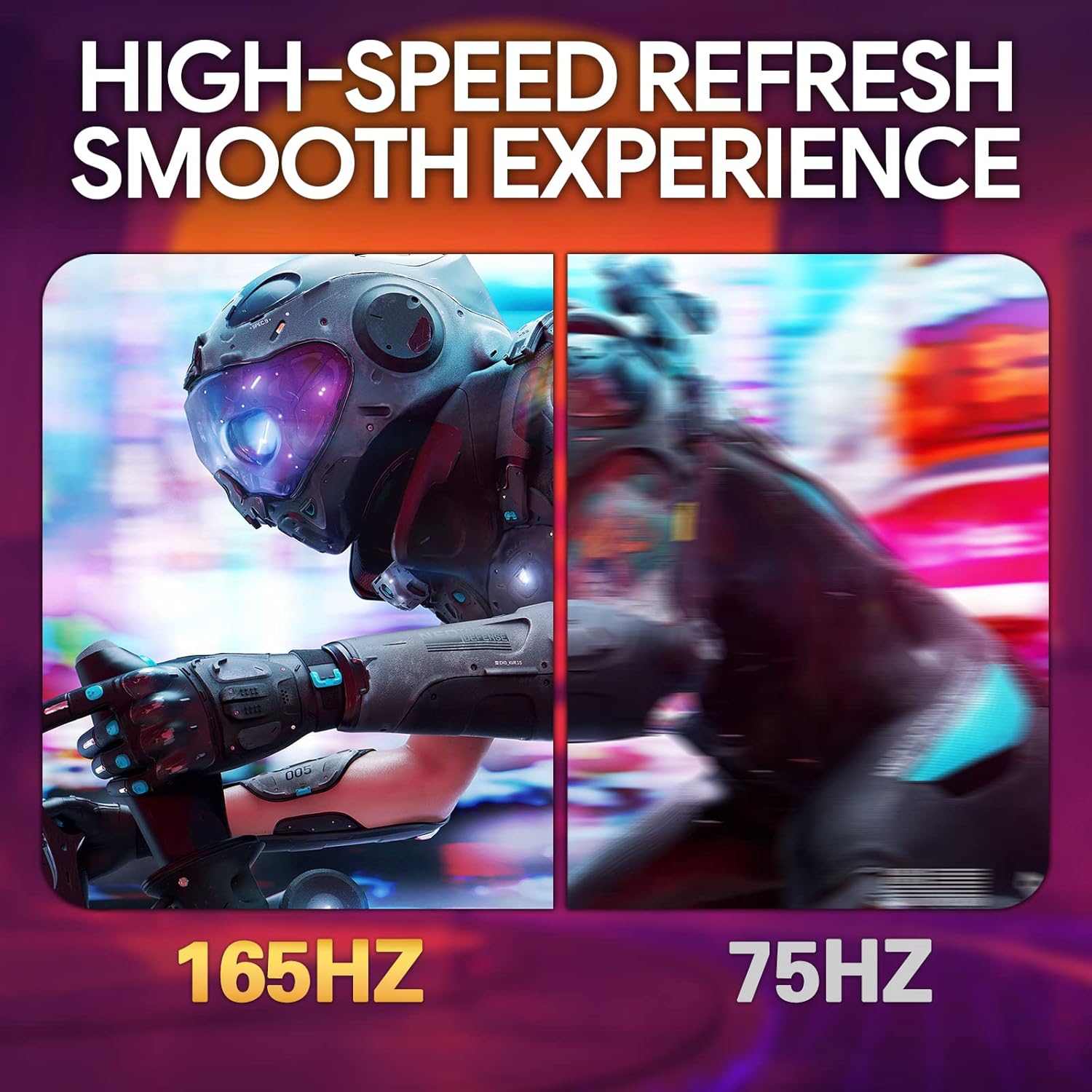
Image: The suevery SV240ZA monitor fully assembled with its desktop stand.
4.2 VESA Montajı
The monitor supports VESA mounting with a 75mm x 75mm pattern. Remove the stand if attached, and use appropriate VESA screws to mount the monitor to a compatible wall mount or desk arm.

Image: Rear of the monitor illustrating the 75mm x 75mm VESA mount compatibility.
4.3 Bağlantı Kabloları
Connect the power adapter to the monitor and a power outlet. Use either the HDMI or DisplayPort cable to connect the monitor to your computer or gaming device. For audio output, connect headphones or external speakers to the 3.5mm audio out port.

Resim: Üzeriview of the monitor's rear ports including USB, HDMI, DisplayPort, and Audio out.
4.4 İlk Güç Açma
Press the power button located on the monitor to turn it on. The monitor will automatically detect the input signal. If no signal is detected, ensure your source device is powered on and connected correctly.
5. Kullanım Talimatları
5.1 Ekran Üstü Görüntüleme (OSD) Menüsü
The OSD menu allows you to adjust various monitor settings. Typically, buttons on the back or bottom of the monitor are used to navigate and select options within the OSD.
5.2 Ekran Ayarlarını Düzenleme
- Yenileme Hızı: The monitor supports up to 165Hz. Ensure your graphics card settings are configured to utilize the maximum refresh rate for a smoother experience.
- Yanıt Süresi: With a 1ms GTG response time, motion blur is significantly reduced. This setting is often managed automatically or through specific OSD options.
- FreeSync: Enable AMD FreeSync in the OSD menu and your graphics card control panel to synchronize the monitor's refresh rate with your GPU's frame rate, eliminating screen tearing and stuttering.
- Renk ayarları: Adjust brightness, contrast, color temperature, and gamma for optimal visual quality. The IPS panel provides 99% sRGB color gamut and 8-bit color depth for rich and vibrant colors.
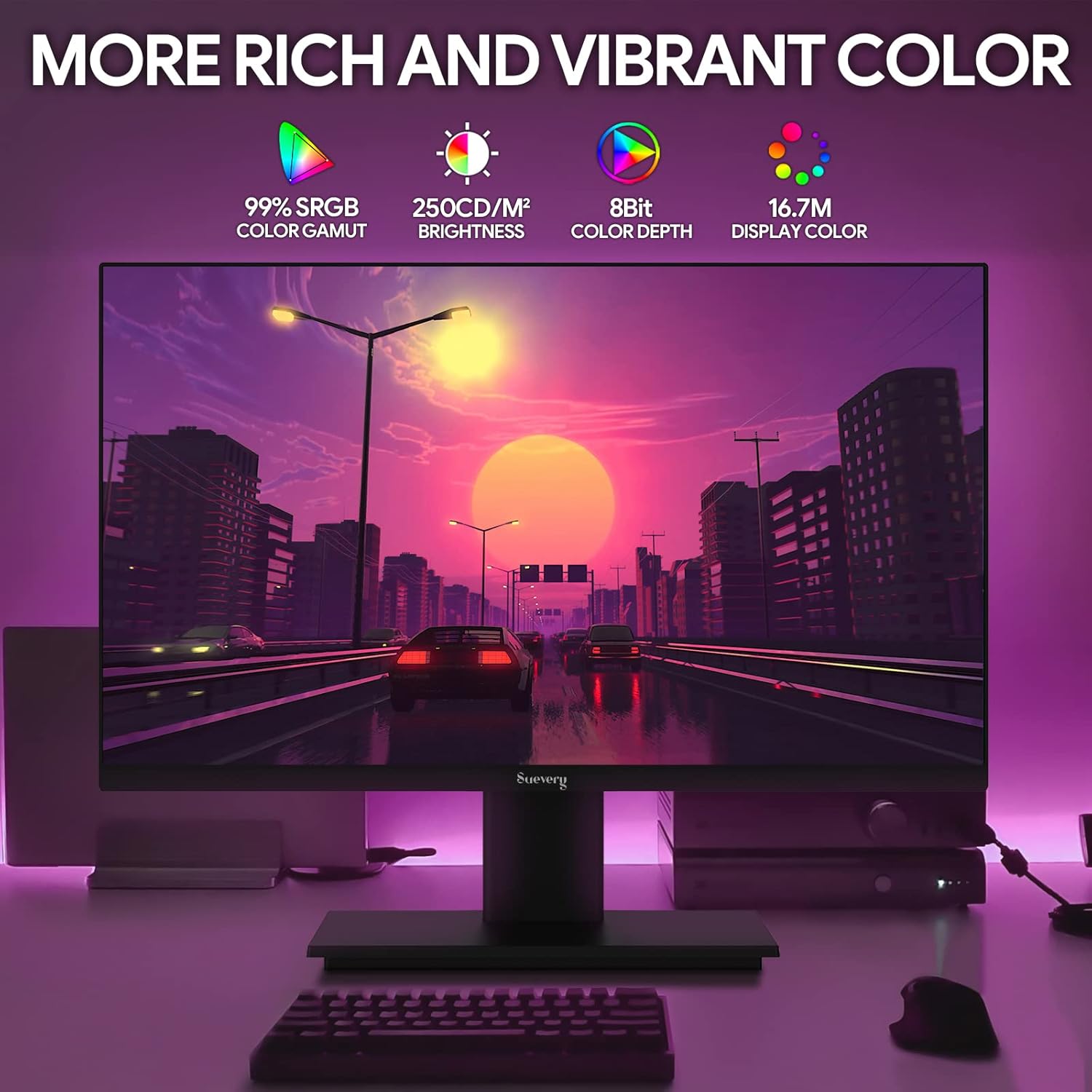
Image: The monitor's display capabilities, highlighting rich and vibrant color reproduction.
5.3 Eğim Ayarı
The monitor allows for tilt adjustment from -3 to 18 degrees. Gently adjust the screen to your preferred viewaçı.

Image: Illustration of the monitor's adjustable tilt feature.
5.4 Ses Çıkışı
Connect your headphones or external speakers to the 3.5mm audio out port for private listening or enhanced sound.

Image: User connecting headphones to the 3.5mm audio out port on the monitor.
6. Özellikler Bittiview
6.1 High Refresh Rate and Fast Response Time
Experience smooth visuals with a 165Hz refresh rate and a 1ms GTG response time, reducing motion blur and ghosting in fast-paced content.

Image: Visual comparison demonstrating the smoothness of a 165Hz refresh rate versus 75Hz.

Image: Visual comparison highlighting the reduction of afterimage and ghosting with 1ms GTG response time.
6.2 Uyarlanabilir Senkronizasyon Teknolojisi
AMD FreeSync support synchronizes the monitor's refresh rate with compatible graphics cards, eliminating screen tearing and stuttering for fluid gameplay.
Image: Demonstrates the smooth display experience provided by 165Hz and FreeSync technology.
6.3 IPS Panel and Full HD Resolution
The IPS panel offers wide 178-degree viewing angles and accurate color reproduction. The 1920 x 1080p Full HD resolution provides clear and detailed images.

Image: Illustrates the enhanced detail and realism of 1080p Full HD resolution compared to standard HD.
6.4 HDR Technology
HDR (High Dynamic Range) technology enhances contrast and color accuracy, bringing more lifelike images to your screen.

Image: Visual representation of how HDR technology improves image quality compared to SDR.
6.5 Geniş Uyumluluk
Equipped with HDMI and DisplayPort, the monitor connects to various devices such as PCs, laptops, gaming consoles, and TV boxes.

Image: The monitor connected to multiple devices, demonstrating its broad compatibility.
7. Bakım
7.1 Monitörün Temizlenmesi
- Temizlemeden önce mutlaka monitörün fişini çekin.
- Hafifçe yumuşak, tüy bırakmayan bir bez kullanın.ampSu veya yumuşak, aşındırıcı olmayan bir ekran temizleyicisi ile temizleyin.
- Temizleyiciyi doğrudan ekrana püskürtmeyin.
- Avoid using harsh chemicals like alcohol, benzene, or thinners, as they can damage the screen surface.
7.2 Genel Bakım
- Monitörü doğrudan güneş ışığından ve ısı kaynaklarından uzak tutun.
- Monitörün veya kablolarının üzerine ağır cisimler koymaktan kaçının.
- Monitörü aşırı sıcaklıklara veya neme maruz bırakmayın.
8. Sorun Giderme
Monitörünüzde sorunlarla karşılaşırsanız, aşağıdaki genel sorun giderme adımlarına bakın:
| Sorun | Olası Neden | Çözüm |
|---|---|---|
| Ekranda görüntü yok | Güç kablosu çıkarıldı; Video kablosu çıkarıldı; Yanlış giriş kaynağı seçildi. | Check power and video cable connections. Ensure the correct input source (HDMI/DP) is selected via the OSD menu. |
| Görüntüde titreme veya kararsızlık | Video cable loose or damaged; Graphics card driver issue; Refresh rate mismatch. | Secure video cable. Update graphics card drivers. Adjust refresh rate in your computer's display settings. Enable FreeSync if applicable. |
| Ses çıkışından ses gelmiyor. | Headphones/speakers not connected; Volume too low; Incorrect audio output device selected on computer. | Ensure audio device is properly connected. Increase volume on monitor and computer. Select the monitor as the default audio output device in your computer's sound settings. |
| Monitör açılmıyor | Power cable disconnected; Power adapter faulty. | Verify power cable is securely connected to both the monitor and a working power outlet. Test the outlet with another device. |
9. Özellikler
| Özellik | Şartname |
|---|---|
| Marka | dava |
| Örnek | SV240ZA |
| Ekran Boyutu | 24 inç |
| Çözünürlük | FHD 1080p (1920 x 1080 Piksel) |
| En Boy Oranı | 16:9 |
| Panel Tipi | IPS (LCD) |
| Yenileme Hızı | 165 Hz |
| Tepki Süresi | 1 Milisaniye (GTG) |
| Kontrast Oranı | 1000:1 |
| Parlaklık | 220 cd/m² |
| ViewAçı | 178 Derece |
| Bağlantı | 1 x HDMI, 1 x DisplayPort, 1 x USB (charging only), 1 x 3.5mm Audio Out |
| Uyarlanabilir Senkronizasyon | AMD FreeSync |
| VESA Montajı | 75mm x 75mm |
| Eğim Ayarı | -3 ila 18 derece |
| Boyutlar (G x Y x D) | 54.6 cm x 32.3 cm x 9.7 cm (approximate, without stand) |

Image: Detailed dimensions of the suevery SV240ZA monitor.
10. Garanti ve Destek
10.1 Garanti Politikası
The suevery SV240ZA monitor comes with a one-year free warranty. Returns and replacements are free within 30 days of purchase for quality issues.
10.2 Müşteri Desteği
For any quality issues or support inquiries regarding your monitor, please contact suevery customer support. Refer to the contact information provided with your purchase documentation or visit the official suevery webyardım için site.