1. Giriş
The Beelink SEi11 Mini PC is a compact desktop computer designed for a wide range of applications, from home use to business and gaming. It features an 11th Gen Intel Core i5-11320H processor, 16GB DDR4 RAM, and a 500GB NVMe SSD, offering responsive performance. This manual provides essential information for setting up, operating, maintaining, and troubleshooting your device.
2. Kutuda Neler Var?
Upon opening your Beelink SEi11 Mini PC package, you should find the following items:
- Beelink SEi11 Mini PC unit
- Power Adapter (with correct regional plug)
- HDMI Cables (short and long)
- Duvara monte braket ve vidalar
- SATA Ribbon Cable (for 2.5-inch drive expansion)
- Kullanıcı Kılavuzu
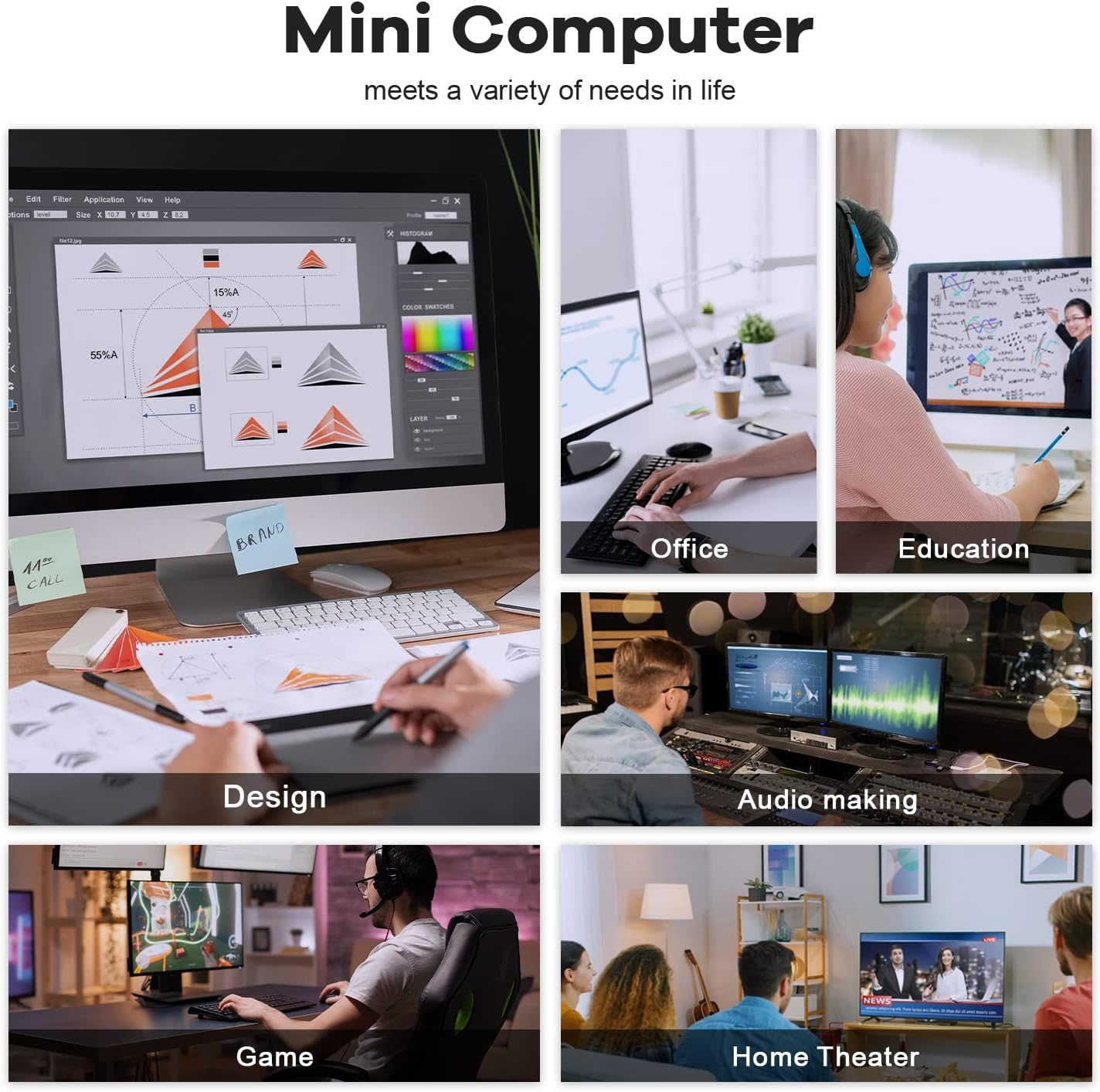
Figure 2.1: Included accessories for the Beelink SEi11 Mini PC.
Video 2.1: Unpacking and Disassembly Explained for the Beelink SEi11 Mini PC, showing included items and internal components.
3. İlk Kurulum
Follow these steps to set up your Beelink SEi11 Mini PC:
- Güce Bağlanın: Plug the power adapter into the DC-in port on the back of the Mini PC, then plug the adapter into a power outlet.
- Ekrana Bağlan: Use one of the provided HDMI cables to connect the Mini PC to your monitor or TV. The device supports dual 4K@60Hz display output via HDMI and Type-C.
- Çevre Birimlerini Bağlayın: Connect your keyboard, mouse, and other USB devices to the available USB ports (2x USB 3.0, 2x USB 2.0, 1x Type-C).
- Ağ bağlantısı: For a wired connection, plug an Ethernet cable into the Gigabit Ethernet LAN port. For wireless, the device supports Wi-Fi 6.
- Güç Açık: Press the red power button on the front of the Mini PC. The device comes with Windows 11 Pro pre-installed.

Figure 3.1: Rear and front ports of the Beelink SEi11 Mini PC.
4. Kullanım Talimatları
Your Beelink SEi11 Mini PC is equipped with Windows 11 Pro, providing a full desktop experience. It supports 4K@60Hz resolution across multiple displays, making it suitable for various tasks including office work, entertainment, and light gaming.
4.1. Ekran Yapılandırması
The Mini PC supports triple 4K@60Hz screen display output via its dual HDMI ports and one Type-C port. This allows for extended desktop setups, enhancing productivity or providing an immersive entertainment experience.

Figure 4.1: Triple screen display setup for enhanced productivity or entertainment.
Video 4.1: Power-on test and 4K video playback demonstration of the Beelink SEi11 Mini PC.
4.2. Performance for Applications and Gaming
The Intel Core i5-11320H processor with Intel Iris Xe Graphics provides sufficient power for everyday computing tasks, multimedia consumption, and casual gaming. Its 4 cores and 8 threads, with a Max Turbo Frequency of up to 4.50GHz, ensure smooth operation.
Video 4.2: Gaming performance test on the Beelink SEi11 Mini PC.
5. Bağlantı
The Beelink SEi11 Mini PC offers robust connectivity options:
- Kablosuz: 802.11ac Dual Band 2.4 & 5GHz Wi-Fi (Wi-Fi 6) for high-speed internet access, and Bluetooth 5.2 for connecting wireless peripherals.
- Kablolu: 1x Gigabit Ethernet LAN port for stable and fast wired network connections.
- USB Bağlantı Noktaları: 2x USB 3.0 ports, 2x USB 2.0 ports, and 1x Type-C port (supporting 10Gbps Super speed data transfer).
- Ekran Bağlantı Noktaları: 2x HDMI 2.0 ports and 1x Type-C port for connecting multiple displays.
- Ses: 1x MIC headphone jack.
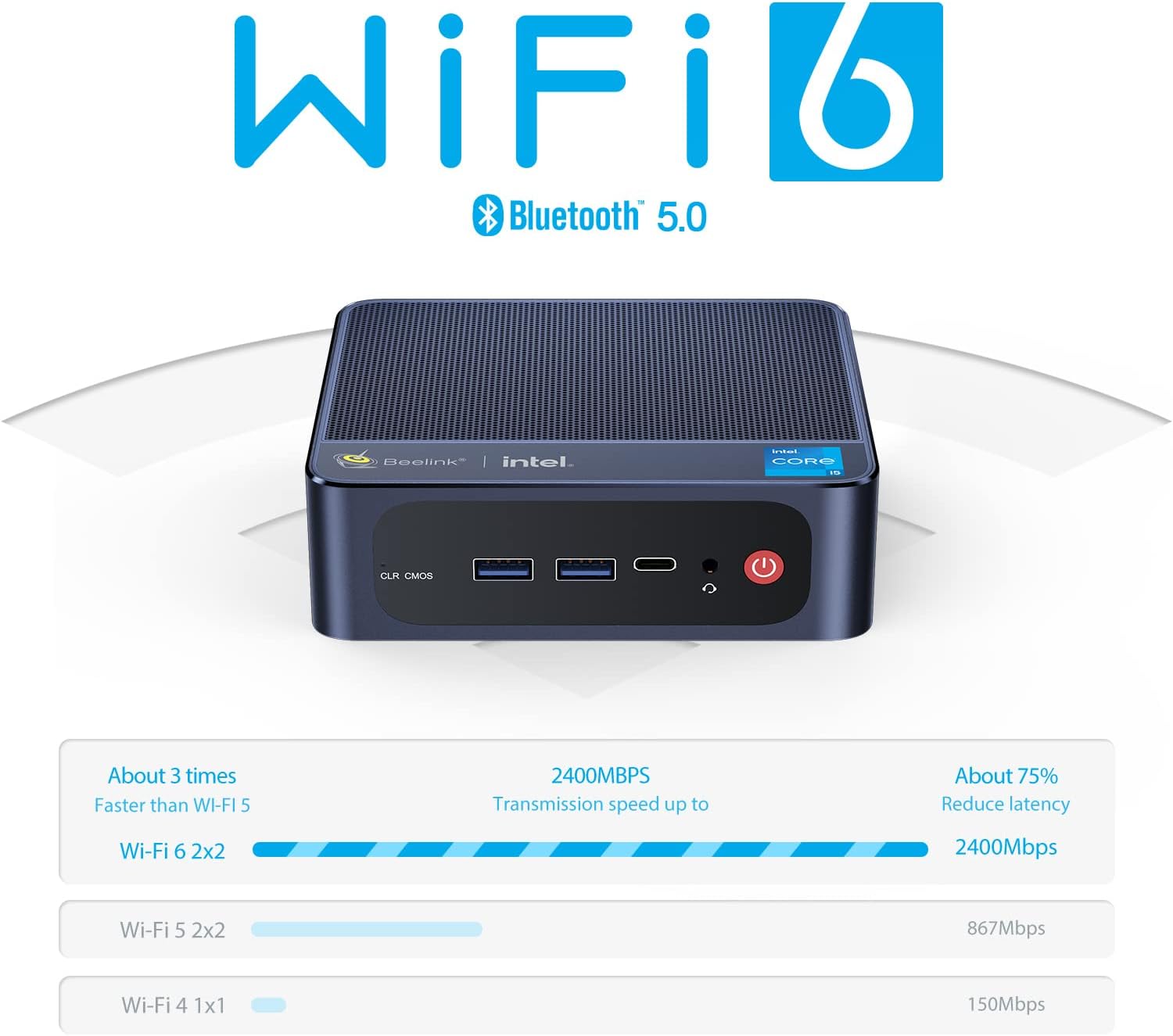
Figure 5.1: Wi-Fi 6 and Bluetooth 5.0 for enhanced wireless connectivity.
6. Bellek ve Depolama Yükseltmeleri
The Beelink SEi11 Mini PC is designed for easy upgrades to enhance its performance and storage capacity.
6.1. RAM Upgrade
The Mini PC comes with 16GB DDR4 RAM (2x 8GB modules). It features dual SODIMM slots and can be upgraded to a maximum of 64GB DDR4 RAM (2x 32GB modules) at 3200MHz.

Figure 6.1: DDR4 RAM modules for memory expansion.
6.2. SSD and HDD Expansion
The device includes a 500GB M.2 NVMe 2280 SSD, which can be upgraded to a maximum of 2TB. Additionally, you can install a 2.5-inch 7mm SATA3 HDD or SSD (up to 2TB) for expanded storage. The necessary SATA ribbon cable is included in the package.
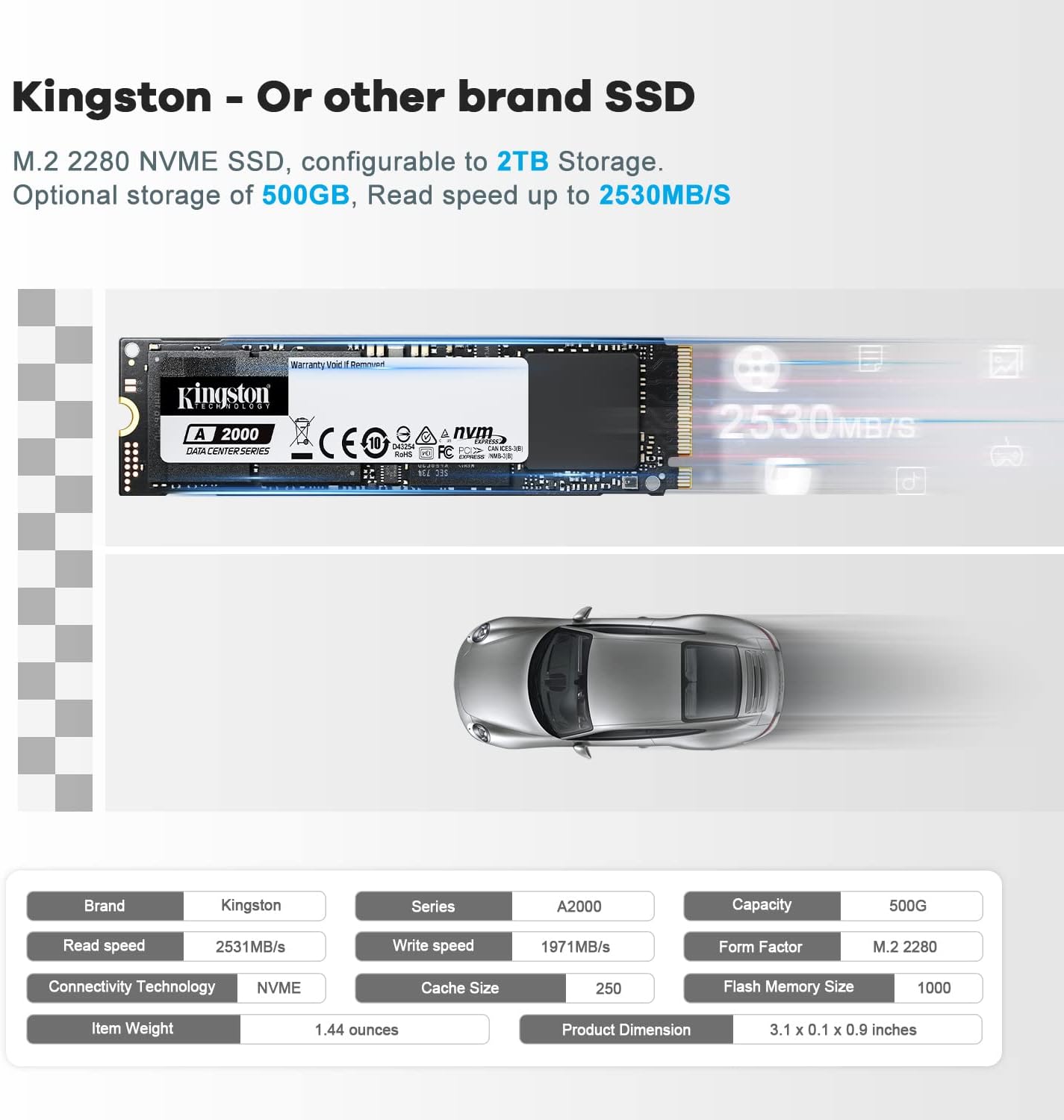
Figure 6.2: M.2 NVMe SSD for fast storage.
Video 6.1: Instructions on how to upgrade RAM and SSD in the Beelink SEi11 Mini PC.
7. Teknik Özellikler
| Özellik | Şartname |
|---|---|
| İşlemci | Intel Core i5-11320H (4C/8T, 4.5 GHz'e kadar) |
| Grafikler | Intel Iris Xe Grafikleri |
| Veri deposu | 16GB DDR4 SO-DIMM (Max 64GB, 3200MHz) |
| Depolamak | 500GB M.2 NVMe SSD (Max 2TB) |
| Genişletilebilir Depolama | Support 2.5-inch 7mm SATA3 HDD/SSD (Max 2TB) |
| Kablosuz Bağlantı | Wi-Fi 6 (802.11ax), Bluetooth 5.2 |
| Kablolu Bağlantı | 1x Gigabit Ethernet LAN port |
| Video Çıkışı | 2x HDMI 2.0, 1x Type-C (Supports Triple 4K@60Hz Display) |
| USB Bağlantı Noktaları | 2 adet USB 3.0, 2 adet USB 2.0, 1 adet Type-C |
| Ses | 1x MIC headphone jack |
| İşletim Sistemi | Windows 11 Pro (Önceden yüklenmiş) |
| Boyutlar | 4.96 x 4.45 x 1.57 inç |
| Ağırlık | 2.18 pound |
8. Bakım
To ensure the longevity and optimal performance of your Beelink SEi11 Mini PC, follow these maintenance guidelines:
- Temizlik: Regularly clean the exterior with a soft, dry cloth. Avoid using liquid cleaners or harsh chemicals. Ensure ventilation grilles are free from dust and debris.
- Havalandırma: The Mini PC features a built-in cooling fan and heat pipes for efficient heat dissipation. Ensure the device is placed in a well-ventilated area and that the side and top mesh grilles are not obstructed.
- Yazılım Güncellemeleri: Keep your Windows operating system and drivers updated to ensure stability and security.
- Çevresel Koşullar: Cihazı hasar görmemesi için önerilen sıcaklık ve nem aralıklarında çalıştırın.

Figure 8.1: Internal cooling system for efficient heat dissipation.
9. Sorun Giderme
If you encounter issues with your Beelink SEi11 Mini PC, consider the following common troubleshooting steps:
- Güç Yok: Güç adaptörünün hem Mini PC'ye hem de çalışan bir elektrik prizine güvenli bir şekilde bağlı olduğundan emin olun. Prizin çalışıp çalışmadığını başka bir cihazla test edin.
- Görüntü yok: Verify that the HDMI or Type-C cable is correctly connected to both the Mini PC and the monitor. Ensure the monitor is set to the correct input source.
- Çevresel Aygıt Algılanamadı: Çevre birimini farklı bir USB bağlantı noktasına bağlamayı deneyin. Gerekirse sürücülerin yüklü olduğundan emin olun.
- Yavaş Performans: Check for excessive background applications or high CPU/RAM usage in Task Manager. Ensure sufficient free storage space.
- Ağ Sorunları: For wired connections, check the Ethernet cable and router. For Wi-Fi, ensure the device is within range of your router and the Wi-Fi adapter is enabled.
- BIOS Sıfırlama: If experiencing boot issues, locate the CLR CMOS reset hole on the front panel and use a paperclip to press the button inside.
10. Garanti ve Destek
Beelink provides a one-year quality assurance for the Mini PC. For any questions or technical assistance during use, you can contact Beelink customer service. They offer 24/7 manual customer service and lifetime technical support.
10.1. Destek Ekibiyle Nasıl İletişime Geçilir?
If you purchased your device through Amazon, you can typically find support options by:
- Amazon hesabınıza giriş yapın.
- Navigating to 'Your Account' then 'Your Orders'.
- Locating your Beelink Mini PC order and selecting 'Ask Product Question'.

Figure 10.1: Steps to contact customer service.


