1. Giriş
Thank you for choosing the Vivitar Digital Clip-On Web Camera VWC107-BLK. This high-definition 1080P webcam is designed to enhance your virtual meetings, online classes, and video calls with clear video and audio. It features a built-in microphone, auto white balance, auto-focusing, and a versatile 360-degree rotating clamp for easy placement on laptops, LCD monitors, or desktops. This manual provides essential information for setting up, operating, and maintaining your webkam.
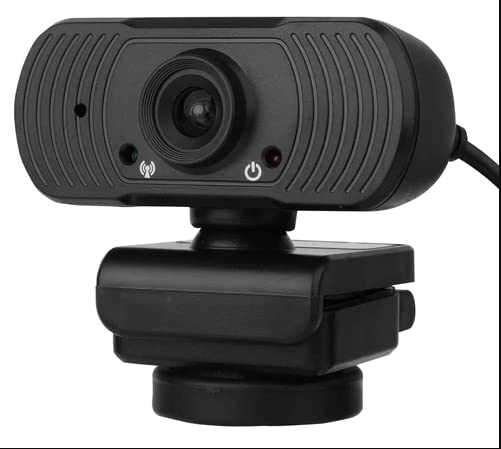
Image: The Vivitar Digital Clip-On Web Camera VWC107-BLK, showcasing its compact design and clip-on base.
2. Paket İçeriği
Lütfen paketinizde tüm öğelerin mevcut olduğundan emin olun:
- Vivitar Digital Clip-On Web Camera (VWC107-BLK)
3. Ürün Özellikleri
- HD 1080P Video: Delivers clear and sharp video resolution.
- Yüksek Kaliteli Mikrofon: Integrated microphone with Right Sound Technology for clear audio capture.
- Geniş Uyumluluk: Works with Windows and Mac operating systems.
- Çok Yönlü Montaj: 360-degree rotating clamp design suitable for laptops, LCD monitors, and desktops.
- Otomatik Ayarlamalar: Features Auto White Balance and Auto-Focusing for optimal image quality.
- Dayanıklı Objektif: Equipped with a 4-layer glass lens.
- Optimized for Communication: Ideal for Zoom, Microsoft Teams, Skype, and other virtual meeting platforms.
- Privacy Indicator: Light indicator shows when the camera is in use.
- Tripod Dağı: Includes a tripod screw mount for additional placement options.
4. Kurulum
4.1 Bağlama Webkam
- Unpack the Vivitar Digital Clip-On Web Camera from its packaging.
- Bilgisayarınızda (masaüstü veya dizüstü) kullanılabilir bir USB bağlantı noktası bulun.
- USB kablosunu şuradan takın: webcam into the USB port on your computer.
- The computer should automatically detect and install the necessary drivers. This process may take a few moments.
- Kurulduktan sonra, webcam will be ready for use with your preferred video conferencing software.
4.2 Montajı Webkam
- For Laptops/LCD Monitors: Open the clip base of the webKamerayı yerleştirin. webcam on top of your laptop screen or LCD monitor, ensuring the front lip rests securely on the screen and the back of the clip supports it from behind. Adjust the angle for optimal viewIng.
- For Desktops: The clip base can also be folded to sit flat on a desk or other flat surface.
- Tripod Montajı: İstenirse, şunu ekleyin: webcam to a compatible tripod using the integrated tripod screw mount on the bottom of the clip base.
- The webcam features a 360-degree rotating base, allowing you to adjust the camera's direction without repositioning the entire unit.
5. Kullanım Talimatları
5.1 Video Konferans Yazılımı ile Kullanım
- Open your preferred video conferencing application (e.g., Zoom, Microsoft Teams, Skype).
- Navigate to the application's settings or preferences menu, typically found under 'Audio & Video' or 'Devices'.
- Select the Vivitar VWC107-BLK as your primary camera and microphone device.
- Adjust any video or audio settings within the application as needed (e.g., resolution, volume).
- Begin your virtual meeting or video call. The webcam's light indicator will illuminate when the camera is active.
5.2 Işık Göstergesi
The webcam is equipped with a light indicator. This light will illuminate when the camera is actively in use by an application, providing a visual cue for your privacy and operational status.
6. Bakım
- Lensin Temizlenmesi: Fotoğraf makinesinin objektifini yumuşak, tüy bırakmayan bir bezle nazikçe silin. İnatçı lekeler için, optik yüzeyler için özel olarak tasarlanmış bir objektif temizleme solüsyonu kullanın. Aşındırıcı malzemelerden veya sert kimyasallardan kaçının.
- Vücudun Temizlenmesi: Cihazın dış yüzeyini temizlemek için yumuşak ve kuru bir bez kullanın. webLütfen sıvı temizleyicileri doğrudan cihaz üzerinde kullanmayın.
- Depolamak: Kullanılmadığı zaman, saklayın webKamerayı temiz, kuru bir yerde, aşırı sıcaklıklardan ve doğrudan güneş ışığından uzakta saklayın.
- Kablo Bakımı: Hasar görmesini önlemek için USB kablosunu aşırı derecede bükmekten veya sıkıştırmaktan kaçının.
7. Sorun Giderme
| Sorun | Çözüm |
|---|---|
| WebKamera bilgisayar tarafından algılanmadı. |
|
| Uygulamada görüntü yok veya ekran siyah. |
|
| Ses yok veya ses kalitesi düşük. |
|
| Görüntü bulanık veya odak dışı. |
|
8. Özellikler
| Özellik | Detay |
|---|---|
| Model Numarası | VWC107-BLK |
| Video Yakalama Çözünürlüğü | 1080p |
| Fotoğraf Sensörü Teknolojisi | CMOS |
| Mikrofon | Built-in, High-Quality with Right Sound Technology |
| Odak Türü | Auto-Focusing |
| Beyaz Dengesi | Otomatik Beyaz Dengesi |
| Lens Türü | 4 Katmanlı Cam Mercek |
| Montaj Tipi | Clip-on (360-degree rotating), Tripod Screw Mount |
| Bağlantı | USB (4.5 ft cable) |
| Uyumluluk | Windows, Mac |
| Ürün Ağırlığı | 6.1 ons |
| Paket Boyutları | 7.91 x 6.81 x 2.76 inç |
9. Garanti ve Destek
Vivitar products are designed for reliability and performance. For specific warranty information regarding your VWC107-BLK webcam, please refer to the warranty card included in your product packaging or visit the official Vivitar webalan.
If you encounter any issues or require technical assistance, please contact Vivitar Customer Support through their official channels. Have your product model number (VWC107-BLK) and purchase information ready when contacting support.


