giriiş
The Brother MFC-J5740DW is a versatile 4-in-1 multifunction inkjet printer designed for small office environments. It offers printing, copying, scanning, and faxing capabilities with support for up to A3 paper size. This manual provides essential information for setting up, operating, maintaining, and troubleshooting your device to ensure optimal performance.
Temel özellikler şunlardır:
- 4-in-1 functionality: Print, Copy, Scan, Fax.
- Full duplex (double-sided) printing, scanning, copying, and faxing up to A4.
- Dual paper trays, each holding 250 sheets, plus a 100-sheet multi-purpose tray for up to A3 paper.
- Fast print speeds of up to 28 pages per minute (ISO/IEC 24734).
- High-quality pigment ink for durable prints.
- Connectivity via LAN, Wi-Fi, and USB.
- Compatibility with the Brother Mobile Connect app for mobile printing and scanning.
Kurmak
1. Paketin Açılması ve İlk Yerleştirme
Carefully remove the printer from its packaging. Ensure all protective tapes and packing materials are removed from the exterior and interior of the device. Place the printer on a stable, level surface with adequate space for ventilation and paper trays.
2. Mürekkep Kartuşlarının Takılması
Open the ink cartridge cover located on the front of the printer. Install the four starter ink cartridges (Black, Cyan, Magenta, Yellow) into their corresponding slots. Ensure they click into place securely.
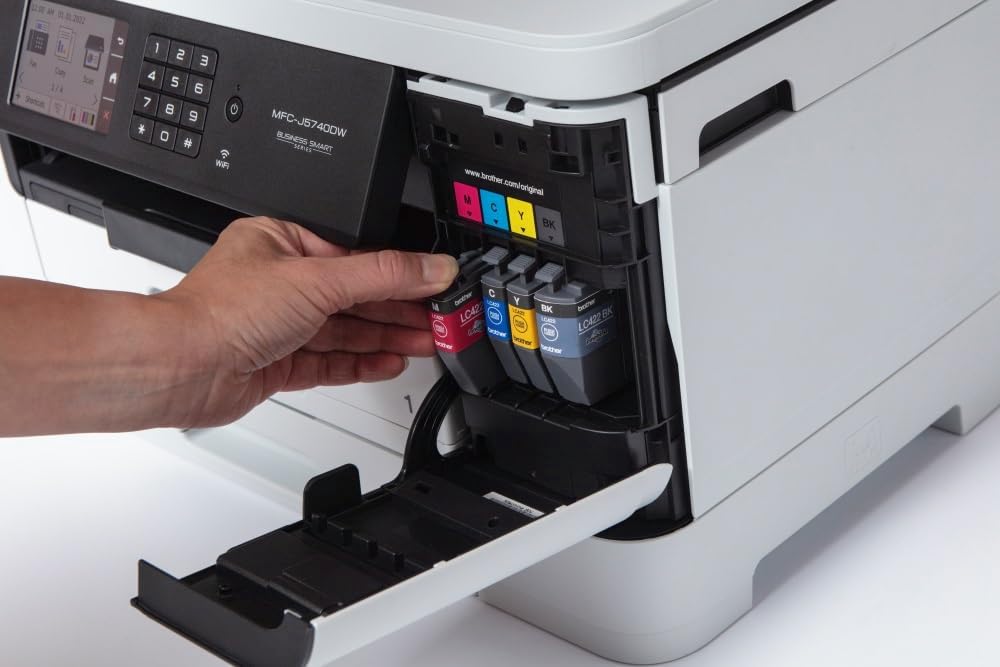
Image: A hand inserting a yellow ink cartridge into its designated slot in the Brother MFC-J5740DW printer. The other three cartridges (black, cyan, magenta) are already in place.
3. Kağıt Yükleme
The MFC-J5740DW features two main paper trays and a multi-purpose tray. For standard printing, open one of the paper trays, adjust the paper guides to fit your paper size (e.g., A4), and load the paper stack. For special media or larger sizes like A3, use the multi-purpose tray.

Image: A hand pulling out the lower paper tray from the Brother MFC-J5740DW printer, revealing the paper guides and loading area.

Image: A hand loading a stack of white paper into the open paper tray of the Brother MFC-J5740DW printer, with paper guides visible.
4. Güç ve Şebeke Bağlantısı
Connect the power cable to the printer and then to an electrical outlet. For network connectivity, you can use an Ethernet cable for a wired connection or configure Wi-Fi directly from the printer's control panel. USB connection is also available for direct computer connection.
5. Yazılım ve Sürücü Kurulumu
Brother destek sitesinden gerekli sürücüleri ve yazılımı yükleyin. website or the included installation disc (if applicable). For mobile devices, download the Brother Mobile Connect app from your device's app store.
Yazıcının Çalıştırılması
1. Kontrol Panelini Kullanma
The printer features an 8.8 cm LCD touchscreen for easy navigation and operation. Use the touchscreen to select functions like Print, Copy, Scan, or Fax, and to adjust settings.

Image: A hand touching the LCD screen of the Brother MFC-J5740DW printer's control panel, which displays various function icons.
2. Belgeleri Yazdırma
Send print jobs from your computer or mobile device. Select the desired paper source (tray 1, tray 2, or multi-purpose tray) and print settings (e.g., color, black & white, duplex, paper size up to A3).
3. Belgelerin Kopyalanması
Place your document on the scanner glass or in the Automatic Document Feeder (ADF). Use the control panel to select 'Copy', choose settings like quantity, color/mono, and duplex, then start the copy process. The 50-sheet ADF supports duplex copying for A4 documents.

Image: A hand placing a document with text and graphics onto the flatbed scanner glass of the Brother MFC-J5740DW printer.

Image: A hand inserting a brown envelope into the automatic document feeder (ADF) of the Brother MFC-J5740DW printer.
4. Belgeleri Tarama
Place your document on the scanner glass or in the ADF. Select 'Scan' from the control panel and choose your scan destination (e.g., computer, email, cloud service, or mobile device via Brother Mobile Connect app). Adjust scan settings such as resolution and color mode.
5. Belgelerin Faksla Gönderilmesi
Load your document into the ADF or place it on the scanner glass. Enter the recipient's fax number using the control panel and select 'Fax'. The printer supports duplex faxing for A4 documents.
Bakım
1. Mürekkep Kartuşlarının Değiştirilmesi
When an ink cartridge is low or empty, a message will appear on the LCD screen. Open the ink cartridge cover and replace the indicated cartridge with a new Brother LC422 series cartridge (LC422BK, LC422C, LC422M, LC422Y).
2. Yazıcıyı Temizleme
Regularly clean the exterior of the printer with a soft, lint-free cloth. If print quality deteriorates, perform a print head cleaning or alignment from the printer's maintenance menu on the LCD screen. This helps prevent clogs and ensures clear prints.
3. Kağıt Sıkışmalarını Giderme
If a paper jam occurs, follow the instructions displayed on the LCD screen. Open the necessary covers and carefully remove any jammed paper, ensuring no torn pieces remain inside the printer.
Sorun giderme
This section addresses common issues you might encounter with your Brother MFC-J5740DW printer.
1. Yazıcı Yanıt Vermiyor
- Güç bağlantılarını kontrol edin.
- Verify network connectivity (Wi-Fi or Ethernet).
- Yazıcının bilgisayarınızda varsayılan yazıcı olarak seçili olduğundan emin olun.
- Yazıcıyı ve bilgisayarınızı/yönlendiricinizi yeniden başlatın.
2. Düşük Baskı Kalitesi
- Mürekkep seviyelerini kontrol edin ve düşük veya boş kartuşları değiştirin.
- Perform a print head cleaning and alignment from the printer's maintenance menu.
- Yazdırma ayarlarınız için uygun kağıt kullandığınızdan emin olun.
3. Kağıt Sıkışmaları
- Follow the on-screen instructions to locate and remove jammed paper.
- Kağıtların tepsilere doğru şekilde yerleştirildiğinden ve aşırı doldurulmadığından emin olun.
- Yazıcının teknik özelliklerine uygun kağıt kullanın.
For more detailed troubleshooting, refer to the Brother support website or the full electronic manual.
Özellikler
| Özellik | Şartname |
|---|---|
| Marka | Erkek kardeş |
| Model Adı | MFC-J5740DW |
| Ürün Model Numarası | MFCJ5740DW |
| Baskı Teknolojisi | Mürekkep püskürtmeli |
| Yazıcı Çıktısı | Renk |
| Özel Özellik | Automatic Duplexing |
| Bağlantı Teknolojisi | Ethernet, USB, Wi-Fi |
| Maksimum Baskı Hızı (Renkli) | Dakikada 28 sayfa |
| Maksimum Baskı Hızı (Siyah Beyaz) | Dakikada 28 sayfa |
| Maksimum Baskı Çözünürlüğü (Renkli) | 600 x 600 dpi |
| Maksimum Baskı Çözünürlüğü (Siyah Beyaz) | 600 x 600 dpi |
| İlk Sayfa Baskı Süresi | 2 Saniye |
| Tarayıcı Türü | Otomatik Belge Besleyici (ADF) |
| Tarayıcı Çözünürlüğü | 1200 x 1200 dpi |
| Maksimum Kopyalama Hızı (Siyah & Beyaz) | Dakikada 10 sayfa |
| Maksimum Kopya Çözünürlüğü (Renk) | 600 x 600 dpi |
| Maksimum Medya Boyutu | A3 |
| Max Paper Capacity (Input) | 600 sayfa |
| Çıktı Sayfası Kapasitesi | 50 sayfa |
| Tepsi Sayısı | 3 (2 main, 1 multi-purpose) |
| Görüntü Türü | LCD |
| Ürün Ağırlığı | 20.5 Kilogram |
| Güç Tüketimi | 4 Vat |
| Uyumlu Kartuş | LC422BK, LC422C, LC422M, LC422Y |
Garanti ve Destek
Garanti Bilgileri
The Brother MFC-J5740DW comes with a 3-year limited warranty. Please refer to the warranty documentation included with your product or visit the official Brother website for detailed terms and conditions. Your statutory consumer rights remain unaffected by this warranty.
Müşteri Desteği
Daha fazla yardım, teknik destek veya en yeni sürücüleri ve yazılımları indirmek için lütfen resmi Brother destek sitesini ziyaret edin. website. You can also utilize the Brother Mobile Connect app for convenient access to printer functions and support resources from your smartphone or tablet.


