1. Giriş
This manual provides comprehensive instructions for the setup, operation, and maintenance of your Tera 9200-Wired Omnidirectional Desktop Barcode Scanner. This device is designed for efficient and hands-free scanning of 1D, 2D, and QR barcodes in various environments such as retail stores, warehouses, and offices.
2. Ürün Bittiview
The Tera 9200-Wired scanner is a high-performance, plug-and-play device engineered for reliability and ease of use. Its omnidirectional scanning capability allows for quick and accurate barcode reading from various angles.
2.1 Temel Özellikler
- Tak ve Çalıştır: No driver or software installation required. Simply connect the USB cable to your computer, POS system, or cash register.
- Eller Serbest Tarama: Designed as a desktop platform scanner, it allows for convenient, hands-free operation, improving efficiency for both cashiers and customers.
- Kararlı Tasarım: Equipped with four small non-slip pads on the bottom and an internal iron slab, ensuring stability during operation.
- Geniş Uyumluluk: Compatible with various operating systems including Windows XP, Windows 7, Windows 8, Windows 10, Android, and Linux. Works with PCs, laptops, iPads, and smartphones.
- Multi-Language Keyboard Support: Supports keyboard layouts for US, UK, German, French, Italian, Spanish, Japanese, and more.
- Powerful Decoding Ability: Capable of reading a wide range of 1D and 2D barcodes, including those that are reflective, smudged, damaged, or fuzzy.
2.2 Paket İçeriği
- Tera 9200-Wired Desktop Barcode Scanner
- USB 2.0 Data Cable (integrated)
- Kullanım Kılavuzu (bu belge)
2.3 Ürün Şeması

Şekil 2.3.1: Ön view of the Tera 9200-Wired Desktop Barcode Scanner, showing its compact, black and white design with the scanning window.
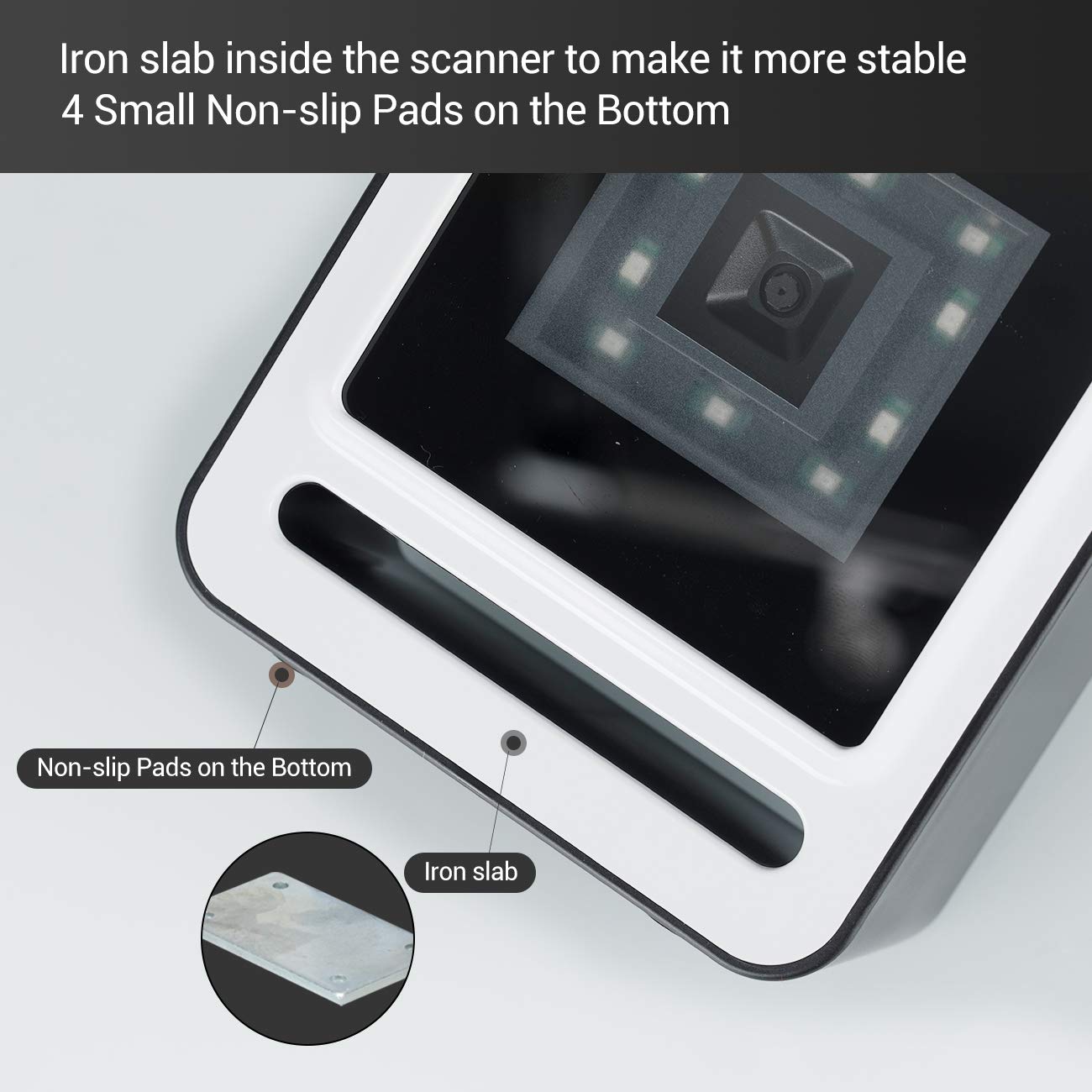
Şekil 2.3.2: Yakın çekim view of the scanner's base, highlighting the four non-slip pads and the internal iron slab designed for enhanced stability.
3. Kurulum
The Tera 9200-Wired barcode scanner is designed for quick and easy setup, requiring no special drivers or software installation.
- Tarayıcıyı Paketinden Çıkarın: Tarayıcıyı ambalajından dikkatlice çıkarın.
- USB Kablosunu bağlayın: Insert the integrated USB 2.0 data cable into an available USB port on your computer, POS system, or cash register.
- Sistem Tanıma: The operating system will automatically detect and configure the scanner. This process typically takes a few seconds.
- Kullanıma hazır: Once recognized, the scanner is ready for immediate use.

Figure 3.1: The scanner connected via USB to a laptop, demonstrating its plug-and-play functionality and compatibility with Windows, Android, and Linux systems, as well as PCs, laptops, iPads, and phones.
4. Kullanım Talimatları
The Tera 9200-Wired scanner offers hands-free operation for efficient barcode reading.
4.1 Temel Tarama
- Öğeyi yerleştirin: Place the barcode of the item directly in front of the scanner's window.
- Automatic Scanning: The scanner will automatically detect the barcode and emit a successful scan indication (e.g., a beep or light change).
- Veri İletimi: The scanned data will be transmitted to your connected device (computer, POS system) as if typed via a keyboard.

Figure 4.1: A smartphone displaying a QR code being scanned by the Tera 9200-Wired scanner, illustrating its hands-free capability for digital barcodes.
4.2 Desteklenen Barkod Türleri
The scanner supports a wide array of 1D and 2D barcode symbologies:
- 1D Decode Capability: Codabar, Code 11, Code93, MSI, Code 128, UCC/EAN-128, Code 39, EAN-8, EAN-13, UPC-A, ISBN, Industrial 25, Interleaved 25, Standard 25, 2/5 Matrix.
- 2D Decode Capability: QR Code, PDF417, Data Matrix, Aztec code, Maxi Code.

Figure 4.2: Visual representation of the scanner's advanced decoding capabilities, showing its ability to read challenging barcodes such as reflective, smudged, damaged, and fuzzy ones.
4.3 Advanced Settings (via Configuration Codes)
The scanner can be configured for various settings by scanning specific configuration barcodes (not provided in this manual, refer to a separate programming guide if available from manufacturer). These settings may include:
- Klavye Dili: Adjust the output keyboard language to match your system (e.g., US, UK, German, French, Italian, Spanish, Japanese).
- Sanal COM Portu: Enable virtual COM port mode for specific software applications.
- Önek/Sonek: Taranan verilerin önüne veya arkasına özel karakterler ekleyin.
- Karakterleri Gizle: Configure the scanner to hide certain characters from the output.
- Ses Ayarı: Adjust the volume of the scan confirmation beep.

Figure 4.3: The scanner illustrating its support for multiple keyboard languages, including English, Spanish, German, Japanese, French, and Italian, allowing for versatile international use.
5. Bakım
Doğru bakım, barkod okuyucunuzun uzun ömürlü olmasını ve en iyi performansı göstermesini sağlar.
- Tarama Penceresini Temizleme: Tarama penceresini düzenli olarak yumuşak, tüy bırakmayan bir bezle temizleyin. İnatçı lekeler için hafifçe silin.ampBezi su veya hafif, aşındırıcı olmayan bir temizleyici ile silin. Sert kimyasallar veya aşındırıcı malzemeler kullanmayın.
- Genel Temizlik: Tarayıcının dış yüzeyini kuru veya hafif nemli bir bezle silin.amp toz ve kiri temizlemek için kullanılan bez.
- Aşırı Koşullardan Kaçının: Do not expose the scanner to extreme temperatures, humidity, or direct sunlight for prolonged periods.
- Dikkatli Kullanın: Tarayıcıyı düşürmekten veya şiddetli darbelere maruz bırakmaktan kaçının.
6. Sorun Giderme
If you encounter issues with your Tera 9200-Wired scanner, refer to the following common problems and solutions:
| Sorun | Olası Neden | Çözüm |
|---|---|---|
| Tarayıcı açılmıyor. | USB kablosu düzgün bağlanmamış veya USB portu arızalı. | USB kablosunun hem tarayıcıya hem de bilgisayara güvenli bir şekilde takılı olduğundan emin olun. Farklı bir USB bağlantı noktası deneyin. |
| Tarayıcı barkodları okumuyor. | Barcode is damaged, smudged, or poorly printed. Tarayıcı penceresi kirli. Yanlış barkod sembolü etkinleştirildi. | Try scanning a different, known-good barcode. Clean the scanning window. Ensure the barcode type is supported and enabled (if configurable). |
| Taranan veriler hatalı veya eksik. | Keyboard language mismatch. Data format settings incorrect. | Verify your computer's keyboard language matches the scanner's setting. Check for any prefix/suffix settings. |
| Tarayıcı bip sesi çıkarıyor ancak veri iletilmiyor. | Application not in focus or not accepting input. | Ensure the cursor is in the correct input field of your application (e.g., notepad, word processor, POS software). |
7. Özellikler
| Özellik | Detay |
|---|---|
| Marka | Tera |
| Örnek | 9200-Kablolu |
| Tip | 1D 2D QR Omnidirectional Desktop Barcode Scanner |
| Bağlantı | Kablolu USB 2.0 |
| Decode Capability (1D) | Codabar, Code 11, Code93, MSI, Code 128, UCC/EAN-128, Code 39, EAN-8, EAN-13, UPC-A, ISBN, Industrial 25, Interleaved 25, Standard 25, 2/5 Matrix |
| Decode Capability (2D) | QR Code, PDF417, Data Matrix, Aztec code, Maxi Code |
| Uyumluluk | Windows XP/7/8/10, Android, Linux (PC, Laptops, iPad, Phone) |
| Klavye Dilleri | US, UK, German, French, Italian, Spanish, Japanese, etc. |
| Paket Boyutları | 18.21x12.29x8.61 cm |
| Ürün Ağırlığı | 449 gr |
| Piller Gerekli | HAYIR |
8. Garanti ve Destek
For warranty information and technical support, please refer to the documentation provided with your purchase or contact Tera customer service directly. Keep your purchase receipt as proof of purchase for warranty claims.
For the most up-to-date support resources, visit the official Tera webalan.


