1. Giriş
This manual provides essential information for setting up, operating, and maintaining your TECLAST X11 2-in-1 Laptop/Tablet. The TECLAST X11 is a versatile device designed to function as both a portable tablet and a compact laptop, running on Windows 10 Home. It features a 10.1-inch Full HD display, an Intel N4020 processor, 6GB RAM, and 128GB of internal storage.
2. Kutuda Neler Var?
- TECLAST X11 Tablet
- Güç Adaptörü
- USB kablosu
- Kullanım Kılavuzu (bu belge)
Note: The keyboard and stylus pen are sold separately and are not included in the standard package.
3. Ürün Bittiview
3.1 Temel Özellikler
- 2'ü 1 arada Tasarım: Seamlessly switch between tablet and laptop modes.
- Görüntülemek: 10.1-inch IPS Full HD (1920x1200) touchscreen.
- İşlemci: Intel Gemini Lake Reflash N4020 CPU (up to 2.8GHz).
- Bellek saklama alanı: 6GB RAM, 128GB eMMC ROM (expandable up to 256GB via TF card).
- İşletim Sistemi: Pre-installed Windows 10 Home.
- Bağlantı: Dual-band 2.4G/5G WiFi, Bluetooth 4.2.
- Kameralar: 5 MP arka kamera, 2 MP ön kamera.
- Limanlar: USB 3.0, Mini-HDMI, Headphone Jack, DC Port.
- Ayaklık: Adjustable U-shaped kickstand (0° to 145°).
3.2 Cihaz Düzeni
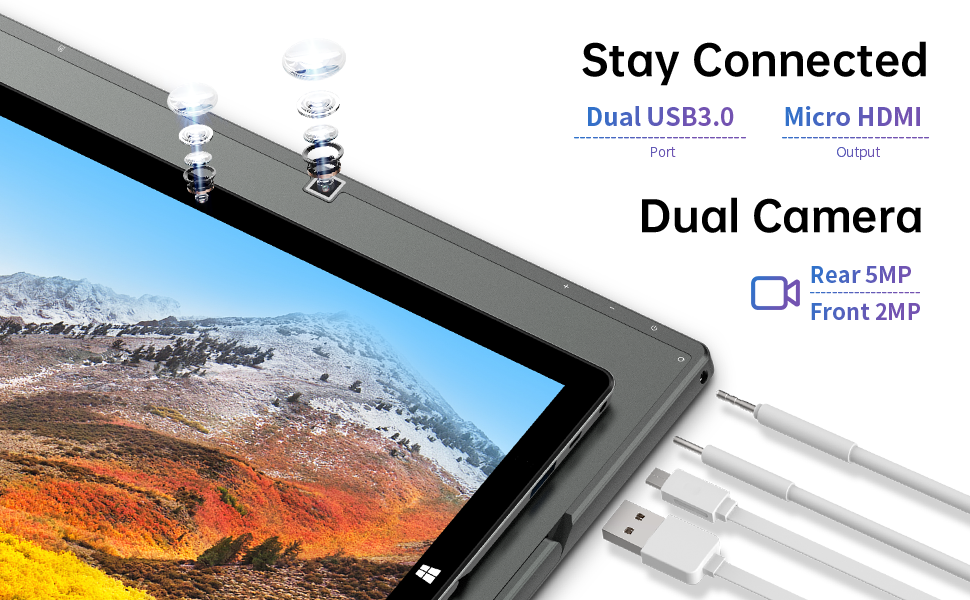
Resim: Yan view of the TECLAST X11 tablet highlighting the USB 3.0 port, Micro HDMI output, and front/rear cameras.

Resim: Ayrıntılı view of the TECLAST X11's side ports, including USB 3.0, Mini-HDMI, DC power input, and headphone jack.
4. Kurulum
4.1 İlk Şarj
Before first use, fully charge your TECLAST X11 tablet. Connect the provided power adapter to the DC port on the device and plug it into a power outlet. The charging indicator will illuminate.
4.2 Açma/Kapatma
- Açmak İçin: Ekran aydınlanana kadar Güç düğmesini basılı tutun.
- Kapatmak İçin: Press and hold the Power button, then select "Shut down" from the on-screen options. Alternatively, go to Start Menu > Power > Shut down.
- Uyku modu: Briefly press the Power button to put the device into sleep mode or wake it up.
4.3 Windows'un İlk Kurulumu
Upon first power-on, follow the on-screen instructions to complete the Windows 10 setup process. This includes selecting your region, language, connecting to a Wi-Fi network, and creating a user account.
5. Kullanım Talimatları
5.1 Modlar Arasında Geçiş
The TECLAST X11 is designed for flexibility, allowing you to switch between tablet and laptop modes.
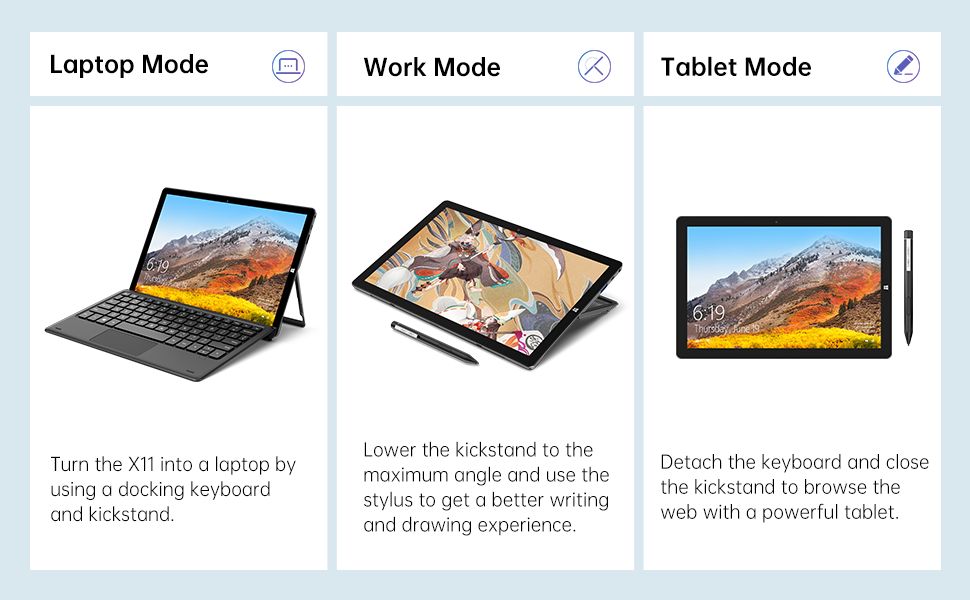
Image: The TECLAST X11 in laptop mode with the keyboard attached and kickstand deployed.
Dizüstü Bilgisayar Modu: Attach the magnetic docking keyboard and deploy the integrated kickstand. The device will automatically detect the keyboard and switch to laptop interface.

Image: A user holding the TECLAST X11 in tablet mode, interacting with the touchscreen.
Tablet Modu: Detach the keyboard. The device will automatically switch to tablet mode, optimizing the interface for touch input.

Resim: Arka view of the TECLAST X11 showing the adjustable kickstand extended.
Kickstand Kullanımı: The integrated U-shaped kickstand can be adjusted from 0° to 145° for comfortable viewing or typing angles.
5.2 Dokunmatik Ekranı Kullanma
The 10.1-inch IPS display supports 10-point multi-touch. Use standard touch gestures for navigation, zooming, and interaction with applications.
5.3 Harici Bağlantı
- USB 3.0: Connect external devices such as USB drives, mice, or printers.
- Mini-HDMI: Daha büyük bir ekran için harici bir monitöre veya televizyona bağlayın.
- Bluetooth 4.2: Pair with Bluetooth-enabled accessories like headphones or speakers.
- Wifi: Connect to wireless networks for internet access. Supports 2.4G and 5G bands.
5.4 Video Gösterimi
Video: An official TECLAST video demonstrating the features and versatility of the X11 Windows tablet with its detachable keyboard and various usage scenarios.
6. Bakım
6.1 Cihazın Temizlenmesi
- Ekranı ve dış yüzeyleri temizlemek için yumuşak, tüy bırakmayan bir bez kullanın.
- İnatçı izler için, hafifçe dampBezi su veya ekran için güvenli bir temizleme solüsyonuyla silin.
- Sert kimyasallar, aşındırıcı malzemeler ve aşırı nem kullanmaktan kaçının.
6.2 Pil Bakımı
- Pil ömrünü uzatmak için aşırı sıcaklıklardan kaçının.
- Cihazınızı uzun süre tam şarjlı veya tam deşarjlı bırakmayın.
- Sadece orijinal veya sertifikalı uyumlu şarj cihazını kullanın.
6.3 Yazılım Güncellemeleri
Regularly check for and install Windows updates to ensure optimal performance, security, and access to the latest features. Go to Start Menu > Settings > Update & Security > Windows Update.
7. Sorun Giderme
| Sorun | Olası Çözüm |
|---|---|
| Cihaz açılmıyor | Ensure the device is charged. Connect the power adapter and try again. If unresponsive, press and hold the Power button for 10-15 seconds to perform a hard reset. |
| Wi-Fi bağlantı sorunları | Check if Wi-Fi is enabled in Windows settings. Restart your router and the tablet. Ensure you are within range of the Wi-Fi signal. |
| Klavye yanıt vermiyor | Ensure the keyboard is securely attached to the magnetic docking port. Restart the tablet. Verify that the keyboard was purchased separately and is compatible. |
| Yavaş performans | Close unnecessary applications. Check for Windows updates. Ensure sufficient free storage space. Run a disk cleanup. |
| Screen rotation not working | Check if auto-rotate is enabled in Windows Action Center (swipe in from the right edge of the screen or click the icon in the taskbar). |
8. Özellikler
| Özellik | Detay |
|---|---|
| Model Adı | X11 2-in-1 Tablet |
| Ekran Boyutu | 10.1 inç |
| Ekran Çözünürlüğü | 1920 x 1200 piksel (FHD IPS) |
| İşlemci | Intel Gemini Lake Reflash N4020 (1.1GHz - 2.8GHz) |
| Veri deposu | 6 GB DDR4 SDRAM |
| Sabit Sürücü | 128 GB eMMC (expandable up to 256GB via TF card) |
| Grafik Kartı | Entegre Intel UHD Grafik 600 |
| İşletim Sistemi | Windows 10 Ev |
| Kablosuz Tip | Bluetooth 4.2, Dual-band WiFi (2.4G + 5G) |
| Arka Webkam Çözünürlüğü | 5 MP |
| Ön Webkam Çözünürlüğü | 2 MP |
| Limanlar | USB 3.0, Mini-HDMI, Headphone Jack, DC Port |
| Ürün Ağırlığı | 2.31 pound (yaklaşık 1.05 kg) |
| Piller | 1 Lityum Polimer pil (dahil) |
9. Garanti ve Destek
TECLAST şunları sağlar: 12 aylık garanti hizmeti for the X11 2-in-1 Laptop/Tablet. If you encounter any issues or have questions regarding your device, please contact TECLAST customer support. Refer to the contact information provided with your product packaging or visit the official TECLAST webDestek ayrıntıları için site.


