1. Giriş
This manual provides detailed instructions for the setup, operation, and maintenance of your CHERRY DW 9100 Slim Wireless Keyboard and Mouse Set. This rechargeable desktop set offers both 2.4 GHz wireless and Bluetooth connectivity, featuring a slim design and silent keystroke SX Scissor Mechanism for comfortable and efficient use in various environments.

Image 1.1: The CHERRY DW 9100 Slim Wireless Keyboard and Mouse Set, including the USB nano receiver.
2. Paket İçeriği
Lütfen kutuyu açtığınızda paket içeriğini kontrol ederek tüm bileşenlerin mevcut olduğundan emin olun:
- CHERRY DW 9100 Slim Wireless Keyboard
- CHERRY DW 9100 Slim Wireless Mouse
- USB Nano Alıcı
- USB-C Şarj Kablosu
- Kullanım Kılavuzu (bu belge)
3. Kurulum
3.1 Cihazların Şarj Edilmesi
Both the keyboard and mouse are equipped with rechargeable lithium batteries.
- Connect the supplied USB-C charging cable to the USB-C port on the keyboard and mouse.
- Kablo ucunu güç kaynağı bulunan bir USB portuna (örneğin, bilgisayar, USB duvar adaptörü) bağlayın.
- The status LED on each device will indicate the charging status. A full charge is indicated when the LED changes color or turns off (refer to Section 4.3 for LED indicators).
3.2 Connecting via 2.4 GHz Wireless
For a stable and fast wireless connection, use the included USB nano receiver.
- Locate the USB nano receiver.
- USB nano alıcıyı bilgisayarınızdaki kullanılabilir bir USB bağlantı noktasına takın.
- On both the keyboard and mouse, locate the connectivity switch. Set the switch to the 2.4 GHz position (often indicated by a receiver icon or "RF").
- The devices should automatically connect to your computer.
3.3 Bluetooth aracılığıyla bağlanma
The set supports Bluetooth connectivity for devices that have Bluetooth capabilities.
- On both the keyboard and mouse, locate the connectivity switch. Set the switch to the Bluetooth position (often indicated by a Bluetooth icon).
- On your computer or device, open the Bluetooth settings.
- Initiate the pairing process on your device. The keyboard and mouse should appear in the list of discoverable devices (e.g., "CHERRY DW 9100 Keyboard", "CHERRY DW 9100 Mouse").
- Select each device to pair them. Follow any on-screen prompts, such as entering a pairing code for the keyboard.
Not: The keyboard and mouse can be paired with multiple Bluetooth devices. Use the connectivity switch to toggle between paired devices or 2.4 GHz mode.
4. Kullanım Talimatları
4.1 Klavye İşlevleri
The CHERRY DW 9100 Slim Keyboard features a full-size layout with an SX Scissor Mechanism for silent and precise keystrokes.
- Standart Anahtarlar: Tüm standart alfanümerik ve sembol tuşları beklendiği gibi çalışmaktadır.
- Fonksiyon Tuşları (F1-F12): These keys may have secondary functions (e.g., media control, volume, brightness) accessible by pressing the Fn key simultaneously. Refer to your operating system's settings for specific function key behavior.
- Sayısal tuş takımı: Provides dedicated number entry.

Resim 4.1: Yan profile of the CHERRY DW 9100 Slim Keyboard, highlighting its thin design.

Image 4.2: Visual representation of the CHERRY SX Scissor Mechanism, responsible for silent and precise keystrokes.
4.2 Fare İşlevleri
The CHERRY DW 9100 Slim Mouse features 6 buttons and a scroll wheel for versatile navigation.
- Sol/Sağ Tıklama: Standart fare düğmeleri.
- Kaydırma tekerleği: Dikey kaydırma ve orta tıklama düğmesi olarak kullanılır.
- Yan Düğmeler: Genellikle ileri/geri gezinme için kullanılır web tarayıcılar.
- DPI Anahtarı: A button, usually near the scroll wheel, allows adjustment of the mouse's sensitivity (DPI - Dots Per Inch). Pressing this button cycles through different DPI settings, indicated by the mouse's status LED.

Resim 4.3: Üst view of the CHERRY DW 9100 Slim Mouse, showing the left/right click buttons, scroll wheel, and DPI switch.
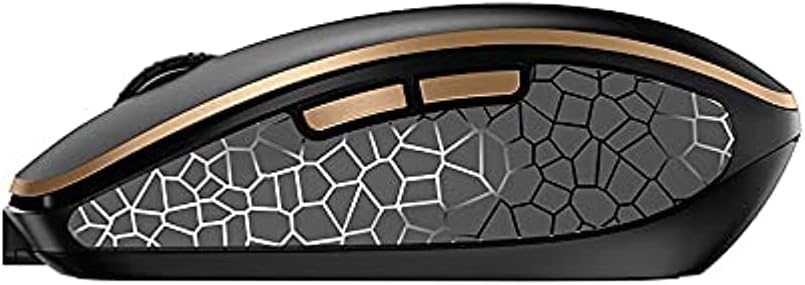
Resim 4.4: Yan view of the CHERRY DW 9100 Slim Mouse, illustrating the ergonomic design and side buttons.
4.3 Durum LED'leri
Both the keyboard and mouse feature status LEDs to provide information on battery level, charging status, and mouse resolution.
- Düşük Pil: The LED will flash or illuminate in a specific color (e.g., red) when the battery level is low, indicating that charging is required.
- Şarj: The LED will illuminate while charging and typically change color or turn off when fully charged.
- Mouse Resolution (DPI): When adjusting the DPI, the mouse LED may briefly flash to indicate the current setting.
5. Bakım
5.1 Temizlik
To maintain the performance and appearance of your devices:
- Temizlemeden önce cihazlarınızın bilgisayarınızla olan bağlantısını kesin.
- Yumuşak, tiftiksiz bir bez kullanın ve hafifçe kurulayın.ampsu veya hafif bir temizleme solüsyonu ile sonlandırıldı.
- Avoid using harsh chemicals, abrasive cleaners, or solvents, as these can damage the surfaces.
- Klavyede, tuşların arasında biriken toz ve kalıntıları temizlemek için basınçlı hava kullanın.
5.2 Pil Bakımı
The integrated lithium batteries are designed for long-term use.
- Recharge the devices when the low battery indicator appears.
- Avoid fully discharging the batteries frequently to prolong their lifespan.
- If storing the devices for an extended period, charge them to approximately 50% before storage.
6. Sorun Giderme
If you encounter issues with your CHERRY DW 9100 Slim set, refer to the following common solutions:
6.1 Bağlantı Sorunları
- No Connection (2.4 GHz):
- Ensure the USB nano receiver is securely plugged into a working USB port.
- Verify the keyboard and mouse connectivity switches are set to the 2.4 GHz konum.
- Alıcıyı farklı bir USB portuna takmayı deneyin.
- Ensure the devices are sufficiently charged.
- Bağlantı Yok (Bluetooth):
- Ensure the keyboard and mouse connectivity switches are set to the Bluetooth konum.
- Confirm Bluetooth is enabled on your computer/device.
- Remove previous pairings from your device's Bluetooth settings and attempt to re-pair.
- Ensure the devices are sufficiently charged.
6.2 Güç ve Şarj Sorunları
- Şarj Olmayan Cihazlar:
- Check that the USB-C charging cable is properly connected to both the device and the power source.
- Try a different USB-C cable or a different USB power source.
- Güç kaynağının aktif olduğundan emin olun.
- Kısa Pil Ömrü:
- Ensure devices are fully charged before use.
- Battery life can vary based on usage patterns.
6.3 Mouse Tracking Issues
- Inaccurate or No Tracking:
- Ensure the mouse sensor is clean and free of debris.
- Use the mouse on a suitable surface (e.g., mouse pad). Highly reflective or transparent surfaces may cause issues.
- Adjust the DPI setting using the DPI switch on the mouse.
7. Özellikler
| Özellik | Detay |
|---|---|
| Model Numarası | JD-9100US-2 |
| Ürün Boyutları | 17.32 x 5.12 x 0.59 inç |
| Ürün Ağırlığı | 2.35 pound |
| Piller | Rechargeable Lithium (USB-C) |
| Bağlantı Teknolojisi | Bluetooth, 2.4 GHz Radio Frequency (USB) |
| Özel Özellik | Rechargeable, Silent Keystroke (SX Scissor Mechanism) |
| Uyumlu Cihazlar | Kişisel Bilgisayar |
| Üretici | KİRAZ |
Note on Batteries: The product description indicates USB-C rechargeable lithium batteries. The specification "1 AA batteries required. (included)" in the source data appears to be a discrepancy. Please rely on the USB-C rechargeable feature for this model.
8. Garanti ve Destek
CHERRY products are manufactured to high-quality standards. For detailed warranty information, including terms and conditions, please refer to the official CHERRY webSiteyi veya ürününüzle birlikte gelen garanti belgesini inceleyin.
For technical support, troubleshooting assistance beyond this manual, or to inquire about replacement parts, please visit the official CHERRY support portal or contact their customer service directly.
- Official CHERRY Webalan: www.cherry.de/en/ (veya bölgesel eşdeğeri)
- Müşteri Desteği: Şuna bakın: webiletişim bilgileri için site.