1. Giriş
The PWAY PW-DT252K is an HDMI KVM Extender designed to transmit HDMI video and audio signals, along with USB keyboard and mouse signals, over a single Cat5e/6/7 network cable. It supports resolutions up to 1080P@60Hz and extends signals up to 150 meters. This device features a local loop-out on the transmitter unit and supports TCP/IP for one-to-many distribution via an Ethernet switch. This manual provides detailed instructions for the proper installation, operation, and maintenance of your PW-DT252K extender.

Image 1.1: PWAY PW-DT252K HDMI KVM Extender Transmitter and Receiver Units
2. Paket İçeriği
Please verify that all items listed below are included in your package. If any items are missing or damaged, please contact your vendor for assistance.
- 1x PW-DT252K HDMI KVM Extender Set (1 Transmitter, 1 Receiver)
- 1x Kullanım Kılavuzu
- 1x USB-A to USB Cable
- 2 adet Güç Adaptörü (DC 5V)

Image 2.1: Package Contents of the PW-DT252K
3. Özellikler
The PWAY PW-DT252K HDMI KVM Extender offers the following key features:
- Uzatılmış İletim: Transmits HDMI and KVM signals up to 150 meters (492 feet) over a single Cat5e/6/7 cable.
- Yüksek Çözünürlük Desteği: Supports video resolutions up to 1920x1080@60Hz, compatible with 1080i/720P/720i/480P/480i.
- KVM İşlevselliği: Enables remote control of a source device using a USB keyboard and mouse connected to the receiver unit.
- Local Loop-Out: The transmitter unit includes an HDMI output port for connecting a local display, allowing for simultaneous monitoring of the source signal.
- TCP/IP Protocol Support: Utilizes standard TCP/IP protocol, allowing for one-to-many distribution when used with an Ethernet switch.
- Tak ve Çalıştır: No driver installation required for most operating systems, supporting Windows, Mac OS, and Linux.

Image 3.1: Support for 1080P@60Hz Resolution

Image 3.2: Extended Transmission Distance
4. Özellikler
| Parametre | Değer |
|---|---|
| Model Numarası | PW-DT252K |
| HDMI Sürümü | HDMI1.3 |
| HDCP Sürümü | HDCP1.2 |
| Desteklenen Çözünürlükler | 1080p/1080i/720p/720i/480p/480i @60Hz |
| Maksimum İletim Mesafesi | Cat5: 100m, Cat5e: 120m, Cat6/7: 150m |
| Ağ Kablosu Gereksinimi | UTP/STP Cat5e/6/7 |
| USB Arayüzü | USB 2.0 (for keyboard and mouse) |
| Güç Kaynağı | DC 5V/1A |
| Çalışma Sıcaklığı | 0°C ila 60°C |
| Depolama Sıcaklığı | -10°C ila 70°C |
| Boyutlar (her birim için) | Yaklaşık. 10.5 x 8.5 x 2.5 cm |
| Malzeme | Plastik |
5. Ürün Bittiview ve Limanlar
Familiarize yourself with the ports and indicators on both the Transmitter (TX) and Receiver (RX) units.

Image 5.1: Transmitter and Receiver Port Layout
5.1 Verici (TX) Ünitesi
- HDMI GİRİŞİ: Connects to the HDMI source device (e.g., PC, DVR).
- HDMI OUT (Loop-Out): Connects to a local HDMI display for monitoring.
- UTP (RJ45): Connects to the Receiver unit via Cat5e/6/7 cable.
- DC 5V: Güç girişi bağlantı noktası.
- USB-A: Connects to the USB port of the source device for KVM functionality.
- Güç LED'i: Güç göstergesi.
- STA LED: Durum göstergesi.
- Yeniden başlatma tuşu: Cihazı sıfırlar.
5.2 Alıcı (RX) Ünitesi
- HDMI ÇIKIŞI: Connects to the remote HDMI display.
- UTP (RJ45): Connects to the Transmitter unit via Cat5e/6/7 cable.
- DC 5V: Güç girişi bağlantı noktası.
- USB (2x USB-A): Connects to USB keyboard and mouse.
- Güç LED'i: Güç göstergesi.
- STA LED: Durum göstergesi.
- Yeniden başlatma tuşu: Cihazı sıfırlar.
6. Kurulum Talimatları
Follow these steps to properly set up your PWAY PW-DT252K HDMI KVM Extender.
6.1 Basic Connection (Point-to-Point)
- Connect your HDMI source device (e.g., computer, DVR) to the HDMI IN HDMI kablosu kullanarak Verici (TX) ünitesinin portuna.
- Connect the provided USB-A to USB cable from the USB port of your source device to the USB-A port on the TX unit.
- (İsteğe bağlı) Connect a local HDMI display to the HDMI OUT (Loop-Out) port of the TX unit using an HDMI cable.
- Bağlan UTP (RJ45) TX ünitesinin bağlantı noktası UTP (RJ45) port of the Receiver (RX) unit using a single Cat5e/6/7 network cable. Ensure the cable length does not exceed 150 meters.
- Connect your remote HDMI display to the HDMI ÇIKIŞI port of the RX unit using an HDMI cable.
- USB klavyenizi ve farenizi bağlayın. USB ports on the RX unit.
- Birlikte verilen iki adet 5V DC güç adaptörünü bağlayın. Doğru Akım 5V ports on both the TX and RX units, then plug them into power outlets.
- Power on all connected devices. The PWR and STA LEDs on both units should illuminate, indicating a successful connection.
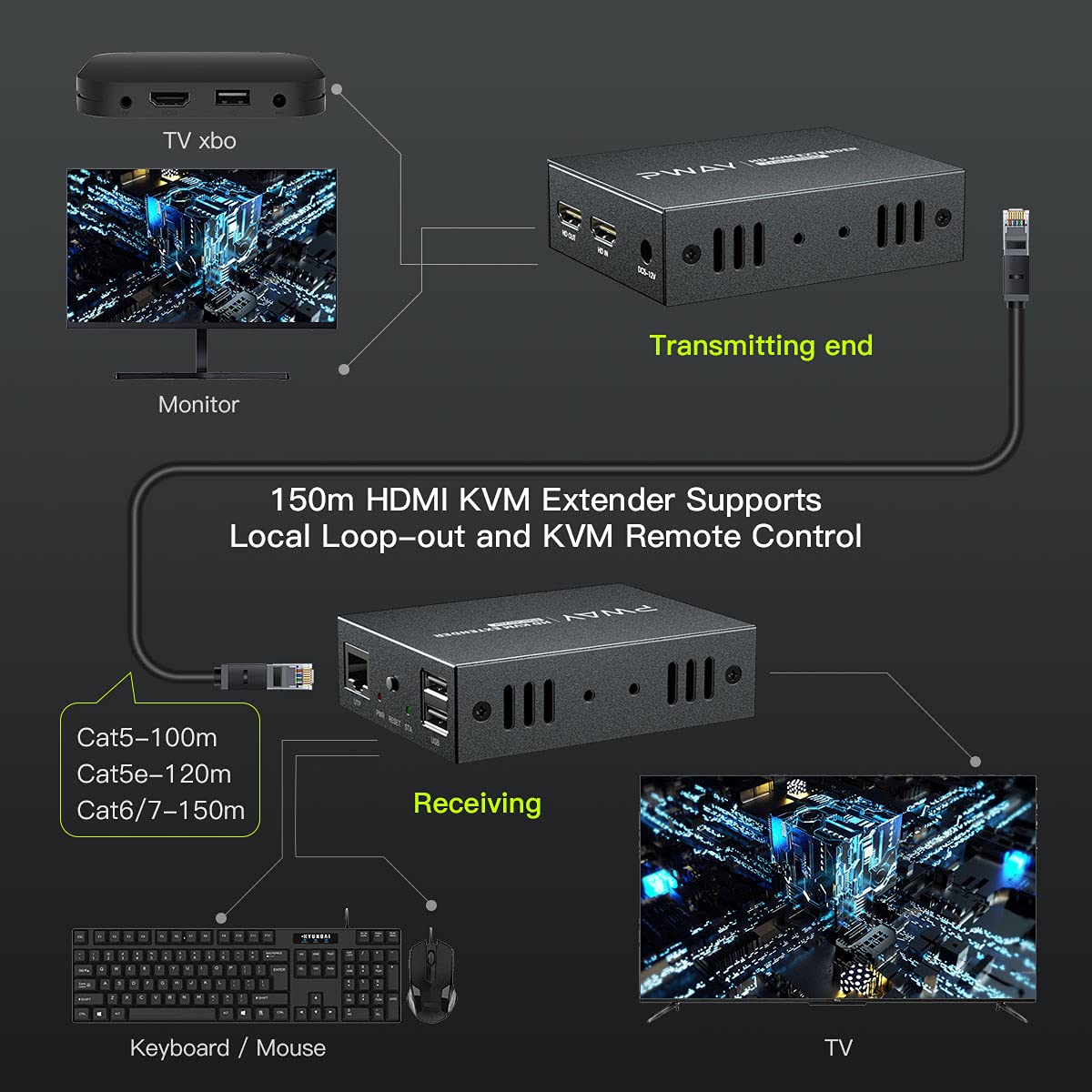
Image 6.1: Basic Point-to-Point Connection Diagram
6.2 Network Connection (One-to-Many via TCP/IP)
For distributing the HDMI and KVM signals to multiple remote displays, an Ethernet switch can be used.
- HDMI kaynak cihazınızı HDMI IN port of the Transmitter (TX) unit.
- Connect the USB-A to USB cable from your source device to the USB-A port on the TX unit.
- Bağlan UTP (RJ45) port of the TX unit to an available port on your Ethernet switch using a Cat5e/6/7 network cable.
- Connect each Receiver (RX) unit's UTP (RJ45) port to an available port on the same Ethernet switch using Cat5e/6/7 network cables.
- Connect each remote HDMI display to the HDMI ÇIKIŞI port of its respective RX unit.
- Connect USB keyboards and mice to the USB ports on each RX unit.
- Connect the DC 5V power adapters to all TX and RX units, then plug them into power outlets.
- Power on all connected devices. The system will automatically establish connections.

Image 6.2: One Transmitter to Multiple Receivers Distribution Function
7. Kullanım Talimatları
7.1 KVM İşlevselliği
Once the setup is complete, the USB keyboard and mouse connected to the Receiver (RX) unit will control the source device connected to the Transmitter (TX) unit. This allows for remote operation of your computer or other KVM-compatible devices.

Image 7.1: KVM Remote Control Setup
7.2 Local Loop-Out
The HDMI OUT port on the Transmitter (TX) unit provides a local loop-out. This means you can connect a monitor directly to the TX unit to view the source signal simultaneously with the remote display(s). This is useful for local monitoring or for situations where a local display is also required.

Image 7.2: Local Loop-Out Functionality
7.3 Desteklenen İşletim Sistemleri
The PW-DT252K extender is designed for broad compatibility and supports various operating systems without requiring special drivers.
- Windows (7, 8, 10, etc.)
- Mac işletim sistemi
- Linux

Image 7.3: Operating System Compatibility
8. Bakım
To ensure the longevity and optimal performance of your PW-DT252K extender, please follow these maintenance guidelines:
- Temizlik: Use a soft, dry cloth to clean the exterior of the units. Avoid using liquid or aerosol cleaners, as they may damage the device.
- Havalandırma: Ensure that the units are placed in a well-ventilated area to prevent overheating. Do not block any ventilation openings.
- Depolamak: Uzun süre kullanılmadığı zamanlarda, cihazları serin, kuru ve doğrudan güneş ışığından ve aşırı sıcaklıklardan uzak bir yerde saklayın.
- Kablo yönetimi: Keep all cables neatly organized and avoid sharp bends or excessive tension, which can damage the cables or ports.
- Güç Kaynağı: Only use the provided power adapters. Using unauthorized power adapters may damage the device and void the warranty.
9. Sorun Giderme
If you encounter issues with your PW-DT252K extender, please refer to the following common problems and solutions:
- Video Çıkışı Yok:
- Ensure all HDMI and network cables are securely connected.
- Verify that both the Transmitter and Receiver units are powered on and their PWR LEDs are illuminated.
- Check the resolution settings of your source device. Ensure it is compatible with the extender (up to 1080P@60Hz).
- Try a different HDMI cable or network cable to rule out cable issues.
- Bypass the extender by connecting the source directly to the display to confirm the source and display are functioning correctly.
- KVM (Keyboard/Mouse) Not Responding:
- Ensure the USB-A to USB cable is connected from the source device to the TX unit.
- Verify that the keyboard and mouse are properly connected to the USB ports on the RX unit.
- Try connecting the keyboard and mouse directly to the source device to confirm they are working.
- Some specialized gaming keyboards/mice or those requiring specific drivers may have compatibility issues. Try a standard keyboard/mouse.
- If the mouse intermittently stops working, try disconnecting and reconnecting the power to the RX unit, or the USB cable to the TX unit.
- Intermittent Signal / Poor Picture Quality:
- Check the quality and length of your network cable. Cat6/7 is recommended for longer distances. Ensure it is a straight-through cable (T568B standard).
- Ensure the network cable is not running near sources of strong electromagnetic interference.
- Verify that the power adapters are providing stable power to both units.
- One-to-Many Setup Issues:
- Ensure your Ethernet switch is a standard unmanaged or managed switch that supports TCP/IP.
- Check that all RX units are connected to the same network segment as the TX unit.
- Ensure the network cables connecting to the switch are functioning correctly.
If the problem persists after trying these solutions, please contact PWAY customer support for further assistance.
10. Önemli Güvenlik Bilgileri
Please read and follow these safety instructions to prevent damage to the device and ensure your safety:
- Do not expose the device to water, moisture, or excessive humidity.
- Do not place the device near heat sources such as radiators, heat registers, stoves, or other heat-producing appliances.
- Yalnızca cihazla birlikte verilen güç adaptörlerini kullanın.
- Cihazı açmaya veya üzerinde değişiklik yapmaya çalışmayın. İçinde kullanıcı tarafından onarılabilecek hiçbir parça bulunmamaktadır.
- Cihazı çocuklardan uzak tutunuz.
- Disconnect the power adapters during lightning storms or when unused for long periods.


