1. Giriş
The ALOGIC DX2 Dual 4K Display Universal Docking Station is designed to expand the connectivity of your laptop, providing a wide array of ports for peripherals, external displays, and power delivery. This manual provides detailed instructions for setting up, operating, and maintaining your docking station, ensuring optimal performance and compatibility with both Mac and Windows systems.

Image: The ALOGIC DX2 Dual 4K Display Universal Docking Station, showcasing its sleek design and various ports from both front and rear perspectives.
2. Paket İçeriği
Lütfen aşağıda listelenen tüm öğelerin paketinizde yer aldığından emin olun:
- DX2 Docking Station
- 1 x USB-C Cable with USB-A Adapter for Connection to Computer
- 1 x 100W AC Güç Adaptörü
- 1 x ABD Güç Kablosu
- 1 x UK Power Cord
- 1 x AB Güç Kablosu
- 1 x AU Power Cord
- 1 x Kullanım Kılavuzu

Image: All components included in the ALOGIC DX2 Docking Station package, neatly arranged.
3. Ürün Özellikleri ve Bağlantı Noktası Düzeni
The DX2 docking station offers comprehensive connectivity:
- Dual DisplayPort (DP1.4/DP++): Connect two external displays for up to 4K@60Hz resolution.
- USB-C 3.1 Gen 2 (10G) with BC 1.2 & Apple Charging Support: High-speed data transfer and fast charging for compatible devices.
- USB-A 3.1 Gen 1 (5G) with BC 1.2 & Apple Charging Support: High-speed data transfer and charging.
- 2 x USB-A 3.1 Gen 1 (5G): Additional ports for USB peripherals.
- 3.5mm TRRS Audio / Microphone Jack: For headphones or headsets.
- RJ45 Ethernet 1Gbps: Stable wired network connection.
- 65W Laptop Charging: Power delivery to your connected laptop.
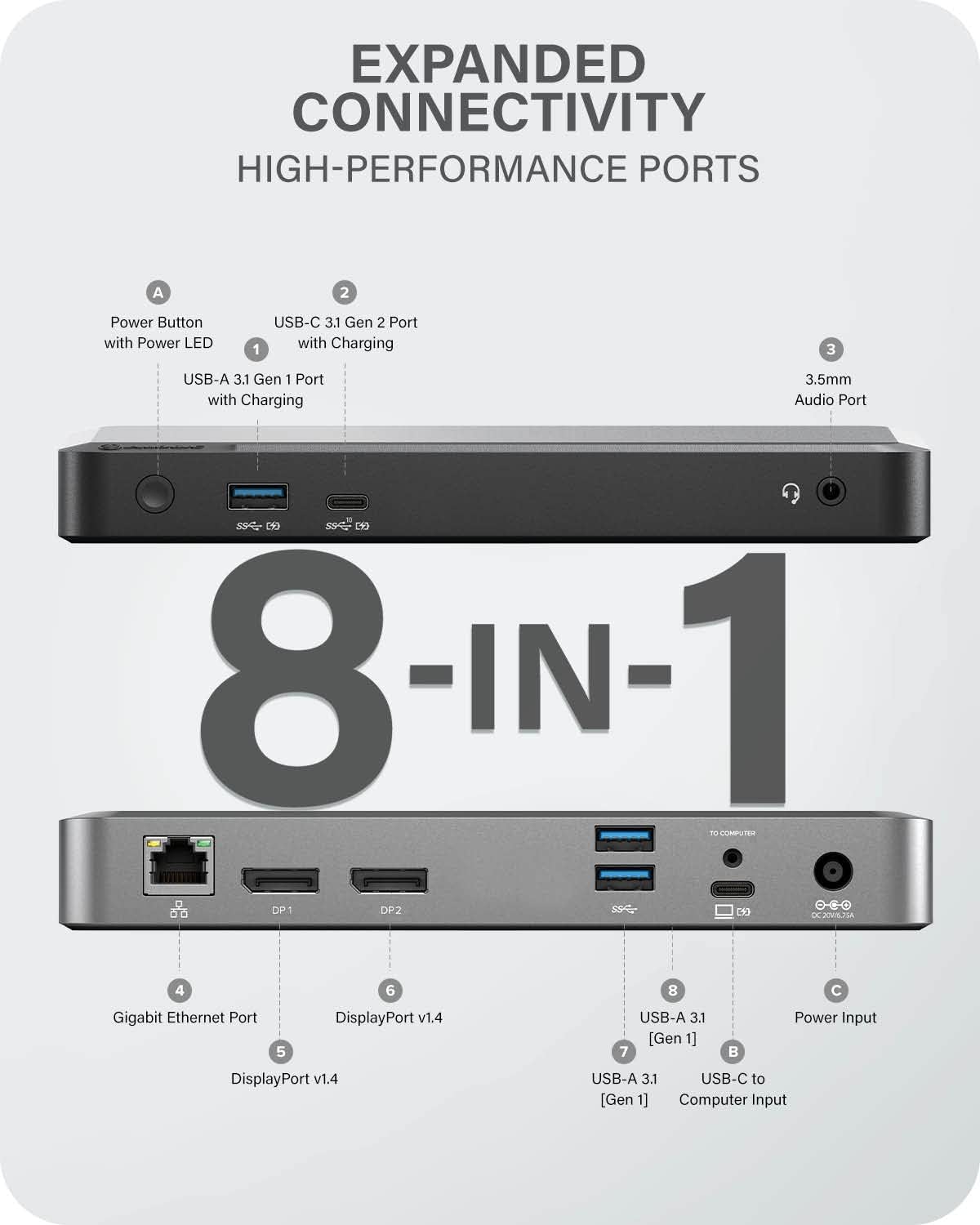
Image: A clear diagram illustrating the location and function of each port on the ALOGIC DX2 Docking Station.
4. Kurulum Talimatları
Follow these steps to set up your ALOGIC DX2 Docking Station:
- Gücü Bağlayın: Plug the provided 100W AC power adapter into the 'DC IN' port on the back of the docking station, then connect it to a wall outlet using the appropriate power cord for your region.
- Dizüstü Bilgisayara Bağlan: Use the included USB-C cable (with the attached USB-A adapter if your laptop only has USB-A ports) to connect the docking station to your laptop's USB-C or USB-A port.
- Connect Displays: Connect your external monitors to the DisplayPort (DP1 and DP2) outputs on the back of the docking station using DisplayPort cables. The docking station supports up to two 4K@60Hz displays.
- Çevre Birimlerini Bağlayın: Plug in your USB devices (keyboard, mouse, external drives) into the available USB-A and USB-C ports. Connect your Ethernet cable to the RJ45 port for a wired network connection.
- Sesi Bağlayın: If desired, connect headphones or a headset to the 3.5mm audio jack on the front of the docking station.

Image: A laptop connected to the docking station, illustrating the power delivery capability of up to 65W.

Image: USB flash drives connected to the docking station, demonstrating high-speed data transfer capabilities up to 10 Gbps.
5. Operasyon
5.1 Ekran Yapılandırması
The DX2 docking station supports dual 4K@60Hz external displays. Once connected, your operating system should automatically detect the displays. You can configure display settings (e.g., extend, mirror) through your computer's display settings:
- Pencereler: Right-click on the desktop, select 'Display settings'.
- macOS: Go to System Settings > Displays.
The docking station supports both mirrored and extended display modes for both USB-C and USB-A inputs.

Image: Visual representation of various multi-monitor configurations, including mirrored and extended modes for both USB-C and USB-A laptop inputs.
5.2 Güç Dağıtımı
The docking station provides up to 65W of power delivery to your connected laptop via the host connection. This allows for simultaneous charging of your laptop while using the dock's expanded connectivity. Note that power delivery is only active when connected via USB-C. If using the USB-A adapter, your laptop will require its own power supply.
5.3 Veri Aktarımı
Utilize the USB-C 3.1 Gen 2 (10Gbps) and USB-A 3.1 Gen 1 (5Gbps) ports for high-speed data transfer with external storage devices, ensuring quick file transfers and efficient workflow.
5.4 Audio and Ethernet
The 3.5mm TRRS audio jack supports both audio output and microphone input, ideal for video conferencing or multimedia. The Gigabit Ethernet port provides a stable and fast wired internet connection, which is often more reliable than Wi-Fi.
6. Uyumluluk
The ALOGIC DX2 Docking Station is universally compatible with a wide range of operating systems and devices:
- İşletim Sistemleri: Mac (Apple), iPad OS (Apple), Windows (Microsoft), Chrome OS (Google).
- Ana Bilgisayar Bağlantısı: The included universal host cable with a USB-C to USB-A adapter ensures compatibility with both USB-C and traditional USB-A laptops.

Image: The ALOGIC DX2 Docking Station demonstrating universal compatibility with Windows, Mac, and Chromebook computers.

Image: An M1 Mac laptop connected to dual external displays through the ALOGIC DX2 Docking Station, highlighting its dual display capability for M1 Macs.
7. Bakım
Bağlantı istasyonunuzun uzun ömürlü ve optimum performans göstermesi için aşağıdaki bakım yönergelerini izleyin:
- Temizlik: Use a soft, dry, lint-free cloth to clean the exterior of the docking station. Avoid using liquid cleaners or aerosols.
- Depolamak: Store the docking station in a cool, dry place away from direct sunlight and extreme temperatures.
- Elleçleme: Avoid dropping the device or subjecting it to strong impacts. Do not attempt to disassemble the unit.
- Havalandırma: Ensure the docking station has adequate ventilation to prevent overheating. Do not block any ventilation openings.
8. Sorun Giderme
If you encounter issues with your ALOGIC DX2 Docking Station, refer to the following common solutions:
- Ekran Çıkışı Yok:
- Ensure the docking station is powered on and the power LED is illuminated.
- Verify that the host cable is securely connected to both the docking station and your laptop.
- Check that display cables are firmly connected to both the docking station and the monitors.
- Try restarting your laptop and the docking station (unplug and replug power).
- For macOS users, ensure DisplayLink drivers are installed and screen recording permissions are granted if required by your macOS version.
- Dizüstü Bilgisayar Şarj Olmuyor:
- Confirm your laptop is connected via the USB-C host port. Power delivery is not supported when connected via USB-A.
- Ensure the docking station's power adapter is correctly connected and receiving power.
- Dizüstü bilgisayarınızın USB-C Güç Dağıtımını desteklediğini doğrulayın.
- Tanınmayan USB Cihazları:
- USB cihazını yerleştirme istasyonundaki farklı bir bağlantı noktasına bağlamayı deneyin.
- Connect the USB device directly to your laptop to confirm it is functional.
- Bağlantı istasyonunun dizüstü bilgisayarınıza doğru şekilde bağlı olduğundan emin olun.
- Ethernet Bağlantı Sorunları:
- Check the Ethernet cable connection at both the docking station and your router/modem.
- Bilgisayarınızdaki ağ ayarlarını doğrulayın.
9. Teknik Özellikler
| Özellik | Şartname |
|---|---|
| Marka | Mantıksız |
| Model Numarası | DX2 |
| Donanım Platformu | Google Chromebook, Notebook |
| İşletim Sistemi Uyumluluğu | Mac (Apple), iPad OS (Apple), Windows (Microsoft), Chrome OS (Google) |
| Ürün Ağırlığı | 1.18 pound (535 Gram) |
| Ürün Boyutları | 10.5 x 6 x 3.5 inç (3.54"U x 7.48"G x 0.26"Y) |
| Renk | Space grey and Black |
| Donanım Arayüzü | DisplayPort, Ethernet, USB Docking Station, USB Type C |
| Toplam USB Bağlantı Noktaları | 5 |
| Port Sayısı | 11 (functional ports) |
| Netage (Güç Dağıtımı) | 65W |
| Görüntü Çıktısı | Dual 4K@60Hz via DisplayPort |
| USB-C Veri Bağlantı Noktası | 1 x USB-C 3.1 Gen 2 (10G) with BC 1.2 & Apple Charging Support |
| USB-A Veri Bağlantı Noktaları | 1 x USB-A 3.1 Gen 1 (5G) with BC 1.2 & Apple Charging Support, 2 x USB-A 3.1 Gen 1 (5G) |
| ses Limanı | 1 x 3.5mm TRRS Audio / Microphone Jack |
| Ethernet Bağlantı Noktası | 1 x RJ45 Ethernet 1Gbps |
10. Garanti ve Destek
ALOGIC provides a 2 yıllık garanti for the DX2 Dual 4K Display Universal Docking Station. This warranty covers defects in materials and workmanship under normal use. For technical support or warranty claims, please contact ALOGIC customer service. ALOGIC is committed to providing quick responses to product issues.
For more information and support resources, visit the official ALOGIC store: ALOGIC Store on Amazon.


