1. Giriş
Retro-Bit Prism HDMI Adaptörü, GameCube oyun deneyiminizi modern ekranlarda geliştirmek için tasarlanmıştır. Bu adaptör, GameCube'ün dijital AV çıkışını HDMI sinyaline dönüştürerek 1080P çözünürlüğe kadar destekler. Özellikle, özel bir Dijital AV Çıkış portuna sahip GameCube Model DOL-001 ile uyumludur.

Resim 1.1: Retro-Bit Prism HDMI Adaptörü, uzaktan kumandası ve ürün ambalajı.
2. Ürün Bittiview
2.1 Temel Özellikler
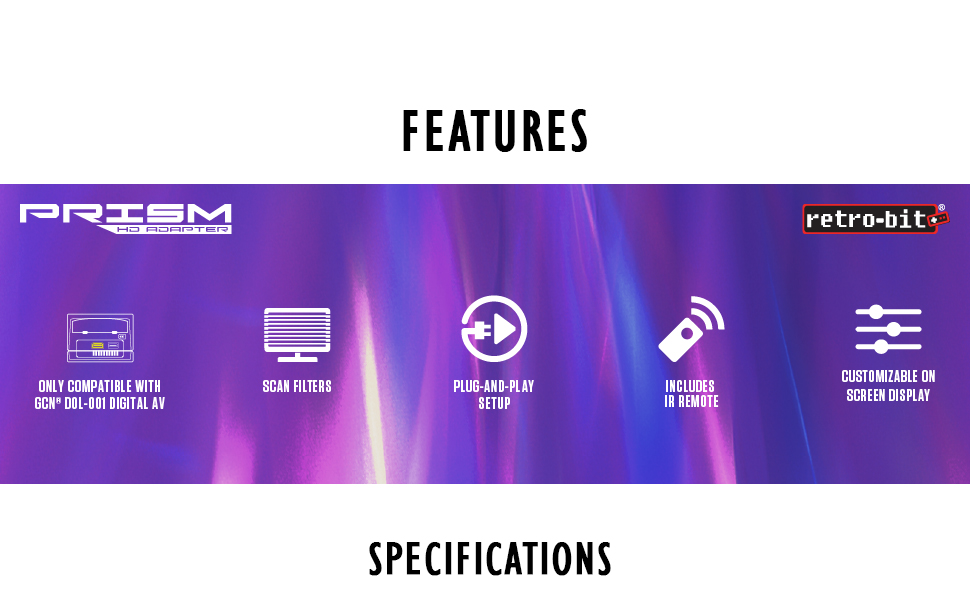
- GameCube Uyumluluğu: Sadece GameCube DOL-001 modeli için özel olarak tasarlanmıştır.
- HDMI Çıkışı: Modern ekranlar için dijital video ve ses sinyali sağlar.
- Özelleştirilebilir Ekran Üzeri Görüntü (OSD): Birlikte verilen kızılötesi uzaktan kumandayı kullanarak video ayarlarını yapın.
- Donanım Yazılımı Güncellemeleri: USB-C veri bağlantı noktası, ürün yazılımı güncellemelerini kolaylaştırır.
- Tarama Filtreleri: Ekran özelleştirmesi için çeşitli tarama filtresi seçenekleri içerir.
- Tak ve Çalıştır Kurulumu: Hemen kullanıma hazır, basit kurulum.
2.2 Bileşenler

Resim 2.1: Adaptör üzerindeki Dijital AV Çıkış konektörünü, USB-C veri portunu, HDMI çıkış portunu ve Evrensel Uzaktan Kumanda Senkronizasyon Düğmesini ve birlikte verilen IR uzaktan kumandayı gösteren şema.
- Dijital AV Çıkış Konektörü: Bu konektör, GameCube DOL-001 modelinizin arkasındaki Dijital AV Çıkış portuna takılır.

Resim 2.2: Dijital AV Çıkış Konektörü.
- HDMI Çıkış Portu: HDMI kablosu (dahil değildir) aracılığıyla ekranınıza bağlanır.

Resim 2.3: HDMI Çıkış Portu.
- USB-C Veri Bağlantı Noktası: Ürün yazılımı güncellemelerini yüklemek için kullanılır.

Resim 2.4: USB-C Veri Bağlantı Noktası.
- IR Uzaktan Kumanda: Ekrandaki menüde gezinmek ve ayarları düzenlemek için.

Resim 2.5: Kızılötesi Uzaktan Kumanda.
3. Kurulum Talimatları
Retro-Bit Prism HDMI Adaptörünüzü GameCube'ünüze ve ekranınıza bağlamak için şu adımları izleyin:
- GameCube modelini doğrulayın: GameCube'ünüzün DOL-001 modeli olduğundan emin olun. Bu modelin arkasında analog AV portunun yanında bir de dijital AV çıkış portu bulunur. Bu adaptör, bu dijital porta sahip olmayan daha yeni GameCube modelleriyle (DOL-101) uyumlu değildir.
- Bağdaştırıcıyı Bağlayın: Prism HDMI adaptörünün dijital AV çıkış konektörünü GameCube'ünüzdeki dijital AV çıkış portuna dikkatlice takın.
- HDMI Kablosunu Bağlayın: HDMI kablosunun (dahil değildir) bir ucunu Prism adaptörünün HDMI Çıkış Portuna, diğer ucunu ise televizyonunuzun veya monitörünüzün kullanılabilir bir HDMI girişine takın.
- Güç Açık: GameCube konsolunuzu ve ekranınızı açın. Ekranınızda doğru HDMI girişini seçin.

Resim 3.1: Tak ve Çalıştır Kurulum şeması. Adaptör, GameCube'ün dijital AV portuna bağlanır ve bir HDMI kablosu adaptörü ekrana bağlar.
Önemli Not:
Adaptör, GameCube'ün arka tarafından dışarı doğru uzanır. GameCube'ün Dijital AV Çıkış portuna gelebilecek olası gerilimi veya hasarı önlemek için, adaptör ve bağlı HDMI kablosu için destek sağlanması önerilir. Bu, küçük bir destek veya özel yapım bir braket kullanılarak gerçekleştirilebilir.
4. Kullanım Talimatları
4.1 Ekran Üzeri Görüntüleme (OSD) ve Uzaktan Kumanda
Birlikte verilen kızılötesi uzaktan kumanda, adaptörün Ekran Üzeri Menüsüne (OSD) erişmenizi ve video ayarlarını özelleştirmenizi sağlar. Gezinmek için yön tuşlarını, seçenekleri seçmek için ise 'A' düğmesini (MENÜ/TAMAM) kullanın. 'B' düğmesi (ÇIKIŞ) geri dönmek veya OSD'den çıkmak için kullanılır.
Mevcut ayarlar şunları içerebilir:
- Tarama filtreleri (örneğin, tarama çizgileri)
- En boy oranı ayarlamaları (örneğin, 4:3, 16:9)
- Parlaklık, kontrast ve renk ayarları
4.2 Aşamalı Tarama Etkinleştiriliyor (480p)
Uyumlu GameCube oyunlarında mümkün olan en yüksek görüntü kalitesini (480p aşamalı tarama) elde etmek için aşağıdaki tuşa basılı tutmanız gerekir: B düğmesi Bir oyunu başlatırken GameCube kumandanızda bu seçeneği işaretleyin. Oyun 480p'yi destekliyorsa, etkinleştirmeniz istenecektir. Aşamalı taramayı etkinleştirmek için 'Evet'i seçin.
Resim 4.1: HD 480p ve Aşamalı Tarama özelliğinin kullanılmasıyla elde edilen gelişmiş netlik ve ayrıntıyı, standart AV 480i Kompozit Video ile karşılaştıran görsel bir karşılaştırma.
5. Bakım
5.1 Firmware Güncellemesi
Retro-Bit Prism HDMI Adaptörü, ürün yazılımı güncellemeleri için bir USB-C veri bağlantı noktasına sahiptir. Resmi Retro-Bit web sitesini düzenli olarak kontrol edin. webMevcut ürün yazılımı güncellemeleri için siteyi ziyaret edin. Bu güncellemeler performans iyileştirmeleri, hata düzeltmeleri ve ek özellikler sağlayabilir. Retro-Bit sitesinde verilen talimatları izleyin. webBelirli güncelleme işlemi için site.
6. Sorun Giderme
- Ekranda resim yok:
- GameCube'ün DOL-001 modeli olduğundan emin olun.
- Adaptörün GameCube'ün Dijital AV Çıkış portuna tam olarak oturduğundan emin olun.
- HDMI kablosunun hem adaptöre hem de ekrana güvenli bir şekilde bağlı olduğundan emin olun.
- Ekranınızın doğru HDMI girişine ayarlı olduğundan emin olun.
- Harici sorunları elemek için farklı bir HDMI kablosu veya ekran deneyin.
- Resim Kalitesi Sorunları:
- Uyumlu oyunlarda Aşamalı Tarama (480p) özelliğinin etkinleştirildiğinden emin olmak için oyun başlatma sırasında B düğmesini basılı tutun.
- Kızılötesi uzaktan kumanda kullanarak OSD üzerinden ayarları yapın.
- Adaptör gevşek hissediliyor veya bağlantı noktasında gerilime neden oluyor:
- Kurulum bölümünde belirtildiği gibi, GameCube'ün Dijital AV Çıkış portuna binen yükü azaltmak için adaptör ve HDMI kablosu için fiziksel destek sağlayın.
7. Özellikler
| Özellik | Detay |
|---|---|
| Model Numarası | 849172013063 |
| Uyumluluk | Nintendo GameCube Model DOL-001 (Dijital AV Çıkış bağlantı noktası ile) |
| Çıktı | HDMI |
| Desteklenen Çözünürlük | 1080P'ye kadar (GameCube'ün yerel çıkışı, aşamalı tarama uyumlu oyunlar için 480p'dir) |
| Veri Bağlantı Noktası | USB-C (yazılım güncellemeleri için) |
| Boyutlar | 5.51 x 0.79 x 6.69 inç |
| Ağırlık | 1.44 ons |
| Üretici | Retro-Bit |
| Yayın tarihi | 26 Mart 2021 |
8. Garanti ve Destek
Retro-Bit Prism HDMI Adaptörünüzle ilgili garanti bilgileri, teknik destek veya daha fazla yardım için lütfen resmi Retro-Bit web sitesini ziyaret edin. webSiteyi ziyaret edin veya doğrudan müşteri hizmetleriyle iletişime geçin. Satın alma belgenizi garanti talepleriniz için saklayın.


