1. Giriş
This manual provides essential information for the safe and efficient operation of your iProda 2 in 1 Laptop, Model M1169YM. Please read this manual thoroughly before using the device and retain it for future reference. This convertible laptop features an 11.6-inch touchscreen, powered by an Intel N4100 processor, and runs on Windows 10 Pro.

Image: The iProda 2 in 1 Laptop can be used in multiple configurations, including traditional laptop, tent, stand, and tablet modes, showcasinçok yönlülüğü.
2. Güvenlik Bilgileri
Cihazınızın hasar görmesini veya kendinizin yaralanmasını önlemek için aşağıdaki güvenlik önlemlerine uyun:
- Cihazı aşırı sıcaklıklara, doğrudan güneş ışığına veya yüksek neme maruz bırakmayın.
- Cihazınızı düşürmekten veya sert darbelere maruz bırakmaktan kaçınınız.
- Use only the provided or approved power adapter for charging.
- Cihazınızı su ve diğer sıvılardan uzak tutunuz.
- Cihazı kendiniz sökmeye veya onarmaya çalışmayın. Yetkili servis personeline başvurun.
3. Paket İçeriği
Paketinizde tüm öğelerin mevcut olduğundan emin olun:
- iProda 2 in 1 Laptop (Model M1169YM)
- Güç Adaptörü
- Kullanım Kılavuzu (bu belge)
4. Ürün Bittiview
The iProda 2 in 1 Laptop is designed for versatility, offering multiple usage modes and essential connectivity options.
4.1. Temel Özellikler
- 11.6 inç IPS Dokunmatik Ekran: A responsive 10-point precision touchscreen with 1920x1080 resolution for interactive use.
- Dönüştürülebilir Tasarım: 360-degree hinge allows seamless transition between laptop, tablet, tent, and stand modes.
- Intel N4100 İşlemci: Provides efficient performance for daily tasks.
- Windows 10 Pro: Pre-installed operating system for productivity and security.
- Genişletilebilir Depolama: Supports M.2 2242 SSD for additional storage capacity.

Image: Key features of the iProda laptop, including its touchscreen, operating system, display specifications, and camera resolution.

Image: The laptop's 360-degree hinge allows it to convert into a tablet, enabling direct interaction via its precision touchscreen.
4.2. Bağlantı Noktaları ve Düğmeler
Familiarize yourself with the various ports and buttons on your laptop:
- C Tipi Bağlantı Noktası: Used for power supply and data transfer.
- Mikro HDMI: Harici ekranlara bağlanmak için.
- Mikro USB: USB cihazlarını bağlamak için.
- TF Kart Girişi: For expanding storage with a TF (MicroSD) card.
- Güç Düğmesi: Cihazı açıp/kapatmak veya uyku moduna almak için.
- Ses Düğmeleri: To adjust audio output.
- Kulaklık girişi: Kulaklık veya harici hoparlör bağlamak için.

Resim: Ayrıntılı view of the laptop's side panels, indicating the location and function of each port and button for easy identification.
5. Kurulum
5.1. Pilin Şarj Edilmesi
Before first use, fully charge the laptop's battery. Connect the provided power adapter to the Type-C port on the laptop and plug it into a power outlet. The charging indicator light will illuminate.
5.2. İlk Önyükleme ve Windows Kurulumu
- Press and hold the Power Button until the screen turns on.
- Follow the on-screen instructions to complete the Windows 10 Pro initial setup, including language selection, network connection, and user account creation.
6. Dizüstü Bilgisayarınızı Çalıştırma
6.1. Dokunmatik Ekranı Kullanma
The 10-point precision touchscreen allows for intuitive interaction with Windows 10 Pro. Use gestures such as tapping, swiping, pinching, and stretching to navigate, zoom, and interact with applications.
6.2. Klavye ve Dokunmatik Yüzey
The integrated keyboard and touchpad provide traditional input methods. The touchpad supports multi-touch gestures for scrolling, zooming, and switching applications.

Image: The laptop's full-size American keyboard and responsive touchpad, designed for comfortable typing and navigation.
6.3. Convertible Modes
The 360-degree hinge allows you to switch between various modes:
- Dizüstü Bilgisayar Modu: Yazma ve verimlilik için standart yapılandırma.
- Tablet Modu: Fold the screen back completely for a tablet experience, ideal for browsing or drawing.
- Çadır Modu: Position the laptop like a tent for media consumption or presentations.
- Stand Modu: Flip the keyboard face down to use the screen as a display, suitable for watching videos.

Image: The laptop configured in tent mode, demonstrating its flexibility for viewKlavyenin engel teşkil etmediği bir ortamda içerik oluşturma.
7. Depolama Genişletme
The laptop comes with 64GB eMMC storage. You can expand the storage capacity by installing an M.2 2242 SSD (128GB/256GB/512GB, not included).
7.1. Installing an M.2 2242 SSD
To install an M.2 2242 SSD:
- Power off the laptop and disconnect the power adapter.
- Carefully open the back cover of the laptop.
- Locate the M.2 slot.
- Insert the M.2 2242 SSD into the slot and secure it with the appropriate screw (if provided).
- Arka kapağı değiştirin.
- Upon booting, you may need to initialize and format the new SSD through Windows Disk Management.
Note: If you are unsure about this procedure, it is recommended to seek professional assistance.

Image: Visual representation of the M.2 SSD slot, illustrating how additional storage can be integrated into the laptop.
8. Bağlantı
8.1. Wi-Fi Bağlantısı
The laptop supports dual-frequency 2.4GHz/5GHz Wi-Fi. To connect to a wireless network:
- Sistem tepsisindeki Wi-Fi simgesine tıklayın.
- İstediğiniz ağı listeden seçin.
- İstenirse ağ şifresini girin ve 'Bağlan'ı tıklayın.
8.2. External Display (Micro HDMI)
Connect an external monitor or TV using a Micro HDMI to HDMI cable. Once connected, you can configure display settings (duplicate, extend, second screen only) through Windows display settings.
8.3. USB Aygıtları
Use the Micro USB port or the Type-C port (with an appropriate adapter) to connect peripherals such as a mouse, keyboard, or external storage devices.
9. Bakım
9.1. Temizlik
To clean the laptop, power it off and disconnect the power adapter. Use a soft, lint-free cloth slightly dampEkranı suyla veya ekran temizleyiciyle temizleyin. Sert kimyasallardan veya aşındırıcı maddelerden kaçının.
9.2. Pil Bakımı
Pil ömrünü uzatmak için:
- Pilin sık sık tamamen boşaltılmasından kaçının.
- Dizüstü bilgisayarı yüksek sıcaklıklara maruz bırakmayın.
- If storing the laptop for an extended period, ensure the battery is charged to around 50-70%.
10. Sorun Giderme
Karşılaşabileceğiniz yaygın sorunlara yönelik çözümler şunlardır:
| Sorun | Çözüm |
|---|---|
| Dizüstü bilgisayar açılmıyor. | Ensure the battery is charged. Connect the power adapter and try again. If still unresponsive, perform a hard reset by holding the power button for 10-15 seconds. |
| Ekran boş veya titriyor. | Restart the laptop. Check if an external display is connected and interfering. Update display drivers if possible. |
| Wi-Fi bağlantı sorunları. | Wi-Fi'nin etkinleştirildiğinden emin olun. Yönlendiricinizi ve dizüstü bilgisayarınızı yeniden başlatın. Windows'taki ağ ayarlarını kontrol edin. |
| Dokunmatik ekran çalışmıyor. | Restart the laptop. Ensure the screen is clean. Check for any pending Windows updates or driver updates for the touchscreen. |
11. Özellikler
Technical specifications for the iProda 2 in 1 Laptop (Model M1169YM):
| Özellik | Detay |
|---|---|
| Marka | iProda |
| Model Numarası | M1169YM |
| İşletim Sistemi | Windows 10 Pro |
| Ekran Boyutu | 11.6 inç |
| Ekran Çözünürlüğü | 1920 x 1080 piksel (1080p) |
| İşlemci | Intel N4100 (up to 2.4 GHz Burst Frequency) |
| Veri deposu | 4 GB DDR4 |
| Sabit Sürücü | 64 GB eMMC |
| Grafik Kartı | Integrated (UHD 600 Graphics) |
| Kablosuz Tip | 2.4 GHz / 5 GHz Dual-frequency Wi-Fi |
| Ortalama Pil Ömrü | 8 Hours (3500mAh, 27Wh) |
| Ürün Ağırlığı | 3.63 pound |
| Ürün Boyutları | 11.99 x 11.6 x 0.5 inç |
| Bağlantı Teknolojisi | HDMI, USB Type-C, Micro USB |
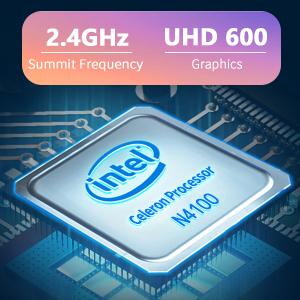
Image: The Intel Celeron N4100 processor, central to the laptop's performance, highlighting its clock speed and integrated graphics capabilities.

Image: The laptop's battery specifications, indicating its power capacity for extended use.
12. Garanti ve Destek
For warranty information and technical support, please refer to the documentation included with your purchase or visit the official iProda website. Contact information for customer service can typically be found on the manufacturer's support page.


