1. Giriş ve Üzeriview
The Google Chromecast with Google TV (4K) is a powerful streaming device designed to bring your favorite entertainment directly to your television in stunning 4K HDR quality. It integrates seamlessly with Google TV, providing personalized recommendations based on your viewing habits and subscriptions, eliminating the need to switch between multiple applications.
This device features a convenient voice search remote with Google Assistant, allowing for easy navigation and content discovery. It supports a wide array of streaming services and offers advanced functionalities like creating kids' profiles, casting content from your mobile devices, and even controlling compatible smart home devices.

Image: The Google Chromecast with Google TV (4K) streaming device and its accompanying voice remote, both in a snow white finish.
2. Kutuda Neler Var?
Upon opening your Google Chromecast with Google TV (4K) package, you should find the following components:
- Chromecast (4K streaming device)
- Sesli Uzaktan Kumanda
- Power Cable (USB-C to USB-A)
- Güç Adaptörü
- 2 AAA Batteries (for the voice remote)
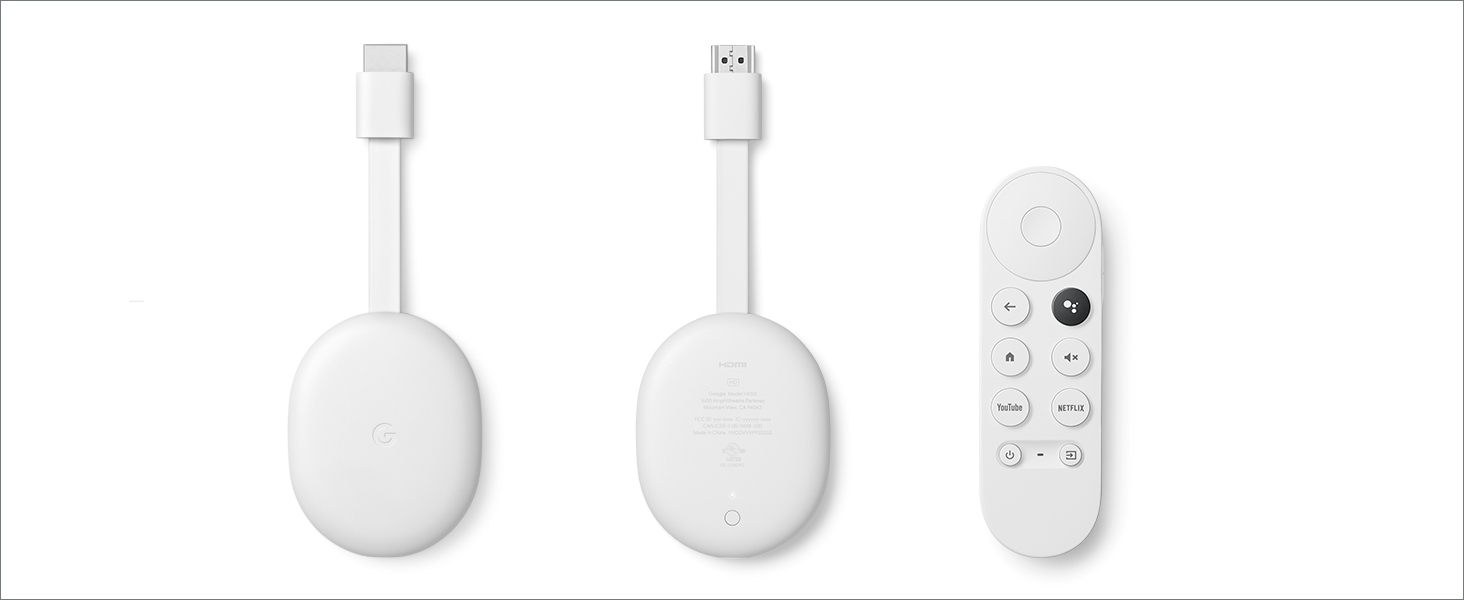
Image: A visual representation of the Chromecast device, its power cable and adapter, and the voice remote, illustrating the items included in the product packaging.
3. Kurulum Kılavuzu
Setting up your Google Chromecast with Google TV (4K) is a straightforward process. Follow these steps for initial installation:
- Chromecast'i bağlayın: Plug the Chromecast device into an available HDMI port on your television. For optimal performance, connect the included power cable to the Chromecast and then to the power adapter, plugging the adapter into a nearby electrical outlet.
- Pilleri Takın: Open the battery compartment on the back of the voice remote and insert the two AAA batteries provided, ensuring correct polarity.
- Switch TV Input: Turn on your television and use your TV remote to switch the input source to the HDMI port where your Chromecast is connected.
- Ekrandaki Talimatları İzleyin: Your TV should display the Google TV setup screen. You will be prompted to download the Google Home app on your compatible mobile device (smartphone or tablet).
- Complete Setup via Google Home App: Open the Google Home app and follow the on-screen instructions to connect your Chromecast to your Wi-Fi network and sign in with your Google Account. This process will guide you through pairing the remote and customizing your Google TV experience.
Note: A stable Wi-Fi network and a Google Account are required for full functionality. Minimum OS requirements for compatible mobile devices can be found at g.co/cast/req.

Resim: Yakın çekim view of the Chromecast device discreetly plugged into the HDMI port at the back of a television, demonstrating its compact design and easy connection.
4. Kullanım Talimatları
Once set up, navigating and using your Google Chromecast with Google TV (4K) is intuitive:
- Voice Remote Navigation: Use the directional pad on the remote to navigate through menus and select items. The Home button (⌂) returns you to the Google TV home screen, and the Back button (←) goes back one step.
- Sesli Arama: Press the Google Assistant button (usually a microphone icon) on the remote and speak your command or search query. You can search for specific movies, shows, genres, actors, or even ask general questions.
- Uygulamalara Erişim: Your home screen will display recommended content and your installed streaming apps. Select an app icon to launch it and browse its content.
- Casting Content: From a compatible app on your phone or tablet (e.g., YouTube, Netflix), tap the Cast icon (▶︎) to send content directly to your Chromecast.
- Çocuklar Profiles: Özel bir profesyonel oluşturunfiles for children to access family-friendly content. You can set parental controls, limit watching time, and customize themes within these profiles.
- Akıllı Ev Kontrolü: If you have compatible Nest devices or other smart home products linked to your Google Account, you can view their feeds or control them directly from your TV using voice commands or the Google TV interface.
Resim: Ayrıntılı view of the Google Chromecast voice remote, emphasizing the Google Assistant button, which enables voice commands for content search and device control.
5. Özellikler
The Google Chromecast with Google TV (4K) offers a rich set of features designed to enhance your entertainment experience:
- Stunning 4K HDR Streaming: Enjoy movies, TV shows, and videos in up to 4K resolution with High Dynamic Range (HDR) for vibrant colors and incredible detail.
- Integrated Google TV Experience: Your home screen aggregates content from all your subscriptions and viewing history, providing personalized recommendations and a unified browsing experience.
- Voice Search with Google Assistant: Quickly find content, control playback, adjust volume, and get answers to questions using simple voice commands through the included remote.
- Geniş Uygulama Uyumluluğu: Access over 700,000 movies and TV episodes and millions of songs from popular streaming services like Netflix, Prime Video, Disney+, Hulu, YouTube, and many more.
- Built-in Chromecast Functionality: Cast content directly from thousands of compatible apps on your phone, tablet, or laptop to your TV.
- Çocuklar Profiles: Create a safe and curated viewing environment for children with customizable avatars, themes, and parental controls to manage content access and screen time.
- Akıllı Ev Entegrasyonu: View live feeds from compatible Nest Cams and control other connected smart home devices (like lights or thermostats) directly from your TV.

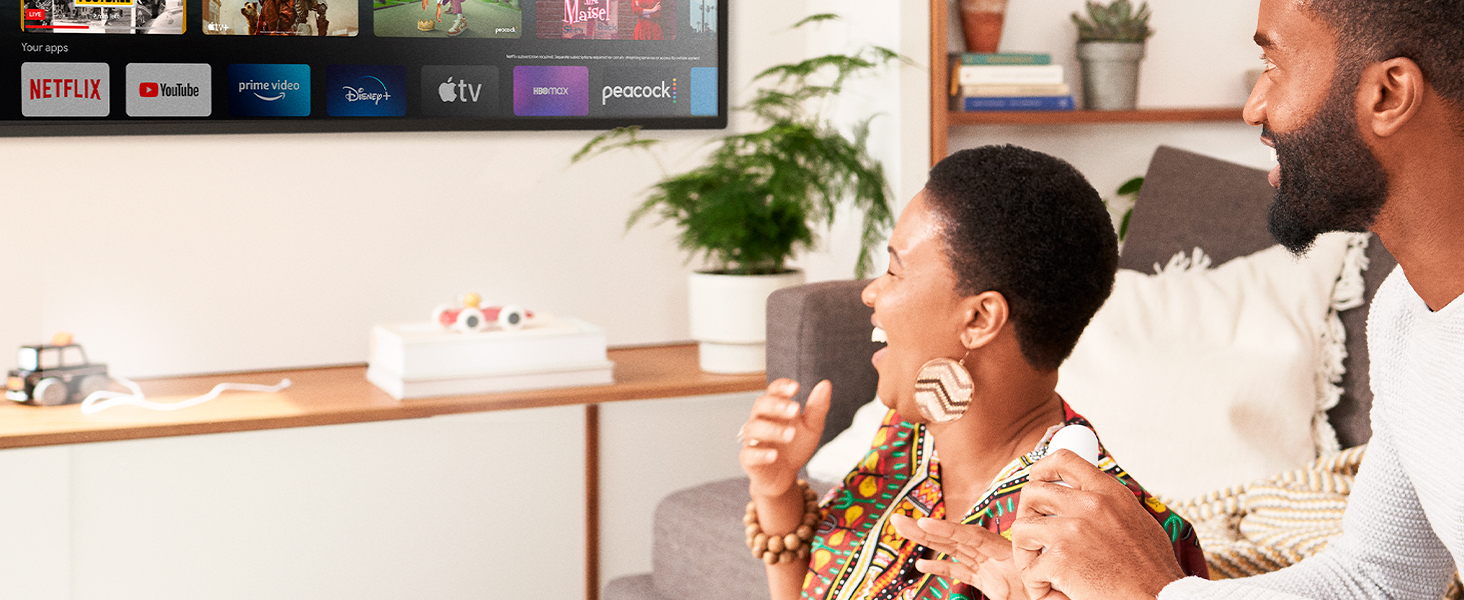
Image: The Google Chromecast remote is shown alongside a display of popular streaming service logos, illustrating the wide range of entertainment options available.
6. Özellikler
| Ürün Boyutları | 0.8 x 1.6 x 1.3 inç |
| Ürün Ağırlığı | 4.1 ons |
| Model Numarası | G9N9N; GZRNL |
| Piller | 2 adet AAA pil (dahil) |
| Bağlantı Teknolojisi | Bluetooth, Wi-Fi (2.4 GHz & 5 GHz) |
| Bağlayıcı Türü | HDMI |
| Çözünürlük | 4K (3840 x 2160 Piksel) |
| Desteklenen İnternet Hizmetleri | Amazon Instant Video, Google TV, Hulu, Netflix, YouTube, and more |
| Denetleyici Türü | Remote Control, Voice enabled remote |
| Form Faktörü | TV çubuğu |
| Renk | Kar |
| İlk Mevcut Tarih | 15 Ekim 2020 |
7. Bakım
To ensure the longevity and optimal performance of your Google Chromecast with Google TV (4K), consider the following maintenance tips:
- Temizlik: Gently wipe the device and remote with a soft, dry, lint-free cloth. Avoid using abrasive cleaners, solvents, or harsh chemicals.
- Çevre: Keep the device in a well-ventilated area, away from direct sunlight, heat sources, and excessive moisture.
- Yazılım Güncellemeleri: Ensure your Chromecast's software is always up to date. Updates are typically downloaded and installed automatically when connected to the internet.
- Uzaktan Piller: Replace the AAA batteries in the voice remote when the remote's performance degrades or it stops responding.
8. Sorun Giderme
If you encounter issues with your Google Chromecast with Google TV (4K), try the following troubleshooting steps:
- Güç Yok/Sinyal Yok:
- Güç kablosunun Chromecast'e güvenli bir şekilde bağlı olduğundan ve güç adaptörünün çalışan bir elektrik prizine takılı olduğundan emin olun.
- Verify that the Chromecast is fully inserted into the TV's HDMI port.
- Check that your TV is set to the correct HDMI input source.
- Chromecast'i televizyonunuzdaki farklı bir HDMI bağlantı noktasına takmayı deneyin.
- Uzaktan Kumanda Yanıt Vermiyor:
- Check and replace the AAA batteries in the remote.
- Ensure there are no obstructions between the remote and the Chromecast.
- Try re-pairing the remote by following the instructions in the Google Home app or on the Google support webalan.
- Arabelleğe Alma/Düşük Akış Kalitesi:
- Ensure your Wi-Fi signal is strong. Move the Chromecast closer to your Wi-Fi router if possible.
- Wi-Fi yönlendiricinizi ve modeminizi yeniden başlatın.
- Close other applications or devices that might be consuming significant bandwidth on your network.
- Verify your internet service provider's speed meets the requirements for 4K streaming.
- Uygulama Sorunları:
- Try force-closing and reopening the problematic app.
- Clear the app's cache and data through the Chromecast settings.
- Uygulamayı kaldırıp yeniden yükleyin.
- Fabrika ayarları: As a last resort, you can perform a factory reset. This will erase all data and settings, returning the device to its original state. Instructions for factory reset can be found on the official Google support webalan.
9. Garanti ve Destek
Your Google Chromecast with Google TV (4K) is covered by a limited manufacturer's warranty. For detailed information regarding warranty terms, conditions, and duration, please refer to the documentation included with your product or visit the official Google support webalan.
For further assistance, technical support, or to access frequently asked questions, please visit the Google Help Center or contact Google customer service directly. Keep your proof of purchase for warranty claims.
Resmi Google Desteği: support.google.com/chromecast


