1. Giriş
The i-tec USB-C Quattro Docking Station is designed to expand the connectivity of your USB-C enabled laptop or tablet, allowing for connection of up to four external displays, multiple USB peripherals, Gigabit Ethernet, and audio devices. It also provides up to 85W Power Delivery to charge your host device. This manual provides detailed instructions for setting up, operating, and maintaining your docking station.
2. Paket İçeriği
Lütfen aşağıda listelenen tüm öğelerin paketinizde mevcut olduğundan emin olun:
- i-tec USB-C Quattro Docking Station
- Güç Adaptörü
- Güç kablosu
- USB-C'den USB-C'ye Kablo
- Hızlı Başlangıç Kılavuzu

Şekil 2.1: Package Contents. The image displays the docking station, its power adapter, a power cable, and a quick setup guide.
3. Ürün Bittiview
Familiarize yourself with the ports and indicators on your i-tec USB-C Quattro Docking Station.
3.1 Ön Panel

Şekil 3.1: Front Panel. This image shows the front of the docking station with a power button, microphone input jack, headphone output jack, one USB-C data port, and one USB 3.0 port.
- Güç Düğmesi: Bağlantı istasyonunu açmak/kapatmak için.
- Microphone Jack (3.5mm): Bir mikrofon bağlayın.
- Kulaklık Jakı (3.5 mm): Kulaklıkları veya hoparlörleri bağlayın.
- USB-C Veri Bağlantı Noktası: USB-C çevre birimlerini bağlamak için.
- USB 3.0 Bağlantı Noktası: For connecting USB 3.0/2.0 peripherals.
3.2 Arka Panel

Şekil 3.2: Rear Panel. This image displays the rear of the docking station, featuring the DC 20V power input, USB-C PD host connection, two DisplayPort outputs, two HDMI outputs, a Gigabit Ethernet (LAN) port, and four additional USB 3.0 ports.
- DC 20V Güç Girişi: Birlikte verilen güç adaptörünü bağlayın.
- USB-C PD Host Port: Connect to your laptop/tablet for data, video, and power delivery.
- 2x DisplayPort: Connect external monitors via DisplayPort cables.
- 2x HDMI: Connect external monitors via HDMI cables.
- GLAN (RJ-45) Port: Kablolu bir ağa bağlanın.
- 4x USB 3.0 Portu: Connect USB 3.0/2.0 peripherals.
4. Kurulum Talimatları
Follow these steps to set up your i-tec USB-C Quattro Docking Station:
- Gücü bağlayın: Connect the power adapter to the DC 20V input on the rear of the docking station, then plug the power cable into a wall outlet.
- Ana Bilgisayara Bağlan: Use the provided USB-C to USB-C cable to connect the docking station's USB-C PD Host Port to your laptop's USB-C port. Ensure your laptop's USB-C port supports DisplayPort Alternate Mode and Power Delivery for full functionality.
- Harici Ekranları Bağlayın: Connect your monitors to the DisplayPort and/or HDMI ports on the rear of the docking station. You can connect up to four displays simultaneously.
- Çevre Birimlerini Bağlayın: Plug your USB devices (keyboard, mouse, external drives) into the available USB 3.0 or USB-C data ports. Connect an Ethernet cable to the GLAN port for wired network access. Connect headphones/speakers and a microphone to the respective audio jacks on the front panel.
- Güç Açık: Press the power button on the front of the docking station. Your operating system should automatically detect the connected devices.
- Sürücü Kurulumu (gerekirse): For optimal performance or specific features, visit www.i-tec.cz/setup to download and install any required drivers for your operating system.
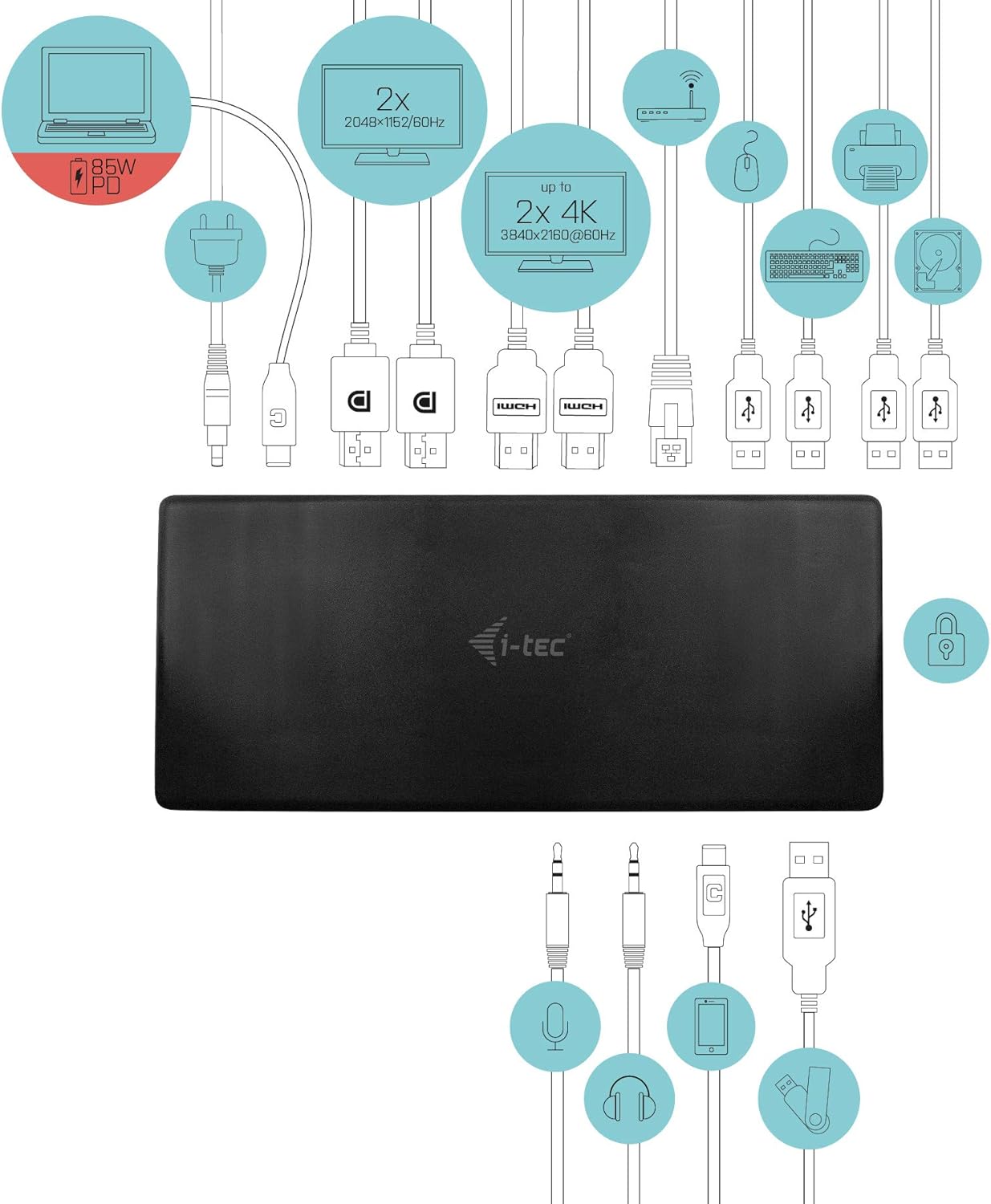
Şekil 4.1: Connection Diagram. This diagram shows the various connections to the docking station, including power, host laptop, multiple monitors (DisplayPort and HDMI), Ethernet, and USB peripherals like a mouse, keyboard, and external storage.
5. Kullanım Talimatları
Once set up, your docking station provides enhanced functionality for your workspace.
5.1 Çoklu Ekran Yapılandırması
The docking station supports up to four external displays. You can configure these displays in various modes (extended, mirrored) through your operating system's display settings.
- Kararlar: Supports up to 2x 2048x1152@60Hz and 2x 4K/60Hz, depending on your host device's capabilities and display connections.
- Pencereler: Right-click on the desktop, select 'Display settings' to arrange and configure your monitors.
- MacOS: Go to 'System Preferences' > 'Displays' to adjust settings.

Şekil 5.1: Four-Display Setup Example. This image illustrates a workstation with a laptop connected to the docking station, driving four external monitors simultaneously, showcasing a multi-tasking environment.
5.2 Güç Dağıtımı
The USB-C PD Host Port provides up to 85W of power to charge your connected laptop or tablet, eliminating the need for a separate power adapter for your host device.
5.3 USB Bağlantısı
Utilize the 5x USB 3.0 ports and 1x USB-C data port for connecting various peripherals such as external hard drives, USB flash drives, keyboards, mice, and printers. USB 3.0 ports offer high-speed data transfer.
5.4 Gigabit Ethernet
The GLAN RJ-45 port provides a stable and high-speed wired internet connection (10/100/1000 Mbps), which is often more reliable than Wi-Fi.
5.5 Ses İşlevselliği
Connect your headphones, speakers, or microphone to the 3.5mm audio jacks on the front panel for integrated audio input and output.

Şekil 5.2: Productivity Setup. This image shows a professional desk environment where the docking station facilitates a multi-monitor setup for enhanced productivity, displaying various applications and data across four screens.
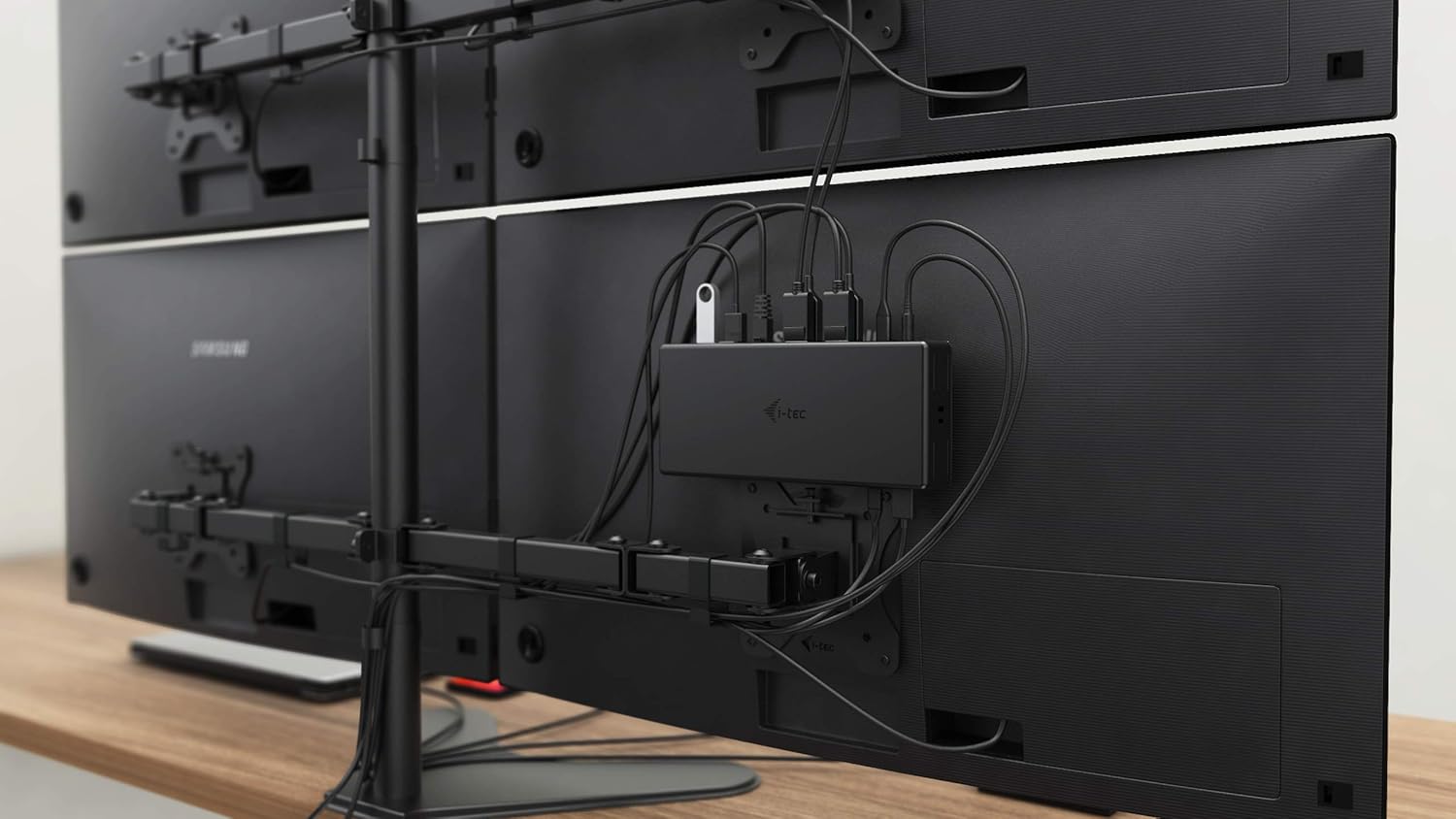
Şekil 5.3: VESA Mounting. The docking station is shown mounted vertically on the back of a VESA-compatible monitor, demonstrating its space-saving installation capability and organized cable routing.

Şekil 5.4: Connected Workstation. This image provides a close-up of the docking station on a desk, connected to a laptop via USB-C, and featuring various peripherals plugged into its front ports, including a USB drive and audio devices.
6. Bakım
Bağlantı istasyonunuzun uzun ömürlü ve optimum performans göstermesi için aşağıdaki bakım yönergelerini izleyin:
- Temizlik: Yerleştirme istasyonunun dışını temizlemek için yumuşak ve kuru bir bez kullanın. Sıvı temizleyiciler veya aerosoller kullanmayın.
- Havalandırma: Aşırı ısınmayı önlemek için şarj istasyonunun iyi havalandırılan bir alana yerleştirildiğinden emin olun. Havalandırma açıklıklarını hiçbir şekilde kapatmayın.
- İşleme: Avoid dropping or subjecting the docking station to strong impacts.
- Çevre: Cihazı aşırı sıcaklıklardan, nemden ve doğrudan güneş ışığından uzak tutun.
- Kablo yönetimi: Ensure cables are not excessively bent or strained to prevent damage to ports and cables.
7. Sorun Giderme
Yerleştirme istasyonunuzda sorunlarla karşılaşırsanız, aşağıdaki yaygın sorunlara ve çözümlere bakın:
7.1 Görüntü Çıkışı Yok
- Bağlantıları Kontrol Edin: Ensure all display cables (HDMI/DisplayPort) are securely connected to both the docking station and the monitors.
- Sunucu Bağlantısı: Verify the USB-C cable from the docking station is firmly connected to your laptop's USB-C port.
- Güç: Confirm the docking station is powered on and receiving power from the adapter.
- Dizüstü Bilgisayar Uyumluluğu: Dizüstü bilgisayarınızın USB-C bağlantı noktasının DisplayPort Alternatif Modunu desteklediğinden emin olun.
- Sürücüler: Install the latest drivers from www.i-tec.cz/setup.
- Görüntü ayarları: Adjust your operating system's display settings to detect and extend/mirror displays.
7.2 USB Devices Not Working
- Yeniden bağlan: Disconnect and reconnect the USB device to a different port on the docking station.
- Güç: Bağlantı istasyonunun açık olduğundan emin olun.
- Sunucu Bağlantısı: Verify the USB-C connection to your laptop.
- Güç Tüketimi: If connecting high-power USB devices, ensure the docking station's power adapter is correctly connected and providing sufficient power.
7.3 No Network Connection (GLAN)
- Kablo Kontrolü: Ethernet kablosunun hem bağlantı istasyonuna hem de yönlendiricinize/modeminize güvenli bir şekilde bağlı olduğundan emin olun.
- Yönlendirici/Modem: Yönlendiricinizin/modeminizin doğru çalıştığını doğrulayın.
- Sürücüler: Ensure the latest network drivers are installed for the docking station.
7.4 Laptop Not Charging (Power Delivery)
- Güç Adaptörü: Confirm the docking station's power adapter is correctly connected and functioning.
- USB-C Kablosu: Ensure the USB-C cable connecting the dock to your laptop supports Power Delivery.
- Dizüstü Bilgisayar Uyumluluğu: Verify your laptop's USB-C port supports Power Delivery input.
8. Özellikler
| Özellik | Detay |
|---|---|
| Model Numarası | C31QUATTRODOCKPDUK |
| Marka | i-tec |
| Ürün Boyutları | 10 x 2 x 2.7 inç (25.4 x 5.08 x 6.86 cm) |
| Ürün Ağırlığı | 10.2 ons (0.29 kg) |
| Donanım Arayüzü | DisplayPort, Ethernet, HDMI, USB, USB 3.0, USB Type C |
| Uyumlu Cihazlar | Laptop, Monitor, Tablet with USB-C (DisplayPort Alt Mode & Power Delivery support recommended) |
| Toplam USB Bağlantı Noktaları | 6 (5x USB 3.0, 1x USB-C Data) |
| Toplam HDMI Bağlantı Noktaları | 2 |
| Toplam DisplayPort | 2 |
| Ethernet | Gigabit Ethernet (RJ-45) |
| Ses Jakları | 1x Microphone (3.5mm), 1x Headphone (3.5mm) |
| Güç Dağıtımı | Up to 85W to host device |
| Renk | Siyah |
| İşletim Sistemleri | Windows 10, macOS, Android, Linux |
9. Garanti Bilgileri
The i-tec USB-C Quattro Docking Station is covered by a manufacturer's warranty. Please refer to the warranty card included in your package or visit the official i-tec webAyrıntılı garanti şartları ve koşulları için web sitemizi ziyaret edin. Satın alma belgenizi garanti talepleriniz için saklayın.
10. Müşteri Desteği
For further assistance, technical support, or to download the latest drivers and firmware, please visit the official i-tec support webalan:
You may also find helpful resources and FAQs on the product's dedicated setup page: www.i-tec.cz/setup


