1. Giriş
This manual provides detailed instructions for the KuWFi Type-C Audio Video Capture Card, Model HDMI26. This device is designed to capture single HDMI video signals, supporting resolutions up to 1080p at 60Hz. It is compatible with various operating systems and offers plug-and-play functionality for ease of use.

Figure 1: KuWFi Type-C Audio Video Capture Card (Model HDMI26)
2. Özellikler
- High-Quality Capture: Captures single HDMI video signals with resolutions up to 1080p at 60Hz.
- Geniş Uyumluluk: Supports MJPEG and YUY2. Compatible with Windows 7, 8, 8.1, 10, Linux OS, and Mac OS operating systems.
- Ses Desteği: Supports UAC&UVC protocol and 48 KHz PCM audio sampling rate. Automatically detects input audio format and converts to 48KHz PCM audio.
- Tip-C Çıkışı: Utilizes Type-C output with up to 300~350MB/s bandwidth.
- Tak ve Çalıştır: Meets UVC and UAC standards, requiring no driver installation or complex settings for most systems.
- Otomatik Ayarlama: Automatically detects input video format and adjusts output resolution and frame rate.
- HDMI Döngü Çıkışı: Features an HDMI loop-out port for zero-latency pass-through while recording.
- Çoklu Cihazlar: Up to two capture cards can be used on a single PC.
- Gelişmiş Görüntü Kalitesi: Provides clearer picture quality with an RGB color range of 0~255.
- Firmware Yükseltilebilir: Supports online firmware upgrades for improved compatibility.
3. Paket İçeriği
Aşağıda listelenen tüm öğelerin paketinizde bulunduğunu doğrulayın:
- 1x KuWFi HDMI to Type-C Video Capture Dongle (Model HDMI26)
- 1x Tip-C Kablo
- 1x Parameter Description (Document)
- 1x Operating Instruction (User Manual)
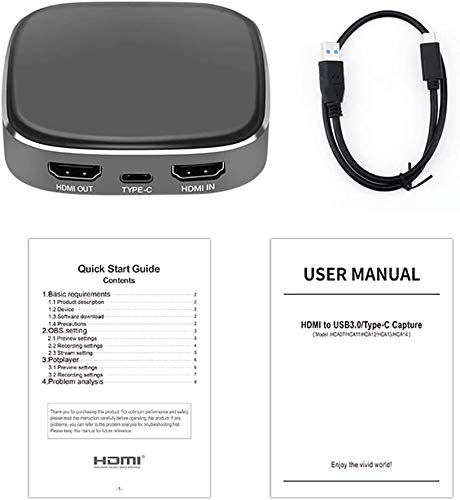
Figure 2: Included items: Capture card, Type-C cable, and documentation.
4. Kurulum Talimatları
Follow these steps to connect your KuWFi Type-C Audio Video Capture Card:
- HDMI Girişini Bağlayın: Connect an HDMI cable from your source device (e.g., game console, camera, set-top box) to the HDMI IN yakalama kartındaki bağlantı noktası.
- HDMI Çıkışını Bağlayın (İsteğe bağlı): Eğer isterseniz view the source content on a separate display without latency, connect another HDMI cable from the HDMI ÇIKIŞI port on the capture card to your TV, monitor, or projector.
- Bilgisayara Bağlan: Connect the provided Type-C cable from the TİP-C port on the capture card to a USB 3.0 or Type-C port on your computer (PC or Mac).
- Güç Açık: Ensure all devices are powered on. The capture card is typically powered via the Type-C connection.

Figure 3: Connection diagram for the capture card, illustrating HDMI input, HDMI output, and Type-C connections.
5. Kullanım Talimatları
Once the capture card is connected, you can begin capturing or streaming using compatible software.
5.1. Software Setup (Example: OBS Studio)
For capturing and streaming, third-party software like OBS Studio, VLC, or PotPlayer is required. The following steps outline a general setup using OBS Studio:
- Yazılımı kur: Download and install your preferred capture software (e.g., OBS Studio) on your computer.
- Video Kaynağı Ekle: Open the software. In OBS Studio, navigate to the "Sources" box, click the "+" icon, and select "Video Capture Device".
- Cihaz seç: In the properties window, select "USB Video" or a similar name for your capture card from the "Device" dropdown menu.
- Configure Video: Adjust resolution, FPS, and other video settings as needed. Ensure the resolution matches or is compatible with your input source.
- Configure Audio: In the "Audio Mixer" section, ensure "USB Audio" or similar is selected and levels are adjusted. You may need to add an "Audio Input Capture" source and select "USB Audio" if not automatically detected.
- Kaydı/Yayınlamayı Başlat: Once configured, you can start recording or streaming your content.
5.2. Driver Installation (Windows 7 Specific)
While the device is generally plug-and-play, some Windows 7 systems may require a specific driver installation. Refer to the included "Operating Instruction" manual or the manufacturer's website for driver download and installation procedures if necessary.
6. Özellikler
| Özellik | Detay |
|---|---|
| Örnek | HDMI26 |
| Marka | kablosuz ağ |
| HDMI Input Resolution Support | 4K/60, 1080P/60, 59.94, 50, 30, 29.97, 25, 24, 23.98, 1080i 50/60, 720P 50/60, 480P, 576P, 1280x1024, 1280x960, 1024x768, 800x600, 640x480 |
| HDMI Giriş Formatı | Compatible with HDMI1.4 standard, max bandwidth 225MHz 4K/30Hz, 12bit deep color |
| Type-C Output Bandwidth | Up to 300~350MB/s |
| Önview Çözünürlük | 1920x1080, 1680x1050, 1280x1024, 1280x960, 1400x900, 1440x900, 1360x768, 1366x768, 1024x768, 1280x720, 800x600, 720x576, 720x480, 640x480 |
| Kare Hızı | 25/29.97/30/50/59.94/60 fps |
| HDMI Loop-out Resolution Support | 4K/60, 4K/30, 1080P/60, 59.94, 50, 30, 29.97, 25, 24, 23.98, 1080i 50/60, 720P 50/60, 480P, 576P, 1280x1024, 1280x960, 1024x768, 800x600, 640x480 |
| Donanım Arayüzü | USB 2.0 (backward compatible), USB 3.0 (Type-C) |
| Video Yakalama Çözünürlüğü | 1080p |
| Özel Özellikler | Hafif, Taşınabilir |
| Ürün Ağırlığı | 250 gr |
| Boyutlar | 16.2x9.8x5.4 cm |
7. Sistem Gereksinimleri
To ensure optimal performance, your computer system should meet or exceed the following specifications:
- İşletim Sistemi: Windows 10 / Windows 8.1 / Windows 7 (SP1), Linux OS, Mac OS
- Masaüstü Bilgisayar:
- Processor: Intel Core i5-4440 3.10 GHz or higher
- Graphics Card: NVIDIA GeForce GTX 660 or above
- Notebook:
- Processor: Intel Core i7-4810MQ or higher
- Graphics Card: NVIDIA GeForce GTX 870M or above
- VERİ DEPOSU: 4 GB RAM (8 GB önerilir)
8. Sorun Giderme
If you encounter issues while using the capture card, consider the following:
- Recording Screen Blinking or Black: This issue often indicates a low computer configuration. Ensure your system meets the recommended specifications listed in Section 7.
- Bağlantı Sorunları:
- Avoid using USB hubs or USB extension cables, as they can interfere with data transfer and power delivery. Connect the Type-C cable directly to a native USB 3.0 or Type-C port on your computer.
- Ensure all HDMI cables are securely connected to both the source device, the capture card, and the display (if using loop-out).
- Sinyal Algılanmadı:
- Kaynak cihazınızın açık olduğundan ve HDMI sinyali verdiğinden emin olun.
- Check the input resolution of your source device. While the capture card supports various resolutions, ensure it's within the compatible range.
- Farklı bir HDMI kablosu deneyin.
- Ses Çalışmıyor:
- Ensure "USB Audio" is selected as the audio input device in your capture software.
- Check your computer's sound settings to ensure the capture card's audio input is enabled and not muted.
9. Önemli Notlar
- For optimal performance, connect the capture card directly to a USB 3.0 or Type-C port on your computer. Avoid using USB hubs or extension cables.
- A computer with specifications below the recommended requirements may experience performance issues such as flickering or black screens during recording.
- Cihazı kuru bir ortamda saklayın ve aşırı sıcaklıklardan kaçının.


