giriiş
The Renkforce USB-C RF-DKS-650 is a versatile universal docking station designed to expand the connectivity of your laptop, convertible, or tablet equipped with a USB-C port. It enables multitasking by supporting up to four monitors simultaneously and offers a wide array of ports for various peripherals. The docking station is powered by the included AC/DC power adapter, ensuring stable performance for all connected devices.
To optimize cable management and maintain a tidy workspace, the 15 available ports are thoughtfully distributed across the front and rear panels. Thicker cables for monitors and power are typically connected to the rear, while frequently accessed devices like headsets, USB drives, or smartphones can be conveniently plugged into the front.
This docking station also includes a practical charging function for smartphones and other small devices. Please note that for charging your laptop via USB-C, a separate power supply with sufficient wattage (not included) is required.
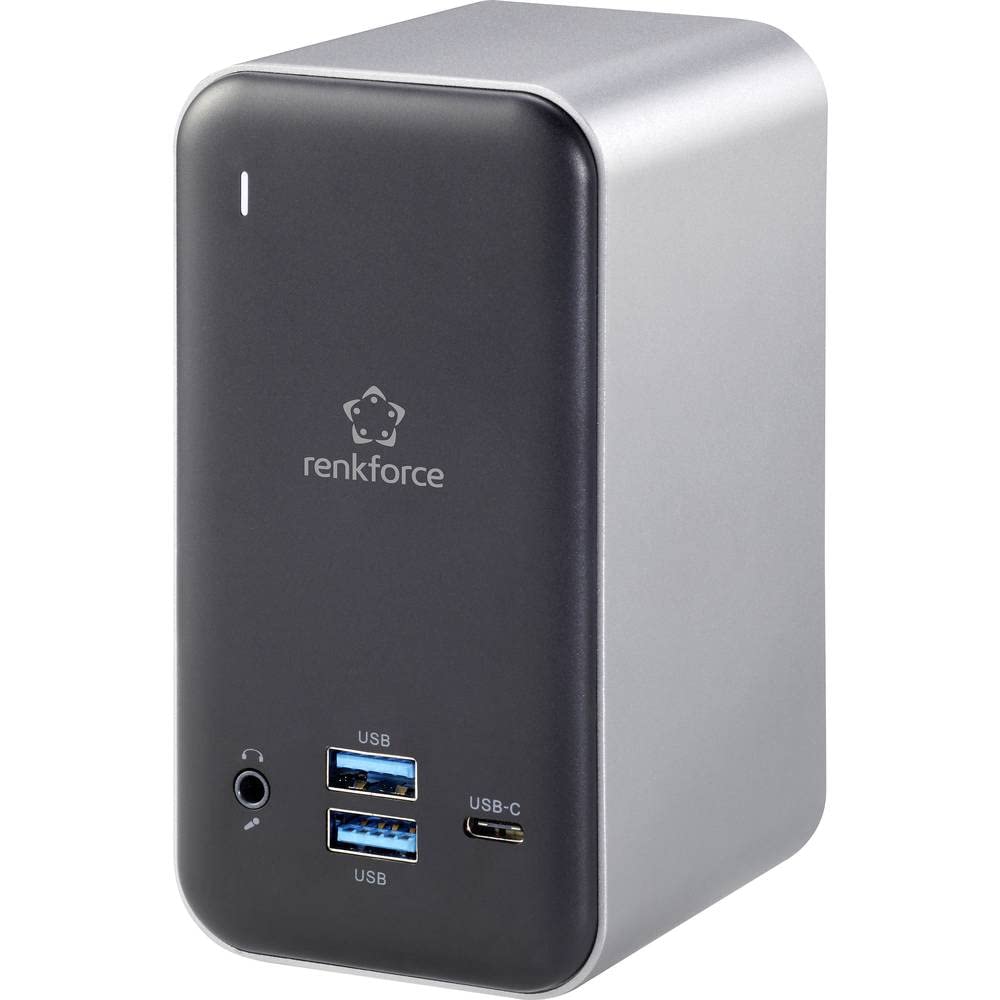
Figure 1: Renkforce USB-C RF-DKS-650 Universal Laptop Docking Station - Overall View
Kurulum Talimatları
Follow these steps to set up your Renkforce RF-DKS-650 docking station:
- Gücü bağlayın: Plug the supplied AC/DC power adapter (12V 3A @36W) into the 'POWER' port on the rear of the docking station and then into a wall outlet.
- Ana Bilgisayara Bağlan: Use a USB-C cable to connect your laptop, convertible, or tablet to the 'HOST' USB-C port on the docking station.
- Monitörleri Bağlayın: Connect your monitors to the available HDMI (3 ports) and/or VGA (1 port) outputs on the docking station. The rear panel is ideal for these connections.
- Çevre Birimlerini Bağlayın: Connect your USB devices (e.g., keyboard, mouse, external drives) to the USB-A (USB 3.0) ports or additional USB-C ports. For audio, connect your headset or speakers to the 3.5mm microphone/audio jack.
- Ağ Bağlantısı (İsteğe bağlı): For a wired network connection, plug an Ethernet cable into the LAN port on the docking station.
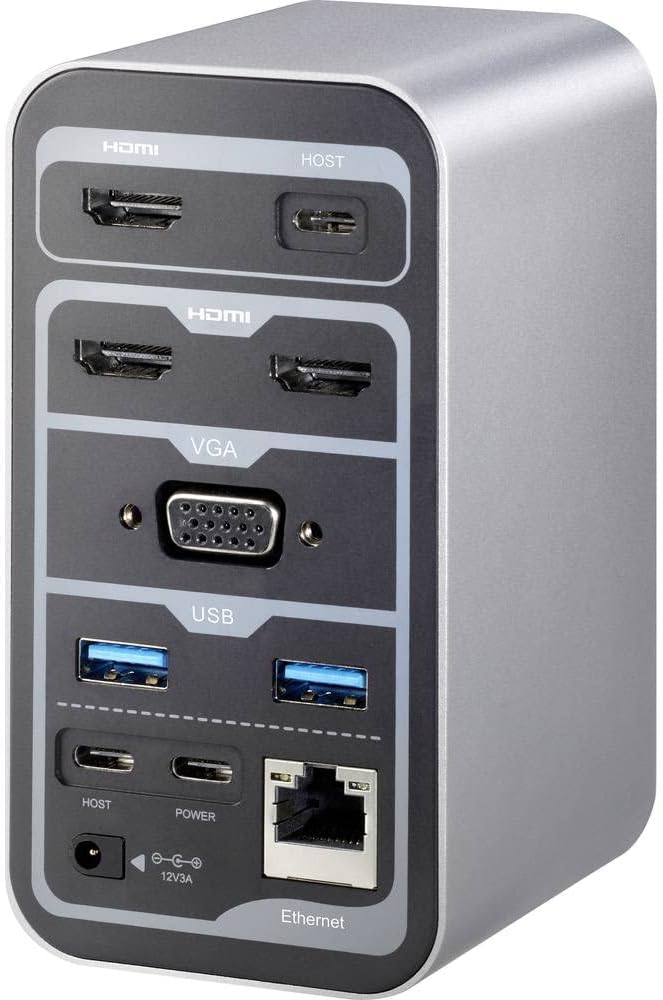
Figure 2: Rear Panel Connections (HDMI, VGA, USB, Ethernet, Power Input)

Figure 3: Front Panel Connections (USB, USB-C, Audio Jack)
Kullanım Talimatları
Multi-Monitor Display
The RF-DKS-650 supports various multi-monitor configurations depending on your operating system:
- Windows 8 veya üzeri: Supports 1 or 3 simultaneous display outputs. Mirroring and extension modes are supported.
- MAC OS 10.12 or higher: Supports up to 4 simultaneous display outputs. Mirroring and extension modes are supported. For Intel and M1 chips, specific configurations like HDMI1 or HDMI2+HDMI3+VGA are possible.
- iPad OS 13 or higher: Supports 1 or 3 simultaneous display outputs. Mirroring is supported, but extension mode is not.
- Android İşletim Sistemi: Supports 1 or 3 simultaneous display outputs. Mirroring is supported, but extension mode is not.
Adjust display settings (resolution, arrangement, mirroring/extension) through your operating system's display settings menu.
Cihaz Şarjı
The docking station provides a convenient charging function for smartphones and other small USB-powered devices through its USB ports. Simply connect your device to an available USB-A or USB-C port.
Önemli Not: While the docking station can charge small devices, it does not provide sufficient power to charge your laptop via its USB-C connection. For laptop charging, you must use your laptop's original power adapter or a separate, sufficiently powerful USB-C PD (Power Delivery) charger (not included).
Bakım
To ensure the longevity and optimal performance of your Renkforce RF-DKS-650 docking station, follow these simple maintenance guidelines:
- Temizlik: Disconnect the docking station from power and all devices before cleaning. Use a soft, dry, lint-free cloth to wipe the exterior. Avoid using liquid cleaners, aerosols, or solvents, as these can damage the finish or internal components.
- Kablo yönetimi: Utilize the strategic port placement to keep cables organized. Regularly check cable connections to ensure they are secure and free from kinks or damage.
- Havalandırma: Aşırı ısınmayı önlemek için şarj istasyonunun iyi havalandırılan bir alana yerleştirildiğinden emin olun. Havalandırma açıklıklarını hiçbir şekilde kapatmayın.
- Depolamak: Uzun süre kullanılmayacaksa, yerleştirme istasyonunu doğrudan güneş ışığından ve aşırı sıcaklıklardan uzak, serin ve kuru bir yerde saklayın.
Sorun giderme
If you encounter issues with your Renkforce RF-DKS-650 docking station, refer to the following common problems and solutions:
- Monitörde Görüntü Yok:
- Şarj istasyonunun açık olduğundan ve güç adaptörünün güvenli bir şekilde bağlı olduğundan emin olun.
- Verify that the USB-C cable connecting the docking station to your host device is properly seated.
- Check that the HDMI/VGA cables are securely connected to both the docking station and the monitors.
- Confirm that your monitor is set to the correct input source (e.g., HDMI 1, VGA).
- Ana cihazınızı yeniden başlatmayı deneyin.
- Ana cihazınızdaki grafik sürücülerini güncelleyin.
- USB Aygıtları Tanınmıyor:
- Ensure the docking station is properly connected to your host device via USB-C.
- USB cihazını yerleştirme istasyonundaki farklı bir bağlantı noktasına bağlamayı deneyin.
- Connect the USB device directly to your host device to confirm it is functional.
- Ana bilgisayarınızı yeniden başlatın.
- Ağ Bağlantı Sorunları:
- Ethernet kablosunun hem bağlantı istasyonuna hem de yönlendiricinize/modeminize güvenli bir şekilde bağlı olduğundan emin olun.
- Ana cihazınızdaki ağ ayarlarını kontrol edin.
- Try connecting your host device directly to the router/modem to isolate the issue.
- Charging Function Not Working for Laptop:
- As noted, the docking station does not provide power to charge your laptop. Use your laptop's dedicated power adapter or a separate USB-C PD charger.
Teknik Özellikler
| Marka | Renkforce |
| Ürün Model Numarası | RF-4499452 |
| ASIN | B08DJ112NF |
| Renk | Çeşitli |
| Connectivity / Interface Types | HDMI, USB |
| Uyumlu Cihazlar | Laptops, Convertibles, Tablets with USB-C, iPad |
| Number of Display Outputs | 4 |
| HDMI Port Sayısı | 3 |
| Number of VGA Ports | 1 |
| Maksimum Çözünürlük | 3840 x 2160 piksel |
| Güç Girişi | AC/DC 12V 3A (36W) |
| İşletim Sistemi Uyumluluğu | Windows 8 or higher, MAC OS 10.12 or higher, iPad OS 13 or higher, Android OS |
| Amazon.com.be'de İlk Satışa Sunulma Tarihi | 18 Mayıs 2022 |
Garanti ve Destek
The Renkforce RF-DKS-650 Universal Laptop Docking Station comes with a 1 yıl yedek parça temin edilebilirliği guarantee from the manufacturer.
For technical support, warranty claims, or further assistance, please contact Renkforce customer service or refer to the official Renkforce webiletişim bilgileri için site.


