1. Giriş
The ASTRO Gaming A20 Wireless Headset Gen 2 provides a high-quality audio experience for gaming across multiple platforms. This manual details the setup, operation, maintenance, and troubleshooting for your headset, ensuring optimal performance and longevity.

Image 1.1: The ASTRO Gaming A20 Wireless Headset Gen 2, featuring a white and green design.
2. Paket İçeriği
Ürün ambalajınızda tüm öğelerin mevcut olduğundan emin olun:
- ASTRO Gaming A20 Wireless Headset Gen 2
- USB Transmitter (Console Specific)
- USB-C - USB-A Şarj Kablosu
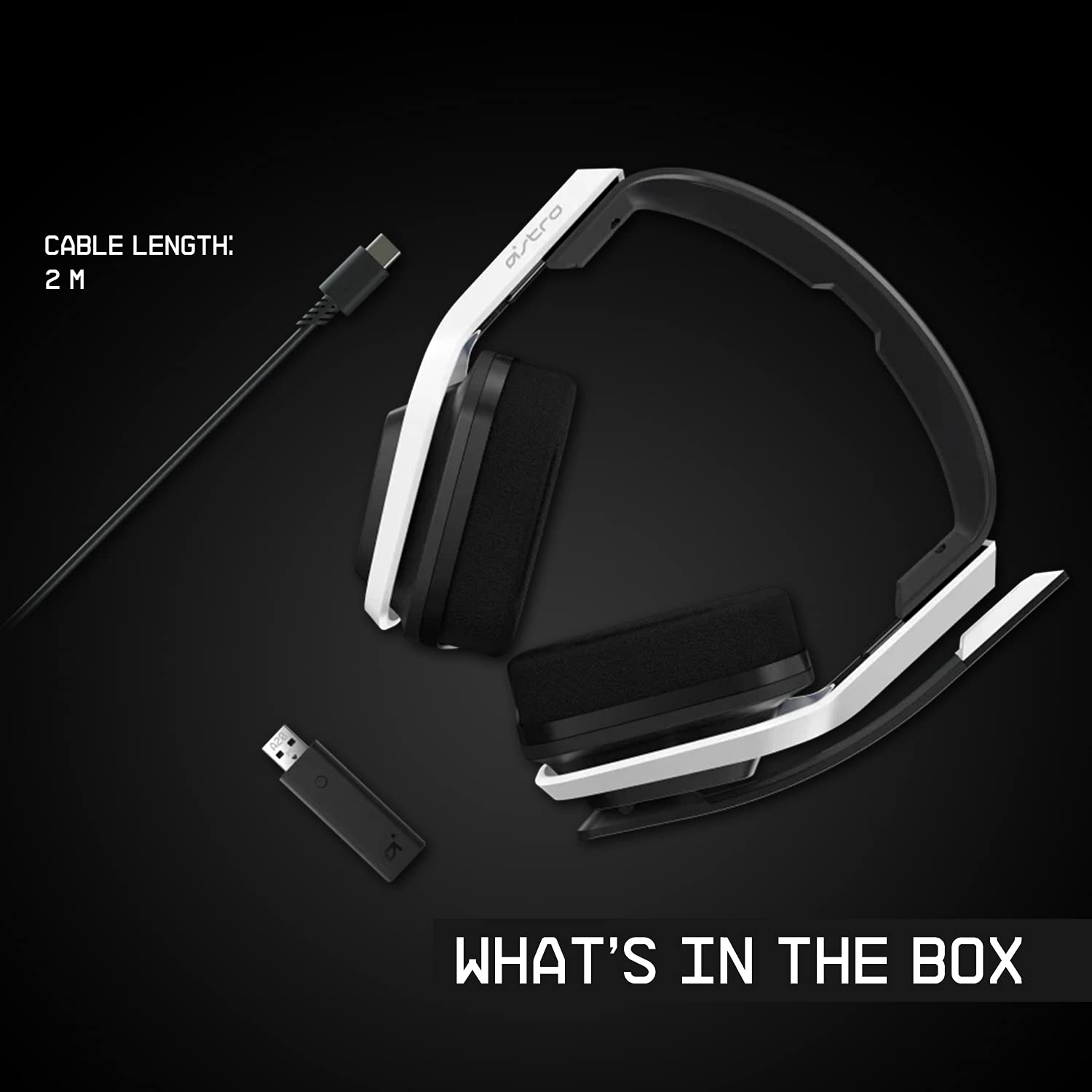
Image 2.1: Contents of the ASTRO Gaming A20 Wireless Headset Gen 2 package, including the headset, USB transmitter, and charging cable.
3. Kurulum
3.1 İlk Şarj
Before first use, fully charge the headset. Connect the USB-C end of the charging cable to the headset's USB-C port and the USB-A end to a powered USB-A port on your console, PC, or a wall adapter. A full charge provides approximately 15 hours of battery life.
3.2 Connecting to Xbox (Series X|S, Xbox One)
- Plug the USB Transmitter into an available USB port on your Xbox console.
- Power on your ASTRO A20 Wireless Headset.
- The headset and transmitter should automatically pair. The LED indicator on both devices will show a solid light when connected.
- Ensure your Xbox audio output settings are configured to send audio to the headset.
3.3 Connecting to PC / Mac
- Plug the USB Transmitter into an available USB port on your PC or Mac.
- Power on your ASTRO A20 Wireless Headset.
- The headset and transmitter should automatically pair. The LED indicator on both devices will show a solid light when connected.
- Navigate to your operating system's sound settings and select the ASTRO A20 as the default playback and recording device.

Image 3.1: The ASTRO Gaming A20 Wireless Headset Gen 2 demonstrating cross-platform connectivity with an Xbox console.
4. Kullanım Talimatları
4.1 Kulaklık Kontrolleri
The ASTRO A20 Gen 2 features intuitive controls located on the headset for easy access during gameplay.
- Güç Düğmesi: Kulaklığı açar veya kapatır.
- Hacim Tekerleği: Adjusts the overall audio volume.
- Game/Voice Balance Buttons: Allows you to adjust the balance between game audio and voice chat audio. Press the 'Game' button to increase game volume relative to chat, or the 'Voice' button to increase chat volume relative to game.
- EQ Preset Button: Cycles through 3 different equalizer presets to optimize audio for various content types.
- Mikrofonu Sessize Almak İçin Çevir: Flipping the microphone boom arm up mutes the microphone. Flipping it down unmutes it.

Image 4.1: The ASTRO Gaming A20 Wireless Headset Gen 2 demonstrating the flip-to-mute microphone feature.
4.2 Pil Ömrü ve Şarj
The headset provides over 15 hours of continuous use on a full charge. When the battery is low, you will hear an audible alert. Recharge the headset using the provided USB-C to USB-A cable as described in Section 3.1.

Image 4.2: The ASTRO Gaming A20 Wireless Headset Gen 2 highlighting its 15+ hours of battery life.
5. Bakım
Doğru bakım, kulaklığınızın uzun ömürlü olmasını ve performansını garanti eder:
- Temizlik: Kulaklığınızı temizlemek için yumuşak ve kuru bir bez kullanın. Aşındırıcı temizleyiciler veya çözücülerden kaçının.
- Depolamak: Kulaklığınızı serin, kuru ve doğrudan güneş ışığından ve aşırı sıcaklıklardan uzak bir yerde saklayın.
- Pil Bakım: For optimal battery health, avoid fully discharging the battery frequently. Recharge when the low battery indicator appears.
6. Sorun Giderme
If you encounter issues with your ASTRO A20 Wireless Headset Gen 2, refer to the following common solutions:
| Sorun | Olası Çözüm |
|---|---|
| No audio / Headset not connecting |
|
| Microphone not working / Static in mic |
|
| Short battery life / Not charging |
|
| Audio cutting out / Wireless range issues |
|
7. Özellikler
| Özellik | Detay |
|---|---|
| Model Adı | ASTRO A20 Wireless Headset Gen 2 |
| Ürün Model Numarası | 939-001882 |
| Bağlantı Teknolojisi | Kablosuz (RF 2.4 GHz) |
| kablosuz Menzil | 15 metreye (50 feet) kadar |
| Pil Ömrü | Yaklaşık 15 saat |
| Ses Sürücüsü Boyutu | 40 mm Dinamik Sürücüler |
| Frekans Aralığı | 20 Hz - 20 kHz |
| Mikrofon | Flip-to-mute functionality |
| Kontroller | Volume wheel, Game/Voice balance, EQ preset button |
| Şarj Portu | USB-C (for charging via USB-A source) |
| Ağırlık | 318 Gram (11.2 ons) |
| Uyumlu Cihazlar | Xbox Series X|S, Xbox One, PC, Mac |
8. Garanti ve Destek
For detailed warranty information, technical support, and additional resources, please visit the official Logitech G / ASTRO Gaming support website. You can also refer to the official User Guide PDF for further details:
- Resmi Kullanıcı Kılavuzu (PDF): Buradan İndirin
- Logitech G Support: Ziyaret etmek Webalan


