1. Giriş
This manual provides comprehensive instructions for the setup, operation, and maintenance of your Zebronics Zeb-Ultimate Pro Full HD 1080p Webcam. Please read this manual carefully before using the product to ensure optimal performance and longevity. Keep this manual for future reference.
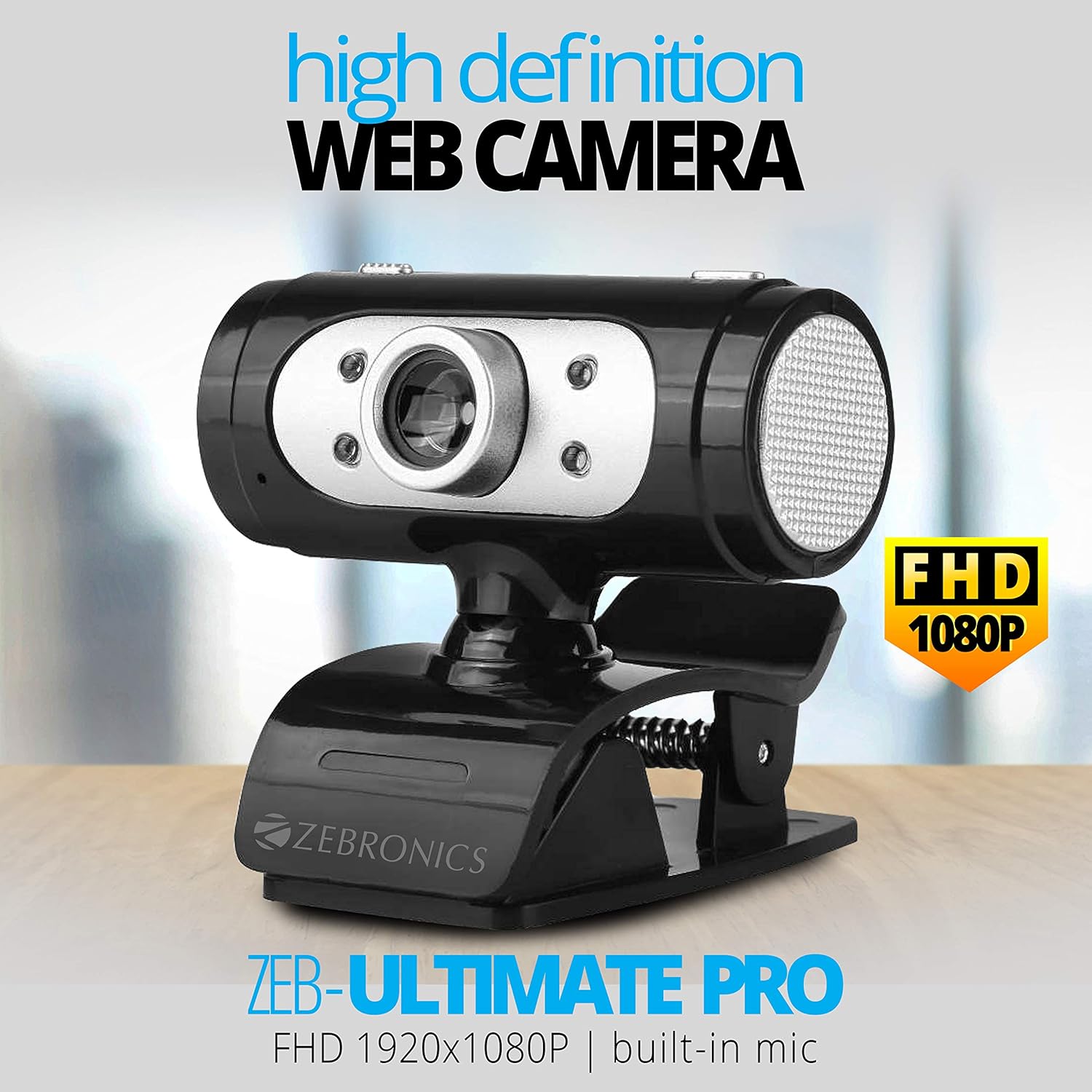
Image 1.1: The Zebronics Zeb-Ultimate Pro Full HD 1080p Webkamera, gösteriasing its design and FHD 1080P capability.
2. Paket İçeriği
Aşağıda listelenen tüm öğelerin ürün paketinizde mevcut olduğunu doğrulayın:
- Zebronics Zeb-Ultimate Pro Webcam (1 Unit)
3. Ürün Bittiview
The Zebronics Zeb-Ultimate Pro is a Full HD webcam designed for clear video communication. It features a 5P quality lens, a built-in microphone, automatic white balance, night vision capabilities, and a manual switch for its integrated LED lighting.
Temel Özellikler:
- Tam HD 1080p Çözünürlük: Delivers video at 1920x1080 pixels at 30 frames per second.
- 5P Quality Lens: Ensures sharp and clear image capture.
- Dahili Mikrofon: Provides integrated audio for video calls.
- Otomatik Beyaz Dengesi: Automatically adjusts color balance for natural-looking video.
- Gece Görüşü: Düşük ışık koşullarında görünürlüğü artırır.
- Manual LED Switch: Allows user control over the integrated LED light.
- USB Arayüzü: Simple plug-and-play connectivity.

Image 3.1: Diagram illustrating the 5P lens for Full HD videos and the built-in microphone for video calls.

Image 3.2: Visual representation of the USB interface for connectivity and the night vision feature for low-light performance.
4. Kurulum Talimatları
Follow these steps to set up your Zebronics Zeb-Ultimate Pro Webkam:
- Paketi açın Webkam: Dikkatlice çıkarın webAmbalajından çıkarıldı.
- Konumlandır Webkam: Yerleştir webcam securely on top of your monitor, laptop screen, or a flat surface. The adjustable clip allows for stable placement.
- Bilgisayara Bağlan: Insert the USB connector of the webkameranızı bilgisayarınızdaki kullanılabilir bir USB bağlantı noktasına bağlayın.
- Otomatik Sürücü Kurulumu: The webcam is designed for plug-and-play operation. Your operating system (Windows, macOS, iOS) should automatically detect and install the necessary drivers. Wait for a notification indicating that the device is ready for use.
- Kurulumu Doğrulayın: Open a video conferencing application or your computer's camera application to confirm that the webKamera tanındı ve video görüntülüyor.
5. Kullanım Talimatları
Once set up, the Zeb-Ultimate Pro WebKamera çeşitli uygulamalarla kullanıma hazır.
Kullanımı Webkam:
- Video Calls and Conferences: Launch your preferred video communication software (e.g., Zoom, Microsoft Teams, Google Meet). Select the "Zebronics Zeb-Ultimate Pro" as your video and audio input device in the application's settings.
- Online Classes: The webcam is suitable for participating in or conducting online educational sessions.
- Kayıt: Use your computer's native camera application or third-party software to record videos.

Resim 5.1: webcam positioned on a laptop, illustrating its use for webseminerler ve konferanslar.

Image 5.2: A child using a laptop with the webcam for online classes, demonstrating its application in education.
Özellikleri Ayarlama:
- Manuel Odaklama: The lens of the webcam can be rotated to adjust the focus for a sharper image. Turn the lens gently until the image appears clear.
- LED Işık: Use the manual switch located on the webcam to turn the integrated LED light on or off, especially useful in low-light environments.
6. Bakım
Doğru bakım, cihazınızın uzun ömürlü olmasını ve en iyi performansı göstermesini sağlar. webkam.
- Lensin Temizlenmesi: Gently wipe the lens with a soft, lint-free cloth. Avoid using harsh chemicals or abrasive materials that could scratch the lens.
- Vücudun Temizlenmesi: Kuru veya hafif kuru bir bez kullanınamp dış yüzeyini temizlemek için bez webkam.
- Depolamak: Kullanılmadığı zaman, saklayın webKamerayı temiz, kuru bir yerde, doğrudan güneş ışığından ve aşırı sıcaklıklardan uzakta tutun.
- Kablo Bakımı: İç hasar oluşmasını önlemek için USB kablosunu aşırı derecede bükmekten veya döndürmekten kaçının.
7. Sorun Giderme
Eğer sorunlarla karşılaşırsanız webLütfen aşağıdaki yaygın sorunlara ve çözümlerine bakın:
| Sorun | Olası Neden | Çözüm |
|---|---|---|
| Webcam not detected or not working. | Loose USB connection, driver issue, or disabled camera. | Ensure the USB cable is securely connected. Try a different USB port. Restart your computer. Check privacy settings to ensure camera access is enabled for applications. |
| Görüntü bulanık veya odak dışı. | Yanlış odak ayarı. | Gently rotate the lens of the webcam until the image becomes clear. |
| No audio from the webcam's microphone. | Microphone not selected or muted in software. | In your video conferencing application or system sound settings, ensure the Zebronics webcam's microphone is selected as the input device and is not muted. |
| Düşük ışıkta görüntü kalitesi zayıf. | Yetersiz aydınlatma. | Etkinleştir webcam's LED light using its manual switch. Ensure adequate ambient lighting in your environment. |
8. Özellikler
Technical specifications for the Zebronics Zeb-Ultimate Pro Webkam:
- Modeli: Zeb-Ultimate Pro
- Video Çözünürlüğü: 1920x1080 (Tam HD)
- Kare Hızı: 30 kare/saniye
- Görüntü Sensörü: CMOS
- Lens Tipi: 5P Quality Lens
- Arayüz: USB
- Kablo Uzunluğu: 1.58 metre
- Özel Özellikler: Built-in Microphone, Auto White Balance, Night Vision, Manual Switch for LED
- Ürün Ölçüleri: 7.2x7.2x6.4 cm
- Ürün Ağırlığı: 90 gr
- Uyumlu İşletim Sistemleri: Windows, iOS (and generally other USB-compatible systems)
9. Garanti ve Destek
For warranty information and technical support, please refer to the official Zebronics website or contact their customer service. Details regarding warranty periods and service centers are typically provided with your purchase documentation or on the manufacturer's webalan.
Üretici: 13,7, Smith Road, Royapettah CHENNAI-600002


