1. Ürün Bittiview
The TP-Link Archer TX50E is a high-performance AX3000 Wi-Fi 6 Bluetooth 5.3 PCIe Adapter designed for desktop PCs. It leverages the latest Wi-Fi 6 standard to deliver extreme speeds, ultra-low latency, and uninterrupted connectivity, making it suitable for demanding applications like immersive gaming and VR. The adapter features a customized heat sink and gold-plated contactors for enhanced stability and longevity.
Temel Özellikler:
- Wi-Fi 6 Performansı: Delivers speeds up to 2.4 Gbps (2402 Mbps on 5 GHz + 574 Mbps on 2.4 GHz) with 1024-QAM and 160 MHz bandwidth.
- Ultra Düşük Gecikme: Revolutionary OFDMA and MU-MIMO technologies reduce lag for responsive gaming and VR experiences.
- Bluetooth 5.3: Achieves 2× faster speeds and 4× broader coverage than Bluetooth 4.2, enabling seamless connection with various peripherals.
- Geniş Kapsam: Equipped with two high-gain antennas to extend Wi-Fi range.
- Premium Yapı: Features a customized heat sink for efficient thermal dissipation and gold-plated contactors for improved stability and oxidation resistance.
- Gelişmiş Güvenlik: Supports WPA3, the latest network security standard, for enhanced network protection.
2. Paket İçeriği
Paketinizde tüm öğelerin mevcut olduğundan emin olun:

Image: TP-Link Archer TX50E retail box showing the adapter and included accessories.
- TP-Link Archer TX50E Wi-Fi 6 Bluetooth 5.3 PCIe Adapter
- Two High-Gain Antennas
- Bluetooth USB Kablosu
- Kaynak CD'si
- Hızlı Kurulum Kılavuzu
- Düşük Profesyonelfile Parantez
3. Donanım Kurulumu
Başlamadan Önce:
- Bilgisayarınızın kapalı olduğundan ve güç kaynağından fişinin çekili olduğundan emin olun.
- Ground yourself to discharge any static electricity before handling components.
- Refer to your computer's manual for specific instructions on opening the case.
Adım Adım Kurulum:
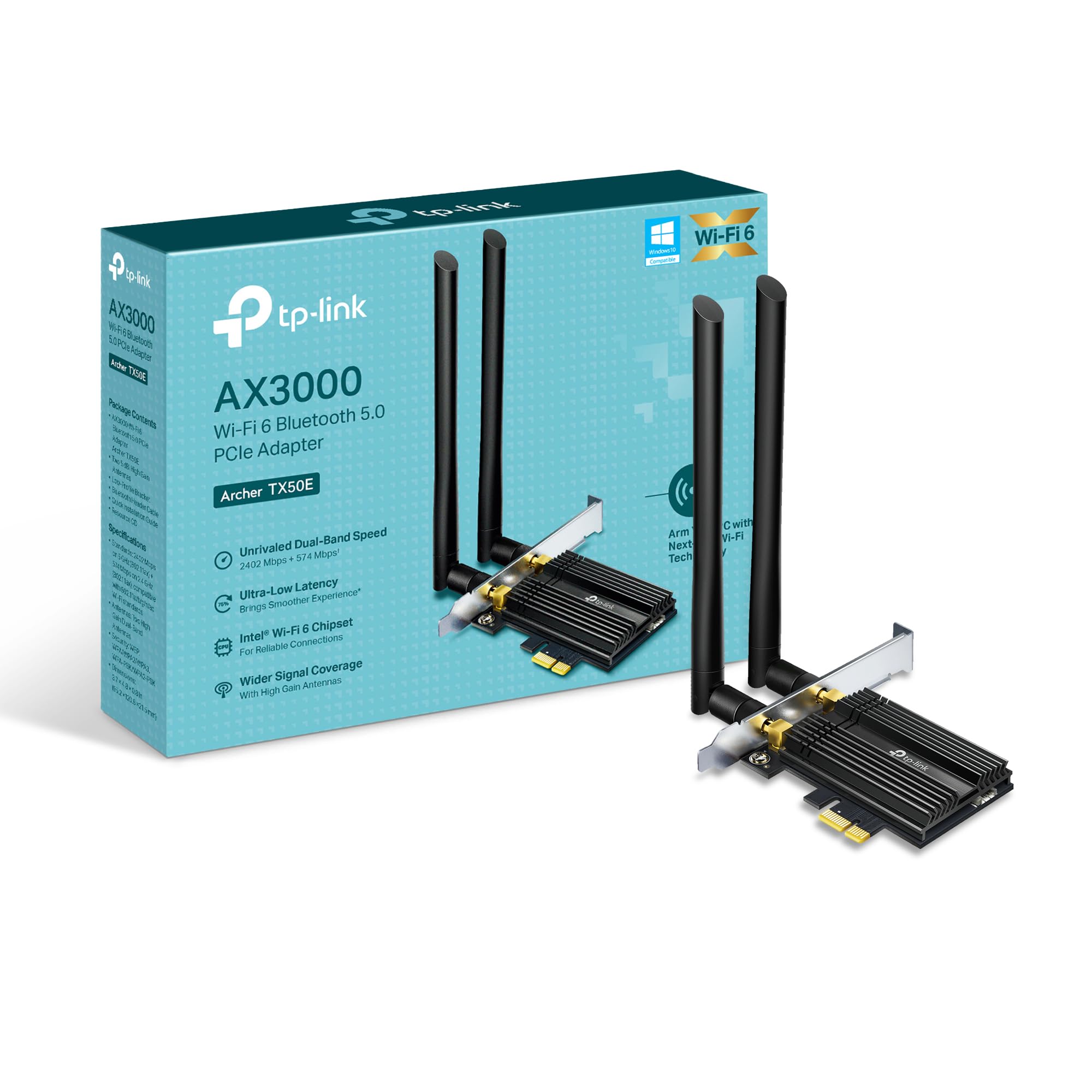
Resim: Ön view of the TP-Link Archer TX50E adapter with antennas.
- Gücü Kapatın ve Fişi Çıkarın: Bilgisayarınızı kapatın ve güç kablosunu duvardaki prizden çıkarın.
- Bilgisayar Kasasını Açın: Anakarta erişmek için bilgisayar kasanızın yan panelini çıkarın.
- Connect Bluetooth USB Cable: Connect the provided Bluetooth USB cable to the adapter's Bluetooth header.
- Yuvaları Bulun: Identify an available PCI Express X1 slot on your motherboard and an F_USB connector (usually labeled USB910 or similar).
- Adaptörü Takın: Carefully insert the Archer TX50E adapter into the chosen PCIe X1 slot. Ensure it is seated firmly.
- USB Kablosunu Bağlayın: Connect the other end of the Bluetooth USB cable to the F_USB connector on your motherboard. This connection is essential for Bluetooth functionality.
- Secure Adapter and Antennas: Secure the adapter with a screw to the computer case. Then, connect the two high-gain antennas to the adapter's connectors. Adjust their position for optimal signal reception.
- Bilgisayar Kasasını Kapatın: Bilgisayar kasanızın yan panelini değiştirin.
- Güç Açık: Güç kablosunu tekrar prize takın ve bilgisayarınızı açın.
Görsel Kurulum Kılavuzu:
Video: A step-by-step guide demonstrating the physical installation of the TP-Link Archer TX50E PCIe adapter into a desktop computer.
4. Sürücü Kurulumu
After hardware installation, you need to install the Wi-Fi and Bluetooth drivers for the adapter to function correctly. Not: Do NOT run the Bluetooth and Wi-Fi driver installers at the same time.
Step-by-Step Driver Installation:
- Insert CD or Download Drivers: Insert the provided resource CD into your computer's CD/DVD drive. If your computer does not have a CD/DVD drive, download the latest drivers from the official TP-Link website (search for Archer TX50E).
- Run Autorun: Once the CD is inserted, an Autorun window should appear. Click to run `Autorun.exe`. If it doesn't appear, navigate to 'This PC' or 'My Computer', open your CD/DVD drive, and manually run `Autorun.exe`.
- Wi-Fi Sürücülerini Yükleyin: In the TP-Link driver installation utility, select the option to install the Wi-Fi drivers. Follow the on-screen instructions to complete the installation. You may need to restart your computer after this step.
- Bluetooth Sürücülerini Yükleyin: After the Wi-Fi drivers are installed and your computer has restarted (if prompted), run the `Autorun.exe` again or manually launch the Bluetooth driver installer. Follow the on-screen instructions to complete the Bluetooth driver installation. Another restart may be required.
For a visual guide on driver installation, please refer to the setup video provided in the Hardware Installation section.
5. Kullanım Talimatları
Wi-Fi'ye bağlanma:
- After successful driver installation, click the Wi-Fi icon in your system tray (usually in the bottom-right corner of your screen).
- Kullanılabilir kablosuz ağların bir listesi görünecektir. İstediğiniz ağı seçin.
- Click 'Connect' and enter the network security key (password) if prompted.
- Bilgisayarınız artık Wi-Fi ağına bağlı olmalı.
Bluetooth Cihazlarını Eşleştirme:
- Bluetooth cihazınızın eşleştirme modunda olduğundan emin olun (cihazınızın kullanım kılavuzuna bakın).
- On your computer, go to 'Settings' > 'Devices' > 'Bluetooth & other devices'.
- Bluetooth zaten etkinleştirilmemişse etkinleştirin.
- 'Bluetooth veya başka bir cihaz ekle' seçeneğine tıklayın ve 'Bluetooth'u seçin.
- Listeden cihazınızı seçin ve eşleştirme işlemini tamamlamak için ekrandaki yönergeleri izleyin.
6. Sorun Giderme
If you encounter issues with your Archer TX50E adapter, try the following common troubleshooting steps:
- Wi-Fi Bağlantısı Yok:
- Adaptörün PCIe yuvasına doğru şekilde takıldığından emin olun.
- Antenlerin güvenli bir şekilde bağlı olduğundan emin olun.
- Check Device Manager to ensure Wi-Fi drivers are installed and the device is recognized without errors.
- Try updating or reinstalling the Wi-Fi drivers.
- Bilgisayarınızı ve kablosuz yönlendiricinizi yeniden başlatın.
- Bluetooth Çalışmıyor:
- Confirm the Bluetooth USB cable is properly connected to both the adapter and the motherboard's F_USB header.
- Check Device Manager to ensure Bluetooth drivers are installed and the device is recognized without errors.
- Verify that Bluetooth is enabled in your computer's settings.
- Try updating or reinstalling the Bluetooth drivers.
- Yavaş Hızlar veya Kesintili Bağlantı:
- Ensure your router supports Wi-Fi 6 (802.11ax) for optimal performance.
- Adjust the position of the antennas for better signal reception.
- Move your computer closer to the router or reduce obstacles between them.
- Diğer elektronik cihazlardan kaynaklanan paraziti kontrol edin.
- Yönlendiricinizin yazılımını güncelleyin.
If these steps do not resolve your issue, please contact TP-Link Technical Support.
7. Teknik Özellikler
| Özellik | Şartname |
|---|---|
| Örnek | Okçu TX50E |
| kablosuz standardı | Wi-Fi 6 (802.11ax/ac/b/g/n) |
| Bluetooth Sürümü | Bluetooth 5.3 |
| Arayüz | PCI Ekspres |
| Veri Aktarım Hızı | 5 GHz'de 2402 Mbps'ye, 2.4 GHz'de 574 Mbps'ye kadar. |
| İşletim Sistemi Desteği | Windows 11, 10 (64-bit) |
| Güvenlik | WPA3 |
| Boyutlar (U x G x Y) | 9.53x12.09x2.16 cm |
| Ürün Ağırlığı | 90.72 g (0.2 Pound) |
| Donanım Arayüzü | Bluetooth |
| Uyumlu Cihazlar | Masaüstü, Dizüstü |
8. Garanti ve Teknik Destek
TP-Link şunları sunuyor: 2 yıllık garanti for this product. Additionally, free 24/7 teknik destek is available to assist you with any questions or issues you may encounter.
Daha fazla yardım için lütfen resmi TP-Link destek sayfasını ziyaret edin. websiteye gidin veya doğrudan müşteri hizmetleriyle iletişime geçin.


