1. Giriş
This manual provides detailed instructions for the installation, configuration, and operation of your Lorex 2K Dual Lens Indoor Wi-Fi Security Camera, model W463AQD-E. Please read this manual thoroughly before using the product to ensure proper functionality and safety. Keep this manual for future reference.

Image 1.1: Lorex 2K Dual Lens Indoor Wi-Fi Security Camera with its retail packaging.
2. Paket İçeriği
Verify that all items listed below are included in your package. If any items are missing or damaged, please contact Lorex customer support.
- 1 × 2K Dual-Lens Indoor Pan-Tilt Camera
- 1 × 32GB MicroSD Card (pre-installed)
- 1 × 6.5 ft (2 m) Power Cable
- 1 × Montaj Braketi
- 3 × Dübeller ve Vidalar
- 1 × Güç Adaptörü
3. Ürün Bittiview
Familiarize yourself with the components and features of your Lorex security camera.
3.1 Kamera Bileşenleri

Resim 3.1: Ön view of the camera, showing the dual lenses and call button.

Resim 3.2: Yan view of the camera, highlighting its dome shape.

Resim 3.3: Arka view of the camera, showing the power input and reset button.

Image 3.4: Bottom label displaying model number W463AQD-E and other regulatory information.
3.2 Temel Özellikler
- 2K Dörtlü HD Video: Net ve ayrıntılı video çekertage.
- Çift Lens Tasarımı: Provides enhanced surveillance capabilities.
- 360° Pan-Tilt: Kameranın ayarlarını uzaktan yapın. viewing angle to cover a full 360-degree area.
- Otomatik Takip: Automatically follows detected movement within its field of view.
- Smart Person & Pet Detection: Differentiates between human and pet activity to reduce false alerts.
- IR Gece Görüşü: Provides clear video in low-light conditions up to 33 feet.
- İki Yönlü Konuşma: Kameranın dahili mikrofonu ve hoparlörü aracılığıyla gerçek zamanlı iletişime olanak tanır.
- Quick Call Button: Enables visitors to initiate a call to your connected device.
- Esnek Depolama: Supports local storage via an included 32GB MicroSD card and optional cloud storage or Lorex Fusion recorders.
- Gizlilik Modu: Physically hides the camera lens for enhanced privacy when needed.
- Wi-Fi Bağlantısı: Connects to your home network wirelessly (2.4GHz).
4. Kurulum
4.1 İlk Kurulum ve Uygulama Bağlantısı
- Güç Açık: Güç adaptörünü kameraya bağlayın ve bir elektrik prizine takın. Kamera açılacak ve başlatma işlemine başlayacaktır.
- Lorex Home Uygulamasını İndirin: Lorex Home uygulamasını App Store (iOS) veya Google Play Store (Android) üzerinden akıllı telefonunuza veya tabletinize indirin.
- Hesap oluşturmak: Lorex Home uygulamasını açın ve yeni bir hesap oluşturmak veya mevcut bir hesaba giriş yapmak için ekrandaki yönergeleri izleyin.
- Cihaz Ekle: Tap the '+' icon in the app to add a new device. Scan the QR code located on the bottom of your camera or on its packaging.
- Wi-Fi'ye bağlanın: Follow the app's prompts to connect the camera to your 2.4GHz Wi-Fi network. Ensure your mobile device is connected to the same Wi-Fi network during setup.
- Kurulumu Tamamla: Once connected, follow the remaining steps in the app to name your camera and finalize the setup process.

Image 4.1: The Lorex Home application interface for managing camera feeds.
4.2 Kamerayı Monte Etme
The camera can be placed on a flat surface or mounted to a ceiling or wall using the included mounting bracket.
- Konum seç: Select a suitable indoor location with a clear view and within range of your Wi-Fi network.
- Delikleri İşaretle: Place the mounting bracket at the desired location and mark the screw holes with a pencil.
- Matkap Delikleri: Drill pilot holes at the marked spots. If mounting on drywall, insert the included anchors.
- Güvenli Braket: Align the mounting bracket with the holes and secure it using the provided screws.
- Kamerayı Takın: Twist the camera onto the mounting bracket until it clicks securely into place.
5. Operasyon
5.1 Canlı View ve Kontroller
Canlı erişim view of your camera through the Lorex Home app. From the live view screen, you can control various camera functions.
- Kaydırma ve Eğme: Use the directional controls in the app to remotely adjust the camera's horizontal (pan) and vertical (tilt) angles.
- Dijital Yakınlaştırma: Pinch to zoom in or out on the live video feed.
- çift Lens View: The app may offer options to switch between or combine views from the dual lenses.

Image 5.1: Camera shown with a smartphone displaying the dual lens live view Lorex Home uygulamasında.
5.2 Two-Way Talk and Call Button
The camera features two-way audio for communication and a physical call button.
- İki Yönlü Konuşma: Canlı yayında view, tap the microphone icon to speak through the camera's speaker. Tap again to end.
- Arama tuşu: A person near the camera can press the physical call button on the camera to initiate a call to your connected mobile device.

Image 5.2: Demonstrating two-way talk functionality via the Lorex Home app.

Image 5.3: A user pressing the quick call button on the camera.
5.3 Hareket Algılama ve Uyarılar
The camera uses smart detection to identify important events.
- Akıllı Algılama: The camera can detect and differentiate between people and pets, sending specific alerts to your phone.
- Otomatik Takip: When motion is detected, the camera can automatically pan and tilt to follow the subject.
- Özelleştirme: Adjust motion detection zones and sensitivity settings within the Lorex Home app to minimize unwanted alerts.

Image 5.4: Auto-tracking feature following a baby's movement.

Resim 5.5: Başka bir view of the auto-tracking feature in action.

Image 5.6: Smart motion detection alerting to a person's presence.

Image 5.7: Pet detection and auto-tracking following a dog.
5.4 Night Vision and Smart Lighting
Kamera, düşük ışık koşullarında bile net bir gözetim sağlıyor.
- IR Gece Görüşü: Infrared LEDs provide black and white video up to 33 feet in complete darkness.
- Akıllı Güvenlik Aydınlatması: The camera features integrated lighting that can be configured to activate upon motion detection or on a schedule.

Image 5.8: Comparison of daytime and IR night vision footage of a sleeping baby.

Image 5.9: Clear night vision image of a baby sleeping.

Image 5.10: The camera's smart security lighting feature in action.
5.5 Kayıt ve Depolama
Your camera offers multiple options for storing recorded video footage.
- Yerel Depolama: A 32GB MicroSD card is pre-installed for local recording. This ensures your footage is stored directly on the device.
- Bulut Depolama: Optional cloud storage plans are available for off-site backup of your recordings. Refer to the Lorex Home app for details.
- Lorex Fusion Recorders: The camera is compatible with Lorex Fusion recorders for integrated system storage.

Image 5.11: The included 32GB MicroSD card for private and secure local storage.
5.6 Gizlilik Modu
Activate Privacy Mode to physically conceal the camera lens when surveillance is not desired.
- Etkinleştirme: Privacy Mode can be activated through the Lorex Home app. When active, the camera lens will rotate downwards, blocking its view.
- Devre dışı bırakma: Deactivate Privacy Mode via the app to resume normal operation.
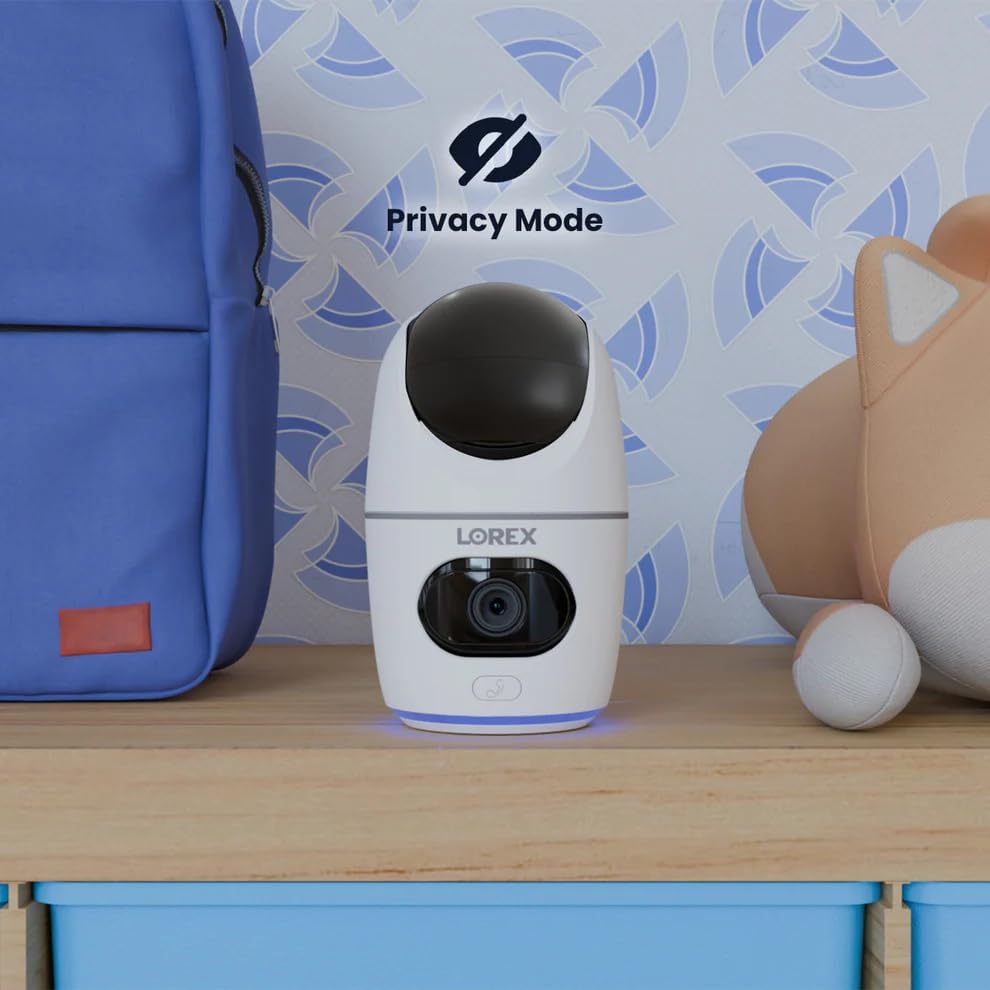
Image 5.12: The camera in Privacy Mode, with the lens retracted.
6. Bakım
- Temizlik: Fotoğraf makinesinin objektifini ve gövdesini temizlemek için yumuşak, kuru bir bez kullanın. Aşındırıcı temizleyicilerden veya çözücülerden kaçının.
- Donanım Yazılımı Güncellemeleri: Regularly check the Lorex Home app for available firmware updates to ensure optimal performance and security.
- MicroSD Kart: Periodically check the status of the MicroSD card in the app. If the card is full and continuous recording is enabled, older footage will be overwritten. Back up important footaggerektiği gibi.
- Güç Kaynağı: Kameranın sabit bir güç kaynağına bağlı olduğundan emin olun. Bu cihaz için belirtilmemiş üçüncü taraf güç adaptörlerini kullanmaktan kaçının.
7. Sorun Giderme
| Sorun | Çözüm |
|---|---|
| Camera is offline or disconnected. |
|
| Wi-Fi'ye bağlanılamıyor. |
|
| No video or poor video quality. |
|
| Motion alerts are too frequent or not received. |
|
8. Özellikler
| Özellik | Detay |
|---|---|
| Model Numarası | W463AQD-E |
| Video Çözünürlüğü | 2K (1440p) |
| Etkili Hareketsiz Çözünürlük | 4 MP |
| ViewAçı | 360 Degrees (Pan-Tilt), 135 Degrees (Field of View) |
| Gece Görüş Aralığı | 33 Feet (IR Night Vision) |
| Bağlantı | Kablosuz (2.4GHz) |
| Depolamak | 32GB MicroSD Card (included), supports up to 256GB, Cloud Storage (optional), Lorex Fusion compatible |
| Ses | Çift Yönlü Konuşma (Dahili Mikrofon ve Hoparlör) |
| Tespit | Smart Person & Pet Detection, Auto-Tracking |
| Güç Kaynağı | Corded Electric (5V=2A) |
| Boyutlar (U x G x Y) | 5 x 6 x 5 inç |
| Ürün Ağırlığı | 15.2 ons |
| İç/Dış Mekan Kullanımı | Sadece İç Mekan |
| Dahil Bileşenler | Camera, 32GB MicroSD Card, Power Cable, Mounting Bracket, Power Adapter |
9. Garanti ve Destek
For warranty information, technical support, or additional resources, please visit the official Lorex websitesine bakın veya müşteri hizmetleri departmanıyla iletişime geçin.
- Lorex Webalan: www.lorex.com
- Müşteri Desteği: Refer to the Lorex website for contact details and support hours.
Product registration is recommended to receive updates and support.


