1. Giriş ve Üzeriview
The Alienware Aurora R10 Gaming Desktop is engineered to deliver exceptional performance for gaming and demanding applications. Featuring an AMD Ryzen 7 3700X processor, AMD Radeon RX 5700 XT graphics, and a robust storage configuration, this system provides a powerful computing experience. Its innovative design prioritizes efficient airflow and ease of access for upgrades.

Şekil 1: Ön view of the Alienware Aurora R10 Gaming Desktop, showcasing its distinctive design and front panel ports.
2. Kurulum Kılavuzu
Follow these steps to set up your Alienware Aurora R10 Gaming Desktop:
- Paketin açılması: Carefully remove the desktop from its packaging. Ensure all accessories, including the keyboard and mouse, are present.
- Atama: Place the desktop on a stable, flat surface with adequate ventilation around all sides. Avoid placing it in enclosed spaces or near heat sources.
- Çevre Birimlerini Bağlayın:
- Connect your monitor(s) to the appropriate display ports on the graphics card (DisplayPort, HDMI).
- Dahil edilen klavye ve fareyi mevcut USB portlarına bağlayın.
- Hoparlör, kulaklık veya harici sürücü gibi diğer çevre birimlerini bağlayın.
- Güç Bağlantısı: Connect the power cable to the power port on the rear of the desktop and then to a grounded electrical outlet.
- İlk Güç Açma: Press the power button located on the front of the desktop. The system will boot into Windows 10 Home. Follow the on-screen instructions for initial setup.

Şekil 2: Arka view of the Alienware Aurora R10, illustrating the various connectivity ports for peripherals and power.
3. Kullanım Talimatları
Your Alienware Aurora R10 comes pre-installed with Windows 10 Home, providing a familiar and intuitive operating environment. For optimal performance, ensure your system drivers and Windows updates are kept current.
3.1 Güç Yönetimi
- Güç Açık: Press the Alienware head icon on the front panel.
- Kapat: Windows'ta Başlat düğmesine tıklayın, ardından Güç > Kapat seçeneğine gidin.
- Tekrar başlat: Windows'ta Başlat düğmesine tıklayın, ardından Güç > Yeniden Başlat'ı seçin.
- Uyku modu: Windows'ta Başlat düğmesine tıklayın, ardından Güç > Uyku seçeneğine gidin.
3.2 AlienFX Lighting Control
The Alienware Aurora R10 features customizable AlienFX lighting. You can personalize the lighting zones on the front panel using the Alienware Command Center software, which is pre-installed on your system. This software allows you to choose from a wide range of colors and effects to match your setup or mood.
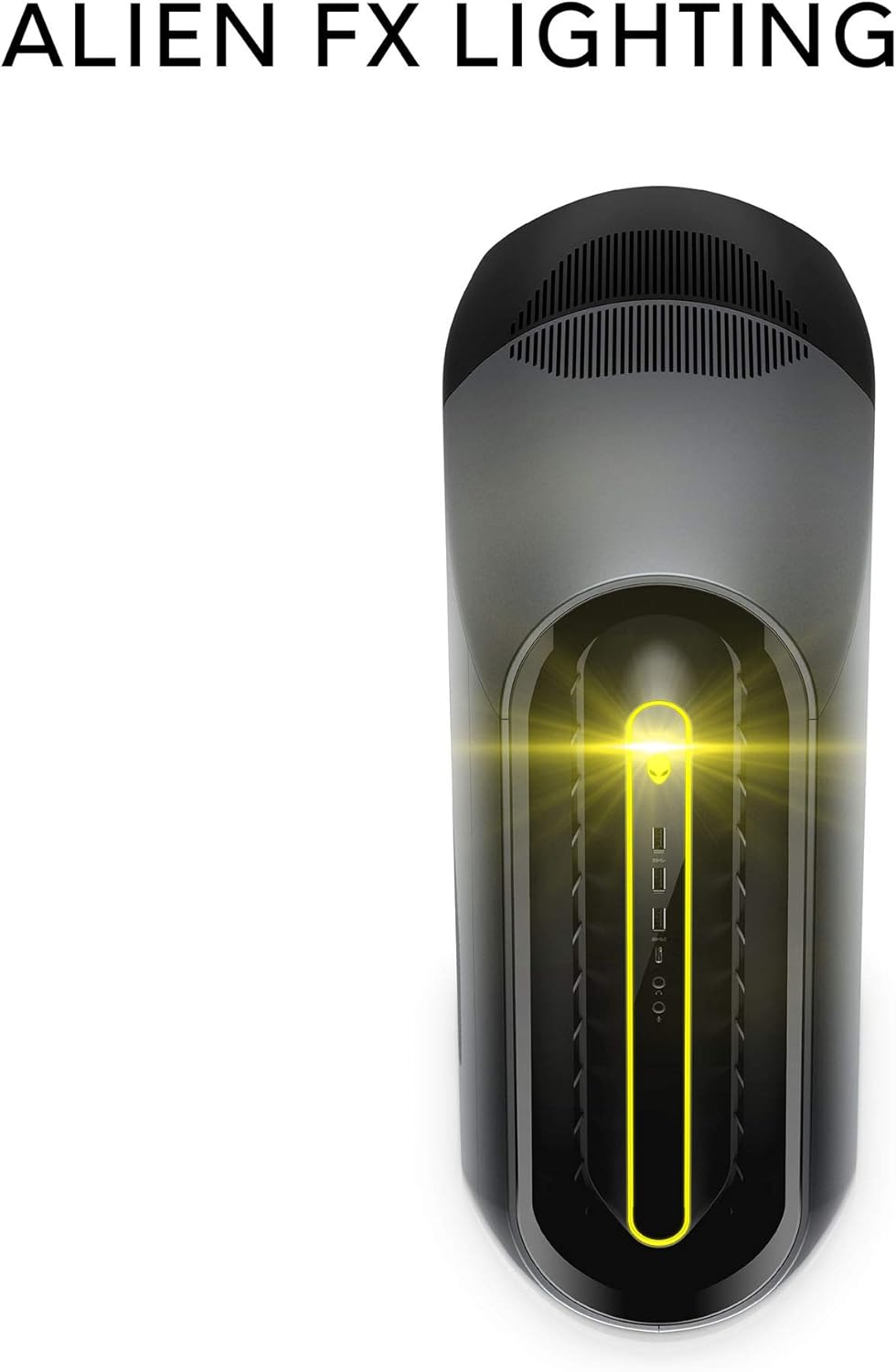
Figure 3: The AlienFX lighting system on the front of the desktop, offering personalized illumination.
3.3 Performans Optimizasyonu
The Alienware Command Center also provides tools for performance monitoring and optimization, including fan speed control and overclocking options for advanced users. Refer to the software's built-in help for detailed instructions on these features.
Video 1: Resmi video gösterimiasing the features and design of the Alienware Aurora R10 Gaming Desktop.
4. Temel Özellikler
The Alienware Aurora R10 is designed with several key features to enhance your computing and gaming experience:
- Güçlü İşlemci: Equipped with an AMD Ryzen 7 3700X (8-Core, 32MB L3 Cache, max boost clock of 4.4GHz) processor, providing robust performance for multitasking and demanding applications.
- Advanced Graphics: Features an AMD Radeon RX 5700 XT 8GB GDDR6 graphics card, delivering high frame rates and immersive visuals for modern games.
- PCI-Express 4.0 Technology: The first Alienware machine to feature PCI-Express 4.0, doubling the bandwidth available to graphics cards and other components for enhanced overall performance.
- Optimize Edilmiş Hava Akışı: The Legend Industrial Design incorporates an improved airflow pattern, efficiently reducing CPU temperatures and allowing for more stable performance and higher overclocking potential.
- Hybrid Storage Solution: A combination of a 512GB M.2 PCIe NVMe SSD for fast boot times and application loading, paired with a 1TB 7200 RPM SATA 6 Gb/s HDD for ampdosya depolama kapasitesi.
- Tool-Less Entry: Designed for easy access to internal components, simplifying upgrades and maintenance.
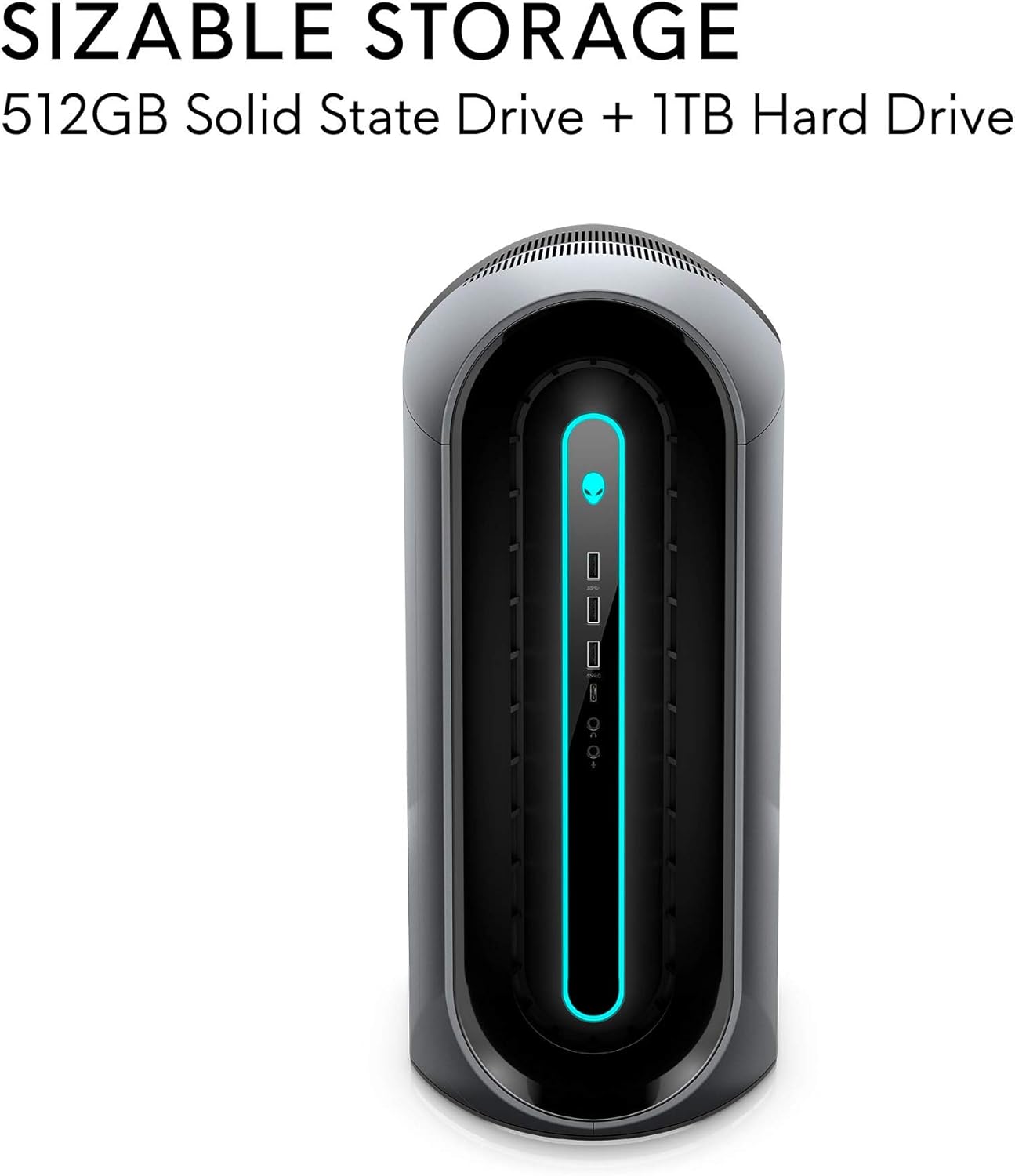
Figure 4: Illustration of the sizable storage configuration, combining SSD and HDD for speed and capacity.

Figure 5: The tool-less entry design of the desktop, allowing for convenient internal access.

Figure 6: Visual representation of the optimized airflow within the Aurora R10 chassis.

Figure 7: The AMD Radeon RX 5700 XT graphics card, a core component for high-performance gaming.
5. Bakım
Regular maintenance helps ensure the longevity and optimal performance of your Alienware Aurora R10.
- Toz Giderimi: Periodically clean the exterior and ventilation grilles with a soft, dry cloth. For internal components, use compressed air to gently remove dust from fans and heatsinks. Ensure the system is powered off and unplugged before cleaning.
- Yazılım Güncellemeleri: Regularly check for and install updates for Windows 10, graphics drivers (AMD Radeon Software), and Alienware Command Center. These updates often include performance improvements, security patches, and bug fixes.
- Kablo yönetimi: Ensure all cables are neatly organized and not obstructing airflow.
- Sistem Tanılama: Utilize the diagnostic tools available through Alienware Command Center or Dell SupportAssist to check for hardware issues.

Şekil 8: Yan view of the desktop, highlighting the large ventilation grilles crucial for maintaining optimal temperatures.
6. Sorun Giderme
This section provides basic troubleshooting steps for common issues. For more complex problems, refer to the Alienware support websitesine bakın veya teknik destekle iletişime geçin.
- Güç Yok:
- Güç kablosunun hem masaüstü bilgisayara hem de elektrik prizine güvenli bir şekilde bağlı olduğundan emin olun.
- Başka bir cihazı takarak elektrik prizinin çalışır durumda olduğunu doğrulayın.
- Check the power supply unit (PSU) for any indicator lights or unusual noises.
- Görüntü yok:
- Confirm the monitor is powered on and connected to the correct display port on the graphics card.
- Mümkünse farklı bir ekran kablosu veya monitör deneyin.
- Ensure the graphics card is properly seated in its slot (requires opening the chassis).
- System Slowdown/Performance Issues:
- Gereksiz arka plan uygulamalarını kapatın.
- Check for and install all available Windows updates and driver updates.
- Monitor system temperatures using Alienware Command Center to ensure components are not overheating.
- Kötü amaçlı yazılımlara veya virüslere karşı tam bir sistem taraması çalıştırın.
- Alışılmadık Sesler:
- Loud fan noise may indicate dust buildup or high temperatures. Clean the fans and ensure proper airflow.
- Clicking or grinding noises from the hard drive may indicate a failing drive. Back up your data immediately and contact support.
7. Özellikler
| Özellik | Şartname |
|---|---|
| Marka | Uzaylı yazılımı |
| Seri | Kutup Işıkları R10 |
| Ürün Model Numarası | AWAUR10-A886BLK-PUS |
| İşlemci | AMD Ryzen 7 3700X (8-Core, 4.4 GHz Max Boost) |
| Veri deposu | 16 GB 2933MHz DDR4 XMP dual channel HyperX Fury |
| Sabit Sürücü | 512 GB M.2 PCIe NVMe SSD Boot + 1 TB 7200 RPM SATA 6 Gb/s Storage |
| Grafik Eş İşlemcisi | AMD Radeon RX 5700 XT 8GB GDDR6 |
| İşletim Sistemi | Windows 10 Ev |
| Donanım Platformu | Pencereler |
| Ürün Ağırlığı | 38.5 pound |
| Renk | Dark Side Of The Moon |
| USB 2.0 Port Sayısı | 6 |
| USB 3.0 Port Sayısı | 1 |
| Mevcut Bellek Yuvaları | 4 |
8. Kutuda Neler Var?
Your Alienware Aurora R10 Gaming Desktop package includes:
- Alienware Aurora R10 Oyun Masaüstü Bilgisayarı
- Klavye
- Fare
- Güç kablosu
9. Garanti ve Destek
Your Alienware Aurora R10 Gaming Desktop comes with a standard manufacturer's warranty. For detailed warranty information, technical support, and service requests, please visit the official Alienware support website or Dell's customer service portal.
Daha fazla bilgi ve destek kaynağına ulaşmak için şu adresi ziyaret edebilirsiniz: Amazon'da Alienware Mağazası.


