1. Giriş
This manual provides comprehensive instructions for the installation, operation, and maintenance of your Alpine INE-W970HD Audio/Video/Nav System. This advanced in-dash unit offers seamless integration with Apple CarPlay and Android Auto, built-in navigation, and a wide array of multimedia features. Please read this manual thoroughly before using the product to ensure proper and safe operation.
2. Temel Özellikler
- Apple CarPlay ve Android Auto Uyumluluğu: Seamlessly integrate your smartphone for navigation, communication, and entertainment.
- Dahili Navigasyon: Advanced 3D & 2D mapping with turn-by-turn directions.
- Multimedya Oynatma: Supports DVD, AAC, MP3, DivX playback, and HDMI input.
- Bluetooth Bağlantısı: Eller serbest arama ve ses akışı.
- USB Bağlantısı: For iPod, iPhone, or USB memory devices.
- Ön-amp Çıktılar: Three 4-Volt pre-amp outputs for system expansion.
3. Kurulum ve Kurulum
Installation of the Alpine INE-W970HD should ideally be performed by a qualified professional. Incorrect installation can lead to damage to the unit or vehicle's electrical system.
3.1. Kurulum Öncesi Kontroller
- Montaja başlamadan önce aracın aküsünün bağlantısının kesildiğinden emin olun.
- Verify all included components are present: main unit, wiring harness, GPS antenna, microphone, and mounting hardware.
- Consult your vehicle's specific wiring diagram for proper connections.
3.2. Kablo Bağlantıları
Connect the main wiring harness to the vehicle's power, ground, and speaker wires. Ensure proper polarity for all speaker connections. Connect the GPS antenna to the designated port on the rear of the unit and mount it in a location with a clear view of the sky. The microphone should be positioned for optimal voice pickup during hands-free calls.
3.3. İlk Çalıştırma ve Yapılandırma
After installation, reconnect the vehicle battery. The unit will power on. Follow the on-screen prompts for initial setup, including language selection, time zone, and basic audio settings. Refer to the "Operating" section for detailed configuration of features like Apple CarPlay and Android Auto.
4. Kullanım Talimatları
4.1. Kullanıcı Arayüzü Bittiview
The INE-W970HD features a responsive touchscreen display and physical buttons on the left side for quick access to key functions like Navigation, Audio, and Home. The main screen provides access to various sources and settings.

Image: Main screen displaying the Apple CarPlay interface.

Image: All Menus screen, providing access to various audio sources and connectivity options.

Image: Second page of the All Menus screen, showing additional media and input options.
4.2. Apple CarPlay ve Android Auto
Connect your compatible iPhone or Android smartphone via USB. The unit will automatically detect and launch the respective interface. Follow on-screen prompts on both the unit and your phone to complete the connection. This allows access to approved apps for navigation, music, messaging, and calls directly from the unit's display.

Image: Screen displaying the Android Auto interface.
4.3. Navigasyon Sistemi
Basın NAV button on the side panel or select the Navigation icon from the main menu to access the built-in navigation. Enter destinations using the touchscreen keyboard or voice commands (if supported by the system's current software version). The system provides visual maps and spoken turn-by-turn directions.
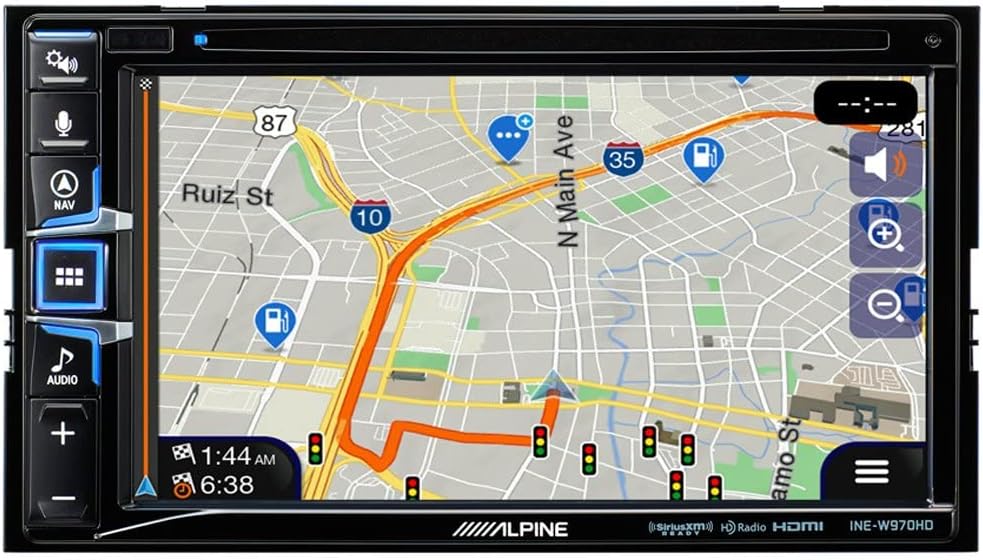
Image: Navigation map display with active route guidance.
4.4. Ses Ayarları
Access audio settings by pressing the SES button or selecting the Audio icon. Adjust bass, mid, treble, fader, and balance settings to optimize sound quality for your vehicle's interior. The unit also supports various audio sources including Radio, SiriusXM, Disc, Bluetooth Audio, USB Music, and AUX input.

Image: Audio adjustment screen for tone, fader, and balance.
5. Bakım
- Ekran Temizleme: Dokunmatik ekranı nazikçe silmek için yumuşak, tüy bırakmayan bir bez kullanın. İnatçı lekeler için,ampBezi az miktarda elektronik cihazlar için tasarlanmış ekran temizleyici ile silin. Aşındırıcı temizleyiciler veya çözücüler kullanmayın.
- Yazılım Güncellemeleri: Periodically check the Alpine support website for firmware updates. Updates can improve performance, add features, and resolve known issues. Follow the instructions provided with the update package carefully.
- Genel Bakım: Avoid exposing the unit to extreme temperatures, direct sunlight for prolonged periods, or excessive moisture. Ensure proper ventilation around the unit.
6. Sorun Giderme
| Sorun | Olası Neden | Çözüm |
|---|---|---|
| Ünite açılmıyor. | Yanlış kablolama; Sigorta atması; Araç aküsü sorunu. | Güç ve topraklama bağlantılarını kontrol edin. Araç sigortalarını inceleyin. Akünün şarjlı olduğundan emin olun. |
| Hoparlörlerden ses gelmiyor. | Speaker wires disconnected; Mute function active; Incorrect audio settings. | Verify speaker connections. Check if mute is enabled. Adjust fader/balance settings. |
| Navigation is slow or inaccurate. | Poor GPS signal; Outdated map data; System overload. | GPS anteninin temiz olduğundan emin olun view of sky. Check for map updates. Perform a system reset (if available). |
| Apple CarPlay/Android Auto bağlanmıyor. | Faulty USB cable; Phone software issue; Unit software issue. | Use a certified USB cable. Restart phone and unit. Check for software updates for both phone and unit. |
| CD/DVD playback issues (e.g., skipping, not reading folders). | Dirty or scratched disc; Incompatible disc format; Unit mechanism issue. | Clean disc. Ensure disc format is supported (e.g., MP3/4 folder navigation may not be supported). Try a different disc. |
If problems persist after attempting these solutions, please contact Alpine customer support or a certified service center.
7. Özellikler
- Modeli: INE-W970HD
- Marka: Alp dağları
- Ürün Ölçüleri: 12 x 12 x 12 inç
- Ürün Ağırlığı: 6 pound
- Özel Özellikler: Dokunmatik ekran
- Netage: 18 watt
- Bağlantı Teknolojisi: USB
- Denetleyici Tipi: Android
- Uyumlu Cihazlar: Akıllı telefon
- Toplam HDMI Bağlantı Noktası: 1
- Bağlantı Tipi: USB,HDMI
- Ses Çıkış Modu: Stereo
- Surround Ses Kanalı Yapılandırması: 4.0
- Video Kodlama: H.264, H.265/HEVC
8. Garanti ve Destek
Alpine products are manufactured to high quality standards. For specific warranty details, please refer to the warranty card included with your product or visit the official Alpine website. For technical support, product registration, or service inquiries, please contact Alpine customer service through their official channels. Keep your proof of purchase for warranty claims.
Daha fazla bilgi ve destek için şuraya bakabilirsiniz: Amazon'daki Alpine Mağazası.