giriiş
This manual provides detailed instructions for setting up, operating, maintaining, and troubleshooting your Alienware Low-Profile RGB Gaming Keyboard AW510K. Designed for performance, this full-featured gaming keyboard offers programmable keys, dedicated volume control, and customizable AlienFX RGB lighting.
Ürün Özellikleri
- Cherry MX Düşük Profile Kırmızı Anahtarlar: Experience linear switching characteristics, low actuation force, and shorter travel for quick and smooth key presses.
- AlienFX Per-Key RGB LED Color Backlighting: Customize lighting with 16.8 million colors via Alienware Command Center.
- Fully Programmable Keys & Macros: Assign macros and custom key functions.
- Özel Medya Kontrolleri: Conveniently manage audio with a volume roller and media keys.
- USB Geçişi: Connect additional peripherals directly through the keyboard.
- İnce ve Ergonomik Tasarım: Provides enhanced ergonomics for comfortable use.
- Dayanıklı Yapı: Features a 100 million keystroke life cycle and switches mounted directly onto a metal top plate.

Image: Alienware AW510K keyboard showcasing its asymmetrical shape and Cherry MX Low Profile Red switches.
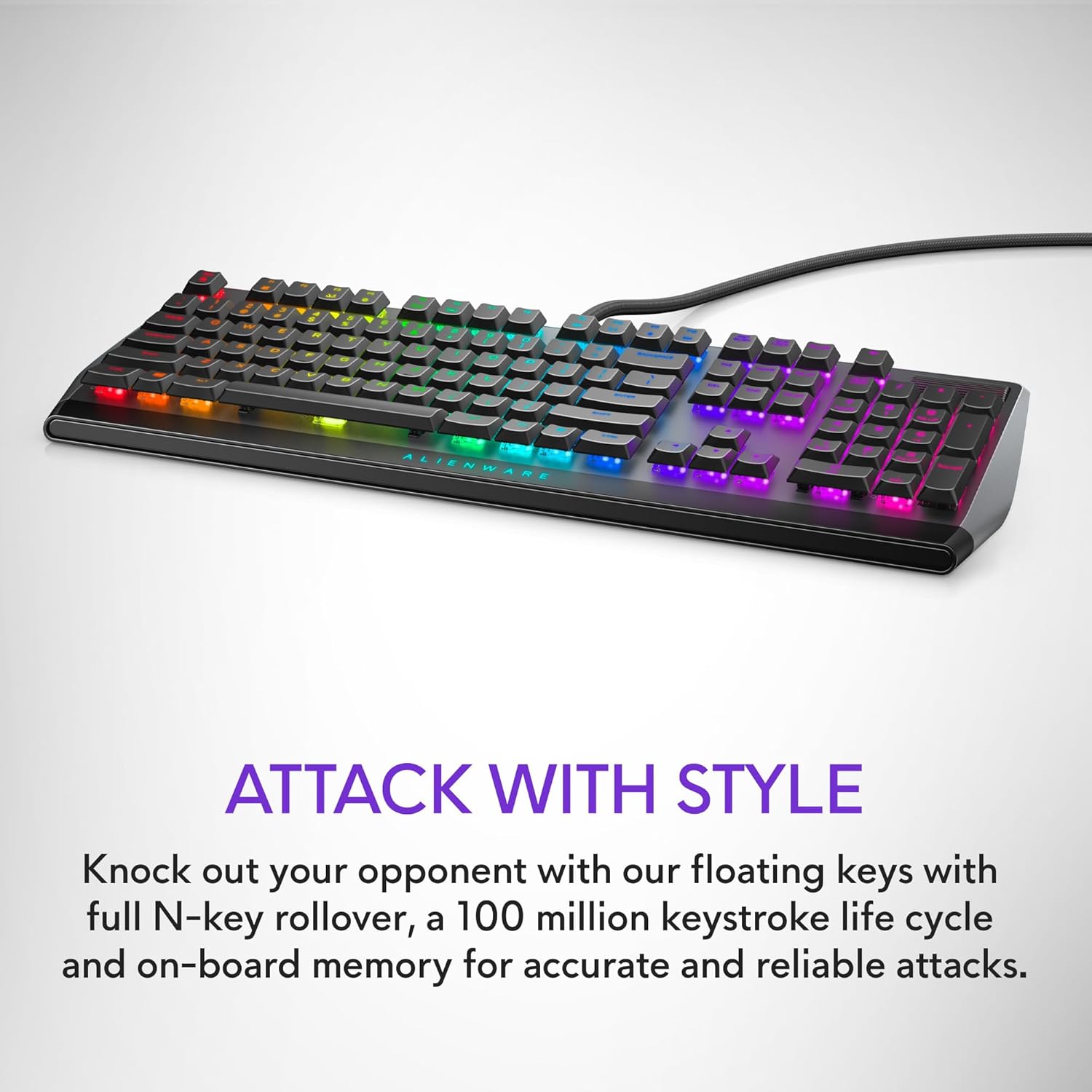
Image: Alienware AW510K keyboard displaying its floating key architecture and vibrant RGB lighting, emphasizing its stylish and durable design.

Resim: Yan profile of the Alienware AW510K keyboard, highlighting its slim form factor and ergonomic design for comfortable palm posture.

Resim: Yukarıdan aşağıya view of the Alienware AW510K keyboard, illustrating its fully programmable keys for macros and custom assignments.

Image: Close-up of the Alienware AW510K keyboard showcasing its customizable per-key AlienFX RGB lighting with a rainbow effect.

Image: Diagram illustrating the dimensions of the Alienware AW510K keyboard, showing its length, width, and height.
Kurmak
Klavyenizi Bağlama
- Connect the keyboard's USB cable to an available USB port on your computer. The keyboard features two USB connectors: one for keyboard functionality and another for the integrated USB passthrough port.
- (Optional) If using a wired mouse or other USB peripheral, connect it to the USB passthrough port located on the keyboard.
- The keyboard is plug-and-play compatible with Windows 10. Drivers should install automatically.
Klavye Açısını Ayarlama
The keyboard features two-tier adjustable feet on the underside. Gently flip out the desired tier of feet to adjust the typing angle for optimal comfort.
Video: This video demonstrates the physical features of the Alienware AW510K keyboard, including the USB passthrough port located at the back and the two-tier adjustable feet on the underside, allowing users to customize the typing angle.
Operasyon
Temel Fonksiyonlar
Medya Kontrolleri
The keyboard includes dedicated media controls for convenient audio management.
- Hacim Artırıcı Silindir: Located on the top right, roll it up or down to adjust system volume.
- Media Keys (F9-F12): Use these keys for track backward, play/pause, stop, and track forward functions.
AlienFX RGB Lighting Customization
Personalize your keyboard's lighting effects using the Alienware Command Center software.
- Install Alienware Command Center on your Windows 10 PC.
- Launch the software and navigate to the "FX" tab.
- Select your keyboard to access lighting options. You can choose from various effects like Static Color, Pulse, Morph, Breathing, Spectrum, Single Color Wave, and Rainbow Wave.
- Customize colors, brightness, and tempo for each effect. You can apply effects to individual keys, groups of keys (e.g., WASD, number row), or the entire keyboard.
- Save your customized themes to the device for quick access.
Video: This official product video showcases the Alienware Low-Profile RGB Gaming Keyboard, highlighting its customizable AlienFX RGB lighting effects and the functionality of its dedicated media controls, including the volume roller.
Video: This video provides a demonstration of the Alienware AW510K Gaming Keyboard's sleek design, responsive Cherry MX Low Profile Red switches, and customizable RGB lighting. It also emphasizes the quiet operation of the keys.
Programlanabilir Tuşlar ve Makrolar
Utilize the Alienware Command Center to assign custom macros and key functions to enhance your gaming and productivity. Settings are stored in the onboard memory.
Bakım
Klavyenizi Temizleme
The floating keycap design of the Alienware AW510K makes it easier to clean.
- Klavyeyi bilgisayarınızdan ayırın.
- Tuşların arasında biriken toz ve kalıntıları temizlemek için basınçlı hava kullanın.
- For stubborn dirt, carefully remove keycaps (refer to specialized tools if needed) and clean the switches and keycaps separately with a soft, damp Bez. Yeniden birleştirmeden önce tüm bileşenlerin kuru olduğundan emin olun.
Sorun giderme
Ortak Sorunlar
Tuş kapağı değişimi
Finding replacement keycaps for this specific low-profile mechanical keyboard can be challenging due to its unique design. It is recommended to contact Alienware support for official replacement parts.
Yazılım Sorunları
If experiencing issues with Alienware Command Center (e.g., lighting synchronization, macro programming), ensure the software is updated to the latest version. Restarting the software or your computer may resolve minor glitches.
Özellikler
Teknik Özellikler
| Marka | Uzaylı yazılımı |
| Seri | AW 510K |
| Ürün Model Numarası | AW510K |
| Donanım Platformu | PC |
| İşletim Sistemi | Windows 10 |
| Ürün Ağırlığı | 14.6 ons |
| Ürün Boyutları | 6.1 x 18.4 x 1.2 inç |
| Bağlantı Teknolojisi | USB |
| Klavye Açıklaması | Oyun |
| Ürün İçin Önerilen Kullanımlar | Oyun |
| Özel Özellik | Arkadan aydınlatmalı |
| Klavye Arka Aydınlatma Renk Desteği | RGB |
| Üretici | Dell |
| Dil | İngilizce |
Garanti ve Destek
Garanti Bilgileri
For detailed warranty information, please refer to the documentation included with your product or visit the official Alienware support webalan.
Müşteri Desteği
Teknik destek veya diğer sorularınız için lütfen şu adresi ziyaret edin: Amazon'da Alienware Mağazası or the official Dell/Alienware support portal.


