1. Giriş
This manual provides comprehensive instructions for the setup, operation, and maintenance of your Xprinter XP-360B Thermal Label Barcode Printer. Please read this manual thoroughly before using the printer to ensure proper functionality and to prevent damage.
The XP-360B is a high-speed thermal label printer designed for various applications, including barcode printing, shipping labels, and receipt printing. It supports label widths from 20mm to 80mm and offers a maximum print speed of 200mm per second.

Figure 1.1: Xprinter XP-360B Thermal Label Barcode Printer. This image shows the printer from a front-right angle, with labels being fed out of the front slot.
2. Güvenlik Bilgileri
To ensure safe operation and prolong the life of your printer, please observe the following safety precautions:
- Yazıcıyı suya veya aşırı neme maruz bırakmayın.
- Yazıcıyı doğrudan güneş ışığına veya ısı kaynaklarının yakınına koymaktan kaçının.
- Yalnızca yazıcıyla birlikte verilen güç adaptörünü kullanın.
- Yazıcıyı kendiniz sökmeye veya onarmaya çalışmayın. Yetkili servis personeline başvurun.
- Yazıcıyı toz ve kirden uzak tutun.
- Yazıcının sabit ve düz bir yüzeye yerleştirildiğinden emin olun.
- Unplug the printer from the power outlet before cleaning or when not in use for extended periods.
3. Paket İçeriği
Paketin içinde tüm öğelerin mevcut olduğundan emin olun:
- Xprinter XP-360B Thermal Label Barcode Printer
- Güç Adaptörü
- USB kablosu
- Kullanım Kılavuzu (bu belge)
- Sürücü CD'si (veya sürücüleri indirmek için bağlantı)
4. Ürün Bittiview
4.1. Ön View

Şekil 4.1: Ön view of the XP-360B printer, showing the label output slot and control buttons.
- Etiket Çıkış Yuvası: Where printed labels exit the printer.
- Kontrol Düğmeleri:
- GÜÇ: Güç göstergesi.
- HATA: Error indicator.
- DURAKLAT: Yazdırma işlemini duraklatır veya devam ettirir.
- BESLEMEK: Feeds a blank label.
4.2. Yan View
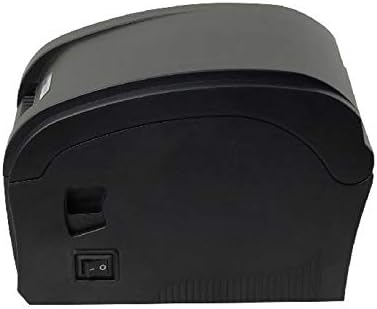
Şekil 4.2: Yan view of the XP-360B printer, highlighting the power switch.
- Güç düğmesi: Yazıcıyı açar veya kapatır.
4.3. Dahili View (Cover Open)

Şekil 4.3: Dahili view of the XP-360B printer with the top cover open, showing the label roll compartment and print head assembly.
- Yazıcı Kafası Tertibatı: Contains the thermal print head.
- Label Roll Compartment: Area for loading the label roll.
- Adjustable Paper Guides: Guides to align the label roll.
5. Kurulum
5.1. Paketin Açılması ve Yerleştirilmesi
- Yazıcıyı ve tüm aksesuarlarını dikkatlice ambalajından çıkarın.
- Yazıcıyı yeterli havalandırmaya sahip, sabit ve düz bir yüzeye yerleştirin.
- Ensure there is enough space around the printer for proper operation and maintenance.
5.2. Yazıcının Bağlanması
- Güç adaptörünü yazıcının güç giriş portuna bağlayın.
- Güç adaptörünü uygun bir elektrik prizine takın.
- USB kablosunun bir ucunu yazıcının USB portuna bağlayın.
- USB kablosunun diğer ucunu bilgisayarınızdaki boş bir USB portuna takın.
5.3. Etiketleri Yükleme
- Yazıcının kapalı olduğundan emin olun.
- Yazıcının üst kapağını açın.
- Place the label roll into the label compartment, ensuring the labels feed from the bottom of the roll towards the front of the printer.
- Adjust the movable paper guides to fit the width of your label roll snugly, without being too tight.
- Pull a few labels out past the print head and through the label output slot.
- Üst kapağı yerine oturana kadar sıkıca kapatın.

Figure 5.1: Loading a roll of thermal labels into the XP-360B printer's internal compartment.
5.4. Sürücü Kurulumu
Before using the printer, you must install the appropriate drivers on your computer. Drivers are typically provided on a CD or can be downloaded from the manufacturer's official webalan.
- Insert the driver CD into your computer's CD-ROM drive, or navigate to the official Xprinter support website to download the XP-360B drivers.
- Sürücü kurulumunu tamamlamak için ekrandaki talimatları izleyin.
- Kurulumdan sonra bilgisayarınızı yeniden başlatmanız önerilir.
6. Kullanım Talimatları
6.1. Açma/Kapama
- To turn on the printer, flip the power switch located on the side of the printer to the 'ON' position. The POWER indicator light will illuminate.
- To turn off the printer, flip the power switch to the 'OFF' position.
6.2. Temel Baskı
- Yazıcının bilgisayarınıza bağlı ve açık olduğundan emin olun.
- Open the document or application from which you wish to print labels (e.g., label design software, shipping platform).
- Go to the print settings (File > Yazdır).
- Select "Xprinter XP-360B" as your printer.
- Adjust the paper size and orientation settings to match your labels (e.g., 4x6 inch, portrait/landscape).
- Click "Print". The printer will automatically detect the label gaps and print accordingly.
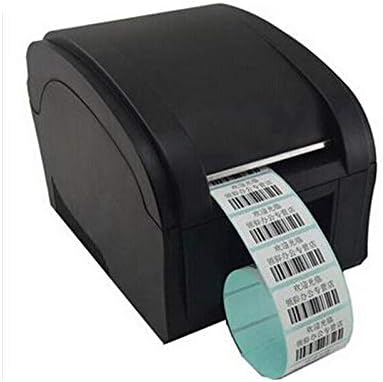
Figure 6.1: The XP-360B printer in operation, feeding out a continuous roll of printed labels.
6.3. Using Control Buttons
- BESLEME Düğmesi: Press this button once to feed a single blank label. This is useful for testing label alignment or advancing to the next label.
- DURAKLAT Düğmesi: Press this button to temporarily pause a print job. Press it again to resume printing.
7. Bakım
Düzenli bakım yazıcınızın optimum performansını sağlar ve ömrünü uzatır.
7.1. Baskı Kafasını Temizleme
The print head should be cleaned regularly, especially if print quality degrades or after printing a large volume of labels.
- Yazıcıyı kapatın ve fişini prizden çekin.
- Yazıcının üst kapağını açın.
- Yazıcı yakın zamanda kullanıldıysa, baskı kafasının soğuması için birkaç dakika bekleyin.
- Gently wipe the thermal print head surface with an alcohol swab or a lint-free cloth lightly dampİzopropil alkol ile yıkandı.
- Yazıcı kafasının tamamen kurumasını bekleyin, ardından kapağı kapatın ve yazıcıyı çalıştırın.
7.2. Baskı Silindirinin Temizlenmesi
The platen roller helps feed the labels smoothly. Clean it if you notice feeding issues.
- Follow steps 1-3 from "Cleaning the Print Head".
- Rotate the platen roller manually and wipe its surface with an alcohol swab or a lint-free cloth lightly dampİzopropil alkol ile yıkandı.
- Allow it to dry completely before closing the cover.
8. Sorun Giderme
This section addresses common issues you might encounter with your XP-360B printer.
| Sorun | Olası Neden | Çözüm |
|---|---|---|
| Yazıcı açılmıyor | Güç kablosu gevşek; Elektrik prizi arızalı; Yazıcı arızalı | Check power cable connection; Try a different outlet; Contact support if problem persists. |
| No printing / Printer offline | USB cable loose; Driver not installed; Printer offline in OS | Check USB connection; Install drivers; Check printer status in computer settings. |
| Düşük baskı kalitesi / Soluk baskılar | Dirty print head; Low quality labels; Incorrect print density settings | Clean the print head (see Section 7.1); Use high-quality thermal labels; Adjust print density in driver settings. |
| Etiketler doğru şekilde beslenmiyor | Labels loaded incorrectly; Paper guides not adjusted; Dirty platen roller | Re-load labels correctly; Adjust paper guides; Clean platen roller (see Section 7.2). |
| HATA ışığı yanıyor | Paper jam; Cover open; Print head overheating | Clear any paper jams; Ensure cover is closed properly; Turn off printer and let it cool down. |
9. Özellikler
| Özellik | Tanım |
|---|---|
| Örnek | XP-360B |
| Baskı Yöntemi | Doğrudan Termal |
| Arayüz | USB |
| Baskı Hızı | 200mm/saniyeye kadar |
| Max Paper Width | 80mm (adjustable from 20mm) |
| Kağıt Besleme Modu | Otomatik |
| Ağ Baskısı | Kablolu |
| Dubleks Baskı | HAYIR |
| Boyutlar | 25x22x21 cm |
| Ağırlık | 2 kilo |
10. Garanti ve Destek
Xprinter products are designed for reliability and performance. For specific warranty terms and conditions, please refer to the warranty card included with your product or visit the official Xprinter webalan.
If you encounter any issues that cannot be resolved using the troubleshooting guide, or if you require technical assistance, please contact Xprinter customer support through their official website veya ürün dokümantasyonunuzda sağlanan iletişim bilgileri.
Please have your model number (XP-360B) and purchase information ready when contacting support.


