1. Giriş
This manual provides detailed instructions for the installation, setup, and operation of your MOES WiFi Smart Wall Touch Light Switch. Please read this manual thoroughly before installation and use to ensure proper function and safety.

Figure 1: MOES WiFi Smart Wall Touch Light Switch (1 Gang, Black)
2. Güvenlik Bilgileri
- Elektrik tesisatı: Kurulum yalnızca yetkili bir elektrikçi veya elektrik tesisatı konusunda kapsamlı bilgiye sahip bir kişi tarafından yapılmalıdır.
- Güç Bağlantısının Kesilmesi: Always disconnect power at the circuit breaker before installing, removing, or servicing the switch. Failure to do so may result in serious injury or death.
- Nötr Tel Gerekli: This smart switch requires a neutral wire in your switch box to operate correctly. If you do not have a neutral wire, this switch is not compatible.
- Wi-Fi Ağı: Requires a 2.4GHz Wi-Fi network connection. It is not compatible with 5GHz Wi-Fi networks.
- Uyumluluk: Only compatible with 1 gang switch boxes. Not compatible with standard US 2/3/4 gang switch plates. This switch is not designed for 3-way switch configurations or as a dimmer switch.
- Sadece İç Mekanda Kullanım: Bu cihaz, kuru ortamlarda iç mekan kullanımı için tasarlanmıştır.
- Çalışma Hacmitage: Ensure your electrical system operates within the specified voltage aralığı (240 Volt).

Figure 2: Key compatibility and wiring considerations.
3. Paket İçeriği
- MOES WiFi Smart Wall Touch Light Switch (1 Gang)
- Kullanıcı Kılavuzu
- Montaj Vidaları
4. Ürün Özellikleri
- Dokunmatik Kontrol: Features a toughened glass surface for touch operation.
- Ses Kontrolü: Compatible with Amazon Alexa (Amazon Echo/Dot/Tap) and Google Assistant for hands-free operation.
- Wi-Fi Uzaktan Kumanda: Control the wall switch wirelessly from anywhere using the 'Smart Life' app on your smartphone via Wi-Fi or 4G network. No separate hub is required.
- Zamanlama Fonksiyonu: Schedule lights and appliances to turn on/off automatically at specific times.

Figure 3: Smart Switch in a home environment.
5. Özellikler
| Şartname | Değer |
|---|---|
| Çalışma Modu | Otomatik, Kapalı, Akıllı Anahtar |
| Güncel Derecelendirme | 10 Amps |
| Çalışma Hacmitage | 240 Volt |
| İletişim Türü | Normalde Açık |
| Bağlayıcı Türü | Kablosuz |
| terminal | Vida |
| Ürün Boyutları (U x G x Y) | 4.7 x 2.9 x 1.5 inç |
| Devre tipi | 1 yollu |
| Aktüatör Tipi | Dokunmak |
| İletişim Malzemesi | Pirinç |
| Uluslararası Koruma Derecelendirmesi | IPX4 |
| Pozisyon Sayısı | 3 |
| Denetleyici Türü | Amazon Alexa, Google Asistan |
| Kontrol Yöntemi | Uzak |
| Bağlantı Protokolü | Wi-Fi (sadece 2.4 GHz) |
| Netage | 1000 watt |
| Ürün Ağırlığı | 7.4 ons |

Figure 4: Product dimensions and wiring terminals.
6. Kurulum Kılavuzu
Başlamadan Önce:
- Devre kesiciden elektriğin KAPALI olduğundan emin olun.
- Confirm your switch box has a neutral wire. This is essential for the smart switch to function.
- Wi-Fi ağınızın 2.4GHz olduğunu doğrulayın.
- This switch is for 1-gang setups only and is not a dimmer or 3-way switch.
Kablolama Adımları:
- Turn off power at the circuit breaker for the light switch you are replacing.
- Mevcut duvar plakasını ve şalteri çıkarın.
- Identify the wires: Live (usually black), Neutral (usually white), and Load (to the light fixture). A Ground wire (usually green or bare copper) may also be present.
- Duvar prizinden gelen kabloları MOES Akıllı Anahtar üzerindeki ilgili terminallere bağlayın:
- N: Connect the Neutral wire (usually white).
- L: Connect the Live wire (incoming power, usually black).
- L1: Connect the Load wire (to the light fixture). For 1-gang switches, only L1 is typically used.
- Zemin: If present, connect the ground wire to the switch's ground terminal (if available) or safely cap it.
- Verilen vidaları kullanarak şalteri duvardaki kutuya sabitleyin.
- Attach the glass panel.
- Sigortadan elektriği geri verin.
After installation, the indicator lights on the switch should blink quickly, indicating it is ready for Wi-Fi connection in Default Normal Mode.

Figure 5: Replacing a traditional switch with the smart touch switch.
7. Uygulama Kurulumu ve Eşleştirme
To control your smart switch via smartphone, download the 'Smart Life' app from the App Store (iOS) or Google Play (Android).
- İndirin ve Kaydolun: Install the 'Smart Life' app and register an account.
- Cihaz Ekle: Open the app, tap '+' or 'Add Device', and select 'Light Switch' or 'Electrical Switch'.
- Gösterge Durumunu Onayla: Ensure the indicator light on your switch is blinking quickly. If not, you may need to reset the device.
- Wi-Fi'ye bağlanın: Anahtarı 2.4 GHz Wi-Fi ağınıza bağlamak için uygulama içi talimatları izleyin. İstendiğinde Wi-Fi parolanızı girin.
- Aygıt Yeniden Adlandırma: Once connected, you can rename the switch for easier identification (e.g., "Living Room Light").
Cihazı Sıfırlama:
If the indicator lights are not blinking quickly, or if you need to reset the switch for any reason:
- Press and hold any button on the switch for approximately 20 seconds until the indicator light blinks quickly. This puts the device into Default Normal Mode for Wi-Fi connection.
- If the indicator light blinks very slowly after holding for 20 seconds, it is in AP (Access Point) mode. This is an alternative pairing mode if Default Normal Mode fails.
Video 1: Demonstrates how to reset or unlock the device by pressing and holding a button for 20 seconds, showing the indicator light changes for different pairing modes.
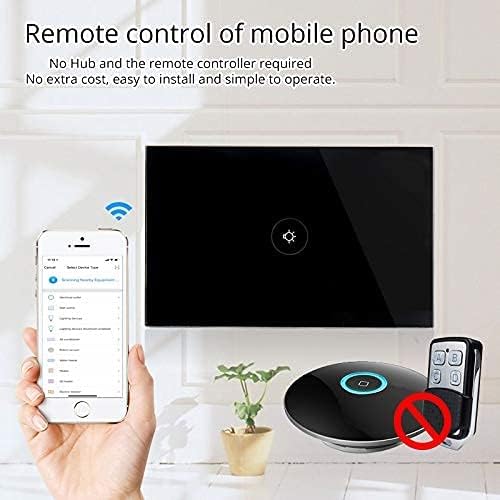
Figure 6: Remote control via mobile application.
8. Operasyon
Once installed and paired with the 'Smart Life' app, you can operate your switch in several ways:
- Manual Touch: Simply touch the glass panel to turn the connected light or appliance on or off.
- Uygulama Kontrolü: Use the 'Smart Life' app on your smartphone to remotely turn the switch on or off from anywhere with an internet connection.
9. Ses Kontrolü Entegrasyonu
The MOES Smart Switch is compatible with Amazon Alexa and Google Assistant for convenient voice control.
- Link 'Smart Life' Account: In your Amazon Alexa or Google Home app, search for the 'Smart Life' skill/action and enable it.
- Giriş yapmak: Log in with your 'Smart Life' account credentials.
- Cihazları Keşfedin: Bağlantı kurulduktan sonra, Alexa veya Google Asistan'dan "Cihazları keşfet" demesini isteyin veya ilgili uygulamalarında cihaz keşfini manuel olarak başlatın.
- Sesli Komutlar: You can now use voice commands such as "Alexa, turn on [device name]" or "Hey Google, turn off [device name]". Use the names you assigned in the 'Smart Life' app.

Şekil 7: Alexa ve Google Home ile sesli kontrol.
10. Zamanlama Fonksiyonu
The 'Smart Life' app allows you to set schedules and timers for your smart switch, automating your lighting or appliances.
- Programlar Oluşturun: In the 'Smart Life' app, navigate to the device settings and select 'Schedule' or 'Timer'.
- Set On/Off Times: Configure specific times for the switch to turn on or off. You can set daily, weekly, or custom schedules.
- Gün Doğumu/Gün Batımı Otomasyonu: Some app versions allow for automation based on local sunrise and sunset times.

Figure 8: Setting schedules via the Smart Life app.
11. Sorun Giderme
| Sorun | Olası Neden | Çözüm |
|---|---|---|
| Düğme dokunmaya tep vermiyor. | No power, incorrect wiring, or device locked. | Check circuit breaker. Verify wiring (Live, Neutral, Load). Perform a device reset (hold button for 20 seconds). |
| Wi-Fi'ye bağlanılamıyor. | Incorrect Wi-Fi band (5GHz), weak signal, incorrect password, or device not in pairing mode. | Ensure your router is broadcasting a 2.4GHz signal. Move closer to the router. Double-check Wi-Fi password. Reset the switch to enter pairing mode (blinking indicator). Try AP mode if normal mode fails. |
| Ses kontrolü çalışmıyor. | 'Smart Life' skill not enabled, incorrect device name, or no internet connection. | Ensure the 'Smart Life' skill is enabled and linked in your Alexa/Google Home app. Verify device names match. Check internet connectivity. |
| Switch goes offline frequently. | Weak Wi-Fi signal, network congestion, or router issues. | Improve Wi-Fi signal strength (e.g., Wi-Fi extender). Reduce network congestion. Restart your router. |
12. Bakım
- Temizlik: Gently wipe the glass panel with a soft, dry cloth. Avoid abrasive cleaners or solvents.
- Donanım Yazılımı Güncellemeleri: Periodically check the 'Smart Life' app for available firmware updates to ensure optimal performance and security.
13. Garanti ve Destek
For warranty information or technical support, please refer to the documentation provided with your purchase or contact MOES customer service directly. Contact details can typically be found on the MOES official website or within the 'Smart Life' app's support section.
Video 2: Bittiview of MOES smart home products and their integration, demonstrating various smart life features like color temperature control, music sync lighting, and smart automation based on environmental sensors.


