Ürün Bittiview
The Logitech Crayon is a pixel-precise digital pencil designed for all iPads (2018 releases and later). It leverages Apple Pencil technology to provide a natural and intuitive writing and drawing experience. Its robust design, anti-roll shape, and dynamic smart tip make it a versatile tool for creativity and productivity.
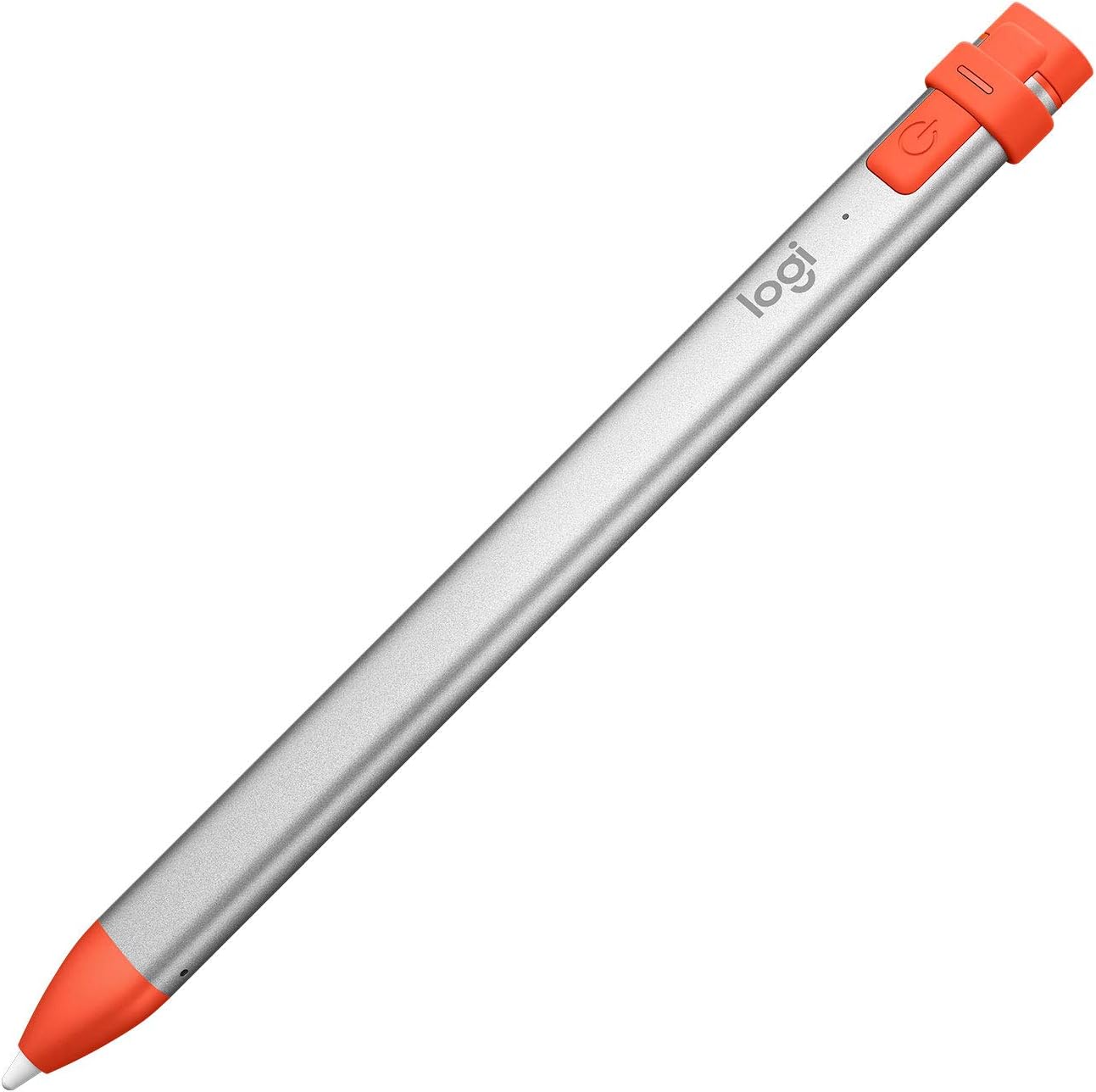
Figure 1: Logitech Crayon Digital Pencil in Orange.
Kutuda Neler Var?
- Logitech Crayon Digital Pencil
- 1 Yıllık Sınırlı Donanım Garantisi
Note: Charging cable (Lightning) is not included and must be supplied by the user.

Figure 2: Logitech Crayon packaging, showing the digital pencil.
Temel Özellikler
- Uyumluluk: Designed for any iPad (2018 releases or later) with iOS updated to 12.2 and above.
- Apple Pencil Technology: Utilizes Apple Pencil technology for natural writing and drawing, including Scribble for handwriting-to-text conversion.
- Dynamic Smart Tip: Allows for automatic line weight adjustment by simply tilting the Crayon.
- Instant Connection: Connects to iPad instantly upon power-on, requiring no complex device pairing.
- Wide App Support: Delivers precise and fast input with hundreds of Apple Pencil supported applications.
- Dayanıklı Tasarım: Built tough with 4 ft drop protection and a unique roll-proof shape.
- Uzun Pil Ömrü: Provides up to 7.5 hours of active writing time on a single charge.
- Avuç İçi Reddetme Teknolojisi: Enables users to rest their hand on the screen comfortably while writing or drawing without interference.
Kurmak
1. Charging the Logitech Crayon
The Logitech Crayon uses a standard Lightning connector for charging. To charge, remove the orange cap at the top of the Crayon to reveal the Lightning port. Insert a Lightning cable (not included) into the port and connect it to a power source. A full charge provides up to 7.5 hours of active writing time.

Figure 3: Charging port located at the top of the Logitech Crayon.
2. Açma ve Eşleştirme
The Logitech Crayon connects to your compatible iPad instantly. Simply press the power button located near the charging port (Figure 4). No complex Bluetooth pairing is required. Ensure your iPad's iOS is updated to 12.2 or above for optimal performance.

Figure 4: Power button on the Logitech Crayon for instant connection.
Kullanım Talimatları
Yazma ve Çizim
The Logitech Crayon offers pixel-precise input, making it ideal for notes, sketches, and annotations. Its fast responsiveness ensures a fluid experience, similar to using a traditional pen and paper.
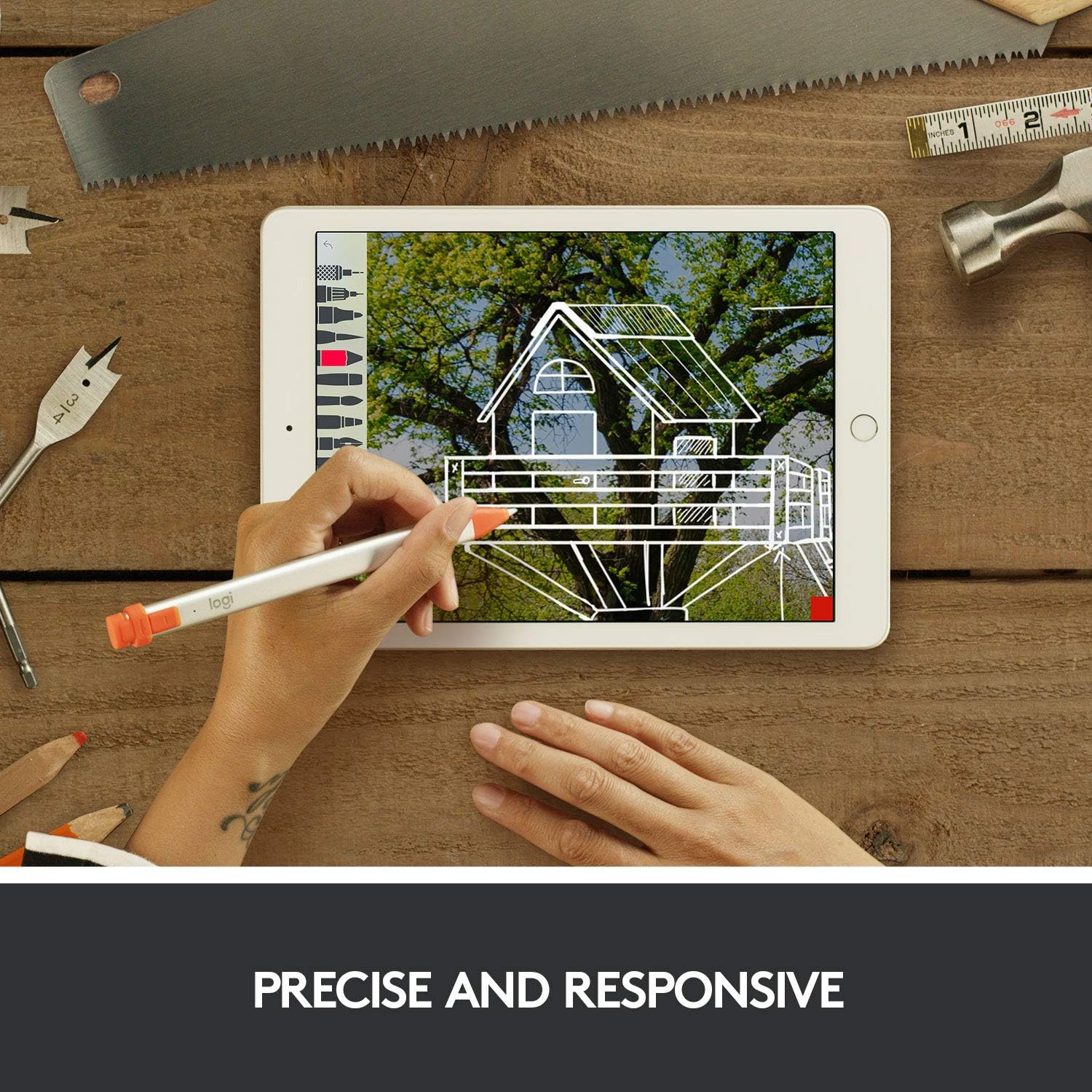
Figure 5: Logitech Crayon in use for precise and responsive drawing on an iPad.
Apple Pencil Technology Integration
The Crayon utilizes Apple Pencil technology, allowing for seamless integration with compatible iPad apps. This includes features like Scribble, which converts your handwriting to text.
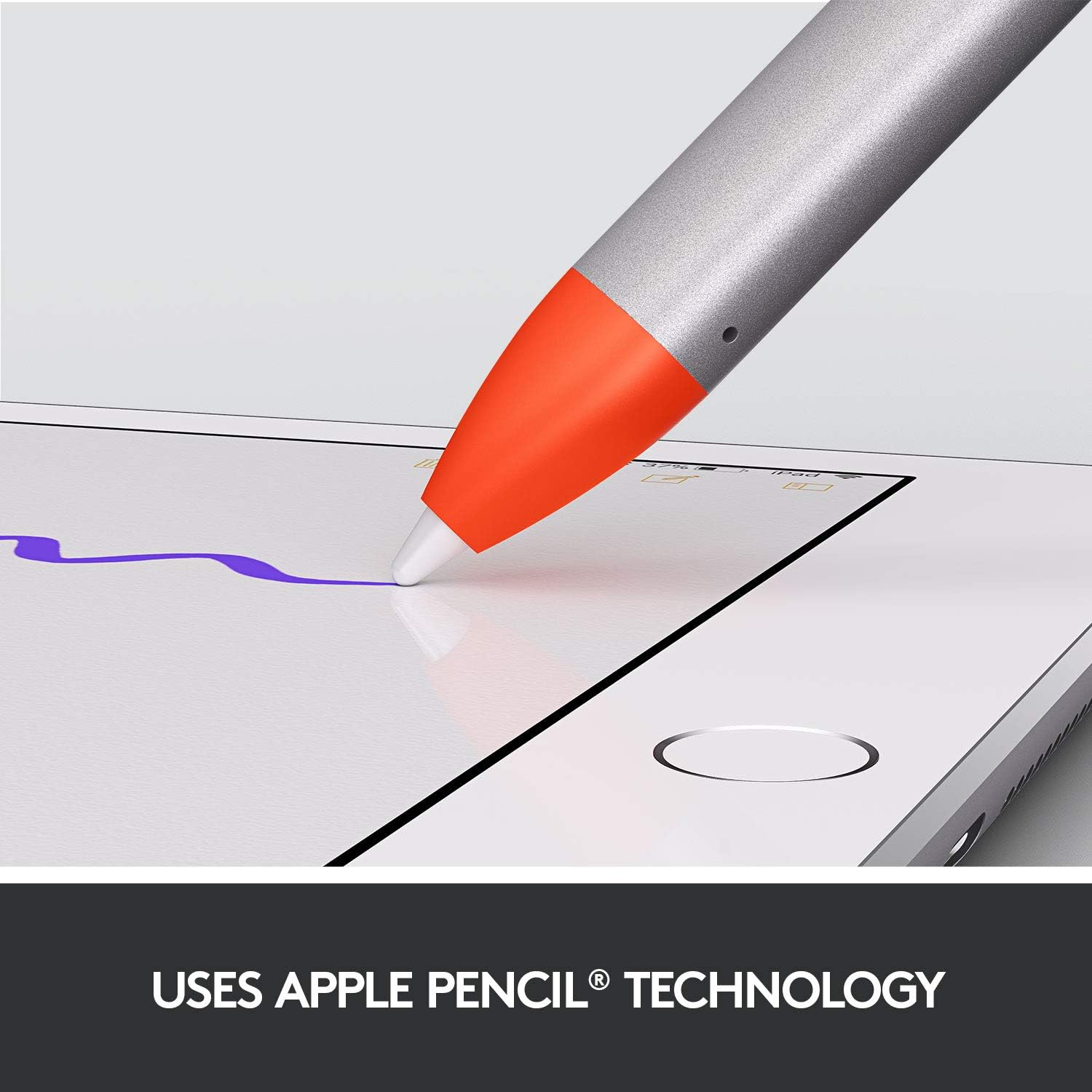
Figure 6: Demonstrating the use of Apple Pencil technology with Logitech Crayon.
Eğim İşlevselliği
To achieve thicker or thinner lines, simply tilt the Logitech Crayon. The smart tip automatically adjusts the line weight based on the angle of the Crayon, providing dynamic control over your strokes.

Figure 7: Illustrating the tilt feature for varying line thickness.
Avuç içi reddi
The integrated palm rejection technology allows you to rest your hand naturally on the iPad screen while using the Crayon, preventing unintended marks or interactions from your palm.
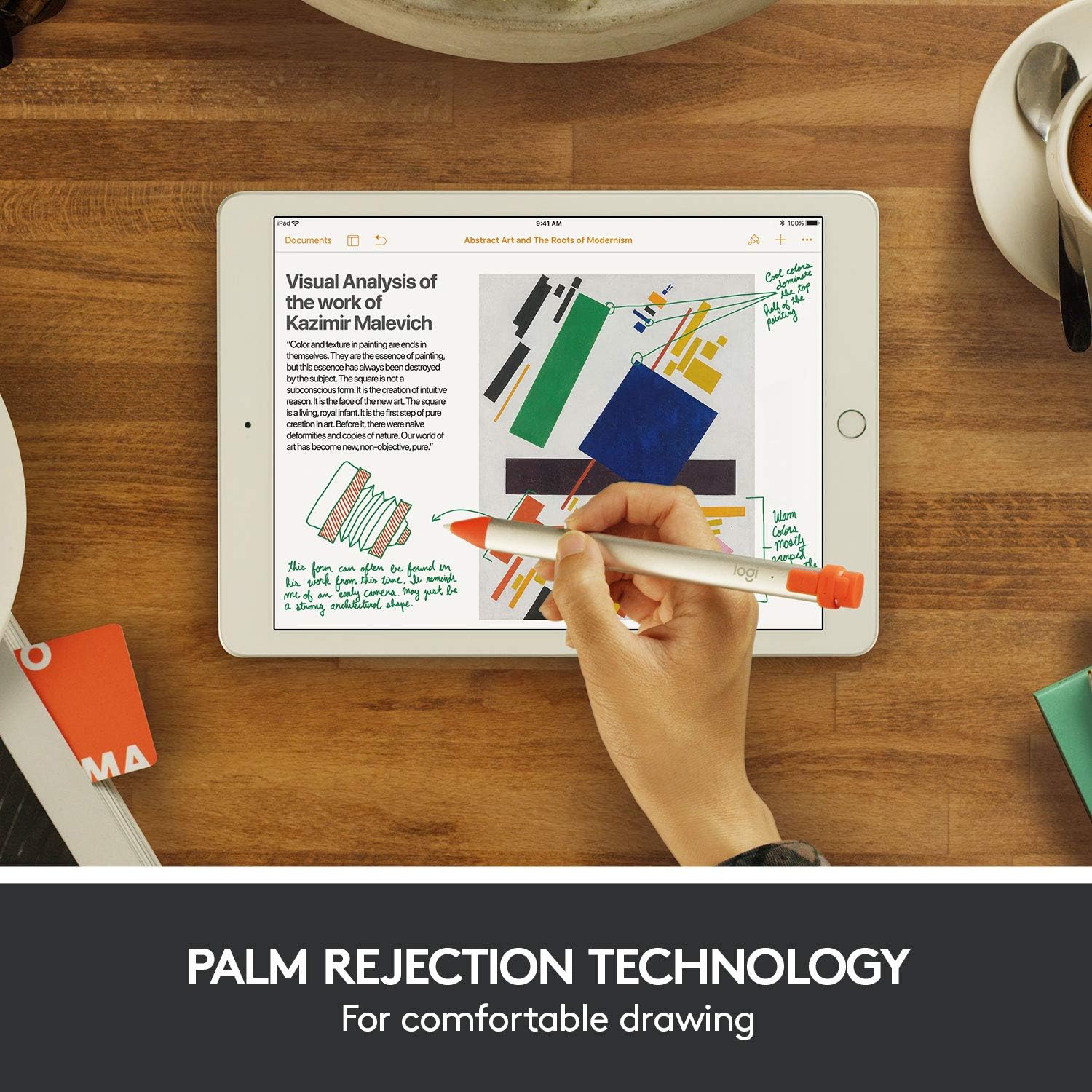
Figure 8: Palm rejection in action, allowing comfortable drawing.
Resmi Ürün Videosu
Video 1: Official Logitech Crayon Product Video, demonstrating key features and usage scenarios.
Bakım
To ensure the longevity and optimal performance of your Logitech Crayon, keep the tip clean and free from debris. Replacement tips are available from Logitech if the original tip becomes worn or damaged. Store the Crayon in a safe place to prevent physical damage.
Sorun giderme
Crayon Not Responding:
- Ensure the Crayon is charged. Connect it to a Lightning cable and power source.
- Verify the Crayon is powered on by pressing the power button. The indicator light should be green.
- Check your iPad's compatibility. The Crayon works with iPads (2018 releases and later) running iOS 12.2 or above.
- Ensure Bluetooth is enabled on your iPad, even though direct pairing is not required, some background services may rely on it.
- İPad'inizi yeniden başlatın.
Inaccurate or Lagging Input:
- Clean the Crayon tip and your iPad screen.
- Ensure no other styluses are connected or interfering with the iPad.
- Update your iPad's iOS to the latest version.
Özellikler
| Bağlanmak | Detay |
|---|---|
| Marka | Logitech |
| Model Numarası | 914-000033 |
| Renk | Turuncu |
| Ürün Ağırlığı | 1.6 ons |
| Ürün Boyutları | 0.3 x 0.4 x 6.4 inç |
| Malzeme | Polycarbonate/Acrylonitrile Butadiene Styrene (PC/ABS), Aluminum |
| Pil Türü | 1 Lityum Polimer pil (dahil) |
| Battery Life (Active) | 7.5 Saate Kadar |
| Uyumlu Cihazlar | iPad (2018 releases and later), iOS 12.2+ |
Garanti ve Destek
The Logitech Crayon comes with a 1-Year Limited Hardware Warranty. For detailed warranty information or additional support, please refer to the official Logitech website or the user guide available for download.
Resmi Kullanıcı Kılavuzu (PDF): Buradan İndirin


