1. Giriş
This manual provides comprehensive instructions for the installation, operation, maintenance, and troubleshooting of your Seagate Barracuda 2TB 3.5-inch SATA III Internal Hard Drive (Model ST2000DM008). Designed for desktop computers, this drive offers reliable storage for your data, applications, games, and media files.

Resim 1.1: Ön view of the Seagate Barracuda 2TB Internal Hard Drive, showcasing its sleek design and the Barracuda branding.
2. Kurulum ve Kurulum
The Seagate Barracuda ST2000DM008 is an internal hard drive designed for desktop computer systems. Proper installation is crucial for optimal performance and data integrity.
2.1. Sistem Gereksinimleri
- Available 3.5-inch drive bay in your desktop computer.
- Available SATA data port on your motherboard.
- Available SATA power connector from your power supply unit (PSU).
- Compatible operating system (e.g., Windows, macOS, Linux).
2.2. Fiziksel Kurulum
- Gücü Kapatma ve Bağlantıyı Kesme: Bilgisayarınızın tamamen kapalı olduğundan ve elektrik prizinden çıkarılmış olduğundan emin olun.
- Bilgisayar Kasasını Açın: Dahili bileşenlere erişmek için bilgisayar kasanızın yan panelini çıkarın.
- Sürücü Bölmesini Bulun: Identify an available 3.5-inch drive bay. Some cases may require a drive caddy.
- Sürücüyü Monte Edin: Carefully slide the hard drive into the drive bay. Secure it with screws or the case's tool-less mechanism.
- Kabloları Bağlayın:
- Connect one end of the SATA data cable to the hard drive and the other end to an available SATA port on your motherboard.
- Connect a SATA power cable from your PSU to the hard drive's power connector.
- Kasayı Kapatın ve Açın: Replace the computer case panel and reconnect the power cable. Power on your computer.
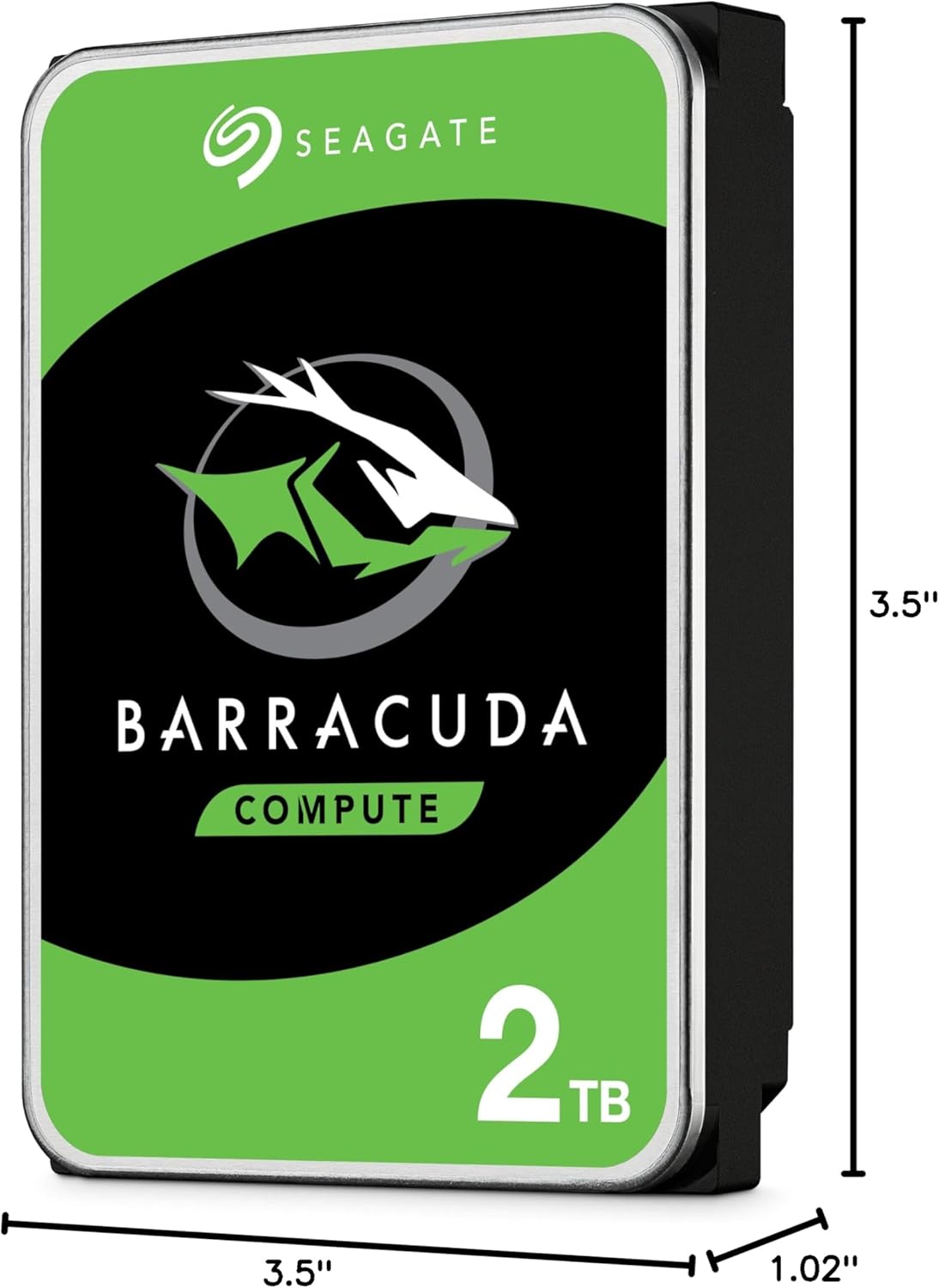
Image 2.1: Dimensions of the Seagate Barracuda 2TB Hard Drive, illustrating its 3.5-inch form factor and physical measurements for compatibility with desktop drive bays.
2.3. Software Setup (Initial Use)
After physical installation, the drive needs to be initialized, partitioned, and formatted by your operating system before it can be used for storage.
- Disk Yönetimine Erişim:
- Pencereler: Right-click on 'This PC' or 'My Computer', select 'Manage', then 'Disk Management'.
- MacOS: Go to 'Applications' > 'Utilities' > 'Disk Utility'.
- Linux: Use a disk utility like GParted or the 'fdisk'/'parted' command-line tools.
- Diski Başlat: The new drive should appear as 'Unallocated Space'. You may be prompted to initialize it (e.g., MBR or GPT partition style). GPT is recommended for drives larger than 2TB.
- Create Partition(s): Create one or more partitions on the initialized disk.
- Format Partition(s): Format the partition(s) with a suitable file sistem (örneğin, Windows için NTFS, macOS için HFS+ veya APFS, Linux için Ext4).
- Assign Drive Letter/Mount Point: Assign a drive letter (Windows) or mount point (Linux) to the new partition(s).
3. Sabit Sürücüyü Çalıştırma
Once installed and formatted, your Seagate Barracuda hard drive functions as a standard storage device within your computer system. It is designed for continuous operation in a desktop environment.
3.1. Veri Depolama ve Erişim
- File Yönetmek: Use your operating system's file explorer (e.g., Windows Explorer, macOS Finder) to save, copy, move, and delete fileSürücüde s.
- Uygulama Kurulumu: Install software applications directly onto the drive.
- Medya depolama: Store large media files such as videos, photos, and music.
- Oyun: Install and run games from the drive to utilize its capacity.
3.2. Performans
The drive utilizes a SATA 6Gb/s interface, providing high-speed data transfer rates for typical desktop usage. Actual performance may vary based on system configuration, file sizes, and workload.

Image 3.1: Illustrates the 'Store More' capability of the Seagate Barracuda drive, highlighting its suitability for storing a large volume of games, movies, and music files.
4. Bakım ve Özen
Doğru bakım, sabit diskinizin uzun ömürlü ve güvenilir olmasını sağlar.
- Düzenli Yedeklemeler: Periodically back up important data to another storage device or cloud service. This is the most critical maintenance step to prevent data loss.
- Disk birleştirme (HDD'ler için): For Windows users, regularly defragmenting the drive can help optimize performance. macOS and Linux typically handle this automatically.
- Sürüş Sağlığını Kontrol Edin: Use disk utility tools provided by your operating system or third-party software to monitor the drive's S.M.A.R.T. status and overall health.
- Sistemi Serin Tutun: Sabit diskin aşırı ısınmasını önlemek için bilgisayar kasası içinde yeterli hava akışı olduğundan emin olun.
- Fiziksel şoklardan kaçının: Hard drives are sensitive to physical impact. Avoid moving or bumping your computer while it is operating.
- Yazılım Güncellemeleri: Uyumluluğu ve en iyi performansı sağlamak için işletim sisteminizi ve sürücülerinizi güncel tutun.

Image 4.1: Depicts the 'Get Protected' feature, emphasizing Seagate Secure data protection, which contributes to the overall reliability of the drive.
5. Sorun Giderme
If you encounter issues with your Seagate Barracuda hard drive, try the following common troubleshooting steps.
5.1. Sürücü Algılanamadı
- Kabloları Kontrol Edin: SATA veri ve güç kablolarının hem sürücüye hem de anakart/güç kaynağına güvenli bir şekilde bağlı olduğundan emin olun.
- BIOS/UEFI ayarlarını kontrol edin: Verify that the SATA port the drive is connected to is enabled in your computer's BIOS/UEFI settings.
- Farklı Port/Kablo Deneyin: Sürücüyü farklı bir SATA veri kablosu, güç kablosu veya anakart SATA portuyla test edin.
- Güç Kaynağını Kontrol Edin: Ensure your PSU has sufficient wattage ve mevcut bağlantı noktaları.
- Disk Yönetimi: Check Disk Management (Windows) or Disk Utility (macOS) to see if the drive is detected but uninitialized or unformatted.
5.2. Yavaş Performans
- Disk Kullanımını Kontrol Et: Sabit diskin neredeyse dolu olmadığından emin olun. Sabit disk neredeyse kapasitesine ulaştığında performans önemli ölçüde düşebilir.
- Parçalanma giderme: Perform a disk defragmentation (Windows) if the drive is heavily fragmented.
- SMART Durumu: Check the drive's S.M.A.R.T. status for any warnings indicating potential failure.
- Arka Plan Süreçleri: Close any unnecessary background applications that might be accessing the drive.
- Sürücü Güncellemeleri: Anakartınızın SATA sürücülerinin güncel olduğundan emin olun.
5.3. Olağandışı Sesler
- Clicking/Grinding: Unusual clicking, grinding, or scraping noises often indicate a mechanical failure. Immediately back up any accessible data and consider replacing the drive.
- Titreşim: Ensure the drive is securely mounted in its bay to prevent vibrations.
If these steps do not resolve the issue, please refer to the support section or contact Seagate customer support.
6. Özellikler
Key technical specifications for the Seagate Barracuda 2TB Internal Hard Drive (Model ST2000DM008).
| Özellik | Tanım |
|---|---|
| Model Numarası | ST2000DM008 |
| Dijital Depolama Kapasitesi | 2000 GB (2 TB) |
| Sabit Disk Arayüzü | SATA 6 GB/sn |
| Form Faktörü | 3.5 inç |
| Sabit Disk Açıklaması | Mekanik Sabit Disk (HDD) |
| Uyumlu Cihazlar | Masaüstü Bilgisayarlar |
| Kurulum Türü | Dahili Sabit Sürücü |
| Ürün Ağırlığı | 7 ons (yaklaşık 198 gram) |
| Ürün Boyutları (UxGxY) | 5.78 x 4.01 x 0.8 inç (yaklaşık 14.68 x 10.19 x 2.03 cm) |
7. Garanti Bilgileri
The Seagate Barracuda ST2000DM008 Internal Hard Drive typically comes with a 2 yıllık sınırlı garanti satın alma tarihinden itibaren. Bu garanti, normal kullanımda malzeme ve işçilikteki kusurları kapsar.
For complete details regarding warranty terms, conditions, and limitations, please refer to the official Seagate warranty statement available on their website or contact Seagate customer support. Keep your proof of purchase for warranty claims.

Image 7.1: Highlights the 'Trusted Durability' of the Seagate Barracuda drive, backed by a 2-year limited warranty, ensuring peace of mind for users.
8. Müşteri Desteği
For further assistance, technical support, or to register your product, please visit the official Seagate support resources:
- Seagate Resmi Webalan: www.seagate.com/support/
- Seagate Brand Store on Amazon: Visit Seagate Store
Destek sayfalarında ayrıca faydalı kaynaklar, sık sorulan sorular ve sürücü indirmeleri de bulabilirsiniz.