1. Giriş
This manual provides essential information for the installation, configuration, operation, and maintenance of the MOXA AWK-1137C-US-T 802.11n Wireless AP Client. This device is designed for industrial wireless applications, offering reliable 802.11n connectivity in challenging environments with a wide operating temperature range.
2. Güvenlik Bilgileri
- Always disconnect power before cleaning or servicing the device.
- Elektrik tehlikelerini önlemek için uygun topraklamayı sağlayın.
- Cihazı belirtilen sıcaklık ve nem aralıklarında çalıştırın.
- Cihazı neme veya aşırı sıcaklıklara maruz bırakmayın.
- Kurulum ve bakımı yalnızca kalifiye personel gerçekleştirmelidir.
3. Paket İçeriği
Paketinizin aşağıdaki öğeleri içerdiğini doğrulayın:
- MOXA AWK-1137C-US-T Wireless AP Client unit
- Hızlı Kurulum Kılavuzu
- Documentation CD (or link to online resources)
- Mounting kit (if applicable)
- Power adapter or terminal block (if applicable)
Herhangi bir ürün eksik veya hasarlıysa lütfen derhal satıcınızla iletişime geçin.
4. Donanım Bittiview
The AWK-1137C-US-T features robust industrial design. Key components typically include:
- Ethernet Bağlantı Noktaları: Kablolu ağ bağlantıları için.
- Anten Konnektörleri: For external antennas to optimize wireless signal.
- Güç Girişi: Terminal block for DC power input.
- LED Göstergeleri: Provide status information for power, WLAN, and Ethernet activity.
- Sıfırlama Düğmesi: For restoring factory default settings.
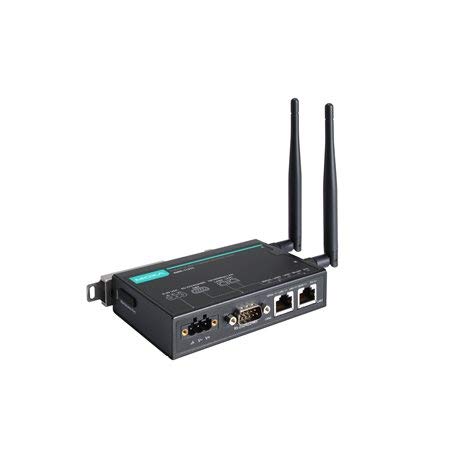
Figure 1: MOXA AWK-1137C-US-T Wireless AP Client. This image shows the compact industrial design of the device, typically featuring antenna ports, Ethernet connections, and power input.
5. Kurulum
5.1 Montaj
The AWK-1137C-US-T supports DIN-rail mounting. Attach the DIN-rail kit to the device and snap it onto a standard DIN-rail. Ensure the device is securely fastened to prevent vibration or accidental dislodgement.
5.2 Güç Bağlantısı
- Connect a suitable DC power source (e.g., 12-48 VDC) to the device's power input terminal block.
- Ensure correct polarity (+ and -) as indicated on the device.
- Tighten the screws on the terminal block to secure the power wires.
5.3 Ağ Bağlantısı
- Connect an Ethernet cable from your network switch or router to the Ethernet port on the AWK-1137C-US-T.
- Attach appropriate antennas to the antenna connectors. Ensure they are securely tightened.
5.4 İlk Yapılandırma
To access the device's webtabanlı yönetim arayüzü:
- Connect a computer directly to the device's Ethernet port or ensure it is on the same network segment.
- Configure your computer's IP address to be in the same subnet as the device's default IP address (refer to the Quick Installation Guide for the default IP).
- Bir tane aç web browser and enter the device's default IP address.
- Log in using the default username and password (refer to the Quick Installation Guide).
- Güvenlik amacıyla varsayılan şifreyi hemen değiştirin.
6. Çalıştırma
6.1 Çalışma Modları
The AWK-1137C-US-T can operate in various modes, including Access Point (AP) and Client mode. Select the appropriate mode based on your network requirements.
- Erişim Noktası (AP) Modu: The device acts as a central hub for wireless clients to connect.
- İstemci Modu: The device connects to an existing Access Point, extending wired network connectivity wirelessly.
6.2 Kablosuz Ayarları
Configure the following wireless parameters via the web arayüz:
- SSID: The name of your wireless network.
- Kanal: Select an appropriate wireless channel to avoid interference.
- Bant: Configure for 2.4 GHz or 5 GHz operation, depending on the model and environment.
- İletim Gücü: Adjust the output power for optimal coverage and compliance.
6.3 Güvenlik Ayarları
Implement strong wireless security to protect your network:
- Şifreleme: Use WPA2/WPA3-PSK or Enterprise for robust security.
- Password/Passphrase: Choose a strong, unique password.
- MAC Adresi Filtreleme: Optionally restrict access to specific devices.
7. Bakım
7.1 Firmware Güncellemesi
Regularly check the MOXA website for the latest firmware updates. Firmware updates can provide new features, performance improvements, and security patches. Follow the instructions provided with the firmware package for a safe update process.
7.2 Temizlik
Clean the device periodically with a soft, dry cloth. Do not use liquid or aerosol cleaners. Ensure the device is powered off before cleaning.
7.3 Çevresel Hususlar
Ensure the operating environment remains within the specified temperature and humidity limits (-40 to 75°C). Avoid placing the device near heat sources or in direct sunlight.
8. Sorun Giderme
8.1 Güç Yok
- Güç kablosu bağlantısını kontrol edin ve güç kaynağının aktif olduğundan emin olun.
- Güç kaynağı hacmini doğrulayıntage is within the device's specified range.
- Inspect the power input terminal block for loose connections.
8.2 Ağ Bağlantısı Yok
- Check Ethernet cable connections and ensure they are properly seated.
- Verify that the network switch or router is functioning correctly.
- For wireless connections, ensure the SSID, security settings, and channel match the connected AP/client.
- Check the LED indicators for network activity.
8.3 Yavaş Kablosuz Hız
- Ensure antennas are properly connected and positioned for optimal signal.
- Check for sources of interference (e.g., other wireless devices, microwave ovens).
- Adjust the wireless channel to a less congested one.
- Verify that the device is operating in 802.11n mode and not a slower standard.
8.4 Fabrika Varsayılanlarına Sıfırlama
If configuration issues persist, you may need to reset the device to its factory default settings. Locate the reset button (often recessed) and press and hold it for approximately 5-10 seconds while the device is powered on. The device will reboot with default settings.
9. Özellikler
| Özellik | Şartname |
|---|---|
| Model Numarası | AWK-1137C-ABD-T |
| kablosuz standardı | 802.11n |
| Çalışma Bandı | US Band |
| Çalışma Sıcaklığı | -40 ila 75°C |
| Paket Boyutları | 7.87 x 6.57 x 1.97 inç |
| Ürün Ağırlığı | 1.15 pound |
| Üretici | MOXA |
| İlk Mevcut Tarih | 30 Nisan 2018 |
10. Garanti ve Destek
10.1 Garanti Bilgileri
MOXA products typically come with a standard warranty. For detailed warranty terms and conditions, please refer to the official MOXA webSatın alma belgenizi veya ürününüzle birlikte verilen garanti belgesini saklayın. Garanti talepleriniz için satın alma belgenizi saklayın.
10.2 Teknik Destek
For technical assistance, product documentation, or driver downloads, please visit the official MOXA support website. You can also contact MOXA's customer support team directly through the contact information provided on their webalan.


