1. Giriş
The Motorola MR2600 AC2600 Smart WiFi Router provides a high-speed, intelligent link between your WiFi and Ethernet devices and your internet modem. Designed for optimal performance, it delivers very high speeds and extended range, even in environments with significant WiFi interference. This router does not include a built-in cable modem.

Figure 1: The Motorola MR2600 router, highlighting its WiFi 5 capabilities, maximum speed of 2.6 Gbps, and support for up to 64 connected devices.
Temel Özellikler:
- AC2600 Çift Bantlı WiFi: Connects via both 5 GHz and 2.4 GHz bands for versatile device compatibility and optimal performance.
- Gigabit Ethernet Bağlantı Noktaları: Features four Gigabit LAN ports for high-speed wired connections to devices like HDTVs, game consoles, and computers.
- Genişletilmiş Menzil: Four external adjustable antennas provide concurrent 4x4 performance, enhancing signal strength and coverage.
- MU-MIMO Teknolojisi: 802.11ac Wave 2 Multi-User Multiple Input Multiple Output technology allows high-speed communication with multiple WiFi devices simultaneously.
- Hüzmeleme: Implicit and explicit beamforming targets the WiFi signal directly to your devices, improving speed and range.
- Cihaz Kapasitesi: Supports connection for up to 64 devices.
2. Kurulum Kılavuzu
Follow these steps for a quick and easy setup of your Motorola MR2600 router.
2.1 Paket İçeriği
Paketinizin aşağıdaki öğeleri içerdiğinden emin olun:
- Motorola MR2600 Smart WiFi Router
- Güç Adaptörü
- Ethernet kablosu
2.2 Fiziksel Bağlantı
- Yönlendiriciyi Konumlandırın: Place your MR2600 router in a central location to maximize WiFi coverage. Avoid placing it near large metal objects, concrete walls, or other electronic devices that may cause interference.
- Modeme Bağlan: Connect one end of the provided Ethernet cable to the WAN port (often labeled 'Internet' or a different color) on the back of your MR2600 router. Connect the other end to an Ethernet port on your cable modem or other internet access device.
- Gücü bağlayın: Plug the power adapter into the router's power input, then plug the other end into an electrical outlet. The router will power on automatically.
- Başlatmayı Bekleyin: Allow a few minutes for the router to boot up and establish an internet connection. The indicator lights on the front of the router will show its status.

Figure 2: Rear panel of the MR2600 router, illustrating the WAN port for modem connection, four Gigabit LAN ports for wired devices, and buttons for Reset, WPS, WiFi On/Off, and Power.

Figure 3: Connection diagram for the MR2600 router, showing the modem connected to the WAN port and various devices (smartphone, TV, game console) connected wirelessly or via LAN ports.
2.3 Initial WiFi Connection
Once the router is powered on and connected to your modem:
- Find WiFi Network: On your computer or mobile device, search for available WiFi networks.
- Ağ Seçin: Select the network name (SSID) printed on the label on the bottom of your router.
- Şifreyi Girin: Enter the WiFi password (security key) also found on the router's label.
- Yönlendirici Ayarlarına Erişim: Bir tane aç web browser and enter the default IP address (e.g., 192.168.0.1) or the web address provided in the quick start guide to access the router's administration interface. Follow the on-screen instructions to complete the setup, including changing the default WiFi name and password for security.
3. Operasyon
The Motorola MR2600 router is designed for high-performance networking, supporting a wide range of devices and activities.
3.1 Çift Bantlı WiFi
Yönlendirici iki frekans bandında çalışır:
- 2.4 GHz Bant: Daha geniş kapsama alanı ve duvarlardan daha iyi geçiş imkanı sağlayan bu ürün, genel internet kullanımı ve eski cihazlar için uygundur.
- 5 GHz Bant: Offers faster speeds and less interference, ideal for high-bandwidth activities like online gaming and 4K video streaming.
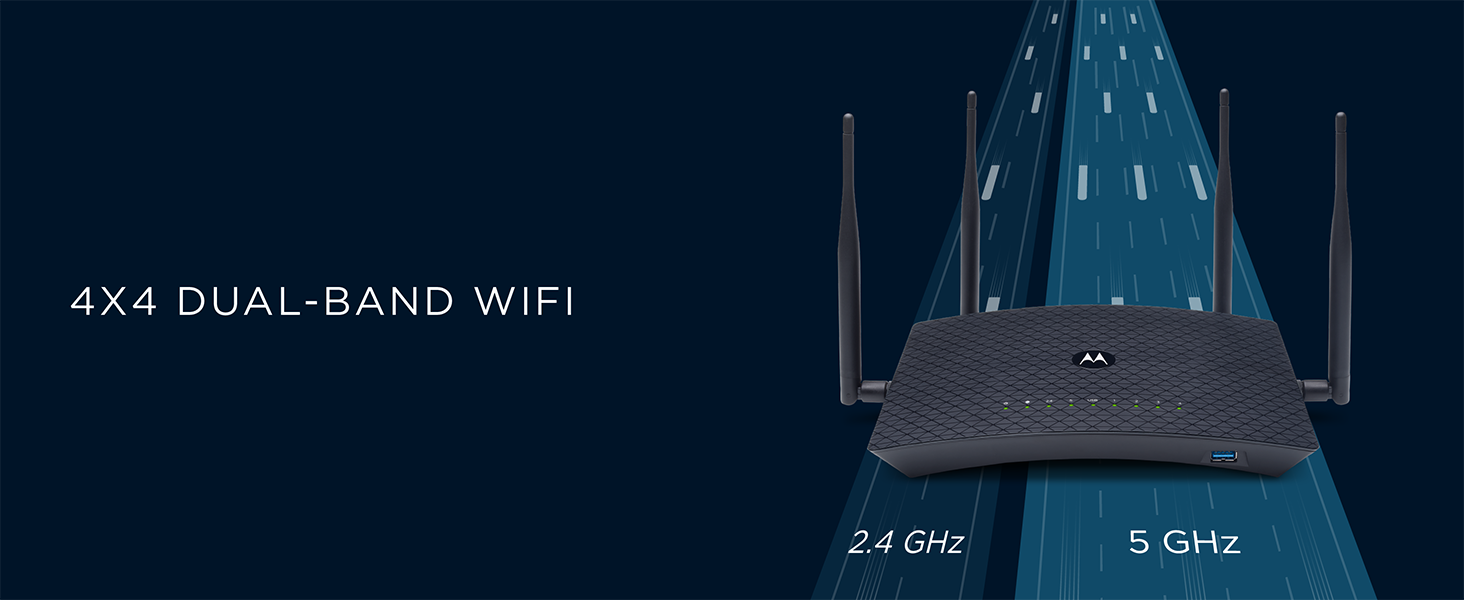
Figure 4: The MR2600 router features 4x4 dual-band WiFi, supporting both 2.4 GHz and 5 GHz frequencies for optimized wireless performance.
3.2 Cihazları Bağlama
You can connect devices to your MR2600 router wirelessly or via Ethernet cables.
- Kablosuz cihazlar: Up to 64 devices such as smartphones, tablets, smart TVs, and laptops can connect simultaneously using the WiFi network name and password.
- Kablolu Cihazlar: Use the four Gigabit LAN ports on the back of the router to connect devices requiring a stable, high-speed wired connection, such as desktop computers, gaming consoles, or network-attached storage (NAS).
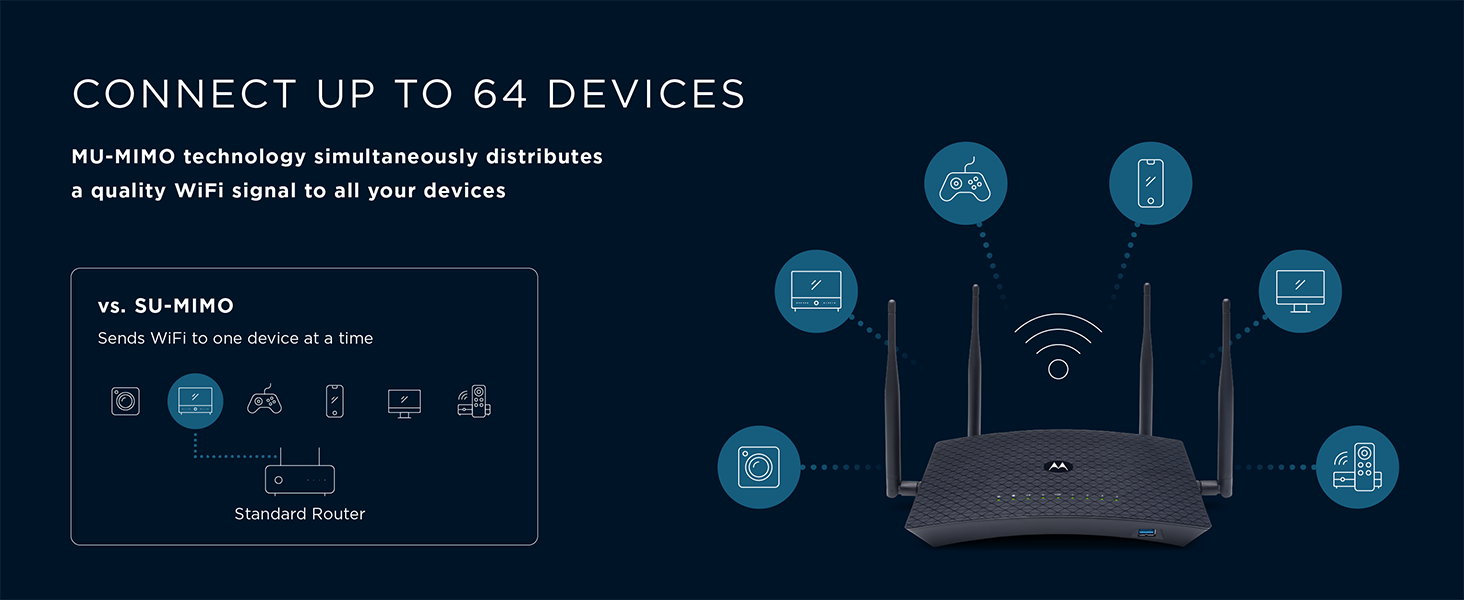
Figure 5: Illustration of MU-MIMO technology, demonstrating how the MR2600 router efficiently distributes WiFi signals to multiple connected devices concurrently, unlike older SU-MIMO routers.
3.3 Gelişmiş Özellik
- MU-MIMO (Multi-User Multiple Input Multiple Output): This technology allows the router to communicate with multiple devices simultaneously, improving network efficiency and speed for all connected devices.
- Hüzmeleme: Directs WiFi signals towards connected devices, enhancing signal strength and reducing dead zones.
- Hizmet Kalitesi (QoS): Prioritizes network traffic for specific applications, ensuring smooth performance for gaming and streaming.
Figure 6: The MR2600 router provides a lag-free experience for gaming and streaming, thanks to its advanced features like Smart QoS technology.
4. Bakım
Düzenli bakım, yönlendiricinizin optimum performans göstermesini ve uzun ömürlü olmasını sağlar.
4.1 Firmware Güncellemesi
Periodically check the Motorola support website or your router's administration interface for available firmware updates. Keeping your firmware up-to-date ensures you have the latest features, security patches, and performance improvements.
4.2 Yönlendirici Yerleşimi
Ensure the router is placed in an open area, away from obstructions and other electronic devices that could cause interference. Proper ventilation is also important to prevent overheating.
4.3 Yönlendiriciyi Sıfırlama
If you experience persistent network issues, a factory reset may resolve them. Locate the 'Reset' button on the back of the router (often a small pinhole). Use a paperclip or similar pointed object to press and hold the button for approximately 10-15 seconds until the indicator lights change. This will restore the router to its factory default settings, including the original WiFi name and password.
4.4 Using the MotoSync App
The MotoSync app can assist with network optimization and management. It provides tools to test and optimize internet speed, protect devices, control your network remotely, manage screen time with parental controls, and access live chat with network experts.
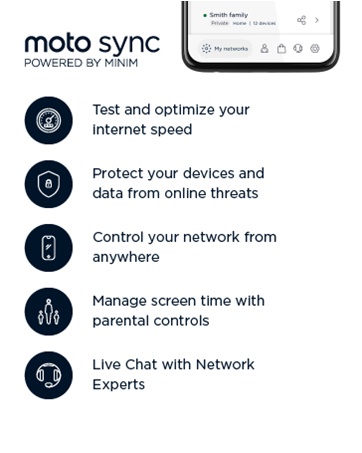
Figure 7: The MotoSync app offers various functions for managing and optimizing your network, including speed testing, device protection, and parental controls.
5. Sorun Giderme
This section addresses common issues you might encounter with your MR2600 router.
5.1 İnternet Bağlantısı Yok
- Kabloları Kontrol Edin: Tüm Ethernet kablolarının yönlendiriciye ve modeme güvenli bir şekilde bağlı olduğundan emin olun.
- Güç Döngüsü: Unplug the power from both your modem and router. Wait 30 seconds, then plug in the modem first. Once the modem's indicator lights are stable, plug in the router. Wait a few minutes for both devices to fully restart.
- Modem Durumu: Verify that your modem is receiving an internet signal from your Internet Service Provider (ISP). Check its indicator lights or consult your modem's manual.
- İSS İletişim: If the issue persists, contact your ISP to confirm there are no service outagBölgenizde.
5.2 Slow WiFi Speeds or Poor Coverage
- Yönlendirici Yerleşimi: Relocate the router to a more central and open area, away from obstacles and interference sources.
- Anten Ayarı: Adjust the four external antennas for optimal signal direction.
- Bant Seçimi: For closer devices and higher speeds, connect to the 5 GHz WiFi band. For devices further away or through walls, the 2.4 GHz band might provide a more stable connection.
- Parazit yapmak: Other electronic devices (cordless phones, microwaves, Bluetooth devices) can interfere with WiFi signals. Try moving them away from the router.
- Cihaz Aşırı Yüklenmesi: While the MR2600 supports up to 64 devices, excessive simultaneous high-bandwidth activities can impact performance.
5.3 Cannot Connect to WiFi Network
- Doğru Şifre: Double-check that you are entering the correct WiFi password (security key). It is case-sensitive.
- Ağ Görünürlüğü: Ensure the WiFi network (SSID) is visible. If it's hidden, you'll need to manually enter the SSID.
- WPS Düğmesi: For devices supporting Wi-Fi Protected Setup (WPS), press the WPS button on the back of the router and then activate WPS on your device within two minutes.
6. Özellikler
| Özellik | Detay |
|---|---|
| Model Adı | Bay2600 |
| Kablosuz Tip | 802.11ac |
| Frekans Bant Sınıfı | Çift Bant (2.4 GHz ve 5 GHz) |
| Bağlantı Teknolojisi | LAN, USB 3.0 |
| Ethernet Bağlantı Noktaları | 4 Gigabit LAN portu, 1 Gigabit WAN portu |
| Antenler | 4 External Adjustable Antennas |
| Özel Özellikler | QoS, WPS, MU-MIMO, Beamforming |
| Uyumlu Cihazlar | Smartphone, Tablet, PC, Gaming Consoles, Smart TVs |
| Önerilen Kullanımlar | Gaming, Streaming, General Home Networking |
| İşletim Sistemi | Motorola RouterOS |
| Ürün Ağırlığı | 1.1 pound |
| Ürün Boyutları (UxGxY) | 7.06 x 12 x 7.13 inç |
| Üretici | MTRLC LLC |
| İlk Mevcut Tarih | 3 Nisan 2018 |
7. Garanti Bilgileri
For detailed warranty information regarding your Motorola MR2600 Smart WiFi Router, please refer to the warranty card included with your product or visit the official Motorola webSite. Garanti şartları ve koşulları bölgeye ve perakendeciye göre değişiklik gösterebilir.
8. Müşteri Desteği
If you require further assistance or have questions about your Motorola MR2600 router, please utilize the following support resources:
- MotoSync App: Download the MotoSync app for live chat support, help guides, and network management tools. Available on the App Store and Google Play.
- Çevrimiçi destek: Resmi Motorola desteğini ziyaret edin webSSS'ler, sorun giderme kılavuzları ve iletişim bilgileri için site.
- Canlı Sohbet: Access live chat support through the MotoSync app or the Motorola support webGerçek zamanlı yardım için site.

Figure 8: The MotoSync app provides convenient access to live chat support and other helpful resources for your Motorola MR2600 router.
For more information about Motorola products, visit the Motorola Mağazası.


