1. Giriş
The iCarsoft VAWS V1.0 is a professional and powerful vehicle fault diagnosis tool designed for Audi, VW, Seat, and Skoda vehicles. It features a 2.8-inch TFT LCD display and specialized diagnostic software to accurately identify and resolve complex vehicle issues. This manual provides detailed instructions for setting up, operating, maintaining, and troubleshooting your device.
2. Ürün Bittiview
2.1 Cihaz Bileşenleri
Familiarize yourself with the main components and controls of your iCarsoft VAWS V1.0 scanner.

Resim 1: Ön ve arka view of the iCarsoft VAWS V1.0 scanner with numbered components.
- LCD Ekran: Shows test results and menu options.
- Geri düğmesi: Önceki menüye veya ekrana döner.
- YUKARI Düğmesi: Moves the cursor upwards for selection.
- AŞAĞI Düğmesi: Moves the cursor downwards for selection.
- LEFT Button: Moves the cursor to the left for selection.
- GİRİŞ Düğmesi: Confirms a selection or action from a menu list.
- RIGHT Button: Moves the cursor to the right for selection.
- Function Button (F1): Used for specific functions as indicated on screen.
- Function Button (F2): Used for specific functions as indicated on screen.
- Function Button (F3): Used for specific functions as indicated on screen.
- YARDIM Düğmesi: Displays help information for test results or user operation.
2.2 Paket İçeriği
Verify that all items are present in your product package.
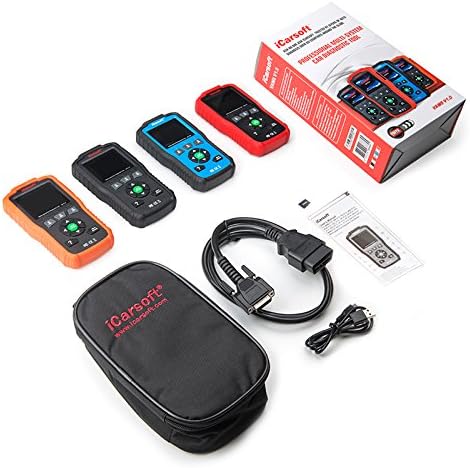
Resim 2: The iCarsoft VAWS V1.0 scanner and its included accessories.
- iCarsoft VAWS V1.0 Diagnostic Scanner
- OBD-II Connection Cable
- USB Cable for Updates
- Kullanım Kılavuzu (bu belge)
- Koruyucu Taşıma Çantası
3. Kurulum
3.1 İlk Güçlendirme
The device is powered directly from the vehicle's OBD-II port. No external power source is typically required for basic operation.
3.2 Araca Bağlanma
- Locate the vehicle's 16-pin Data Link Connector (DLC), usually found under the dashboard on the driver's side.
- Aracın kontak anahtarının KAPALI konumda olduğundan emin olun.
- Connect the OBD-II cable from the scanner to the vehicle's DLC.
- Aracın kontağını AÇIK konumuna getirin (motor kapalı). Tarayıcı otomatik olarak açılacaktır.
3.3 Dil Seçimi
Upon first use or after a reset, you may need to select your preferred language. Navigate through the menu using the UP/DOWN buttons and confirm with the ENTER button. Supported languages include English, German, Dutch, Spanish, and French.
4. Kullanım Talimatları
4.1 Temel Gezinme
Use the directional arrow buttons (UP, DOWN, LEFT, RIGHT) to move through menu options. Press the ENTER button to select an option or confirm an action. The BACK button will return you to the previous screen or menu.
4.2 Tanılama İşlevleri
The iCarsoft VAWS V1.0 offers a range of diagnostic capabilities:
- Read & Clear Trouble Codes: Access and clear Diagnostic Trouble Codes (DTCs) from various vehicle systems, including engine, transmission, Anti-lock Braking System (ABS), and airbags.
- Canlı veri: View real-time sensor data from the vehicle's ECU, which can assist in diagnosing intermittent issues.
- Full ECU Diagnosis: Perform a comprehensive scan of the Electronic Control Unit for a single vehicle brand.
- Oil Light/Service Reset: Reset the service lamp after performing an oil change or scheduled maintenance.
- Pil Testi: Obtain the voltage of the vehicle's battery via the OBD port when the engine is running.
- DTC Kütüphanesi: Look up definitions for DTCs directly on the device.
- Print Data Function: Record diagnostic data and generate customized test reports for printing via a connected computer.
5. Bakım
5.1 Yazılım Güncellemeleri
To ensure optimal performance and access to the latest vehicle data and features, regularly update the scanner's software. Updates are performed via USB 2.0 connection to a computer running Windows 10. Visit the official iCarsoft webGüncelleme talimatları ve yazılım indirmeleri için site.
5.2 Temizlik ve Depolama
- Cihazı yumuşak bir bezle temizleyin.amp bezle silin. Aşındırıcı temizleyiciler veya çözücüler kullanmayın.
- Store the scanner in its protective carrying case when not in use to prevent damage.
- Cihazı aşırı sıcaklıklara veya uzun süre doğrudan güneş ışığına maruz bırakmaktan kaçının.
6. Sorun Giderme
If you encounter issues with your iCarsoft VAWS V1.0 scanner, refer to the following common troubleshooting steps:
- Cihaz Açılmıyor: Ensure the OBD-II cable is securely connected to both the scanner and the vehicle's DLC. Verify the vehicle's ignition is in the ON position. Check the vehicle's fuse for the OBD-II port if the issue persists.
- İletişim Hatası: Confirm the vehicle's ignition is ON. Ensure the cable connection is stable. Try connecting to a different vehicle (if available) to rule out a vehicle-specific issue.
- Yanlış Okumalar: Ensure the vehicle's make, model, and year are correctly selected in the scanner's menu (if prompted). Perform a software update to ensure the latest vehicle protocols are supported.
- Ekran Donmaları: Disconnect the scanner from the vehicle, wait a few seconds, and then reconnect. If the issue persists, perform a software update.
7. Özellikler
| Özellik | Şartname |
|---|---|
| Görüntülemek | 2.8" TFT LCD, 320*240 Pixels |
| Çalışma Sıcaklığı | 0°C ~ 50°C (32°F ~ 122°F) |
| Depolama Sıcaklığı | -20°C ~ 70°C (-4°F ~ 158°F) |
| Çalışma Hacmitage | 9 ~ 18V |
| Çalışma Akımı | 150mA @ 12V (Typical) |
| Güç Tüketimi | 1.8W (Tipik) |
| Boyutlar (U x G x Y) | 187.5 x 101 x 32 mm (7.38 x 3.98 x 1.26 inç) |
| Ürün Ağırlığı | 1.6 pound |
| Supported Operating System (for updates) | Windows 10 |
8. Garanti ve Destek
iCarsoft products are designed for reliability and performance. For specific warranty details, please refer to the warranty card included with your product or visit the official iCarsoft website. For technical support, software updates, or further assistance, please visit the iCarsoft official websitesine bakın veya müşteri hizmetleri departmanıyla iletişime geçin.
Official iCarsoft Webalan: www.icarsoft.com


