1. Giriş
Thank you for choosing the Logitech MK275 Wireless Keyboard and Mouse Set. This combo provides a reliable 2.4 GHz wireless connection, offering convenience and efficiency for your computing needs. The full-size keyboard features quiet, low-profile keys and dedicated multimedia controls, while the compact mouse ensures comfortable and precise navigation. This manual will guide you through the setup, operation, and maintenance of your new wireless set.

Image: The Logitech MK275 Wireless Keyboard and Mouse Set, showcasing both devices.
2. Paket İçeriği
Paketinizde tüm öğelerin mevcut olduğundan emin olun:
- Logitech MK275 Kablosuz Klavye
- Logitech Kablosuz Fare
- USB Nano Alıcı
- Kullanıcı Belgeleri
- AA and AAA Batteries (pre-installed or included)

Image: The USB Nano Receiver, typically found within the product packaging or a dedicated slot.
3. Kurulum Kılavuzu
3.1. Pil Kurulumu
The keyboard requires two AAA batteries, and the mouse requires one AA battery. Batteries are typically included with the product. If not already installed, open the battery compartments on the underside of both the keyboard and mouse, insert the batteries according to the polarity indicators (+/-), and close the compartments. Remove any plastic pull tabs if present.
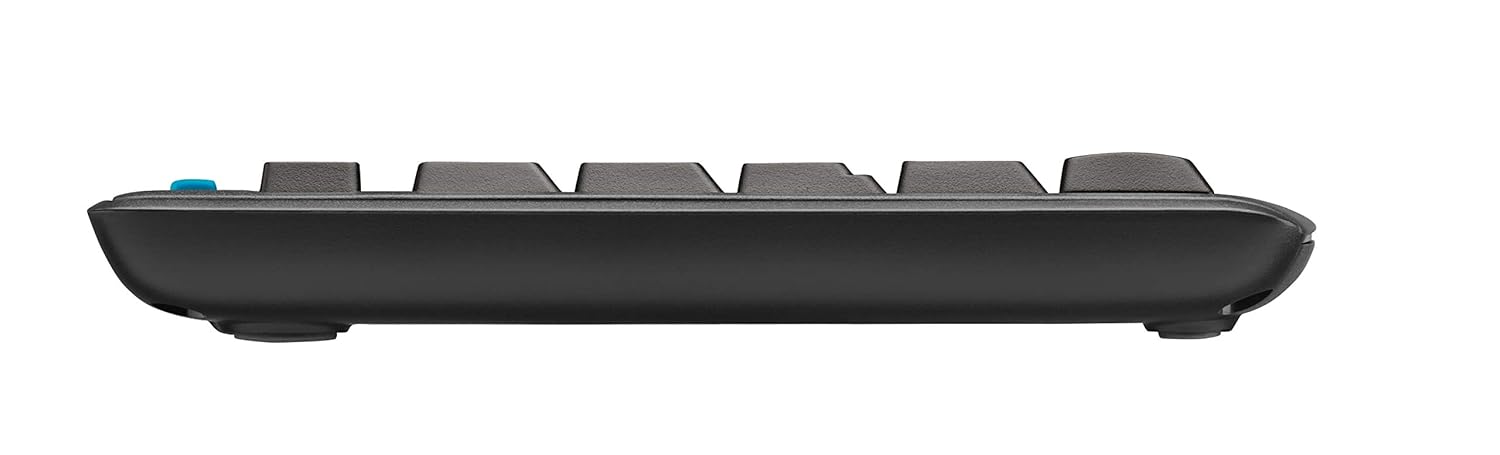
Resim: Yan profile of the keyboard, showing its slim design and indicating the location of the battery compartment on the underside.
3.2. Alıcının Bağlanması
The Logitech MK275 uses a single USB Nano Receiver for both the keyboard and mouse. This allows you to use only one USB port on your computer.
- Locate the USB Nano Receiver. It is small and designed to be left in your computer.
- Plug the USB Nano Receiver into an available USB port on your desktop PC or laptop.
- Turn on the keyboard and mouse using their respective On/Off switches, usually located on the underside of each device.
- Your computer should automatically detect and install the necessary drivers. No software installation is typically required for Windows XP, Vista, Windows 7, and Windows 8.
4. Kullanım Talimatları
4.1. Temel Kullanım
Once the USB Nano Receiver is connected and the devices are powered on, your keyboard and mouse are ready for immediate use. The 2.4 GHz wireless connection provides a strong and reliable signal, minimizing lag and interference.
4.2. Multimedya ve Kısayol Tuşları
The Logitech MK275 keyboard features 8 convenient multimedia and shortcut keys located above the function keys (F1-F12). These keys provide quick access to frequently used functions:
- Ev: Varsayılanınızı açar web browser's home page.
- E-posta: Launches your default email client.
- Bilgisayar Uyku Modu: Bilgisayarınızı uyku moduna geçirir.
- Sesini kapatmak: Sesi kapatır veya açar.
- Sesi kıs: Ses seviyesini azaltır.
- Sesi aç: Ses seviyesini artırır.
- Oynat/Duraklat: Medya oynatmayı kontrol eder.
- Hesaplama: Opens the calculator application.

Image: The Logitech MK275 keyboard, highlighting the dedicated multimedia and shortcut keys for quick access to common functions.
5. Bakım ve Özen
To ensure the longevity and optimal performance of your Logitech MK275 set, follow these maintenance guidelines:
- Temizlik: Yumuşak, tiftiksiz bir bez kullanın ve hafifçe kurulayın.ampKlavyenin ve farenin yüzeylerini temizlemek için su veya hafif bir temizleme solüsyonu kullanın. Sert kimyasallardan veya aşındırıcı malzemelerden kaçının.
- Dökülmeye Karşı Dayanıklılık: The keyboard is designed to be spill-resistant. In case of accidental spills, immediately turn off the keyboard, disconnect it, and allow it to dry completely before reuse. Do not immerse the keyboard in liquid.
- Pil Ömrü: The keyboard offers up to 24 months of battery life, and the mouse up to 12 months. Battery life may vary based on usage. Replace batteries when performance degrades.
- Depolamak: When not in use for extended periods, turn off both the keyboard and mouse to conserve battery life. Store the USB Nano Receiver in the dedicated slot within the mouse (if available) or in a safe place to prevent loss.
- Çevre: Cihazları aşırı sıcaklıklara, doğrudan güneş ışığına veya yüksek neme maruz bırakmaktan kaçının.
6. Sorun Giderme
If you encounter issues with your Logitech MK275 set, try the following solutions:
- Bağlantı/Gecikme Yok:
- Ensure the USB Nano Receiver is securely plugged into a working USB port.
- Verify that both the keyboard and mouse are turned on.
- Replace the batteries in both devices. Low battery can cause connection issues.
- Move the keyboard and mouse closer to the receiver. The effective range is approximately 10 meters (33 feet).
- Try plugging the receiver into a different USB port or a different computer to rule out port issues.
- Alıcıyı, parazite neden olabilecek diğer elektrikli cihazların (örneğin, kablosuz telefonlar, Wi-Fi yönlendiriciler) yakınına yerleştirmekten kaçının.
- Tuşlar Yanıt Vermiyor:
- Pil seviyelerini kontrol edin.
- Klavyenin açık olduğundan emin olun.
- If specific keys are not working, check for debris under the keycaps.
- Fare imleci zıplıyor veya düzensiz hareket ediyor:
- Farenin alt tarafındaki optik sensörü temizleyin.
- Fareyi temiz, yansıtmayan bir yüzeyde kullanın.
- Pil seviyelerini kontrol edin.
7. Teknik Özellikler
| Özellik | Detay |
|---|---|
| Örnek | MK275 |
| Bağlantı | 2.4 GHz Kablosuz (USB Nano Alıcı) |
| kablosuz Menzil | 10 metreye (33 feet) kadar |
| Klavye Pil Ömrü | 24 aya kadar |
| Fare Pil Ömrü | 12 aya kadar |
| Klavye Pil Tipi | 2 x AAA (Alkaline) |
| Fare Pil Tipi | 1 x AA (Alkaline) |
| Uyumlu İşletim Sistemleri | Windows XP, Windows Vista, Windows 7, Windows 8, Windows 10, Windows 11 |
| Klavye Boyutları (UxGxY) | Yaklaşık. 50 x 15.6 x 4.4 cm |
| Ürün Ağırlığı | Yaklaşık 726 gr |
| Renk | Siyah |
8. Garanti ve Destek
Logitech products are manufactured to the highest quality standards. For detailed warranty information and technical support, please visit the official Logitech webalan:
Üzerinde website, you can find product registration, FAQs, driver downloads, and contact information for customer service.


