1. Giriş
The Ewent EW7014 USB 3.1 Gen-1 Dual Docking Station provides a convenient solution for connecting and accessing 2.5-inch and 3.5-inch SATA hard drives or Solid State Drives (SSDs). This device supports high-speed data transfer via USB 3.1 Gen-1 and features a standalone cloning function, allowing you to duplicate drives without a computer connection.
1.1. Ürün Bittiview

Image 1.1: Ewent EW7014 Dual Docking Station with two hard drives.
1.2. Paket İçeriği
- Ewent EW7014 Dual Docking Station
- USB 3.1 Gen-1 Cable
- Güç Adaptörü

Image 1.2: Contents of the Ewent EW7014 package.
2. Temel Özellikler
- Çift Bölmeli Tasarım: Supports two 2.5-inch or 3.5-inch SATA I/II/III HDDs/SSDs simultaneously, up to 12.5 mm thickness.
- USB 3.1 Gen-1 Connectivity: Offers Super Speed data transfer rates up to 5 Gbps (backward compatible with USB 2.0).
- Standalone Cloning Function: Duplicate hard drives without requiring a computer connection.
- LED Göstergeleri: Provides status LEDs for power, data activity, and cloning progress.
- Tak ve Çalıştır: Çoğu işletim sistemi için sürücü kurulumuna gerek yoktur.

Image 2.1: Visual representation of the docking station's backup and cloning capabilities.
3. Kurulum Talimatları
3.1. Yerleştirme İstasyonunu Bağlama
- Connect the provided power adapter to the 'Power' input port on the rear of the docking station. Plug the other end into a power outlet.
- Connect one end of the supplied USB 3.1 Gen-1 cable to the 'USB 3.1' port on the rear of the docking station.
- USB kablosunun diğer ucunu bilgisayarınızdaki boş bir USB portuna takın.
- Ensure the 'ON/OFF' switch on the rear of the docking station is in the 'OFF' position before inserting drives.
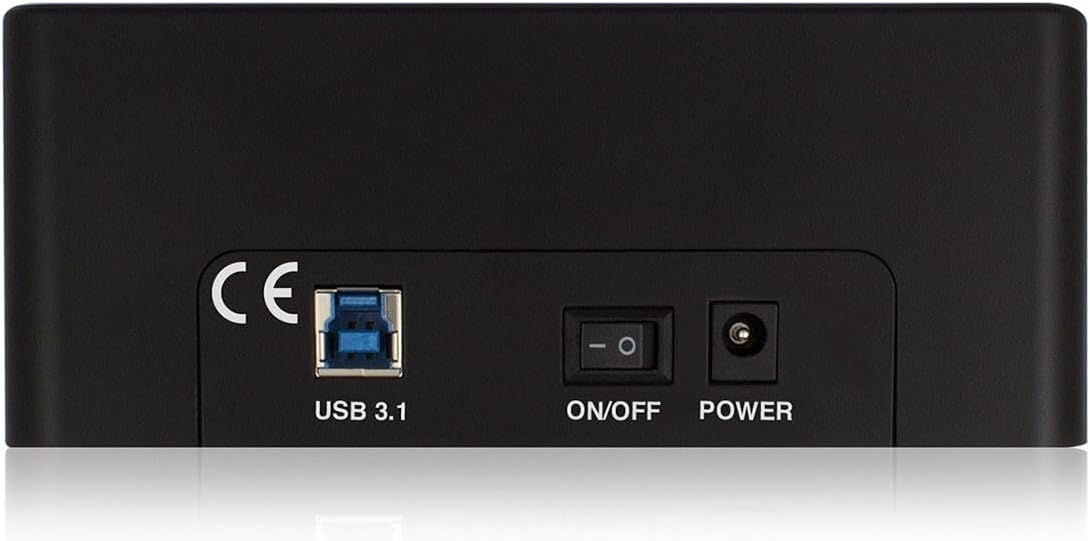
Image 3.1: Rear panel connections of the docking station.
3.2. Inserting Hard Drives / SSDs
- Gently slide your 2.5-inch or 3.5-inch SATA HDD/SSD into an available drive bay (HDD1 or HDD2) until it is firmly seated. Ensure the SATA connector on the drive aligns with the connector in the bay.
- If using 2.5-inch drives, ensure they are securely placed within the bay.
- Once drives are inserted, switch the 'ON/OFF' button to the 'ON' position. The power LED will illuminate.
4. Kullanım Talimatları
4.1. Data Transfer Mode (PC Connection)
When connected to a computer via USB, the docking station functions as an external drive enclosure. Inserted drives will appear as removable storage devices in your operating system.
- Ensure the docking station is powered on and connected to your computer.
- Insert your SATA HDD/SSD into either drive bay.
- Your operating system should automatically detect the drive(s). You can then access, copy, or move files as you would with any other external storage device.
- The data activity LEDs (HDD1, HDD2) will flash during read/write operations.
- Always safely eject the drives from your operating system before powering off the docking station or removing the drives.
4.2. Standalone Cloning Function
The cloning function allows you to duplicate the contents of a source drive to a target drive without a computer connection. The target drive must be equal to or larger in capacity than the source drive.

Image 4.1: Top panel with drive bays and LED indicators for cloning progress.
Warning: All data on the target drive will be erased during the cloning process. Ensure you have backed up any important data from the target drive before proceeding.
- Ensure the docking station is powered off and disconnected from your computer.
- Ekle kaynak sürücüsü (Kopyalamak istediğiniz sürücü) içine HDD1 koy.
- Ekle hedef sürücü (Kopyalamak istediğiniz sürücü) içine HDD2 koy.
- Power on the docking station using the 'ON/OFF' switch.
- Press and hold the 'Clone' button (usually located near the drive bays) for approximately 3-5 seconds until the cloning progress LEDs (25%, 50%, 75%, 100%) begin to flash.
- Release the 'Clone' button. The cloning process will begin. The progress LEDs will illuminate sequentially to indicate the completion percentage.
- Once all progress LEDs are solid, the cloning process is complete.
- Power off the docking station and safely remove both drives.
5. Teknik Özellikler
| Model Numarası | EW7014 |
| Desteklenen Sürücüler | 2.5 inç / 3.5 inç SATA I/II/III HDD/SSD |
| Maximum Drive Thickness | 12.5 mm |
| Arayüz | USB 3.1 Gen-1 (USB 3.0) |
| Veri Aktarım Hızı | Up to 5 Gbps (USB 3.1 Gen-1) |
| Koyların Sayısı | 2 |
| Klonlama İşlevi | Standalone (PC-less) |
| Boyutlar (U x G x Y) | 5.87 x 2.4 x 4.61 inç (14.9 x 6.1 x 11.7 cm) |
| Ağırlık | 1.41 pound (0.64 kg) |
| Güç Kaynağı | Harici AC Adaptörü |
| Uyumlu İşletim Sistemleri | Windows, macOS, Linux (driver-free) |
6. Sorun Giderme
6.1. Drive Not Detected by Computer
- Şarj istasyonunun açık olduğundan ve güç adaptörünün güvenli bir şekilde bağlı olduğundan emin olun.
- Verify the USB cable is firmly connected to both the docking station and your computer. Try a different USB port on your computer.
- Check if the hard drive/SSD is properly seated in the bay. Remove and re-insert it.
- If it's a new drive, it might need to be initialized, partitioned, and formatted in your operating system's Disk Management (Windows) or Disk Utility (macOS).
- Test with a different known-good hard drive/SSD to rule out a drive issue.
6.2. Cloning Process Does Not Start
- Ensure the docking station is disconnected from the computer before initiating cloning.
- Verify that the source drive is in HDD1 and the target drive is in HDD2.
- Confirm that the target drive's capacity is equal to or greater than the source drive's capacity.
- Press and hold the 'Clone' button for the required duration (3-5 seconds) until the progress LEDs start flashing.
- Ensure both drives are properly inserted and detected by the docking station (power on, then check if drive LEDs briefly illuminate).
6.3. Slow Data Transfer Speeds
- Ensure you are connected to a USB 3.1 Gen-1 (USB 3.0) port on your computer. Connecting to a USB 2.0 port will result in slower speeds.
- Verify that your computer's USB 3.1 Gen-1 drivers are up to date.
- The actual transfer speed can be limited by the speed of the hard drive/SSD itself.
- Çok sayıda küçük parçayı transfer etmekten kaçının fileAynı anda birden fazla işlem yapılması, genel aktarım hızını düşürebilir.
7. Bakım
- Keep the docking station clean by wiping it with a soft, dry cloth. Avoid using liquid cleaners or solvents.
- Ensure the device is kept in a dry environment, away from direct sunlight and extreme temperatures.
- Do not block the ventilation openings (if any) to prevent overheating.
- Handle hard drives and SSDs with care when inserting or removing them to prevent damage to the connectors.
8. Garanti ve Destek Bilgileri
For warranty information and technical support, please refer to the documentation provided with your purchase or visit the official Ewent webSite. Satın alma belgenizi garanti talepleriniz için saklayın.
Ewent is committed to providing reliable products and customer assistance. If you encounter issues not covered in this manual, please contact Ewent customer support for further assistance.


