giriiş
This manual provides comprehensive instructions for the setup, operation, maintenance, and troubleshooting of your Aluratek 10" WIFI Digital Photo Frame. Please read this manual thoroughly to ensure proper use and to maximize the features of your device.
Paket İçeriği
Paketin içinde tüm öğelerin mevcut olduğundan emin olun:
- Aluratek 10" WIFI Digital Photo Frame
- Güç Adaptörü
- Hızlı Başlangıç Kılavuzu
- Çerçeve Standı
Kurmak
1. Fiziksel Kurulum
Place the digital photo frame on a stable, flat surface or mount it on a wall using a compatible VESA mount. Attach the included frame stand for tabletop use.
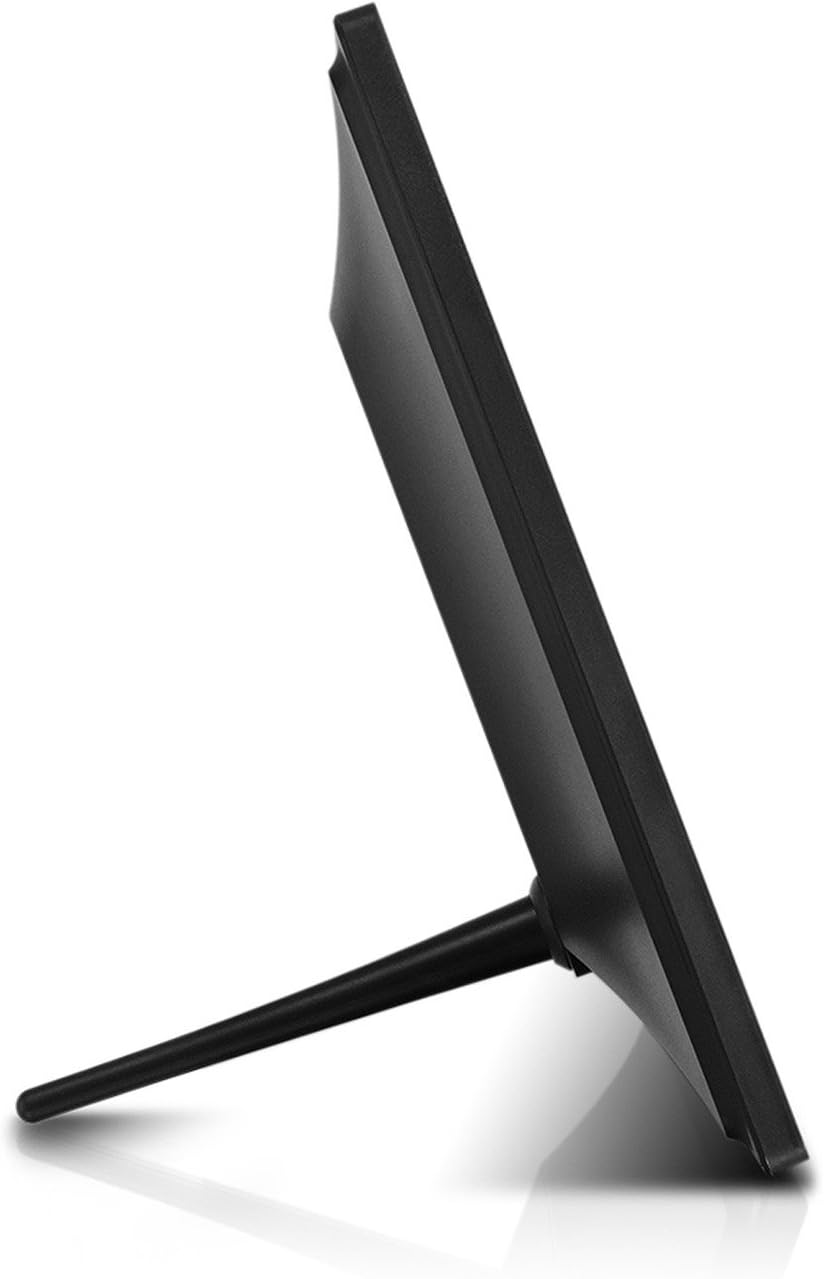
Resim: Yan view of the Aluratek 10-inch digital photo frame with its stand attached, illustrating how the stand supports the frame for tabletop display.
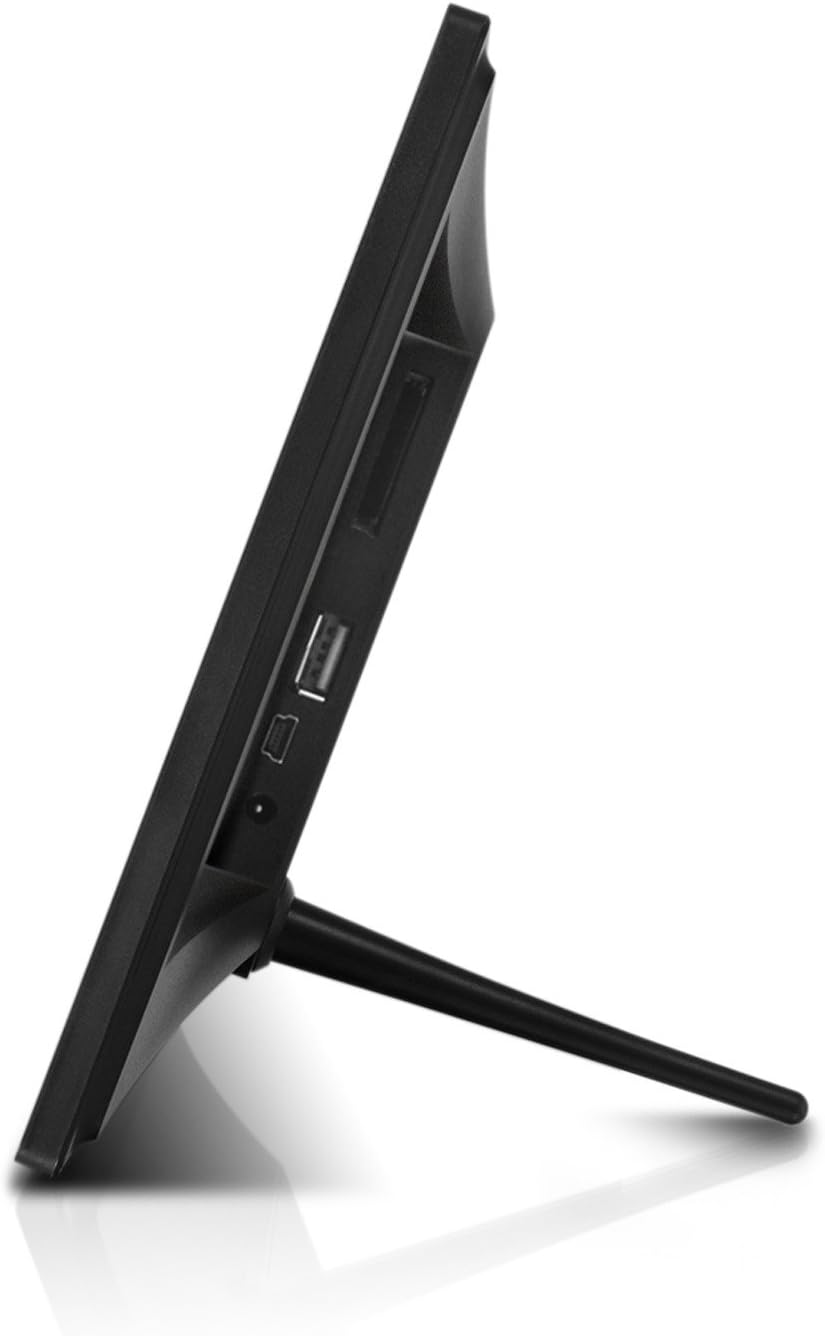
Resim: Yan view of the Aluratek 10-inch digital photo frame, highlighting the various ports available for connectivity, including USB and power input.
2. Açma
Connect the power adapter to the DC IN port on the back of the frame and plug the other end into a power outlet. The frame will automatically power on.
3. İlk Wi-Fi Kurulumu
Upon first use, the frame will guide you through the Wi-Fi setup process. Select your Wi-Fi network from the list and enter the password using the on-screen keyboard. A stable Wi-Fi connection is essential for sharing photos wirelessly and accessing online features.
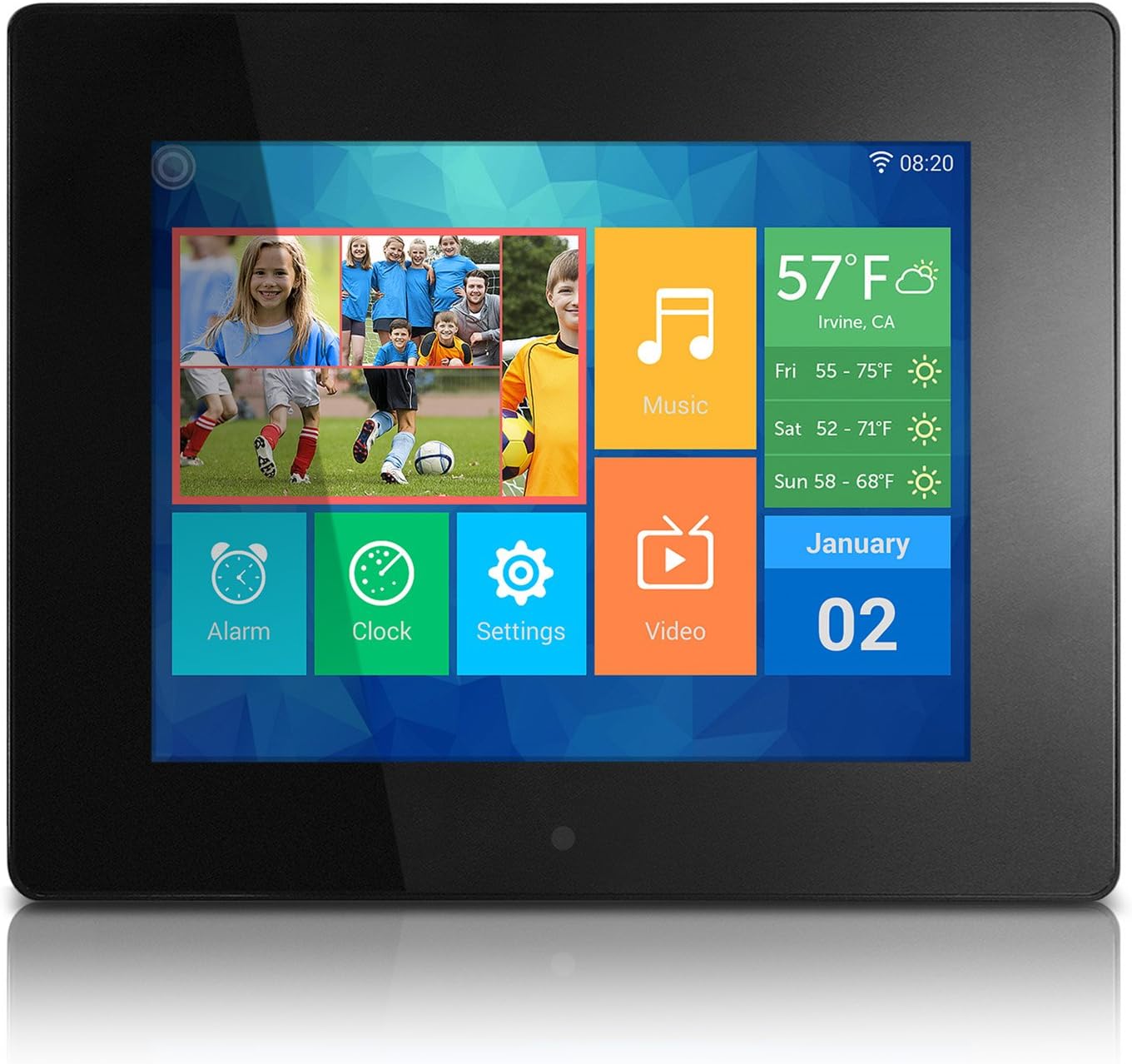
Image: The main menu interface of the Aluratek 10-inch digital photo frame, showing icons for various functions like photos, music, settings, and weather.
4. Tarih ve Saati Ayarlama
After connecting to Wi-Fi, the frame should automatically synchronize the date and time. If not, navigate to Ayarlar > Sistem Ayarları to manually adjust these parameters.
Kullanım Talimatları
1. Dokunmatik Ekran Arayüzünde Gezinme
The Aluratek digital photo frame features a responsive touchscreen for intuitive navigation. Tap icons to open applications, swipe to browse through content, and use the back arrow to return to previous screens.
2. Fotoğraf ve Video Ekleme
There are multiple ways to add media to your frame:
- Kablosuz Aktarım: Use the dedicated Photo Partner App (available for smartphones and tablets) to send photos and videos directly to your frame over Wi-Fi. You can also share from Facebook and Twitter accounts.
- USB flash sürücü: Insert a USB flash drive into the USB 2.0 port on the back of the frame. The frame will detect the drive, allowing you to browse and import media.
- SD/SDHC Card: Insert an SD or SDHC memory card into the card slot on the back of the frame. Similar to USB, you can browse and import media directly from the card.

Image: A smartphone screen displaying selected photos, with an arrow indicating wireless transfer to the Aluratek digital photo frame, which shows the received images.

Resim: Arka view of the Aluratek 10-inch digital photo frame, showing an SD card partially inserted into its dedicated slot, indicating external storage capability.
3. ViewFotoğraflar ve Videolar
From the main menu, tap the Fotoğraflar or Video icon to access your media. You can view content stored in the internal memory, cloud storage, or connected USB/SD devices. The frame supports various playback modes, including slideshows with customizable intervals.
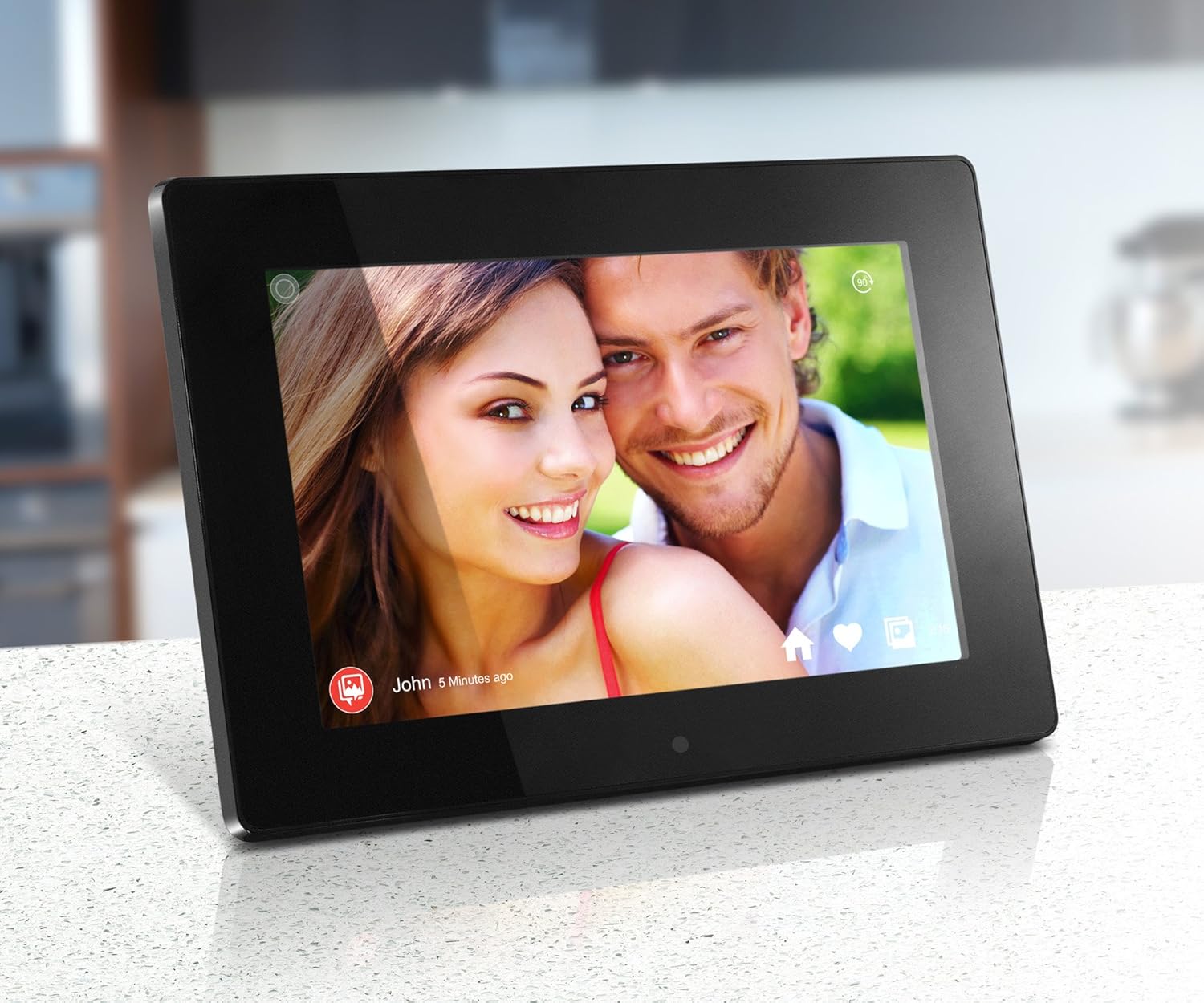
Image: The Aluratek 10-inch digital photo frame displaying a vibrant photo of a smiling couple, showcasing the IPS display quality.

Image: The Aluratek 10-inch digital photo frame displaying a warm family photo, demonstrating its use as a personal display for cherished memories.
For a visual guide on how to use the frame's features, including media playback, please refer to the official product video:
Video: An official Aluratek product video demonstrating the features and functionality of the 10" Hi-Res WIFI Digital Photo Frame, including touchscreen navigation, media playback, and app integration.
4. Dahili Uygulamaları Kullanma
The frame includes several useful built-in applications:
- Saat: Geçerli saati görüntüler.
- Takvim: Provides a monthly calendar view.
- Alarm: Hatırlatıcılar veya uyandırma çağrıları için alarmlar ayarlayın.
- Hava durumu: Displays local weather information (requires internet connection).
Bakım
1. Ekranı Temizleme
To clean the touchscreen display, gently wipe it with a soft, lint-free cloth. For stubborn smudges, slightly dampBezi su veya ekrana zarar vermeyen bir temizleme solüsyonuyla silin. Aşındırıcı malzemelerden veya sert kimyasallardan kaçının.
2. Yazılım Güncellemeleri
Periodically check for software updates in the Ayarlar menu. Updates can provide new features, performance improvements, and bug fixes. Ensure the frame is connected to Wi-Fi and has sufficient battery life (if applicable) or is plugged into power during updates.
3. Depolama Yönetimi
The frame comes with 32GB of internal memory. To manage storage, you can delete unwanted photos or videos directly from the frame's media library. For large transfers or backups, consider using a USB flash drive or SD card.
Sorun giderme
This section addresses common issues you might encounter. For more detailed troubleshooting, please refer to the full user manual available as a PDF.
| Sorun | Çözüm |
|---|---|
| Çerçeve açılmıyor. | Güç adaptörünün hem çerçeveye hem de çalışan bir elektrik prizine güvenli bir şekilde bağlı olduğundan emin olun. Farklı bir priz deneyin. |
| Wi-Fi'ye bağlanılamıyor. | Verify your Wi-Fi password. Ensure the frame is within range of your router. Restart both the frame and your router. |
| Photos/Videos not displaying. | Medyanın olup olmadığını kontrol edin. files are in a supported format. Ensure USB drives or SD cards are properly inserted and formatted. Try restarting the frame. |
| Dokunmatik ekran çalışmıyor. | Güç adaptörünü çıkarıp tekrar takarak çerçeveyi yeniden başlatın. Ekranın temiz ve tozdan arındırılmış olduğundan emin olun. |
Özellikler
- Görüntülemek: 10" Touchscreen IPS LCD Display
- Çözünürlük: 1280x800 (WSVGA)
- Dahili Bellek: 32 GB
- Bağlantı: Wifi
- Uyumlu Cihazlar: Smartphone, USB Flash Drive, SD/SDHC Card
- Renk: Siyah
- Ürün Ölçüleri: 7.36 x 10.75 x 0.99 inç
- Ürün Ağırlığı: 1.25 pound
- Model Numarası: AWDMPF110F
- Üretici: Aluratek
Garanti ve Destek
Aluratek products are designed for reliability and performance. For warranty information and technical support, please visit the official Aluratek website or refer to the warranty card included with your product. You can also download the complete user manual in PDF format for detailed instructions and support information.
Resmi Kullanıcı Kılavuzu (PDF): Buradan İndirin