1. Ürün Bittiview
The Midiplus Studio M is a compact and high-performance USB audio interface designed for studio recording. It features one input and two outputs, supporting high-quality microphone input and 24-bit/192kHz high-precision sampling. The device is powered via PC USB and includes 48V phantom power for condenser microphones. Its small, exquisite design is compatible with both Mac and Windows operating systems, making it a versatile tool for musicians and producers.
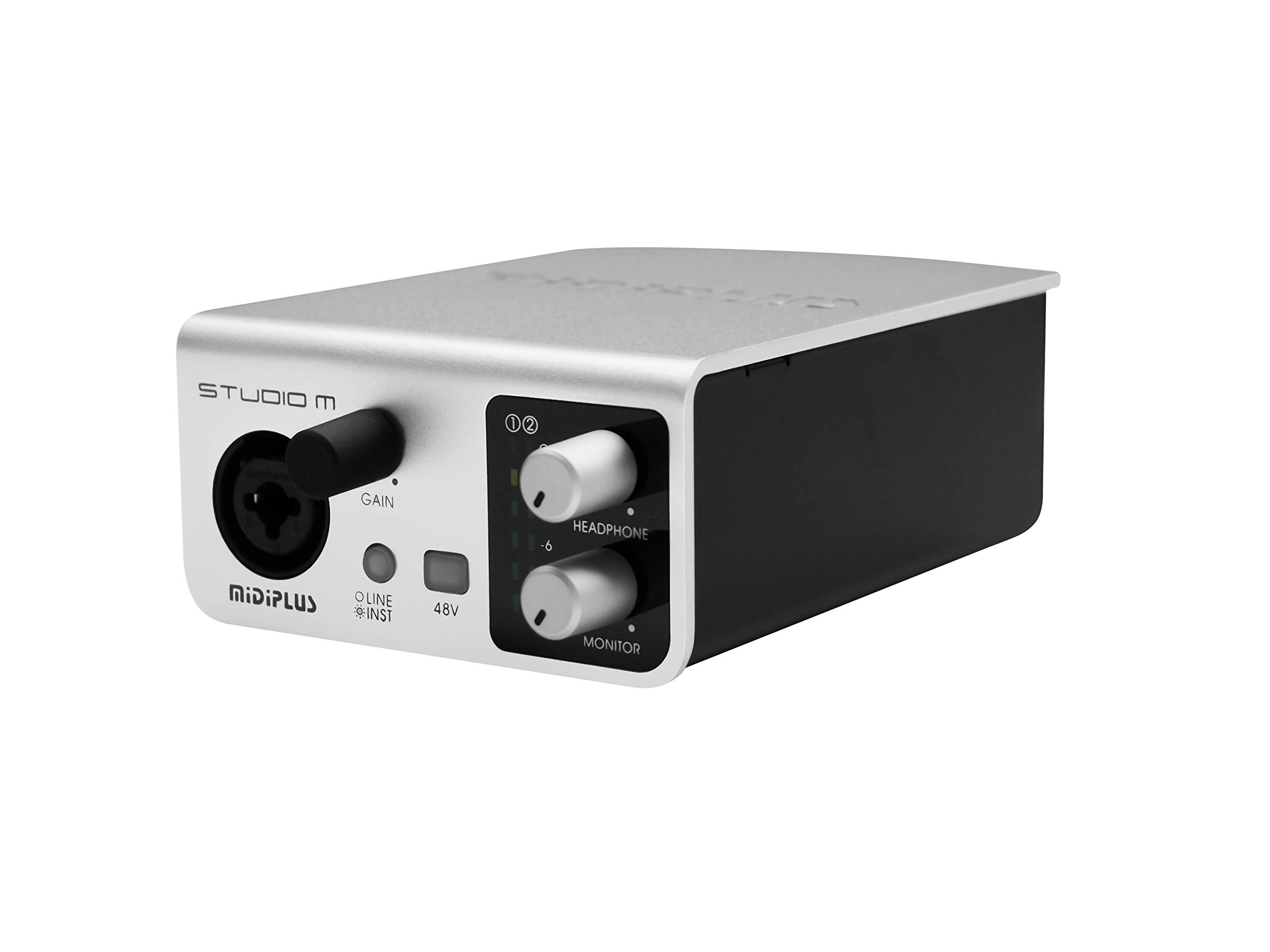
Şekil 1: Ön ve arka view of the Midiplus Studio M USB Audio Interface.
2. Kurulum Kılavuzu
2.1 Paket İçeriği
- Midiplus Studio M USB Audio Interface
- USB kablosu
- Kullanım Kılavuzu (bu belge)
- Bilgi Kartı
2.2 Sistem Gereksinimleri
- İşletim Sistemi: Windows, macOS
- Compatible Devices: Personal Computer with USB port
2.3 Cihazın Bağlanması
- Connect the Midiplus Studio M to your computer using the provided USB cable. The device is USB-powered.
- Ensure your operating system (Windows or macOS) recognizes the device. Drivers may be required for optimal performance; refer to the Midiplus webEn yeni sürücü indirmeleri için site.
- Connect your microphone or instrument to the Input (MIC/Line/Hi-z) interface on the front panel.
- Connect your headphones to the headphone interface on the front panel, or your studio monitors to the Output interface (Left/Right) on the rear panel.

Figure 2: Midiplus Studio M connected to a computer, showing input and output cables.
3. Kullanım Talimatları
3.1 Ön Panel Kontrolleri
- Input Gain Control Knob: Adjusts the input level for the connected microphone or instrument.
- Switch (Mic/Instrument) Button: Toggles between microphone and instrument input modes.
- 48V Phantom Power ON/OFF: Activates or deactivates 48V phantom power for condenser microphones.
- Headphone Volume Control Button: Adjusts the output volume for connected headphones.
- Output Volume Control Button: Adjusts the main output volume for connected studio monitors.

Figure 3: Midiplus Studio M in a studio setup, demonstrating its compact size and integration.
3.2 Arka Panel Bağlantıları
- USB Arayüzü: USB2.0 port for connection to your computer and power supply.
- Output Interface (Left/Right): Connects to your studio monitors or other output devices.
- Extensible Device Interface: Provides additional connectivity options for other devices.
4. Bakım
- Cihazınızı yumuşak ve kuru bir bezle silerek temiz tutun. Sert kimyasallar veya aşındırıcı malzemeler kullanmaktan kaçının.
- Sinyal kaybını veya hasarı önlemek için tüm kabloların güvenli bir şekilde bağlı olduğundan emin olun.
- Arayüzü serin, kuru ve doğrudan güneş ışığından ve aşırı sıcaklıklardan uzak bir yerde saklayın.
- Ünitenin üzerine ağır nesneler koymaktan kaçının.
5. Sorun Giderme
5.1 Ses Çıkışı Yok
- Check all cable connections (USB, input, output, headphones).
- Ensure the device is powered on and recognized by your computer.
- Verify that the output volume controls (headphone and main output) are turned up.
- Check your computer's sound settings to ensure the Midiplus Studio M is selected as the output device.
5.2 Input Signal Issues
- Adjust the Input Gain Control Knob.
- Ensure the correct input mode (Mic/Instrument) is selected.
- If using a condenser microphone, verify that 48V Phantom Power is enabled.
- Check the microphone/instrument cable for damage.
5.3 Cihaz Bilgisayar Tarafından Tanınmadı
- USB kablosunu bilgisayarınızdaki farklı bir USB bağlantı noktasına bağlamayı deneyin.
- Bilgisayarınızı yeniden başlatın.
- Ensure the latest drivers for the Midiplus Studio M are installed from the official Midiplus webalan.
- Mümkünse farklı bir USB kablosuyla test edin.
6. Teknik Özellikler
| Özellik | Detay |
|---|---|
| Model Numarası | Studio M |
| Marka | Midi artı |
| Bağlantı Teknolojisi | USB (USB2.0) |
| Ses Çözünürlüğü | 24 bit/192 kHz |
| Girişler | 1 (MIC/Line/Hi-z) |
| Çıktılar | 2 (Left/Right) |
| Hayali güç | 48V (değiştirilebilir) |
| Uyumlu İşletim Sistemleri | Windows, macOS |
| Ürün Boyutları | 5.28 x 3.54 x 1.89 inç |
| Ürün Ağırlığı | 14.1 ons (0.4 Kilogram) |
7. Garanti ve Destek
For warranty information and technical support, please refer to the official Midiplus website or contact your local dealer. Keep your purchase receipt as proof of purchase for any warranty claims.


