1. Giriş
This manual provides comprehensive instructions for the HP Elite x2 1012 G1 Tablet PC, model W0S24UT#ABA. It covers setup, operation, maintenance, and troubleshooting to ensure optimal performance and user experience. Please read this manual thoroughly before using your device.
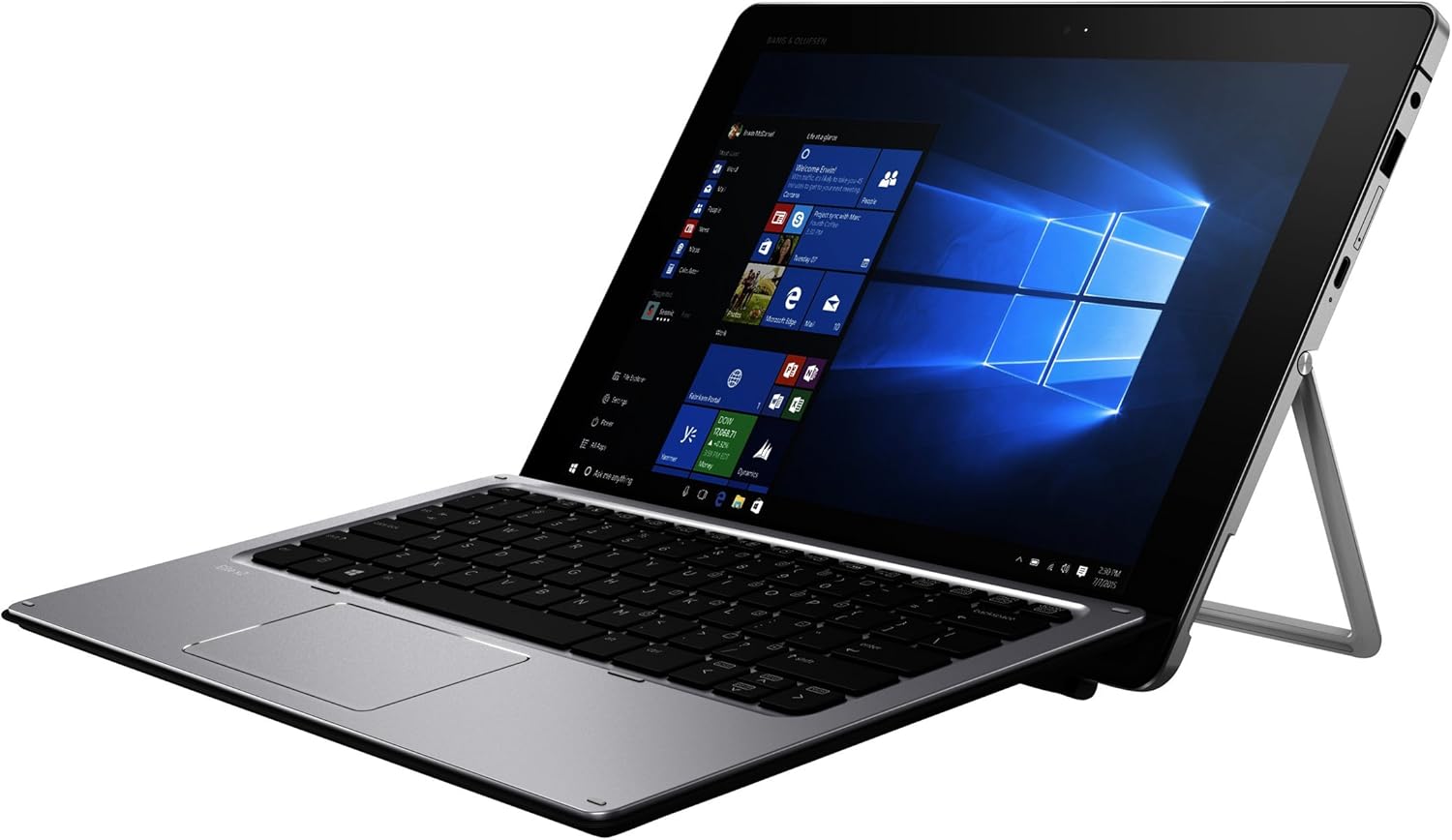
Figure 1: HP Elite x2 1012 G1 Tablet PC in laptop mode.
2. Kutuda Neler Var?
Ambalajda tüm bileşenlerin mevcut olduğunu doğrulayın:
- HP Elite x2 1012 G1 Tablet
- HP Elite x2 1012 G1 Travel Keyboard
- 4-cell battery (integrated)
- Güç adaptörü
- WACOM active capacitive pen

Figure 2: Included components: Tablet, Travel Keyboard, and WACOM Active Pen.
3. İlk Kurulum
3.1 Cihazı Şarj Etme
Before first use, fully charge the tablet. Connect the power adapter to the tablet's charging port and then to a power outlet. The charging indicator light will illuminate.
3.2 Attaching the Travel Keyboard
Align the magnetic connector on the HP Elite x2 1012 G1 Travel Keyboard with the corresponding port on the bottom edge of the tablet. The keyboard will snap into place magnetically.

Figure 3: HP Elite x2 1012 G1 with Travel Keyboard attached, ready for use.
3.3 Açma ve İlk Yapılandırma
- Press and hold the power button located on the side of the tablet until the HP logo appears.
- Dil seçimi, ağ bağlantısı ve kullanıcı hesabı oluşturma dahil olmak üzere Windows 10 Pro kurulumunu tamamlamak için ekrandaki talimatları izleyin.
4. Operating the HP Elite x2 1012 G1
4.1 Tablet Mode and Keyboard Mode
The HP Elite x2 1012 G1 can be used as a standalone tablet or as a laptop with the attached keyboard. Windows 10 Pro automatically detects the presence of the keyboard and adjusts the interface accordingly.

Figure 4: The integrated kickstand allows for adjustable viewing angles in laptop mode.
4.2 Using the WACOM Active Pen
The WACOM Active Pen allows for precise input, drawing, and note-taking directly on the touchscreen. It supports pressure sensitivity for a natural writing and drawing experience. Refer to Windows Ink Workspace for pen-specific features.
4.3 Bağlantı Noktaları ve Konektörler
- USB 3.0 Bağlantı Noktaları: Connect external devices such as USB drives, mice, or printers.
- USB-C Bağlantı Noktası: For charging, data transfer, and video output (with compatible adapters).
- Kulaklık/Mikrofon Kombo Jakı: Ses cihazlarını bağlayın.
- MicroSD Kart Yuvası: Expand storage capacity.
5. Bakım ve Özen
5.1 Cihazın Temizlenmesi
- Yumuşak, tiftiksiz bir bez kullanın ve hafifçe kurulayın.ampEkranı temizlemek için su veya elektronik cihazlar için özel olarak tasarlanmış bir ekran temizleyicisi kullanın.
- Kasa ve klavye için kuru, yumuşak bir bez kullanın. Sert kimyasallardan veya aşındırıcı malzemelerden kaçının.
5.2 Pil Bakımı
- Pil ömrünü uzatmak için aşırı sıcaklıklardan kaçının.
- Yeniden şarj etmeden önce akünün kısmen boşalmasına periyodik olarak izin verin.
5.3 Yazılım Güncellemeleri
Regularly check for and install operating system and driver updates to ensure optimal performance and security. These can typically be found through Windows Update or the HP Support Assistant application.
6. Sorun Giderme
6.1 Cihaz Açılmıyor
- Ensure the device is fully charged. Connect the power adapter and wait a few minutes before attempting to power on again.
- Try a different power outlet or adapter if available.
6.2 Klavye Yanıt Vermiyor
- Verify that the keyboard is securely attached to the tablet's magnetic connector.
- Tableti yeniden başlatın.
- Check for any physical obstructions in the connector ports.
6.3 Touchscreen Issues
- Clean the screen to remove any dirt or smudges.
- Cihazı yeniden başlatın.
- Ensure that the display drivers are up to date.
7. Özellikler
| Özellik | Detay |
|---|---|
| Örnek | HP Elite x2 1012 G1 (W0S24UT#ABA) |
| Ekran Boyutu | 12 inç |
| Ekran Çözünürlüğü | 1920 x 1080 pixels (Max: 1920x1280 Pixels) |
| İşlemci | 1.2 GHz Intel Core i7-5500U (2 Processors) |
| Veri deposu | 8 GB LPDDR3 (1866 MHz) |
| Depolamak | SSD (256 GB Flash Bellek Boyutu) |
| Grafikler | Entegre Intel HD Grafik 515 |
| İşletim Sistemi | Windows 10 Pro 64-bit Edition |
| Kablosuz Tip | 802.11abg |
| USB Bağlantı Noktaları | 4 x USB 3.0 Bağlantı Noktası |
| Arka Webkam Çözünürlüğü | 5 MP |
| Ürün Ağırlığı | 1.81 pound |
| Ürün Boyutları | 18.1 x 11.6 x 3 inç |
| Renk | Gümüş |
| İlk Mevcut | 21 Mart 2016 |
Note: Specifications are subject to change without notice. For the most current information, please refer to the official HP product page.
8. Garanti ve Destek
For warranty information, technical support, and service inquiries, please visit the official HP support website or contact HP customer service. Keep your purchase receipt and product serial number readily available.
HP Desteği Webalan: www.hp.com/support
Ürün Bağlantısı: Amazon Ürün Sayfası