1. Ürün Bittiview
The NETGEAR Powerline 1000 Adapter Kit (PL1000-100PES) provides a simple solution to extend your internet network using your home's existing electrical wiring. This kit includes two Powerline 1000 adapters, enabling you to connect devices like smart TVs, gaming consoles, and computers to the internet in areas where Wi-Fi signals may be weak or unreliable.
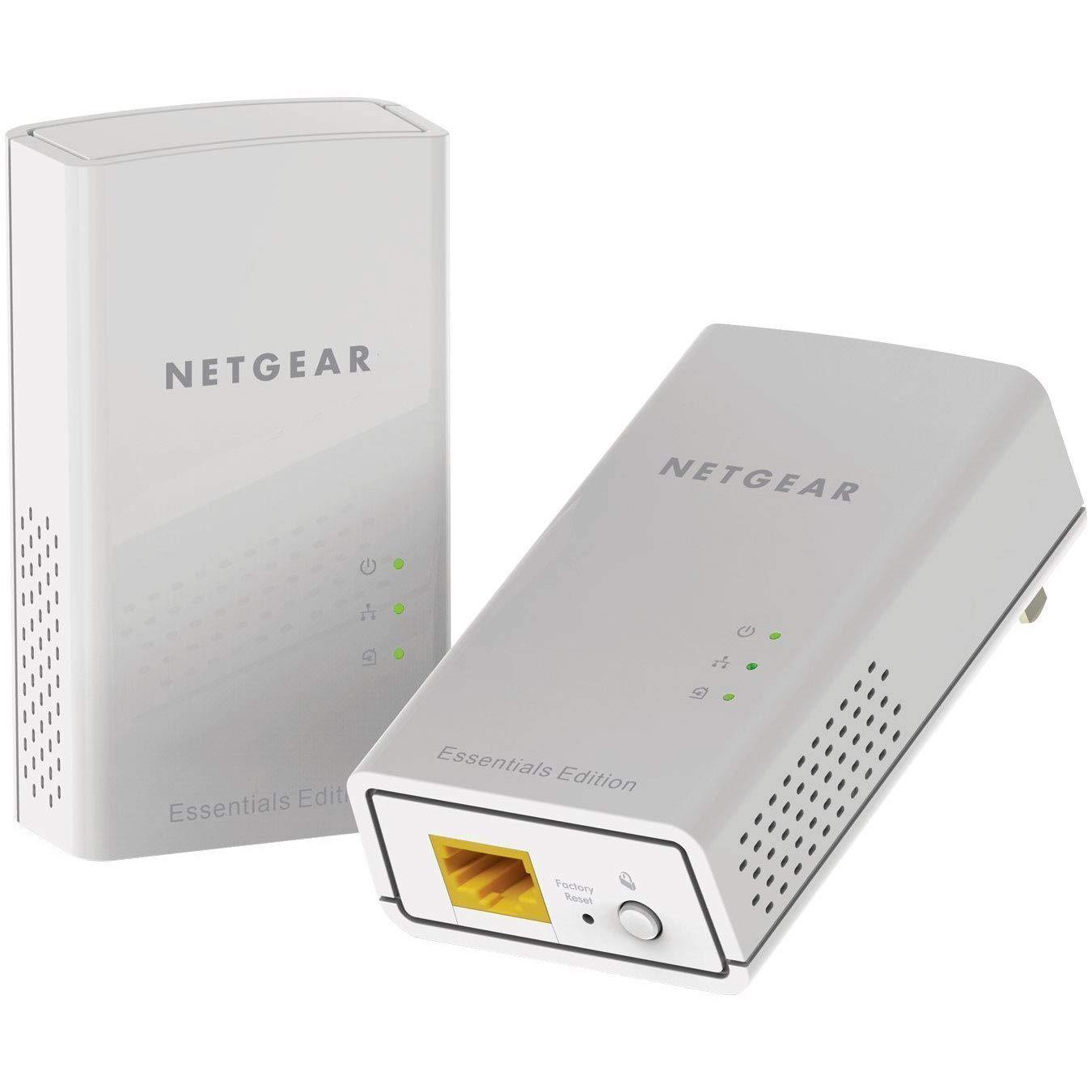
Resim: Ön view of the NETGEAR Powerline 1000 Adapter.
2. Kurulum
2.1 Paket İçeriği
Paketinizin aşağıdaki öğeleri içerdiğini doğrulayın:
- Two (2) NETGEAR Powerline 1000 Adapters (PL1000)
- Two (2) Ethernet cables
- Hızlı Başlangıç Kılavuzu (bu kılavuzda yer almamaktadır)
2.2 Kurulum Adımları
Powerline ağınızı kurmak için şu adımları izleyin:
- Birinci adaptörü bağlayın: Plug one Powerline adapter directly into an electrical outlet near your internet router or modem. Do not use a power strip or extension cord, as this can degrade performance.
- Yönlendiriciye/Modeme bağlanın: Use one of the provided Ethernet cables to connect the Powerline adapter to an available LAN port on your router or modem.
- İkinci adaptörü bağlayın: Plug the second Powerline adapter directly into an electrical outlet in the room where you want to extend your network.
- Cihazınızı Bağlayın: Use the second Ethernet cable to connect your network-enabled device (e.g., computer, smart TV, gaming console) to the second Powerline adapter.
- Bağlantıyı Doğrulayın: Bağlantının başarılı olduğunu gösteren, her iki adaptördeki Powerline LED'inin sabit yeşil yanmasını bekleyin.

Image: A NETGEAR Powerline 1000 Adapter plugged into a wall outlet, ready for connection.

Image: Diagram illustrating how two Powerline adapters connect to a router and an Ethernet-enabled device in different rooms, utilizing the home's electrical wiring.
3. Çalıştırma
3.1 LED Göstergelerini Anlama
The Powerline adapters feature LED indicators to show their status:
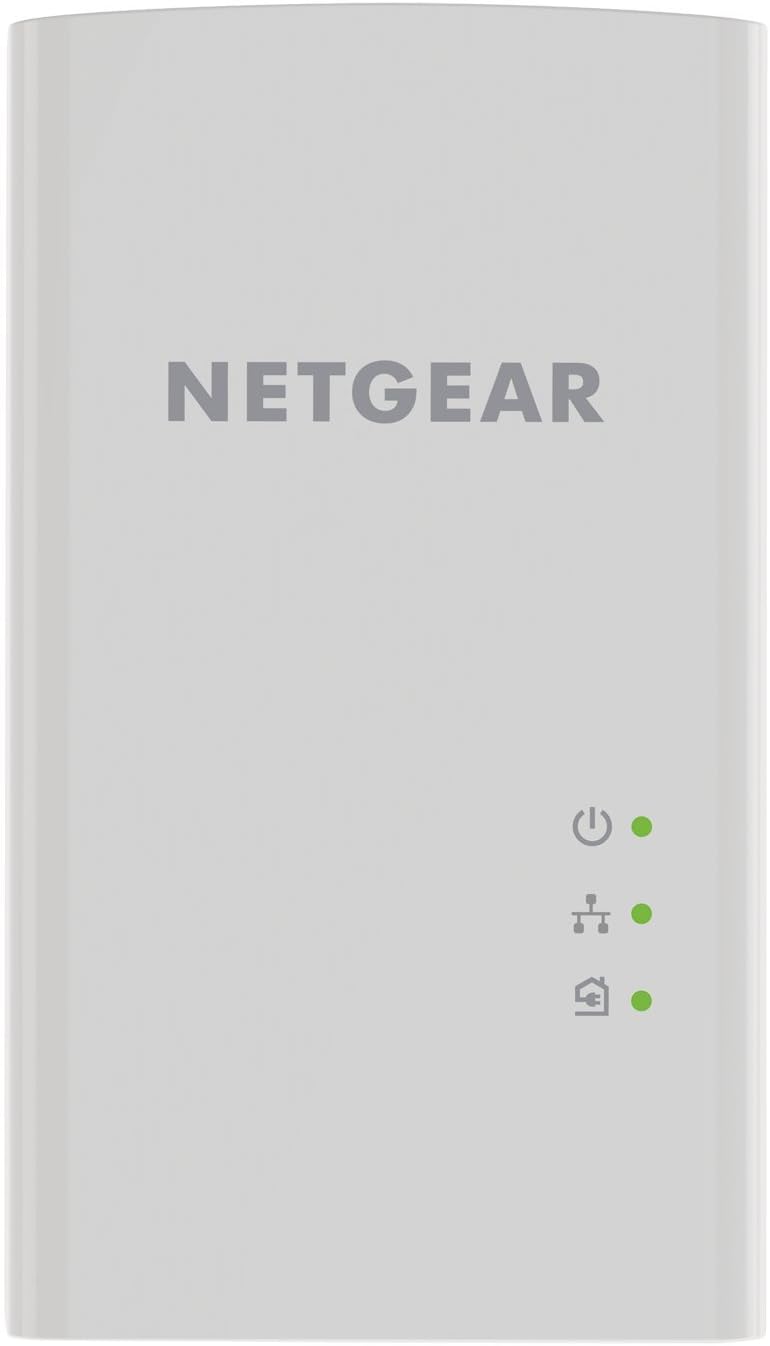
Resim: Ön view of the Powerline 1000 Adapter showing the Power, Powerline, and Ethernet LED indicators.
| LED Göstergesi | Durum | Tanım |
|---|---|---|
| Güç LED'i | Katı Yeşil | The Powerline adapter is powered on. |
| Güç LED'i | Kapalı | The Powerline adapter is off. |
| Güç Hattı LED'i | Katı Yeşil | The Powerline adapter is connected to a Powerline network. |
| Güç Hattı LED'i | Yeşil yanıp sönüyor | The Powerline adapter is in pairing mode. |
| Güç Hattı LED'i | Kapalı | The Powerline adapter is not connected to a Powerline network. |
| Ethernet LED'i | Katı Yeşil | An Ethernet device is connected to the adapter's Ethernet port. |
| Ethernet LED'i | Yeşil yanıp sönüyor | Data is being transmitted or received through the Ethernet port. |
| Ethernet LED'i | Kapalı | No Ethernet device is connected. |
3.2 Pairing Powerline Adapters
Your Powerline adapters are typically pre-paired from the factory. If they do not connect automatically (Powerline LED is off or blinking), you may need to pair them manually:
- Plug both Powerline adapters into electrical outlets in the same room.
- Press the Security button (often labeled 'Pair' or 'Security') on the side or bottom of the first adapter for 2 seconds. The Powerline LED will start blinking.
- Within two minutes, press the Security button on the second adapter for 2 seconds. Its Powerline LED will also start blinking.
- After a short period, the Powerline LEDs on both adapters should turn solid green, indicating a successful secure connection.
4. Bakım
4.1 Bakım ve Temizlik
- Keep the adapters in a dry environment, away from excessive heat or moisture.
- Do not block the ventilation holes on the adapters.
- To clean, gently wipe the surface with a soft, dry cloth. Do not use liquid or aerosol cleaners.
4.2 Fabrika Ayarlarına Sıfırlama
Sürekli sorun yaşıyorsanız veya tüm ayarları sıfırlamak istiyorsanız, fabrika ayarlarına sıfırlama işlemi gerçekleştirebilirsiniz:

Resim: Alt view of the Powerline 1000 Adapter, highlighting the Ethernet port and the recessed Factory Reset button.
- With the adapter plugged into an electrical outlet, use a paperclip or similar pointed object to press and hold the recessed Fabrika Ayarlarına Sıfırlama Yaklaşık 10 saniye boyunca düğmeye basın.
- Release the button when the LEDs briefly flash. The adapter will restart with factory default settings.
5. Sorun Giderme
5.1 Yaygın Sorunlar ve Çözümler
- Elektrik hattı bağlantısı yok (Elektrik hattı LED'i kapalı):
Ensure both adapters are plugged directly into wall outlets, not power strips. Try different outlets. Perform manual pairing as described in Section 3.2. - Yavaş Bağlantı Hızı:
Avoid plugging adapters into outlets on different electrical circuits if possible. Remove any high-power electrical appliances (e.g., washing machines, refrigerators) from outlets near the adapters, as they can cause interference. - İnternet erişimi yok:
Verify that your router/modem is working correctly and has an active internet connection. Ensure the Ethernet cable between the first adapter and the router is securely connected. Check the Ethernet LED on both adapters. - Adaptör yanıt vermiyor:
Unplug the adapter from the wall outlet, wait 10 seconds, and plug it back in. If the issue persists, perform a factory reset (Section 4.2).
6. Özellikler
6.1 Teknik Özellikler
| Özellik | Detay |
|---|---|
| Marka | AĞ DİŞLİLERİ |
| Model Numarası | PL1000-100PES |
| Boyutlar (UxGxY) | 2.32 x 1.41 x 3.94 inç (5.89 x 3.58 x 10.01 cm) |
| Ürün Ağırlığı | 4.4 ons (126 gram) |
| Renk | Beyaz |
| Veri Aktarım Hızı | Up to 1000 Mbps (Megabytes Per Second) |
| Veri Bağlantı Protokolü | Gigabit Ethernet, IEEE 802.3 |
| Donanım Arayüzü | Ethernet Bağlantı Noktası (RJ-45) |
| Uyumlu Cihazlar | Desktop, Laptop, Smart TV, Gaming Console, Smartphone, Tablet (via Ethernet connection to adapter) |
| Cilttage | 15.0V (Internal) |
| UPC | 606449109825 |
7. Garanti ve Destek
7.1 Garanti Bilgileri
NETGEAR products typically come with a limited hardware warranty. For specific warranty terms and conditions applicable to your region and product, please refer to the warranty card included with your purchase or visit the official NETGEAR webalan.
7.2 Müşteri Desteği
For further assistance, technical support, or to download the latest firmware and documentation, please visit the official NETGEAR support website. You can find detailed FAQs, troubleshooting guides, and contact information for customer service there.