giriiş
The Logitech M337 Wireless Bluetooth Mouse is a compact and portable input device designed for use with virtually any Bluetooth-enabled computer, laptop, or tablet. It offers a comfortable curved shape, precise optical tracking, and a long battery life, making it ideal for on-the-go productivity across various operating systems including Mac, Windows, Chrome OS, and Android.
Kurmak
Kutuda Neler Var?
- Logitech M337 Wireless Bluetooth Mouse
- 1 AA Pil (önceden takılmış veya ayrı olarak dahil)
- Kullanıcı Belgeleri
Pil Kurulumu
- Farenin alt tarafındaki pil bölmesini bulun.
- Pil bölmesinin kapağını açın.
- Kutu içerisinde bulunan AA pili, doğru kutuplara (+/-) dikkat ederek takın.
- Pil bölmesi kapağını sıkıca kapatın.
Bluetooth Eşleştirme
The M337 mouse connects wirelessly via Bluetooth, freeing up USB ports. Follow these steps to pair your mouse with your device:
- Turn on the mouse using the On/Off switch located on the underside. The LED indicator on the top of the mouse should start blinking rapidly, indicating it's in pairing mode. If not, press and hold the Bluetooth connect button (usually near the battery compartment or on the top, below the scroll wheel) until the LED blinks.
- On your computer, laptop, or tablet, navigate to the Bluetooth settings:
- Pencereler: Go to Start > Settings > Devices > Bluetooth & other devices. Turn Bluetooth On, then click "Add Bluetooth or other device" and select "Bluetooth".
- MacOS: Go to Apple menu > System Preferences > Bluetooth. Ensure Bluetooth is On.
- Chrome İşletim Sistemi: Click the status area (bottom right) > Bluetooth > Enable Bluetooth.
- Android: Go to Settings > Connected devices > Connection preferences > Bluetooth. Turn Bluetooth On.
- In the Bluetooth device list, select "Logitech M337" or a similar name.
- Follow any on-screen prompts to complete the pairing process. The LED indicator on the mouse will turn solid blue for a few seconds and then turn off once successfully connected.
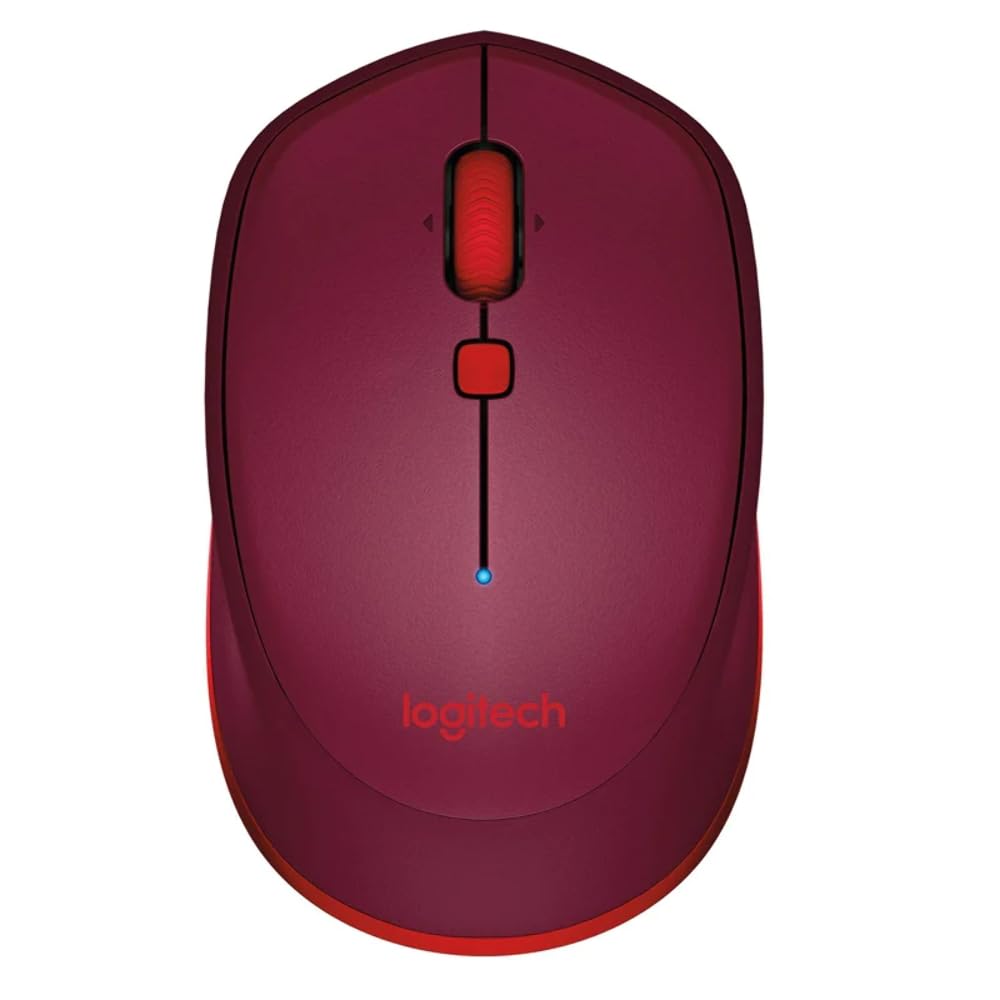
This image displays the Logitech M337 Wireless Bluetooth Mouse from a top-down perspective, highlighting its compact design, the red scroll wheel, and the central navigation button. The Logitech logo is visible at the bottom.
Fareyi Çalıştırma
Temel Fonksiyonlar
- Sol tık: Öğeleri seçmek ve yazılımla etkileşim kurmak için birincil düğme.
- Sağ tık: Bağlam menüleri ve ek seçenekler için ikincil düğme.
- Kaydırma tekerleği: Belgeler arasında yukarı veya aşağı kaydırın ve web sayfalar.
- Eğimli Direksiyon: Tilt the scroll wheel left or right for horizontal scrolling (if supported by software).
- Gezinme düğmesi: The button located below the scroll wheel. By default, this button can be configured to perform various functions, such as opening the task view on Windows or Mission Control on Mac. Customization is available through Logitech Options software.
Konfor ve Taşınabilirlik
The M337 features a comfortable curved shape with rubber grips, designed for extended use by both right and left-handed users. Its compact size allows for easy portability, fitting conveniently into laptop bags or pockets.

Açısal bir view of the Logitech M337 mouse, showcasing its comfortable curved shape and the textured rubber grips on the sides, designed for both right and left-handed users.
Bakım
Pil Değişimi
The Logitech M337 mouse boasts an average battery life of up to 19 months. When the battery is low, the LED indicator on the mouse may blink red. To replace the battery, follow the battery installation steps outlined in the Setup section.
Temizlik
To maintain optimal performance and hygiene, periodically clean your mouse:
- Yumuşak, tiftiksiz bir bez kullanın ve hafifçe kurulayın.ampsu veya hafif bir temizleme solüsyonu ile sonlandırıldı.
- Sert kimyasallar, aşındırıcı temizleyiciler kullanmaktan veya fareyi sıvıya batırmaktan kaçının.
- Fare yüzeyini, özellikle elinizle sık temas eden bölgelere dikkat ederek, nazikçe silin.
- For the optical sensor, use a dry cotton swab to carefully remove any dust or debris.
Sorun giderme
Bağlantı Sorunları
- Fare bağlanmıyor: Ensure the mouse is turned on and the battery has sufficient charge. Re-initiate pairing mode on the mouse and re-scan for Bluetooth devices on your computer.
- Aralıklı bağlantı: Move the mouse closer to your device. Ensure there are no large metal objects or other wireless devices causing interference between the mouse and your computer.
- Bluetooth not found on computer: Verify that your computer's Bluetooth is enabled and its drivers are up to date.
Tracking Problems
- İmlecin düzensiz hareketi: Clean the optical sensor on the underside of the mouse. Ensure you are using the mouse on a clean, non-reflective, and uniform surface.
- İmleç hareketi yok: Check battery level. Ensure the mouse is properly paired.
Diğer Konular
- Düğmeler yanıt vermiyor: Check battery. If using Logitech Options software, ensure button assignments are correct.
- Scroll wheel not working: Clean around the scroll wheel to remove any debris.
Özellikler
| Özellik | Detay |
|---|---|
| Marka | Logitech |
| Model Numarası | M337 |
| Bağlantı Teknolojisi | Bluetooth |
| Hareket Algılama Teknolojisi | Optik |
| Renk | Kırmızı |
| Güç Kaynağı | Pille Çalışır (1 adet AA pil) |
| Ortalama Pil Ömrü | 19 Aya Kadar |
| İşletim Sistemi Uyumluluğu | Android, Chrome OS, Mac, Windows |
| Ürün Boyutları (LxWxY) | 18.6x12.6x8.3 cm |
| Ürün Ağırlığı | 82 gr |
Garanti ve Destek
Garanti Bilgileri
The Logitech M337 Wireless Bluetooth Mouse typically comes with a 1 Yıl Sınırlı Donanım Garantisi Satın alma tarihinden itibaren geçerlidir. Lütfen garanti talepleriniz için satın alma belgenizi saklayın. Garanti, normal kullanım koşullarında malzeme ve işçilik kusurlarını kapsar.
Müşteri Desteği
Daha fazla yardım, teknik destek veya garanti talebi için lütfen resmi Logitech destek sayfasını ziyaret edin. website or contact their customer service. You can usually find detailed FAQs, troubleshooting guides, and driver downloads on their webalan.
Logitech Desteği Webalan: destek.logi.com


