giriiş
This manual provides essential information for setting up, operating, maintaining, and troubleshooting your Microsoft Surface Pro 3. The Surface Pro 3 is a versatile device designed to function as both a tablet and a laptop, powered by the Windows 10 operating system.
It features a 12-inch high-resolution screen, ample internal storage, dual HD cameras, and robust connectivity options, including a full-size USB 3.0 port. Its integrated kickstand allows for comfortable viewing in various positions, and the magnesium frame ensures a lightweight and durable design.
Güvenlik Bilgileri
- Cihazı aşırı sıcaklıklara, doğrudan güneş ışığına veya yüksek neme maruz bırakmayın.
- Cihazınızı düşürmekten veya sert darbelere maruz bırakmaktan kaçınınız.
- Yalnızca Microsoft onaylı güç adaptörleri ve aksesuarları kullanın.
- Cihazı sıvılardan uzak tutun. Sıvı teması durumunda, derhal cihazı kapatın ve profesyonel yardım alın.
- Cihazı kendiniz sökmeye veya onarmaya çalışmayın. Bu, garantiyi geçersiz kılabilir ve hasara neden olabilir.
- Cihazı kullanırken aşırı ısınmayı önlemek için yeterli havalandırma sağlayın.
Kurmak
1. Kutudan Çıkarma ve İlk İnceleme
Carefully remove the Surface Pro 3 and all accessories from the packaging. Inspect the device for any visible damage. Retain the packaging for future transport or service needs.
2. Açma ve İlk Kurulum
- Connect the power supply to the Surface Pro 3 and a power outlet.
- Press the power button located on the top edge of the device.
- Follow the on-screen prompts to complete the Windows 10 initial setup, including language selection, network connection, and user account creation.
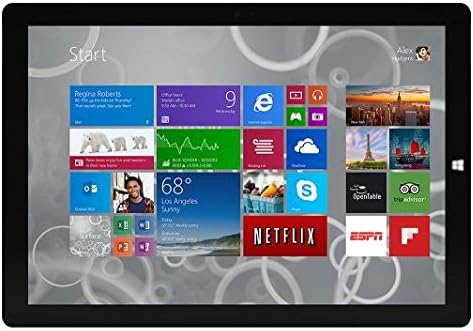
Figure 1: Windows 10 Start Screen during initial setup.
This image shows the Microsoft Surface Pro 3 screen displaying the Windows 10 Start menu, characterized by a grid of live tiles representing various applications and services. This is typically seen during the initial setup or when navigating the operating system.
3. Attaching Accessories (Sold Separately)
The Surface Pro 3 is compatible with various accessories, such as the Surface Type Cover keyboard and the Surface Pen, which are sold separately.
- Surface Type Cover: Align the magnetic connector of the Type Cover with the bottom edge of the Surface Pro 3 until it clicks into place.
- Surface Pen: The Surface Pen can be magnetically attached to the side of the Surface Pro 3 for storage. For initial pairing, follow the instructions provided with the pen.
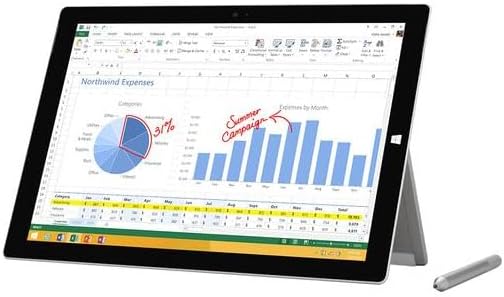
Figure 2: Surface Pro 3 with optional Surface Pen.
This image illustrates the Microsoft Surface Pro 3 in use, displaying an Excel spreadsheet on its screen. A Surface Pen is positioned next to the device, highlighting its compatibility for precise input and navigation.
4. Expanding Storage with a MicroSD Card
You can expand the internal storage of your Surface Pro 3 using a microSD card (sold separately).
- Locate the microSD card slot on the side of the Surface Pro 3, typically behind the kickstand.
- Insert the microSD card into the slot until it clicks into place.
- The device will automatically detect the card. You may need to format it if it's a new card or if prompted by the system.

Figure 3: MicroSD card slot.
This close-up image shows the microSD card slot on the side of the Microsoft Surface Pro 3, with a microSD card partially inserted, demonstrating how to expand the device's storage.
Kullanım Talimatları
1. Navigating Windows 10
- Başlat Menüsü: Uygulamalara, ayarlara ve güç seçeneklerine erişmek için sol alt köşedeki Windows simgesine tıklayın.
- Dokunmatik ekran: Use gestures for navigation, zooming, and scrolling.
- Edge Browser: Utilize the pre-installed Edge browser for web browsing, which includes features for marking up web sayfalar.

Figure 4: Using the Surface Pro 3 for productivity.
This image depicts the Microsoft Surface Pro 3 in an active use scenario, showcasing a note-taking application open on its screen. The display features handwritten notes, diagrams, and sketches, illustrating the device's capability for creative and productive tasks.
2. Using the Integrated Kickstand
The multi-position kickstand allows you to adjust the viewing angle for optimal comfort, whether you are typing, watching videos, or drawing.
- Gently pull the kickstand out from the back of the device.
- Adjust it to your desired angle. The kickstand offers a wide range of positions for versatility.
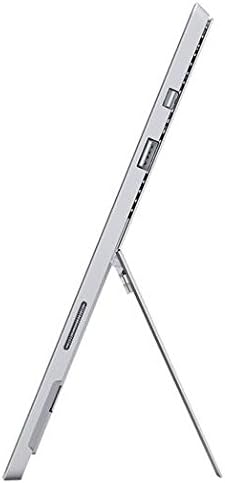
Figure 5: Adjustable kickstand.
Bu görüntü bir yan görüntü sağlar view of the Microsoft Surface Pro 3, clearly showing its integrated kickstand extended to support the device at an angle, demonstrating its versatile viewyetenekleri geliştirme.
3. Kamera İşlevselliği
The Surface Pro 3 is equipped with 5.0MP front and rear cameras.
- Open the Camera application from the Start Menu.
- Switch between front and rear cameras as needed for photos or video calls.

Figure 6: Front camera.
This close-up image focuses on the front-facing camera and associated sensors located at the top edge of the Microsoft Surface Pro 3 screen.
4. Bağlantı
The full-size USB 3.0 port allows for connecting various peripherals and transferring data.
- Insert USB devices (e.g., flash drives, external hard drives, printers) into the USB 3.0 port.
- The device also supports Wi-Fi (802.11a/b/g/n/ac) for wireless internet connectivity.
Bakım
1. Cleaning Your Surface Pro 3
- Yumuşak, tüy bırakmayan bir bez kullanınampSu veya elektronik cihazlar için özel olarak tasarlanmış bir ekran temizleyici ile temizleyin.
- Sert kimyasallar, aşındırıcı temizleyiciler veya aerosol spreyler kullanmaktan kaçının.
- Ekranı ve dış yüzeyleri nazikçe silin.
2. Yazılım Güncellemeleri
Regularly check for and install Windows updates to ensure your device has the latest security patches and performance improvements.
- Git Ayarlar > Güncelleme ve Güvenlik > Windows Güncellemesi.
- "Güncellemeleri kontrol et" seçeneğine tıklayın ve mevcut güncellemeleri yükleyin.
3. Depolama Yönetimi
To maintain optimal performance, manage your device's storage space.
- Gereksiz olanları düzenli olarak silin files ve uygulamaları.
- Utilize cloud storage services or external drives for large files.
- Consider using the Disk Cleanup tool in Windows to remove temporary files.
Sorun giderme
Bu bölümde Surface Pro 3 cihazınızda karşılaşabileceğiniz yaygın sorunlar ele alınmaktadır.
Cihaz Açılmıyor
- Güç kaynağının hem cihaza hem de çalışan bir elektrik prizine güvenli bir şekilde bağlı olduğundan emin olun.
- Başka bir elektrik prizini deneyin.
- Zorla kapatma işlemini gerçekleştirmek için güç düğmesine 10-15 saniye basılı tutun, ardından yeniden başlatmak için tekrar basın.
Wi-Fi Bağlantı Sorunları
- Windows ayarlarında Wi-Fi'nin etkin olup olmadığını kontrol edin.
- Wi-Fi yönlendiricinizi yeniden başlatın.
- Ağı unutun ve yeniden bağlanın, şifreyi tekrar girin.
- Windows Ağ Sorun Gidericisini çalıştırın.
Yavaş Performans
- Arka planda çalışan gereksiz uygulamaları kapatın.
- Bekleyen Windows güncelleştirmelerini kontrol edin ve yükleyin.
- Yeterli boş depolama alanınız olduğundan emin olun.
- Virüs taraması yapın.
For more detailed troubleshooting or issues not covered here, please refer to the official Microsoft Support website veya müşteri hizmetleriyle iletişime geçin.
Özellikler
| Özellik | Detay |
|---|---|
| Örnek | Microsoft Surface 1631 Pro 3 |
| İşletim Sistemi | Windows 10 |
| Ekran Boyutu | 12 inç |
| Ekran Çözünürlüğü | 2160x1440 |
| İşlemci | Intel Core i3 1.5GHz |
| Veri deposu | 4 GB |
| Dahili Depolama | 128 GB Flash Storage |
| Grafik Eş İşlemcisi | Intel HD Grafikler |
| Kameralar | 5.0MP Front and Rear |
| Kablosuz Tip | 802.11b, 802.11a, 802.11g |
| Limanlar | Full-size USB 3.0 |
| Ürün Ağırlığı | 1.8 pound |
| Ürün Boyutları | 11.5 x 0.36 x 7.93 inç |
| Renk | Gümüş |
Garanti ve Destek
Your Microsoft Surface Pro 3 comes with a standard manufacturer's warranty. For detailed warranty terms and conditions, please refer to the documentation included with your purchase or visit the official Microsoft support webalan.
For technical assistance, troubleshooting guides, driver downloads, and service requests, please visit the Microsoft Surface Desteği sayfa.


