giriiş
Welcome to the user manual for your Logitech HD Pro Webcam C920. This guide provides detailed instructions on how to set up, operate, maintain, and troubleshoot your webcam to ensure optimal performance. The C920 Webcam delivers incredibly sharp and detailed Full HD video with a Full HD glass lens, 78° field of view, and HD auto lighting correction, plus dual microphones for crystal-clear stereo sound.
Güvenlik Bilgileri
Please read all safety instructions carefully before using your webcam. Keep this manual for future reference.
- Açığa çıkarmayın webSuya veya aşırı neme maruz kalabilir.
- Yerleştirmekten kaçının webcam near heat sources or in direct sunlight.
- açmaya veya onarmaya çalışmayın. webKamerayı kendiniz çekmeyin. Tüm servis işlemlerini yetkili personele yaptırın.
- Use only the provided USB cable to connect the webcam to your computer.
- Keep the lens clean using a soft, dry cloth.
Paket İçeriği
Paketinizde tüm öğelerin mevcut olduğundan emin olun:
- Logitech HD Profesyonel Webkam C920
- Kullanıcı Dokümantasyonu (bu kılavuz)
Kurulum Kılavuzu
1. Donanım Kurulumu
The Logitech C920 features a versatile clip that allows it to be securely mounted on various devices.
- For Laptops/LCD Monitors: Klipsi açın ve yerleştirin webcam on top of your screen, ensuring the front lip rests securely on the top edge and the adjustable clip arm rests against the back of the screen.
- For Desktops/Flat Surfaces: Fold the clip completely closed to form a flat base. Place the webKamera, sabit ve düz bir yüzey üzerinde.
- Tripod Montajı: The C920 also includes a standard tripod thread on the bottom of its clip for mounting on a tripod (not included).
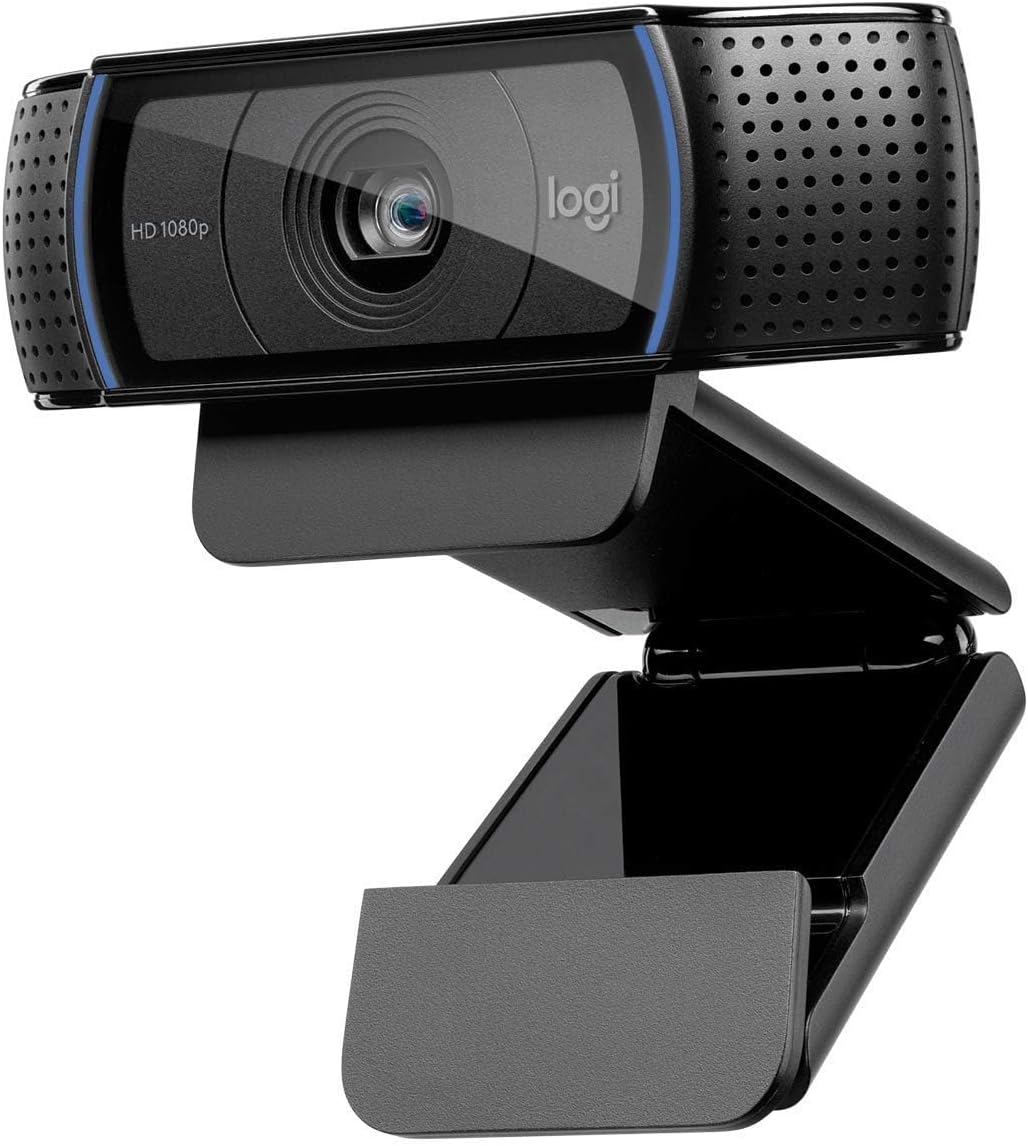
Resim: Ön view of the Logitech HD Pro Webcam C920, showing the lens, HD 1080p label, and Logitech logo. The webcam is mounted on its adjustable clip, ready for placement on a monitor or flat surface.

Resim: Yan view of the Logitech HD Pro Webcam C920, illustrating the flexible mounting clip in an extended position, suitable for gripping the top edge of a monitor or laptop screen. The attached USB cable is visible.
2. Yazılım Kurulumu
The Logitech C920 is a plug-and-play device for most modern operating systems. Drivers are typically installed automatically upon connection.
- Connect the USB cable from the webkameranızı bilgisayarınızdaki kullanılabilir bir USB bağlantı noktasına bağlayın.
- Your operating system (Windows or macOS) should automatically detect and install the necessary drivers. This may take a few moments.
- For advanced settings and features, you may download the Logitech G HUB software or Logitech Capture software from the official Logitech support webalan.
Sistem Gereksinimleri:
- Windows 7, 8, 10 veya üstü
- macOS 10.10 veya üzeri
- Chrome İşletim Sistemi
- USB 2.0 portu
- İsteğe bağlı yazılımı indirmek için internet bağlantısı
Cihazınızın Çalıştırılması Webkam
Bağlanma Webkam
Bir kez webcam is physically connected and drivers are installed, it will be recognized by your computer as a video and audio input device.
Using with Applications
The C920 is compatible with most popular video conferencing and streaming applications.
- Görüntülü Görüşmeler: Open your preferred video calling application (e.g., Zoom, Skype, Microsoft Teams, Google Meet). In the application's settings, select "Logitech C920" as your camera and microphone.
- Kayıt: Use your computer's built-in camera application (e.g., Camera app on Windows, Photo Booth on macOS) or third-party recording software to capture video and audio.
- Yayın akışı: For live streaming platforms, configure your streaming software (e.g., OBS Studio, Streamlabs OBS) to use the C920 as your video and audio source.
Ayarların Düzenlenmesi
Birçok uygulama, ayarlama yapmanıza olanak tanır. webcam settings directly. For more comprehensive control, use the Logitech G HUB or Logitech Capture software.
- Çözünürlük: Select your desired video resolution (up to 1080p Full HD).
- Alanı View: The C920 has a 78° field of view, suitable for individual or small group calls.
- Otomatik odaklama: The webcam features automatic autofocus. Ensure good lighting for optimal performance.
- Lighting Correction: HD auto lighting correction adjusts to dim lighting conditions.
- Mikrofon: The C920 has dual microphones for stereo sound. Adjust microphone levels in your computer's sound settings or application settings.
Bakım ve Onarım
Doğru bakım, ömrünü uzatacaktır. webkam.
- Lensin Temizlenmesi: Gently wipe the lens with a soft, lint-free cloth. Do not use abrasive cleaners or solvents.
- Vücudun Temizlenmesi: Biraz d kullanınamp temizlemek için bez webcam's body. Ensure no moisture enters the device.
- Depolamak: Kullanılmadığı zaman, saklayın webBitkiyi serin, kuru bir yerde, doğrudan güneş ışığından ve aşırı sıcaklıklardan uzakta tutun.
- Kablo Bakımı: Avoid bending or kinking the USB cable excessively.
Sorun giderme
If you encounter issues with your Logitech C920, refer to the following common problems and solutions:
| Sorun | Çözüm |
|---|---|
| WebKamera bilgisayar tarafından algılanmadı. |
|
| Uygulamada görüntü yok veya ekran siyah. |
|
| Video kalitesi düşük (bulanık, karanlık, grenli). |
|
| Ses yok veya ses kalitesi düşük. |
|
Teknik Özellikler
| Özellik | Şartname |
|---|---|
| Model Numarası | 960-001055 |
| Video Yakalama Çözünürlüğü | Full HD 1080p (up to 1920 x 1080 pixels) at 30 frames per second |
| Fotoğraf Çözünürlüğü | 15 Megapixels (software enhanced) |
| Mercek | Tam HD cam mercek |
| Alanı View | 78° köşegen |
| Odak Türü | Otomatik odaklama |
| Dahili Mikrofonlar | Otomatik gürültü azaltma özelliğine sahip çift stereo mikrofon. |
| Lighting Correction | Automatic HD light correction (RightLight™ 2) |
| Bağlantı | USB 2.0 (USB 3.0 uyumlu) |
| Kablo Uzunluğu | 1.5 m (5 ft) |
| Boyutlar (Y x G x D) | 2.79 x 24.64 x 16.51 cm (with clip) |
| Ağırlık | 136.08 gr |
| Uyumlu İşletim Sistemleri | Windows 7 veya üzeri, macOS 10.10 veya üzeri, Chrome OS |
Garanti Bilgileri
Logitech products are manufactured to the highest quality standards. This product is covered by a limited hardware warranty from the date of purchase. For specific warranty terms and conditions applicable to your region, please refer to the official Logitech webSatın alma belgenizi veya ürününüzle birlikte verilen garanti belgesini saklayın. Garanti talepleriniz için satın alma belgenizi saklayın.
Müşteri Desteği
Daha fazla yardım, teknik destek veya en son yazılım ve sürücüleri indirmek için lütfen resmi Logitech destek sitesini ziyaret edin. webalan:
Destek sitesinde ayrıca sıkça sorulan sorular ve topluluk forumlarına da ulaşabilirsiniz.


