1. Ürün Bittiview
The Gioteck EX-05S High Definition Headset is designed to deliver superior stereo game sound and crystal-clear voice communication. It is compatible with multiple platforms including PS4, PS3, Xbox 360, PC, and Mac. This headset features 40mm high-quality stereo drivers, a noise-isolating microphone, and breathable micro-fibre ear cups for extended comfort.
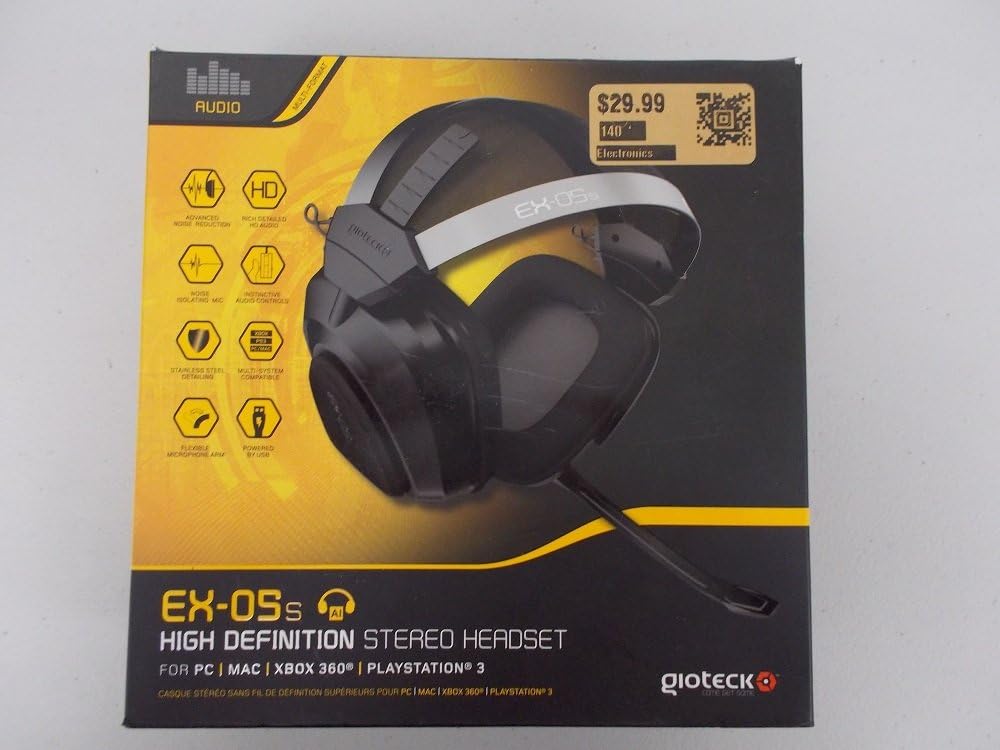
Figure 1.1: Gioteck EX-05S Headset packaging, highlighting key features and compatibility.

Şekil 1.2: Yan view of the Gioteck EX-05S Headset, showing the ear cup and microphone arm.
2. Özellikler
- 40mm High Quality Stereo Drivers: Delivering rich, detailed audio for an immersive gaming experience.
- Noise Isolating Microphone: Designed to eliminate echo and external noise for clear communication.
- Breathable Micro-Fibre Ear Cups: Uzun oyun seanslarında konfor sağlar.
- Gelişmiş Gürültü Azaltma: Minimizes game sound interference from external speakers.
- Flexible and 180-Degree Rotating Microphone Arm: Allows for optimal microphone positioning.
- Instinctive and Accessible Controls: Conveniently located controls for voice and game sound adjustments.
- Stainless Steel Detailing: Provides durability and a premium finish.
- Çoklu Platform Uyumluluğu: Works with PS4, PS3, Xbox 360, PC, and Mac.
3. Paket İçeriği
Lütfen paketinizde aşağıdaki tüm öğelerin bulunduğundan emin olun:
- Gioteck EX-05S Universal High Definition Stereo Headset
4. Kurulum Kılavuzu
4.1 Connecting to Gaming Consoles (PS4, PS3, Xbox 360)
- Locate the 3.5mm audio jack on your gaming controller or console.
- Insert the 3.5mm connector from the EX-05S headset firmly into the audio jack.
- Ensure your console's audio settings are configured to output game audio and chat through the connected headset. Refer to your console's system settings for specific audio output configurations.
4.2 PC/Mac'e Bağlanma
- For PCs with separate audio and microphone jacks, you may need a PC splitter cable (not included) to connect the single 3.5mm headset jack to your computer's audio output and microphone input ports.
- For devices with a combined 3.5mm audio/microphone jack, simply plug the headset's 3.5mm connector directly into the port.
- Adjust your computer's sound settings to select the EX-05S headset as the default playback and recording device.
5. Kullanım Talimatları
5.1 Ses Kontrolü
The EX-05S headset features an inline control box on the cable. Use the volume dial to adjust the overall audio level of your game and chat sound.
5.2 Mikrofon Sessize Alma
A switch or button on the inline control box allows you to quickly mute or unmute your microphone. Ensure the microphone is unmuted when you wish to communicate.
5.3 Mikrofon Konumlandırması
The flexible microphone arm can be rotated 180 degrees. Position the microphone approximately 1-2 inches from your mouth for optimal voice clarity and to minimize background noise.
6. Bakım ve Özen
- Temizlik: Use a soft, dry cloth to clean the headset. For ear cups, a slightly damp Bez kullanılabilir, ancak hoparlör ızgaralarına nem girmemesine dikkat edin. Sert kimyasallar veya aşındırıcı temizleyiciler kullanmayın.
- Depolamak: Kulaklığı serin, kuru ve doğrudan güneş ışığından ve aşırı sıcaklıklardan uzak bir yerde saklayın. Kablonun dolaşmasını önleyin.
- İşleme: Always grasp the plug when disconnecting the cable, rather than pulling on the cable itself, to prevent damage to the wiring.
- Kulaklık Kapakları: The breathable micro-fibre ear cups can be gently wiped clean. Avoid excessive pressure or stretching.
7. Sorun Giderme
7.1 Kulaklıktan Ses Gelmiyor
- 3.5 mm jakın ses bağlantı noktasına tam olarak takıldığından emin olun.
- Check the inline volume control on the headset cable and ensure it is turned up.
- Verify your device's (console, PC, Mac) audio output settings are configured to send sound to the headset.
- Cihaza özgü bir sorun olup olmadığını anlamak için kulaklığı başka bir cihazda deneyin.
7.2 Mikrofon Çalışmıyor
- Check the microphone mute switch on the inline control box and ensure it is unmuted.
- Verify your device's (console, PC, Mac) microphone input settings are configured to receive input from the headset.
- Ensure the microphone arm is positioned correctly and not obstructed.
- Test the microphone on another device or application to confirm functionality.
7.3 Static or Distorted Audio
- Ensure the connection is secure and free from debris.
- Try adjusting the volume levels on both the headset and the connected device.
- Move away from potential sources of electromagnetic interference (e.g., Wi-Fi routers, cordless phones).
- Başka bir ses kaynağı veya cihazıyla test edin.
8. Özellikler
| Özellik | Detay |
|---|---|
| Model Adı | E5SUNI-11-MU |
| Bağlantı Teknolojisi | Kablolu |
| Dahil Bileşenler | Kulaklıklar |
| Yaş Aralığı (Açıklama) | Yetişkin |
| Malzeme | Paslanmaz çelik |
| Ürünün Belirli Kullanımları | Oyun |
| Uyumlu Cihazlar | Oyun Konsolları, Bilgisayarlar |
| Kontrol Türü | Ses Kontrolü |
| Kablo Özelliği | Geri çekilebilir |
| Ürün Ağırlığı | 669 Gram (1.47 pound) |
| Kontrol Yöntemi | Ses |
| Ses Sürücüsü Türü | Dinamik Sürücü |
| Kulaklık Şekli | Kulak üstü |
| Kulaklık Girişi | 3.5 mm Jak |
| Ürün Boyutları | 8.46 x 7.87 x 3.94 inç |
9. Garanti ve Destek
Gioteck products are manufactured to high standards and undergo rigorous testing. For information regarding warranty coverage, technical support, or service, please refer to the official Gioteck webSiteyi ziyaret edin veya doğrudan müşteri hizmetleriyle iletişime geçin. Satın alma belgenizi herhangi bir garanti talebi için saklayın.
En güncel destek bilgileri için lütfen şu adresi ziyaret edin: www.gioteck.com/support


