1. Giriş
This manual provides essential information for the installation, operation, and maintenance of your Sapphire Radeon HD 7950 Mac Edition Graphics Card. Please read these instructions carefully before proceeding with installation to ensure proper functionality and to avoid potential issues.
2. Ürün Bittiview
The Sapphire Radeon HD 7950 Mac Edition is a high-performance PCI-Express graphics card designed to enhance the graphical capabilities of compatible Mac Pro systems. It features AMD's Graphics Core Next (GCN) architecture, providing significant performance improvements for gaming, video editing, and content creation. The card is equipped with 3GB of GDDR5 memory and supports a variety of display outputs.
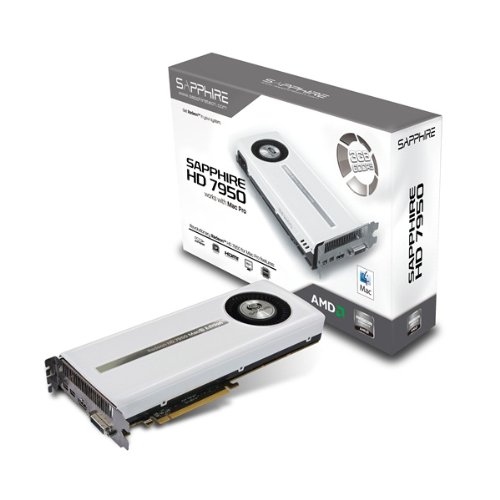
Figure 1: Sapphire Radeon HD 7950 Mac Edition Graphics Card. This image shows the overall design of the graphics card, featuring a white shroud with the Sapphire logo and 'Radeon HD 7950 Mac Edition' branding.
Temel Özellikler:
- Ekran Kartı: AMD Radeon 7950, 800MHz Engine Clock
- Hafıza: 3GB 256-bit GDDR5, 5000MHz Effective Memory Speed
- Ekran Çıkışları: HDMI (with 3D support), 2 Mini Display Ports, Dual-link DVI-I
- Compute Power: Up to 4.3 TFLOPS Single Precision
- API Desteği: Open GL 4.2, Open CL 1.2, AMD HD3D Technology, APP acceleration
- Yazılım: Dual Firmware support for Mac OS X/Windows (non-UEFI) and Windows (UEFI hybrid)
3. Uyumluluk
This graphics card is compatible with Apple Mac Pro models from 2010 and later that have an available PCI-Express x16 slot. It requires Mac OS X 10.7.5 (Lion), 10.8.2 (Mountain Lion), or later versions for full functionality. Drivers are provided for both Mac OS X and Windows operating systems.
4. Paket İçeriği
Ürün paketinizde aşağıdaki tüm öğelerin bulunduğundan emin olun:
- Sapphire Radeon HD 7950 Mac Edition Graphics Card
- DVI to VGA Adapter
- Mini-DP to DP Cable
- 2 x 6-pin power cables for Mac (250MM)
- Kullanım Kılavuzu (bu belge)
- Driver CD for Mac
- Driver CD for Windows
5. Kurulum ve Kurulum
5.1. Fiziksel Kurulum
- Gücü kesmek: Ensure your Mac Pro is completely powered off and disconnected from the power outlet.
- Davayı Aç: Carefully open your Mac Pro's case according to Apple's instructions.
- Locate PCI-Express Slot: Identify an available PCI-Express x16 slot. The card requires two PCI-E slots in terms of physical space.
- Kartı Takın: Gently align the graphics card with the PCI-Express slot and press down firmly until it is securely seated. Ensure the retention clip (if present) engages.
- Gücü bağlayın: Connect the two supplied 6-pin PCI-Express power cables from your Mac Pro's power supply to the corresponding ports on the graphics card.
- Davayı Kapat: Securely close your Mac Pro's case.

Şekil 2: Arka view of the Sapphire Radeon HD 7950 Mac Edition Graphics Card, showing the DVI, HDMI, and Mini DisplayPort outputs, as well as the PCI-Express connector.
5.2. Sürücü Kurulumu
After physical installation, you must install the appropriate drivers for your operating system.
- Mac OS X: Insert the provided Mac driver CD. Follow the on-screen instructions to install the drivers. For optimal performance, it is recommended to check the Sapphire website for the latest driver updates compatible with your specific Mac OS X version.
- Pencereler: If using Windows (via Boot Camp or a separate PC architecture), insert the provided Windows driver CD and follow the installation prompts. Again, checking the Sapphire website for the most current drivers is advised.
5.3. Dual Firmware Switch
The Sapphire HD 7950 Mac Edition features a Dual Firmware (Dual BIOS) switch. This switch allows you to select the appropriate firmware for your operating environment:
- Position 1 (Mac OS X/Windows non-UEFI): This setting supports Mac OS X and Windows installations that do not utilize UEFI compliant mode. This is typically the default for older Mac Pro models.
- Position 2 (Windows UEFI Hybrid): This setting supports Windows installations with UEFI hybrid firmware enabled, often found in newer PC architectures or specific Windows setups.
Ensure the switch is set to the correct position before booting your system to avoid compatibility issues.
6. Kullanım Talimatları
6.1. Ekran Yapılandırması
The card supports flexible display configurations:
- HDMI1.4a: Supports resolutions up to 3840 x 2160.
- Mini DisplayPort (x2): Each port supports a maximum resolution of 3840 x 2160 under MacOS X.
- Dual-link DVI-I: Supports a maximum resolution of 2560 x 1600. Can be used with older VGA monitors via the supplied adapter.
The card supports two display outputs simultaneously for dual monitor setups. For configurations involving more than two displays, especially with high resolutions, active adapters may be required for Mini DisplayPort connections. Refer to your operating system's display settings for configuration options.
7. Bakım
To ensure the longevity and optimal performance of your graphics card, consider the following maintenance guidelines:
- Toz Giderimi: Periodically clean dust from the card's fan and heatsink using compressed air. Ensure the system is powered off and unplugged before cleaning.
- Hava akışı: Ensure adequate airflow within your Mac Pro's chassis to prevent overheating. Avoid obstructing ventilation paths.
- Sürücü Güncellemeleri: Safiri düzenli olarak kontrol edin. webPerformans iyileştirmelerinden ve hata düzeltmelerinden yararlanmak için güncellenmiş sürücüler için site.
8. Sorun Giderme
Grafik kartınızla ilgili sorunlarla karşılaşırsanız, aşağıdaki genel sorun giderme adımlarına bakın:
- Görüntü Yok/Siyah Ekran:
- Verify that the graphics card is fully seated in the PCI-Express slot.
- Ensure both 6-pin power cables are securely connected to the card.
- Check that your monitor cables are correctly connected to the graphics card and the monitor.
- Confirm the Dual Firmware switch is in the correct position for your operating system.
- Try a different display output port or monitor cable to rule out faulty connections.
- Display Issues (Artifacts, Flickering, Incorrect Resolution):
- Update your graphics drivers to the latest version from the Sapphire webalan.
- Check your display settings in your operating system to ensure the correct resolution and refresh rate are selected.
- Ensure your monitor cables are not damaged and are securely connected.
- If using adapters, ensure they are active and compatible with your setup.
- Sistem Kararsızlığı/Çökmeler:
- Ensure your Mac Pro's power supply meets the minimum requirements for the graphics card.
- Monitor system temperatures to ensure the card is not overheating. Improve case airflow if necessary.
- Perform a clean installation of the graphics drivers.
- Monitor Does Not Wake from Sleep:
- This can sometimes occur due to driver or OS-specific power management settings. Ensure drivers are up to date.
- Try unplugging and re-plugging the display cable.
- Adjust power saving settings in your operating system.
9. Özellikler
| Özellik | Şartname |
|---|---|
| Grafik işlemcisi | AMD Radeon 7950 |
| Motor saati | 800 MHz |
| Bellek Boyutu | 3 GB GDDR5 |
| Bellek Arayüzü | 256 bitlik |
| Effective Memory Speed | 5000 MHz |
| Maksimum Ekran Çözünürlüğü | 2560x1600 (DVI), 3840x2160 (HDMI/Mini DP) |
| Video Çıkış Arayüzü | HDMI, DVI-I, 2x Mini DisplayPort |
| PCI-Express Standard | PCI-Express x16 |
| Boyutlar (UxGxY) | 279mm x 110mm x 35mm (requires 2 PCI-E slots) |
| Ürün Ağırlığı | 4.41 pound |
| Model Numarası | 11196-15-40G |
10. Garanti ve Destek
For information regarding product warranty, technical support, and service, please refer to the official Sapphire Technology webSatın alma noktanıza başvurun veya satın alma noktanızla iletişime geçin. Garanti talepleriniz için satın alma belgenizi saklayın.


