1. Giriş
This manual provides instructions for the installation, operation, and maintenance of your DIGITUS DN-70542 Wireless LAN USB 2.0 Adapter. This device allows your computer to connect to a wireless network using the 802.11n standard, offering data transfer rates of up to 300 Mbps.
The adapter is backward compatible with IEEE 802.11g and 802.11b standards and operates within the 2.4-2.4835GHz frequency range. It also features a Wireless Protected Setup (WPS) function for easy and secure network connection.

Şekil 1.1: Üst view of the DIGITUS DN-70542 Wireless LAN USB 2.0 Adapter.

Şekil 1.2: Açısal view of the DIGITUS DN-70542 adapter, highlighting its compact design.

Şekil 1.3: Ayrıntılı view of the USB 2.0 connector of the DIGITUS DN-70542 adapter.
2. Paket İçeriği
Lütfen pakette tüm öğelerin mevcut olduğundan emin olun:
- 1 x DIGITUS DN-70542 Mini USB WiFi Adapter
- 1 x Product Support CD-ROM (containing drivers and utilities)
- 1 x Kullanım Kılavuzu (bu belge)
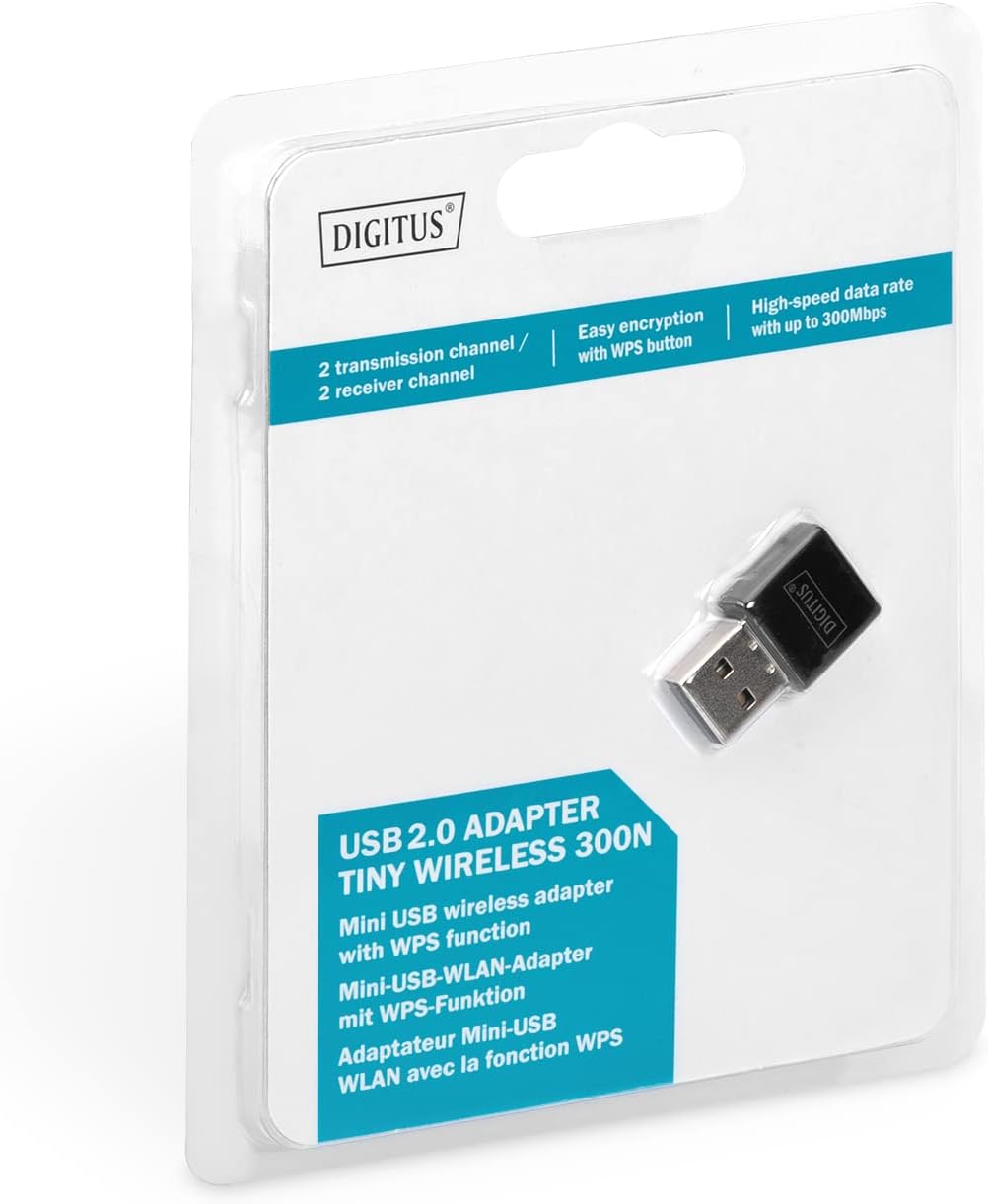
Figure 2.1: Retail packaging of the DIGITUS DN-70542 adapter, showing the adapter and its key features.
3. Kurulum Kılavuzu
Follow these steps to install your Wireless LAN USB Adapter:
- Sürücüleri Yükle: Before connecting the adapter, insert the included Product Support CD-ROM into your computer's optical drive. Follow the on-screen instructions to install the necessary drivers. If your computer does not have an optical drive, or if you encounter issues, please visit the official DIGITUS website to download the latest drivers for your operating system (Windows).
Note: Some operating systems, particularly older versions of Windows, may require driver installation prior to connecting the device. Refer to the Troubleshooting section if you encounter issues during this step.
- Adaptörü bağlayın: Locate an available USB 2.0 port on your computer. Carefully insert the DIGITUS DN-70542 Wireless LAN USB 2.0 Adapter into the USB port.
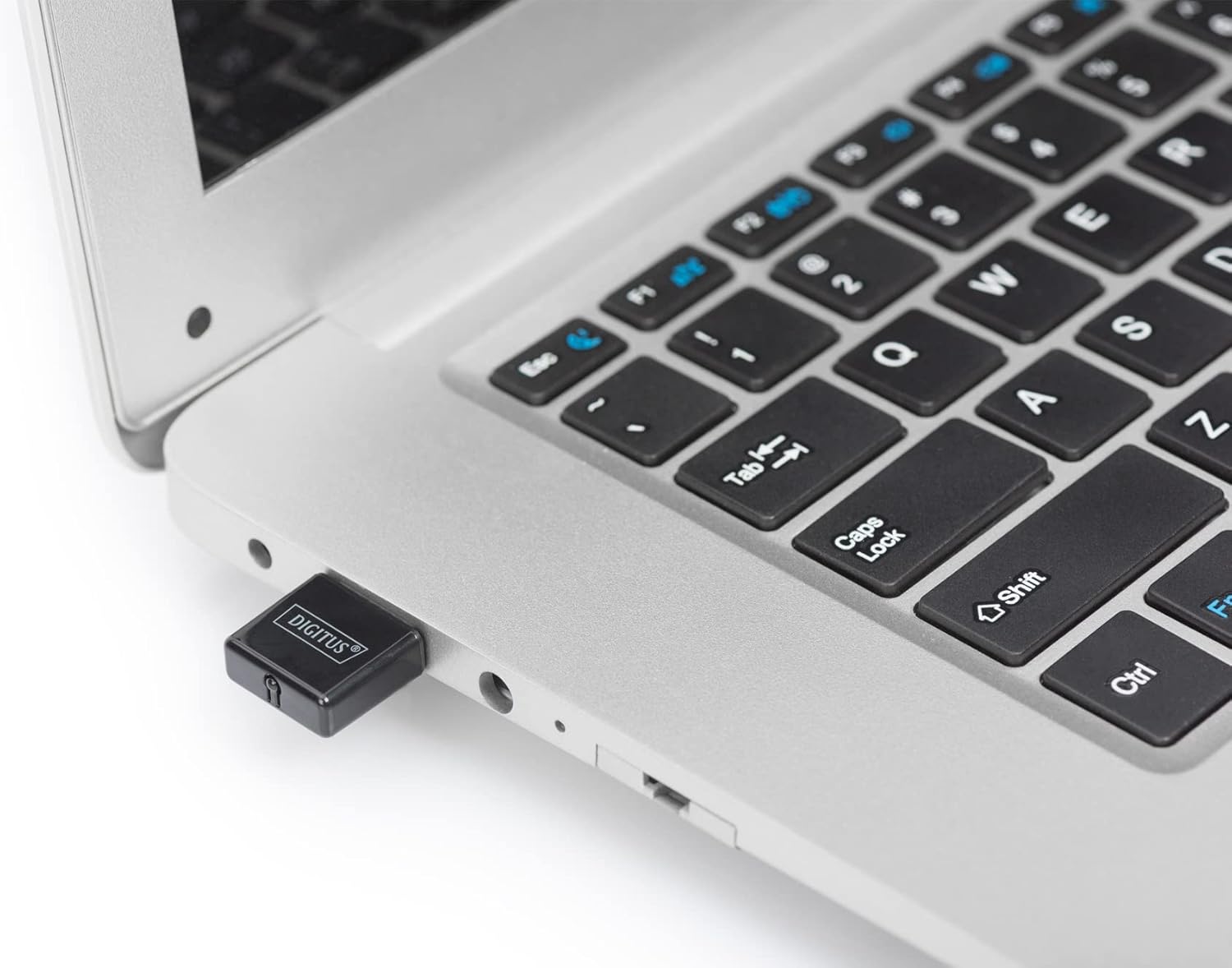
Figure 3.1: The DIGITUS DN-70542 adapter inserted into a laptop's USB port.

Şekil 3.2: Daha yakın bir görünüm view of the adapter connected to a laptop, showing its compact size.
- Kurulumu Doğrulayın: After connecting, your operating system should detect the new hardware and complete the installation. You can verify the installation by checking your computer's Device Manager (for Windows) to ensure the wireless adapter is listed and functioning correctly.
4. Kullanım Talimatları
Once the adapter is successfully installed, you can connect to a wireless network.
- Kablosuz Ağa Bağlanma:
- Bilgisayarınızın kablosuz ağ ayarlarını açın.
- Kullanılabilir kablosuz ağları tarayın.
- Select your desired network (SSID) from the list.
- İstendiğinde ağ güvenlik anahtarını (şifresini) girin.
- Kablosuz bağlantıyı kurmak için "Bağlan" düğmesine tıklayın.
- WPS (Wi-Fi Korumalı Kurulum) Kullanımı:
The adapter supports WPS for a simplified and secure connection to compatible routers.
- Kablosuz yönlendiricinizdeki WPS düğmesine basın.
- Within two minutes, press the WPS button on the DIGITUS DN-70542 adapter. The WPS button is a small, recessed button on the side of the adapter.
- Adaptör ve yönlendirici otomatik olarak güvenli bir bağlantı kuracaktır.

Figure 4.1: The WPS button located on the side of the adapter.
5. Bakım
To ensure optimal performance and longevity of your DIGITUS DN-70542 adapter, follow these guidelines:
- Adaptörü temiz ve tozdan arındırılmış halde tutun. Temizlik için yumuşak, kuru bir bez kullanın.
- Adaptörü aşırı sıcaklıklara, neme veya doğrudan güneş ışığına maruz bırakmaktan kaçının.
- Adaptörü kendiniz sökmeye veya tamir etmeye çalışmayın. Bu, garantiyi geçersiz kılacaktır.
- Fiziksel hasarı önlemek için, kullanmadığınız zamanlarda adaptörü güvenli bir yerde saklayın.
6. Sorun Giderme
If you encounter issues with your DIGITUS DN-70542 Wireless LAN USB 2.0 Adapter, refer to the following common problems and solutions:
- Adapter Not Detected / Driver Installation Issues:
- Adaptörün çalışan bir USB bağlantı noktasına tam olarak takıldığından emin olun.
- Farklı bir USB portu deneyin.
- Reinstall the drivers from the provided CD-ROM.
- Download the latest drivers from the official DIGITUS webalan.
- If using Windows 8.1 or newer and encountering issues like "Bluescreen" or "infected file" warnings during driver installation, temporarily disable antivirus software (like Windows Defender) during driver installation, then re-enable it immediately after. Ensure you are downloading drivers from a trusted source (DIGITUS official webalan).
- Check Device Manager to see if the adapter is listed with any error symbols.
- Cannot Connect to Wireless Network:
- Kablosuz yönlendiricinizin açık olduğundan ve sinyal yaydığından emin olun.
- Ensure you are entering the correct network security key (password).
- Sinyal gücünü artırmak için kablosuz yönlendiriciye daha yakın durun.
- Restart your computer and the wireless router.
- Check if other devices can connect to the same wireless network.
- Yavaş Bağlantı Hızı:
- Ensure your router supports 802.11n for optimal speeds.
- Diğer elektronik cihazlardan (örneğin, mikrodalga fırınlar, kablosuz telefonlar) kaynaklanan parazitleri en aza indirin.
- Yönlendiricinizin yazılımını güncelleyin.
- Ağınızdaki bant genişliğini tüketen diğer cihazları kontrol edin.
7. Özellikler
| Özellik | Tanım |
|---|---|
| Örnek | DN-70542 |
| Donanım Arayüzü | USB 2.0 |
| Kablosuz Standartları | IEEE 802.11n, IEEE 802.11g, IEEE 802.11b |
| Veri Aktarım Hızı | 300 Mbps'ye kadar |
| Frekans Aralığı | 2.4 - 2.4835 GHz |
| Güvenlik Özellikleri | WPS (Wireless Protected Setup) function |
| İşletim Sistemi Desteği | Pencereler |
| Ürün Boyutları | 24 x 15 x 2 mm (approximate); 15 g |
| Üretici | ASSMANN Electronic GmbH PES - BO DE |
8. Garanti ve Destek
For warranty information and technical support, please refer to the documentation included with your product or visit the official DIGITUS webMüşteri desteği için iletişim bilgileri genellikle üreticinin web sitesinde bulunabilir. webalan.
Herhangi bir garanti talebiniz için lütfen satın alma belgenizi saklayın.


