1. Giriş
This manual provides detailed instructions for the installation, operation, and maintenance of your GIGABYTE GA-H77N-WIFI Mini ITX Motherboard. This motherboard supports 3rd and 2nd generation Intel Core processors with an LGA1155 socket, features Intel H77 chipset, integrated Wi-Fi and Bluetooth 4.0, dual Gigabit LAN, and multiple display outputs including HDMI and DVI.
2. Kurulum ve Kurulum
2.1 Anakart Düzeni
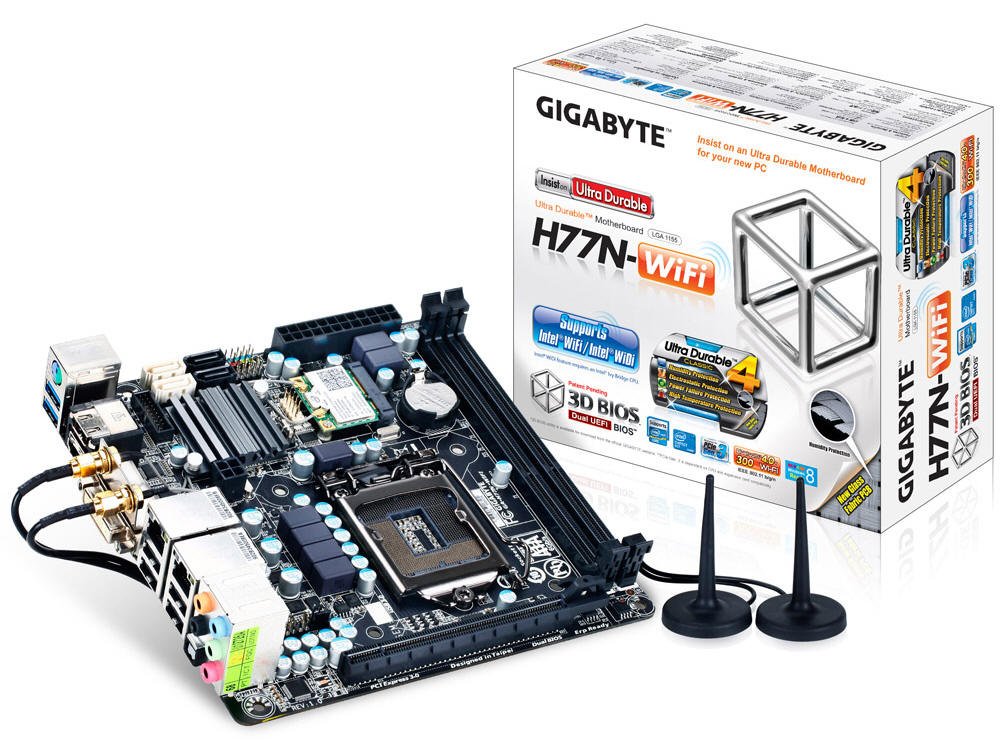
Şekil 1: Yukarıdan aşağıya view of the GA-H77N-WIFI motherboard, showing CPU socket, DIMM slots, and various connectors.
Familiarize yourself with the layout of the motherboard before proceeding with installation. Refer to Figure 1 for a general overview of component placement.
2.2 CPU Kurulumu
- Anakart üzerinde LGA1155 CPU soketini bulun.
- Yükleme kolunu yavaşça kaldırın ve CPU soket kapağını açın.
- İşlemci üzerindeki üçgen işareti, soket üzerindeki karşılık gelen işaretle hizalayın. İşlemciyi zorlamadan dikkatlice sokete yerleştirin.
- Soket kapağını kapatın ve yük kolunu yerine kilitlenene kadar aşağı doğru bastırın.
- CPU soğutucusunu üreticinin talimatlarına göre takın.
2.3 Bellek (RAM) Kurulumu
- Locate the two DDR3 DIMM sockets.
- DIMM soketinin her iki ucundaki klipsleri açın.
- Align the notch on the DDR3 memory module with the key in the DIMM socket.
- Insert the memory module firmly into the socket until the clips snap into place. Ensure both clips are closed.
2.4 Depolama Aygıtı Kurulumu
Connect your SATA 6Gb/s storage devices (HDDs, SSDs) to the SATA ports on the motherboard using SATA data cables. Ensure the power cables from your power supply are also connected to the storage devices.
2.5 Güç Bağlantıları
- Güç kaynağınızdaki 24 pinli ATX ana güç konektörünü anakart üzerindeki ilgili sokete bağlayın.
- Connect the 4-pin ATX 12V power connector to its socket, typically located near the CPU.
2.6 Ön Panel ve Çevre Birimi Bağlantıları

Şekil 2: Açısal view of the GA-H77N-WIFI motherboard, showing various onboard headers and rear I/O ports.
Connect the front panel headers (power switch, reset switch, HDD LED, power LED, front audio, front USB) from your computer case to the corresponding pins on the motherboard. Refer to the motherboard's printed labels for correct orientation.
2.7 Arka Giriş/Çıkış Paneli Bağlantıları

Figure 3: Rear I/O panel of the GA-H77N-WIFI motherboard, showing connectivity options.
Connect your peripherals to the rear I/O panel (Figure 3):
- USB Bağlantı Noktaları: Connect USB devices such as keyboard, mouse, and external drives.
- Görüntü Çıkışları: Connect your monitor(s) to the HDMI or DVI ports.
- LAN Portları: Connect Ethernet cables for network access.
- Ses Jakları: Connect speakers, headphones, or microphones.
- Kablosuz Antenler: Screw in the included Wi-Fi antennas to the connectors.
3. Kullanım Talimatları
3.1 BIOS/UEFI Yapılandırması
Upon initial power-on, press the SİL key during the POST (Power-On Self-Test) to enter the BIOS Setup Utility. The GIGABYTE 3D BIOS (Dual UEFI) provides an intuitive interface for configuring system settings, boot order, and hardware parameters.
3.2 İşletim Sistemi Kurulumu
Insert your operating system installation media (USB drive or DVD) and set the boot priority in the BIOS to boot from the installation media. Follow the on-screen instructions to install your preferred operating system.
3.3 Sürücü Kurulumu
After installing the operating system, install the necessary drivers for the motherboard components. These typically include chipset drivers, graphics drivers (if using integrated graphics), audio drivers, LAN drivers, and Wi-Fi/Bluetooth drivers. Drivers are usually provided on a support CD or can be downloaded from the GIGABYTE webalan.
3.4 Ağ Yapılandırması
The motherboard features dual Realtek Gigabit Ethernet LAN for wired network connections and an Intel Wi-Fi module for wireless connectivity. Configure your network settings within your operating system. For Wi-Fi, ensure the antennas are connected and select your network from the available options.
3.5 GIGABYTE On/Off Charge
The GIGABYTE On/Off Charge feature allows for faster charging of USB devices, even when the PC is turned off or in standby mode. Ensure the necessary drivers/utilities are installed for this feature to function.
4. Bakım
4.1 Temizlik
Regularly clean the interior of your computer case to prevent dust buildup, which can lead to overheating. Use compressed air to remove dust from components, especially heatsinks and fans. Ensure the system is powered off and unplugged before cleaning.
4.2 BIOS ve Sürücü Güncellemeleri
GIGABYTE'ı periyodik olarak kontrol edin website for updated BIOS versions and drivers. Updating these can improve system stability, performance, and compatibility. Follow the instructions provided by GIGABYTE carefully when performing updates.
5. Sorun Giderme
Sorunlarla karşılaşırsanız aşağıdaki temel sorun giderme adımlarını göz önünde bulundurun:
- Güç Yok: Check all power connections from the power supply to the motherboard and components. Ensure the power supply switch is on.
- Görüntü yok: Verify that the monitor is connected correctly to the motherboard's video output (HDMI/DVI) and is powered on. Try reseating the memory modules.
- Sistem Kararsızlığı: Ensure all components are properly seated. Check for overheating by monitoring CPU and system temperatures. Update BIOS and drivers.
- Ağ Sorunları: Verify Ethernet cables are securely connected. Check Wi-Fi antenna connections. Ensure network drivers are installed and configured correctly.
- Çevresel Aygıt Algılanamadı: Ensure USB devices are connected to functional ports. Check device manager for driver issues.
For more advanced troubleshooting or persistent issues, refer to the GIGABYTE support websiteyi ziyaret edin veya teknik destekle iletişime geçin.
6. Özellikler
| Bileşen | Şartname |
|---|---|
| CPU Soketi | LGA1155 |
| Uyumlu İşlemciler | Intel Core i7/i5/i3/Pentium/Celeron (3rd and 2nd Gen) |
| Yonga seti | Intel H77 Ekspres |
| Bellek Yuvaları | 2 x DDR3 DIMM yuvası |
| Maksimum Bellek Kapasitesi | 16 GB |
| Bellek Türü | DDR3 1600/1333/1066/800 MHz |
| Yerel Ağ | 2 x Realtek GbE LAN (10/100/1000 Mbit) |
| Kablosuz | Intel Wi-Fi module, Bluetooth 4.0 |
| SATA Bağlantı Noktaları | SATA 6Gb/s |
| USB Bağlantı Noktaları | USB 3.0, USB 2.0 |
| Video Çıkışları | HDMI, DVI |
| Genişleme Yuvaları | PCI Express Nesil 3.0 |
| Form Faktörü | Mini ITX |
| Boyutlar | 17 x 16 x 10 inç (Ürün Boyutları) |
| Ağırlık | 1.6 pound |
7. Garanti ve Destek
For information regarding product warranty, please refer to the warranty card included with your motherboard or visit the official GIGABYTE website. For technical support, driver downloads, and BIOS updates, please visit the GIGABYTE support portal:


