giriiş
The Logitech M570 Wireless Trackball Mouse offers an ergonomic design with a sculpted right-hand shape, providing comfortable control for extended periods. This trackball mouse eliminates the need to move your arm to control the cursor, as control is placed conveniently under your thumb. It is compatible with both Apple Mac and Microsoft systems, utilizing a USB Unifying Receiver for seamless wireless connectivity.
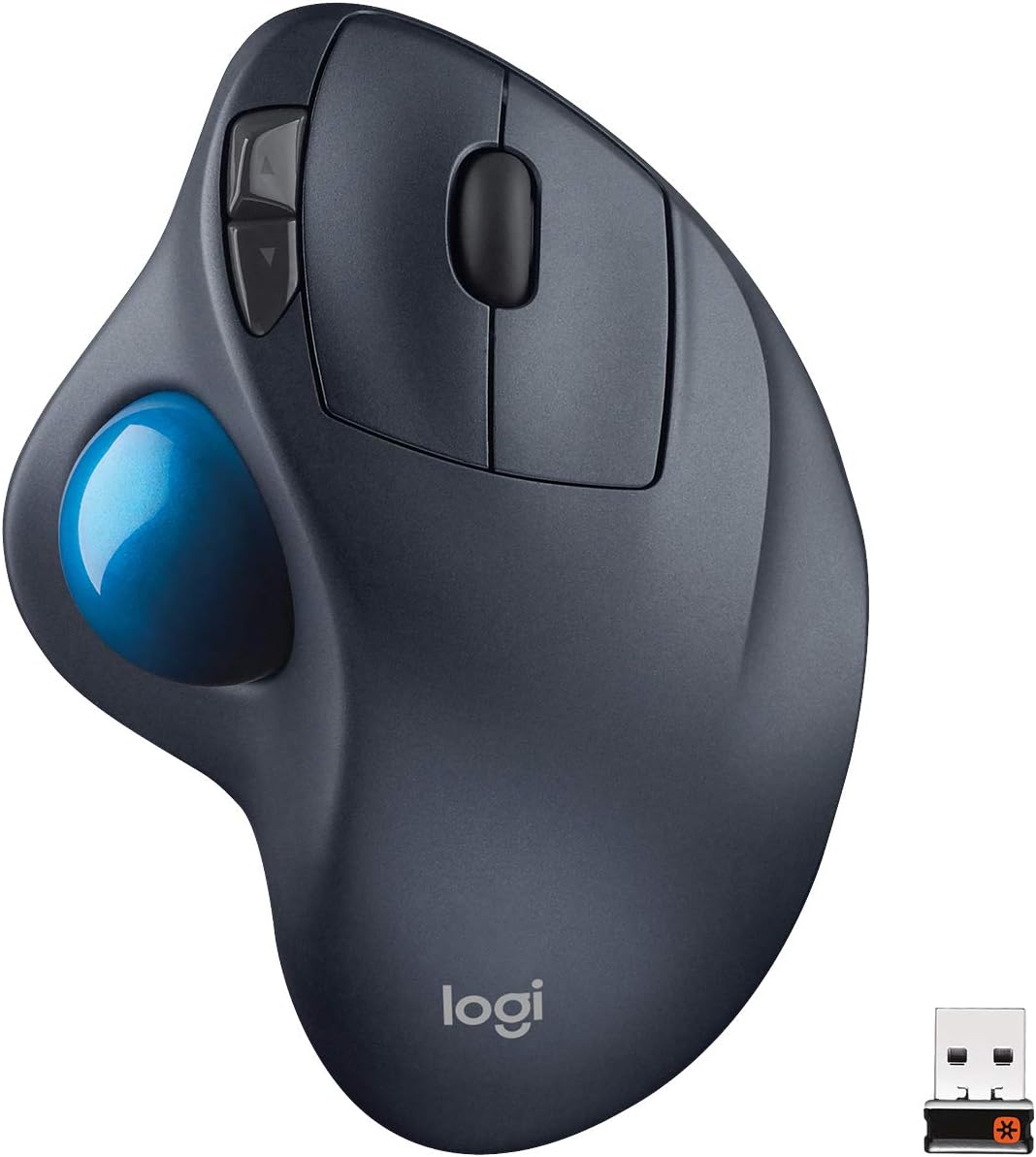
Resim: Yukarıdan aşağıya view of the Logitech M570 Wireless Trackball Mouse, showcasing its ergonomic shape and blue trackball.
Kutuda Neler Var?
- Logitech M570 Kablosuz İztopu Faresi
- Logitech Unifying Alıcı
- 1 adet AA pil (önceden takılı veya dahil)
- Kullanıcı Belgeleri
Kurmak
1. Pili Takın
The Logitech M570 requires one AA battery. The battery compartment is located on the underside of the mouse. Open the compartment, insert the AA battery, and close the cover. The mouse is designed for long battery life, up to 18 months, with a convenient battery indicator to alert you when replacement is needed.
2. Connect USB Unifying Receiver
Locate the tiny Logitech Unifying Receiver. This receiver is designed to stay in your laptop's USB port. Plug the receiver into an available USB port on your computer. The mouse should automatically connect. If not, ensure the mouse's power switch (located on the underside) is in the "ON" position.
3. Uyumluluk
The Logitech M570 is compatible with a wide range of operating systems, including Apple Mac and Microsoft Windows. No additional drivers are typically required for basic functionality, but Logitech's software can be downloaded for advanced customization of buttons.
Kullanım Talimatları
1. Trackball Control
Unlike traditional mice, the M570's cursor movement is controlled by the blue trackball located on the left side, operated by your thumb. Simply roll your thumb across the trackball to move the cursor on the screen. This allows your hand to remain stationary, reducing arm and wrist movement.
2. Düğme Fonksiyonları
- Sol Tıklama Düğmesi: Standart birincil tıklama işlevi.
- Sağ Tıklama Düğmesi: Standart ikincil tıklama fonksiyonu.
- Kaydırma tekerleği: Located between the left and right-click buttons, used for vertical scrolling through documents and web sayfalar.
- Geri/İleri Düğmeleri: Two easy-to-reach buttons located near the trackball, typically used for navigating back and forward in web tarayıcılar veya file explorers. These can often be customized via Logitech software.
3. Ergonomic Benefits
The sculpted shape of the M570 supports your hand in a natural, relaxed position, minimizing strain on your wrist and forearm. This design is particularly beneficial for users who experience discomfort with traditional mice or spend long hours at the computer.
Bakım
1. Pil Değişimi
When the battery indicator light (usually located near the scroll wheel) signals low power, it's time to replace the AA battery. Open the battery compartment on the underside, remove the old battery, insert a new AA battery, and close the cover. Ensure the mouse is switched off before replacing the battery to conserve power.
2. Trackball'ın Temizlenmesi
Over time, dust and debris can accumulate around the trackball, affecting its smoothness and precision. To clean, gently push the trackball out from the underside of the mouse. Use a soft, lint-free cloth or a cotton swab to clean the trackball itself and the three small sensor points inside the trackball cavity. Reinsert the trackball until it clicks securely into place.
Sorun giderme
- İmleç Hareketi Yok:
- Ensure the mouse is powered on (switch on underside).
- Check battery level; replace if necessary.
- Verify the USB Unifying Receiver is securely plugged into a working USB port.
- Alıcıyı farklı bir USB portuna takmayı deneyin.
- Clean the trackball and sensor points as described in the Maintenance section.
- Aralıklı Bağlantı:
- Ensure the mouse is within range of the receiver (typically up to 10 meters).
- Avoid placing the mouse or receiver near large metal objects or other wireless devices that might cause interference.
- Re-pair the mouse with the Unifying Receiver using Logitech's Unifying Software (available for download from Logitech's webalan).
- Yanıt Vermeyen Düğmeler:
- Pil seviyesini kontrol edin.
- Ensure the mouse is connected.
- If using custom settings, check Logitech Options software for configuration issues.
Özellikler
| Özellik | Detay |
|---|---|
| Marka | Logitech |
| Model Numarası | 910-001799 |
| Ürün Boyutları | 5.71 x 1.77 x 3.74 inç |
| Ürün Ağırlığı | 5 ons |
| Bağlantı Teknolojisi | USB Wireless (Unifying Receiver) |
| Hareket Algılama Teknolojisi | İztopu |
| Renk | Koyu Gri |
| Piller Gerekli | 1 D pil (dahil) |
| Özel Özellikler | Wireless, Programmable Buttons, Ergonomic Design, Battery Indicator |
Garanti ve Destek
The Logitech M570 Wireless Trackball Mouse comes with a 3-year limited hardware warranty. For detailed warranty information, technical support, or to download the latest software and drivers, please visit the official Logitech support webalan.
PDF formatında resmi bir kullanıcı kılavuzu indirilebilir: Kullanıcı Kılavuzunu İndirin (PDF)


