giriiş
The Logitech Harmony 600 Universal Remote is designed to simplify your home entertainment experience by consolidating control of multiple devices into a single, easy-to-use remote. Its intuitive design, backlit screen, and one-click activity buttons allow for seamless operation of your television, sound system, and other media devices.
This remote replaces up to five other remotes and supports over 5,000 brands and 225,000 devices, ensuring compatibility with your current and future entertainment setup.

Şekil 1: Ön view of the Logitech Harmony 600 Universal Remote. This image displays the remote's full layout, including the LCD screen, activity buttons, navigation controls, and numeric keypad, highlighting its ergonomic shape and button arrangement.
Temel Özellikler:
- Controls up to 5 home entertainment devices.
- Backlit keypad for easy use in low light conditions.
- Easy access to movies, TV, music, and other activities with one-click buttons.
- Supports over 5,000 brands and 200,000 devices.
- Features a USB Mini-B port for computer connectivity and programming.
Kurulum Kılavuzu
1. Paket İçeriği
Başlamadan önce tüm bileşenlerin mevcut olduğundan emin olun:
- Logitech Harmony 600 Universal Remote
- USB Mini-B Cable (for computer connection)
- Kullanıcı Dokümantasyonu (bu kılavuz)
2. Pil Kurulumu
The Harmony 600 remote requires two (2) AA batteries (not included) for operation.
- Uzaktan kumandanın arkasındaki pil bölmesini bulun.
- Pil kapağını aşağı doğru kaydırın ve kaldırın.
- Insert two AA batteries, ensuring the positive (+) and negative (-) terminals align with the indicators inside the compartment.
- Pil kapağını yerine güvenli bir şekilde oturana kadar kaydırarak yerine takın.

Şekil 2: Yan view of the Logitech Harmony 600 Universal Remote. This image illustrates the remote's ergonomic design and the location of the battery compartment on the underside, which is accessed from the back.
3. Initial Configuration and Programming
To program your Harmony 600 remote, you will need a computer with internet access. The remote is configured using Logitech's Harmony software.
- Yazılımı İndirin: Logitech Harmony'nin resmi sitesini ziyaret edin. webalan (logitech.com/harmony) and download the Harmony software for your operating system.
- Uzaktan Bağlan: Connect the Harmony 600 remote to your computer using the provided USB Mini-B cable.
- Yazılımı Başlat: Open the Harmony software and follow the on-screen instructions to create an account or log in.
- Cihaz Ekle: The software will guide you through adding your home entertainment devices (TV, DVD player, audio receiver, etc.) by brand and model number.
- Etkinlikler Oluştur: Define "Activities" such as "Watch TV," "Watch a Movie," or "Listen to Music." The software will automatically configure the remote to turn on the necessary devices and switch to the correct inputs for each activity.
- Uzaktan Senkronizasyon: Once configuration is complete, sync the settings to your Harmony 600 remote via the USB connection.
Note: Ensure your computer's internet connection is stable during the software download and device configuration process.
Operating Your Harmony 600 Remote
Once configured, the Harmony 600 remote simplifies control of your entertainment system.
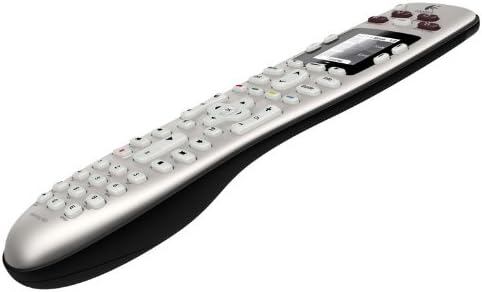
Şekil 3: Açısal view of the Logitech Harmony 600 Universal Remote. This perspective showcases the remote's ergonomic curve and the arrangement of its buttons, including the activity buttons at the top and the navigation cluster.
1. Using Activity Buttons
The most powerful feature of your Harmony remote is its Activity buttons, located at the top of the remote. Pressing an Activity button (e.g., "Watch TV," "Watch a Movie") will automatically:
- Turn on all necessary devices (e.g., TV, cable box, audio receiver).
- Switch each device to the correct input.
- Map the remote's buttons to the appropriate device (e.g., volume controls the receiver, channel controls the cable box).
2. Navigating the Backlit Screen
The backlit LCD screen displays commands and options relevant to your current activity or device. Use the navigation buttons (up, down, left, right, OK) around the screen to select options or view additional commands.
3. Cihaz Kontrolü
While in an activity, the remote intelligently controls the correct device. If you need to control a specific device directly (e.g., adjust settings on your TV while watching a movie), you can press the "Devices" button on the screen or a dedicated device button if configured, then select the desired device.
4. Yardım Özelliği
If an activity does not start correctly or you encounter an issue, press the "Help" button on the remote. The remote will guide you through troubleshooting steps on its screen to resolve common problems.
Bakım
Uzaktan Kumandanızı Temizleme
To maintain the appearance and functionality of your Harmony 600 remote:
- Use a soft, lint-free cloth to wipe the surface of the remote.
- İnatçı lekeler için hafifçeampBezi suyla yıkayın. Sert kimyasallar veya aşındırıcı temizleyiciler kullanmaktan kaçının.
- Hiçbir açıklıktan nem girmesine izin vermeyin.
Pil Değişimi
When the remote's performance degrades or the screen dims, it's time to replace the batteries. Follow the battery installation steps outlined in the "Setup Guide" section. Always replace both AA batteries simultaneously with new ones.
Sorun giderme
If you encounter issues with your Logitech Harmony 600 remote, try the following solutions:
| Sorun | Olası Çözüm |
|---|---|
| Remote is unresponsive or screen is blank. |
|
| Devices do not turn on or switch inputs during an activity. |
|
| Specific buttons do not work for a device. |
|
| Remote loses settings. |
|
Özellikler
| Özellik | Detay |
|---|---|
| Model Numarası | 915-000113 |
| Ürün Boyutları (U x G x Y) | 5.39 x 18.5 x 9.53 inç |
| Ürün Ağırlığı | 13.6 ons |
| Piller Gerekli | 2 adet AA pil (dahil değildir) |
| Maksimum Desteklenen Cihaz Sayısı | 5 |
| Uyumlu Cihazlar | Television, DVD players, Audio receivers, etc. (configurable via software) |
| Bağlantı | Infrared (IR), USB Mini-B (for programming) |
| Renk | Gümüş grisi |
| İlk Mevcut Tarih | 23 Mayıs 2010 |
Garanti ve Destek
Garanti Bilgileri
Please note that this product is often sold "as is." For specific warranty details, if any, please refer to the original purchase documentation or contact the retailer from whom the product was acquired. Logitech's official website may provide general warranty terms for their products.
Müşteri Desteği
For further assistance, technical support, or to access the latest software and drivers for your Harmony 600 remote, please visit the official Logitech support webalan:
Ayrıca onların web sitelerinde faydalı SSS'ler ve topluluk forumları da bulabilirsiniz. webalan.


