1. Giriş
This manual provides essential information for the safe and efficient operation of your Intermec PD42 Series Commercial Printer. The PD42 is a dependable and versatile direct thermal printer designed for medium-duty applications in manufacturing, transportation, and warehousing environments. It features a robust all-metal chassis, proven printing mechanics, and powerful electronics to ensure reliable performance. The integrated monochrome graphical display allows for direct setup and configuration, enhancing user control and reducing reliance on host commands.
2. Güvenlik Bilgileri
Please read and understand all safety instructions before operating the printer. Failure to follow these instructions may result in injury or damage to the equipment.
- Yazıcıyı her zaman topraklı bir elektrik prizine bağlayın.
- Do not operate the printer with a damaged power cord or plug.
- Avoid placing the printer in areas with excessive dust, humidity, or extreme temperatures.
- Do not attempt to service the printer yourself. Refer all servicing to qualified personnel.
- Çalışma sırasında ellerinizi ve bol giysilerinizi hareketli parçalardan uzak tutun.
3. Paket İçeriği
Paketin içindeki tüm ürünlerin eksiksiz olduğundan emin olun. Herhangi bir ürün eksik veya hasarlıysa, derhal tedarikçinizle iletişime geçin.
- Intermec PD42 Series Commercial Printer
- Power Cord (Euro and US compatible)
- Hızlı Başlangıç Kılavuzu (eğer dahilse)
- Documentation CD (if included)
4. Fiziksel Aşırıview
Familiarize yourself with the external components and connection ports of the Intermec PD42 printer.

Şekil 4.1: Ön ve Yan View of the Intermec PD42 Printer. This image displays the printer's front panel with its graphical display and control buttons, along with a label partially ejected from the print mechanism. The robust casing and compact design are visible.
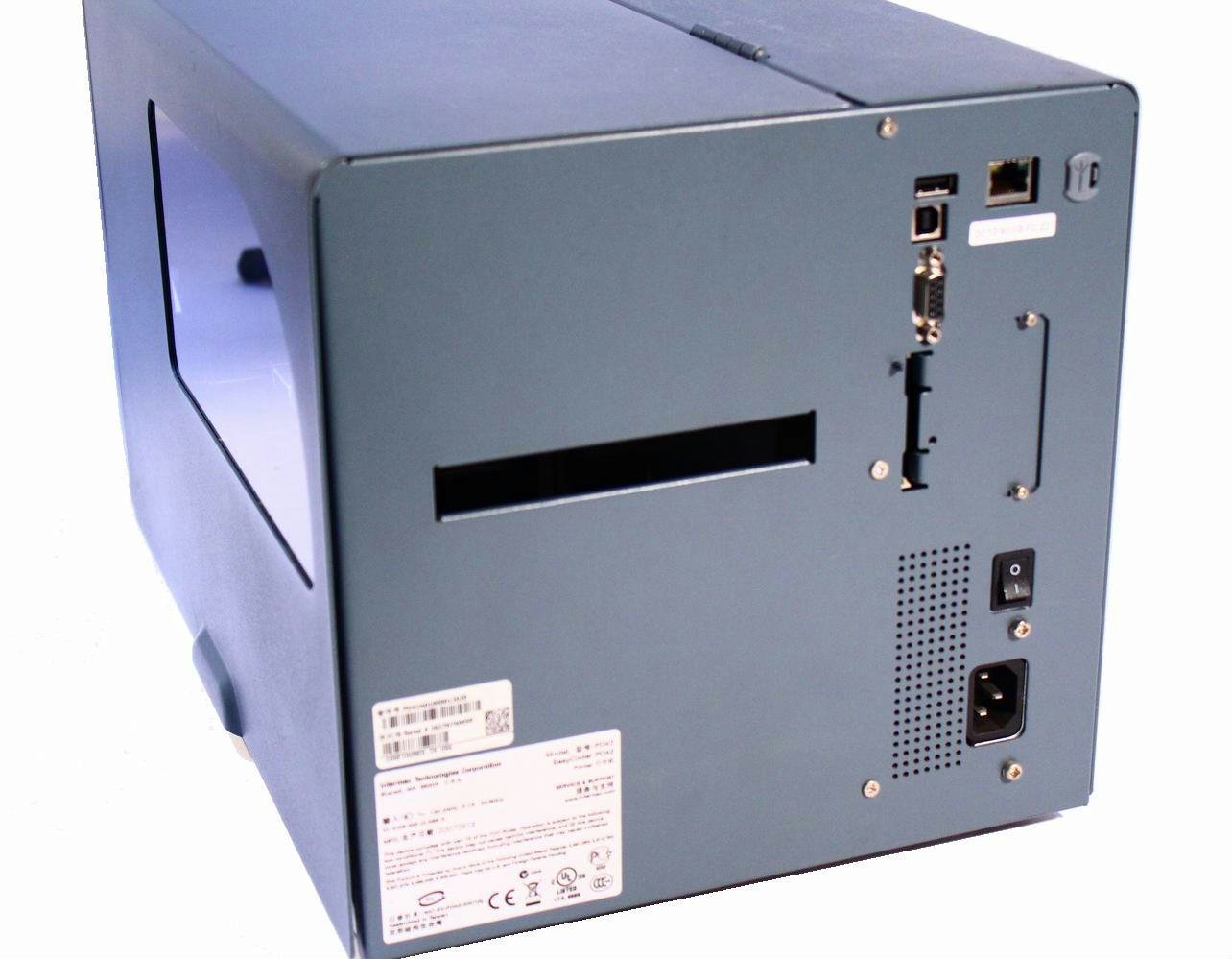
Şekil 4.2: Arka View of the Intermec PD42 Printer. This image highlights the various connectivity options available on the back of the printer, including USB, Serial, and Ethernet ports. The power input and main power switch are also visible.

Şekil 4.3: Dahili View of the Intermec PD42 Printer. With the top cover open, this image reveals the internal mechanisms for loading labels and ribbon. Key components such as the printhead assembly, media guides, and ribbon spindles are visible, illustrating the media path.
5. Kurulum
5.1 Paketten Çıkarma ve Yerleştirme
- Yazıcıyı ambalajından dikkatlice çıkarın.
- Yazıcıyı yeterli havalandırmaya sahip, sabit ve düz bir yüzeye yerleştirin.
- Ensure sufficient space around the printer for media loading and maintenance.
5.2 Gücün Bağlanması
- Connect the power cord to the power input on the rear of the printer (refer to Figure 4.2).
- Güç kablosunun diğer ucunu topraklı bir elektrik prizine takın.
5.3 Connecting Data Cables
The PD42 offers multiple connectivity options:
- USB BAĞLANTI: Yazıcının USB portundan bilgisayarınıza bir USB kablosu bağlayın.
- Seri: Connect a serial cable from the printer's serial port to your computer or host system.
- Ethernet: Connect an Ethernet cable from the printer's Ethernet port to your network.
5.4 Medya Yükleme (Etiketler ve Şerit)
The PD42 supports industry-standard 200-mm (8-inch) label rolls and 450-m (18,000-inch) ribbon rolls.
- Open the printer's top cover (refer to Figure 4.3).
- Follow the internal diagrams or specific instructions for your media type to correctly load the label roll onto the media spindle.
- Thread the labels through the media guides and under the printhead assembly.
- If using thermal transfer printing, load the ribbon onto the ribbon supply spindle and thread it according to the internal guides.
- Üst kapağı güvenli bir şekilde kapatın.
6. Kullanım Talimatları
6.1 Açma/Kapatma
- Açmak İçin: Flip the main power switch on the rear of the printer to the 'On' position. The graphical display will illuminate.
- Kapatmak İçin: Flip the main power switch to the 'Off' position.
6.2 Using the Graphical Display
The monochrome graphical display and control buttons on the front panel allow you to configure printer settings directly. Navigate through menus using the arrow buttons and confirm selections with the 'Enter' button. Refer to the on-screen prompts for specific options.
6.3 Sürücü ve Yazılım Kurulumu
Bilgisayardan yazdırmadan önce, uygun yazıcı sürücülerini yükleyin. Bunlar genellikle üreticinin web sitesinde bulunur. website or an included CD. Follow the on-screen instructions during installation.
6.4 Test Etiketi Yazdırma
After setup, it is recommended to print a test label to verify proper operation and media loading. This option is usually available through the printer's front panel menu or via the printer driver software.
7. Bakım
Düzenli bakım yazıcınızın optimum performansını sağlar ve ömrünü uzatır.
7.1 Yazıcı Kafasının Temizlenmesi
The printhead should be cleaned regularly, especially if print quality degrades. Use a lint-free cloth or a printhead cleaning pen with isopropyl alcohol. Ensure the printer is powered off and cooled down before cleaning.
7.2 Temizleme Silindirleri ve Ortam Yolu
Dust and adhesive residue can accumulate on rollers and within the media path. Use a lint-free cloth dampened with isopropyl alcohol to clean these components. Always power off the printer before cleaning.
7.3 Medyanın Değiştirilmesi
When the label roll or ribbon runs out, follow the steps in Section 5.4 to load new media.
8. Sorun Giderme
This section addresses common issues you might encounter with your PD42 printer.
- Yazıcı Açılmıyor: Check power cord connections and ensure the power outlet is functional.
- Yazdırma Çıktısı Yok: Verify that the printer is online, connected correctly to the host, and that media is loaded properly. Check for error messages on the graphical display.
- Kötü Baskı Kalitesi: Clean the printhead. Ensure the correct media and ribbon (if applicable) are used and properly loaded. Adjust print darkness settings via the display or driver.
- Bağlantı Sorunları: Check all cable connections. Verify network settings for Ethernet connections. Reinstall printer drivers if necessary.
- Ekrandaki Hata Mesajları: Consult the printer's graphical display for specific error codes or messages, then refer to the full product documentation or manufacturer's support webDetaylı çözümler için site.
9. Özellikler
| Özellik | Şartname |
|---|---|
| Model Adı | PD42BJ1000002021 |
| Baskı Teknolojisi | Doğrudan Termal |
| Yazıcı Çıktısı | Tek renkli |
| Çözünürlük | 203 dpi |
| Baskı Hızı | 150 mm/sn'ye kadar (6 ips) |
| Bağlantı Teknolojisi | USB, Seri, Ethernet |
| Özel Özellik | Graphical Display, Ethernet |
| Ürün Ağırlığı | 28.7 Pound |
| Ürün Boyutları | 25 x 15 x 15 inç |
| Denetleyici Türü | Basmalı Düğme |
| Basılı Medya | Etiketler |
10. Garanti ve Destek
For warranty information and technical support, please refer to the documentation provided with your printer or visit the official Intermec (now Honeywell) webSite. Satın alma fişinizi, garanti talepleriniz için satın alma belgeniz olarak saklayın.
Çevrimiçi Kaynaklar: For the latest drivers, firmware updates, and detailed troubleshooting guides, visit the manufacturer's support portal.


