1. Giriş
This manual provides comprehensive instructions for the setup, operation, and maintenance of your AOC 2436Vw 24-inch Widescreen HD Monitor. Please read this manual thoroughly before using the product to ensure proper functionality and to prevent damage.
The AOC 2436Vw monitor features a 24-inch (23.6-inch viewable) TFT LCD panel with a 1920 x 1080 resolution, a 5ms response time, and a 60,000:1 dynamic contrast ratio. It includes VGA and DVI-D inputs with HDCP support, touch-sensitive controls, and a USB pass-through connector for enhanced user convenience.

Figure 1.1: The AOC 2436Vw monitor showcasing its display capabilities with a colorful image.
2. Paket İçeriği
Carefully unpack the monitor and verify that all items listed below are present and in good condition. If any items are missing or damaged, contact your retailer.
- AOC 2436Vw 24-inch Widescreen HD Monitor
- Monitör Standı Tabanı
- Power Cable (AC 120/230 V)
- VGA Kablosu
- DVI Kablosu
- USB kablosu
- sürücü CD'si
- Hızlı Başlangıç Kılavuzu
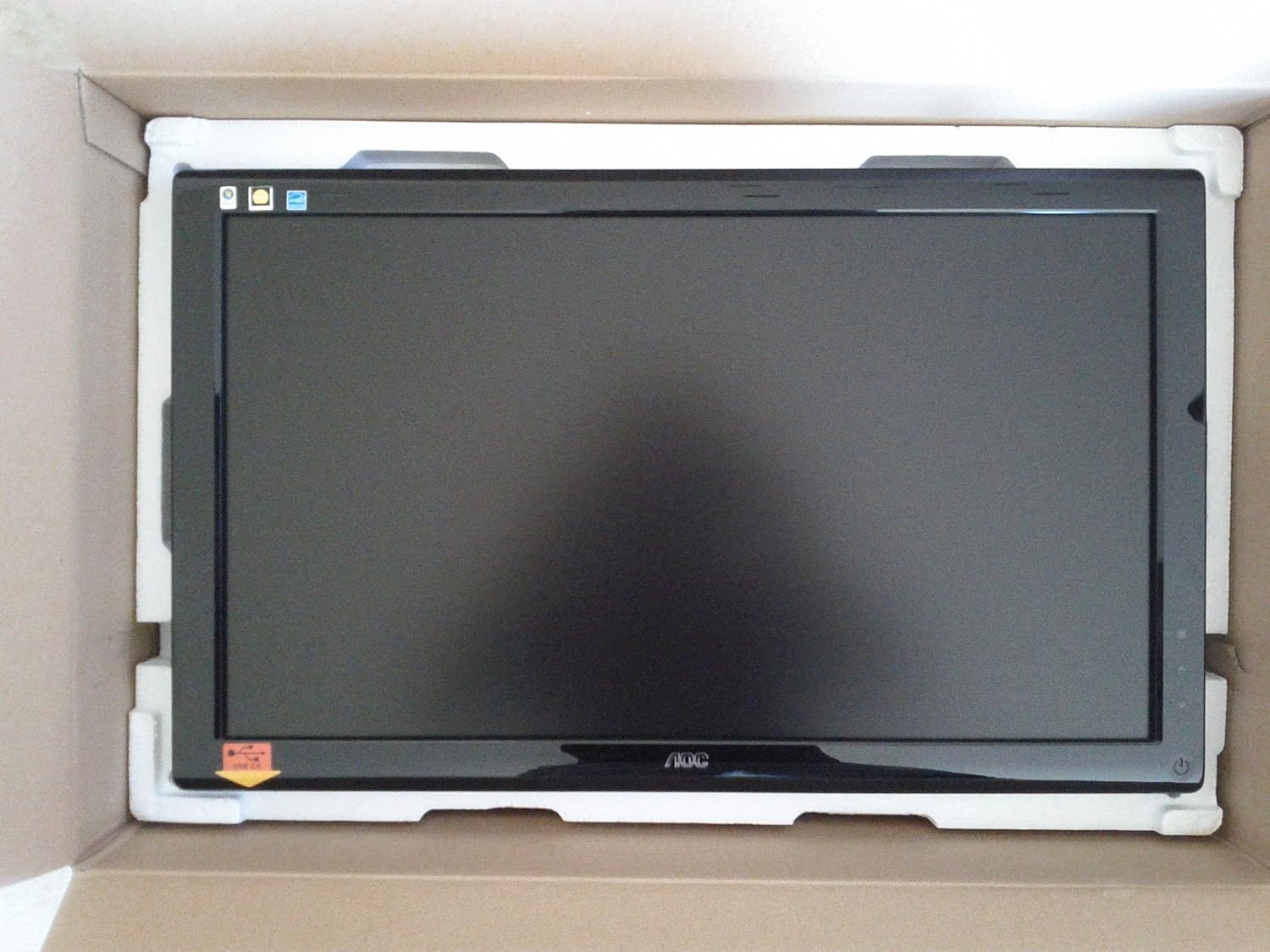
Figure 2.1: The AOC 2436Vw monitor securely packaged in its box, showing the screen protected by foam inserts.

Figure 2.2: Various accessories for the AOC 2436Vw monitor, including cables, stand base, and driver CD, neatly arranged in their packaging compartments.
3. Kurulum Talimatları
3.1 Monitör Standının Montajı
- Monitörü ambalajından dikkatlice çıkarın ve çizilmeyi önlemek için yumuşak, temiz bir yüzeye yüzü aşağı bakacak şekilde yerleştirin.
- Attach the stand base to the monitor neck. Ensure it clicks securely into place or is fastened with the provided screw, depending on the model's design.
- Montajı tamamlanmış monitörü nazikçe kaldırın ve sağlam, düz bir yüzeye yerleştirin.
3.2 Bağlantı Kabloları
Herhangi bir bağlantı yapmadan önce bilgisayarınızın ve monitörünüzün kapalı olduğundan emin olun.
- Güç Bağlantısı: Güç kablosunu monitörün güç girişine ve ardından topraklı bir elektrik prizine bağlayın.
- Video Bağlantısı:
- DVI-D: Connect one end of the DVI cable to the DVI-D port on the monitor and the other end to the DVI-D port on your computer's graphics card. This is recommended for optimal digital signal quality.
- VGA: Alternatively, connect one end of the VGA cable to the VGA port on the monitor and the other end to the VGA port on your computer's graphics card.
- USB Geçişi: Connect the USB cable from the monitor's upstream USB port to an available USB port on your computer. This enables the monitor's built-in USB pass-through functionality.
3.3 Initial Power On and Driver Installation
- Power on your computer, then power on the monitor by pressing the power button located on the bezel.
- The monitor should automatically detect the input signal. If not, use the OSD menu to select the correct input source (DVI or VGA).
- Sürücü Kurulumu: For optimal performance and access to all features, it is recommended to install the monitor drivers.
- Insert the provided driver CD into your computer's optical drive and follow the on-screen instructions.
- Alternatively, visit the official AOC website and download the latest drivers for the 2436Vw model.
4. Monitörü Çalıştırma
4.1 Controls and On-Screen Display (OSD) Menu
The AOC 2436Vw features touch-sensitive controls located on the lower right side of the bezel. These controls allow you to navigate the OSD menu and adjust various display settings.
To access the OSD menu, press the Menu button (usually indicated by an icon or a specific touch area). Use the navigation buttons (up/down, left/right, or similar) to browse through options and the Select/Enter button to confirm choices.
4.2 Genel OSD Ayarları
- Parlaklık/Kontrast: Adjust the overall luminance and difference between light and dark areas of the display.
- Renk ayarları: Modify color temperature, gamma, and individual RGB levels to achieve desired color accuracy.
- Giriş Seçimi: Manually switch between DVI and VGA input sources.
- Resim Modları: Select from predefined display modes (e.g., Standard, Text, Internet, Game, Movie) optimized for different content types. The monitor also features a Dynamic Contrast Ratio (DCR) setting that automatically adjusts brightness based on screen content.
- i-Menu Software: The monitor includes AOC's proprietary i-Menu software, which allows you to adjust OSD settings using your mouse and keyboard from within the operating system. Install this software from the driver CD or AOC webalan.
5. Bakım
5.1 Monitörün Temizlenmesi
- Temizlemeden önce daima monitörü kapatın ve güç kablosunu çıkarın.
- Hafifçe yumuşak, tüy bırakmayan bir bez kullanın.ampSu veya yumuşak, aşındırıcı olmayan bir ekran temizleyicisi ile temizleyin.
- Do not spray cleaner directly onto the screen or bezel. Apply it to the cloth first.
- Avoid using benzene, thinner, ammonia-based cleaners, or abrasive materials, as these can damage the display surface.
5.2 Genel Bakım
- Monitörü doğrudan güneş ışığına veya ısı kaynaklarının yakınına yerleştirmekten kaçının.
- Monitörün etrafında yeterli havalandırma olduğundan emin olun.
- Havalandırma deliklerini kapatmayın.
- Monitörü aşırı toz ve nemden koruyun.
- The monitor is VESA 100mm wall mount compliant. If mounting, ensure proper installation according to VESA standards.
- A Kensington Security Slot is built in to help protect your computer display from theft.
6. Sorun Giderme
Monitörünüzde sorunlarla karşılaşırsanız, aşağıdaki yaygın sorunlara ve çözümlere bakın:
| Sorun | Olası Neden / Çözüm |
|---|---|
| Ekranda görüntü yok |
|
| Görüntü bulanık veya bozuk |
|
| Renkler yanlış veya soluk görünüyor. |
|
| Dokunmatik kontroller yanıt vermiyor |
|
7. Teknik Özellikler
| Özellik | Şartname |
|---|---|
| Marka | AOC |
| Model Numarası | 2436VW |
| Ekran Boyutu | 24 inç (23.6") Viewhünerli) |
| Panel Tipi | TFT LCD |
| Çözünürlük | 1920 x 1080 (FHD 1080p) |
| En Boy Oranı | 16:9 |
| Tepki Süresi | 5ms |
| Parlaklık (tipik) | 300 cd/m² |
| Kontrast Oranı (Dinamik) | 60,000:1 |
| Desteklenen Renkler | > 16 Milyon |
| Analog Giriş | RGB D-Sub (VGA) |
| Dijital Giriş | DVI with HDCP |
| USB Bağlantı Noktaları | USB Geçişi |
| Dahili Hoparlörler | HAYIR |
| Güç Kaynağı | AC 120/230 V (50/60 Hz) |
| Power Consumption (Operational) | 49 Watt |
| Boyutlar (GxDxY) | 22.91 x 2.56 x 16.73 inç (582.1 x 65.9 x 425.5 mm) |
| Ağırlık | 12.1 lbs (5.5 kg) |
| VESA Montaj Uyumluluğu | 100mm |
| Sertifikalar | ENERGY STAR Compliant, EPEAT Rated |
8. Garanti ve Destek
8.1 Garanti Bilgileri
Please note that this product is sold "as is" and does not include a manufacturer's warranty. For specific details regarding your purchase, please refer to the terms and conditions provided by your retailer at the time of purchase.
8.2 Müşteri Desteği
For further assistance, technical support, or to download the latest drivers and software, please visit the official AOC website or contact AOC customer service through their provided channels.


