1. Giriş
This manual provides comprehensive instructions for the installation, operation, and maintenance of the SEH ISD400 PSA Print Spooling Appliance. The ISD400 is designed to manage and optimize print jobs within a network environment, ensuring efficient and reliable printing services.
2. Ürün Bittiview
The SEH ISD400 is a dedicated print spooling appliance that facilitates network printing by acting as an intermediary between client devices and printers. It features a 10/100/1000Base-T Ethernet interface, supporting data transfer rates of 10Mbps, 100Mbps, and 1Gbps. This appliance helps offload print processing from servers, improve print job management, and enhance overall network printing performance.
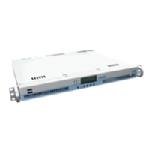
Şekil 1: Ön view of the SEH ISD400 PSA Print Spooling Appliance. The device is white, rectangular, and features a small digital display and several indicator lights on its front panel, along with rack-mount ears on the sides.
3. Kurulum
Follow these steps for initial setup of your ISD400 appliance:
- Cihazın ambalajını açın: Carefully remove the ISD400 from its packaging. Verify that all components, including the power adapter and any included cables, are present.
- Fiziksel Yerleşim: Place the appliance in a well-ventilated area, preferably in a server rack if applicable, to ensure proper cooling.
- Ağa bağlan: Connect one end of an Ethernet cable to the 10/100/1000Base-T port on the ISD400 and the other end to your network switch or router.
- Gücü bağlayın: Plug the power adapter into the ISD400's power input and then into a suitable power outlet. The appliance will power on automatically.
- Başlangıç konfigürasyonu: Refer to the SEH website or included documentation for detailed instructions on accessing the appliance's web interface or utility for network configuration (e.g., assigning an IP address, configuring print queues).
4. Kullanım Talimatları
Once the ISD400 is set up and configured on your network, it will begin managing print jobs. Users can send print jobs to the configured print queues on the ISD400 as they would to any network printer.
- Sending Print Jobs: From a client computer, select the printer queue hosted by the ISD400. Print jobs will be sent to the appliance, spooled, and then forwarded to the designated physical printer.
- Monitoring Print Queues: Access the ISD400's web-based management interface to monitor print job status, manage queues, and view cihaz günlükleri.
- Yazıcı Yönetimi: Use the management interface to add, remove, or configure printers connected to the ISD400.
5. Bakım
Regular maintenance ensures optimal performance and longevity of your ISD400 appliance.
- Donanım Yazılımı Güncellemeleri: Periodically check the SEH website for firmware updates. Applying updates can provide new features, security enhancements, and bug fixes.
- Temizlik: Keep the appliance free from dust. Use a soft, dry cloth to clean the exterior. Do not use liquid cleaners directly on the device.
- Çevresel Koşullar: Ensure the appliance operates within recommended temperature and humidity ranges to prevent overheating or damage.
6. Sorun Giderme
If you encounter issues with your ISD400, consider the following common troubleshooting steps:
- Güç Yok:
- Güç adaptörünün hem cihaza hem de çalışan bir elektrik prizine güvenli bir şekilde bağlı olduğundan emin olun.
- Prizi başka bir cihazla kontrol edin.
- Ağ Bağlantı Sorunları:
- Ensure the Ethernet cable is properly connected to the ISD400 and the network switch/router.
- Check network indicator lights on the appliance and the switch.
- Confirm the ISD400 has a valid IP address and that it is reachable from client devices.
- Print Jobs Not Processing:
- Verify that the target printer is online and functioning correctly.
- Check the ISD400's management interface for error messages in the print queue.
- Ensure printer drivers on client machines are correctly configured to send jobs to the ISD400.
For more advanced troubleshooting, consult the detailed documentation available on the SEH support webalan.
7. Özellikler
| Özellik | Detay |
|---|---|
| Model Numarası | M03770 |
| Ağ Arayüzü | 1 x 10/100/1000Base-T Ethernet |
| Veri Aktarım Oranları | 10Mbps, 100Mbps, 1Gbps |
| Paket Boyutları | 24.8 x 19.4 x 6.9 inç |
| Ürün Ağırlığı | 19 pound |
| Üretici | SEH Technology, Inc |
| ASIN | B00286YV8G |
| İlk Mevcut Tarih | 30 Nisan 2009 |
8. Garanti ve Destek
Specific warranty details are not provided in this document. For information regarding product warranty, technical support, and additional resources, please visit the official SEH Technology, Inc. websitesine bakın veya müşteri hizmetleri departmanıyla iletişime geçin.
Üretici: SEH Technology, Inc.
For the latest drivers, firmware, and support documentation, please visit: SEH Technology Support


