1. Giriş
This manual provides essential information for the setup, operation, maintenance, and troubleshooting of your Microsoft Wheel Optical Mouse, Model D66-00069. Please read this manual thoroughly to ensure optimal performance and longevity of your device.
2. Kurulum
Follow these steps to connect your Microsoft Wheel Optical Mouse to your computer.
2.1 Sistem Gereksinimleri
- Bilgisayar: Windows XP (Pentium 233-MHz or faster), Windows 2000 (Pentium 133 MHz or higher processor), Windows ME/98 (Pentium 133 MHz or higher processor), Windows NT 4.0 SP Pack 6 or later (Pentium 133 MHz or higher processor).
- 25 MB of available hard-disk space.
- CD-ROM drive (for software installation, if applicable).
- Microsoft Internet Explorer version 5.0 or later (to view Yardım fileS).
- An available PS/2 or Universal Serial Bus (USB) port.
- Mac: 15MB free Hard Drive space, Mac OS X version 10.1 to 10.1.3 (excluding 10.0), Mac OS 8.6 to 9.x, CD-ROM drive, An available Universal Serial Bus (USB) port.
2.2 Fareyi Bağlama
- Locate an available USB or PS/2 port on your computer.
- Insert the mouse connector into the appropriate port. The mouse is plug-and-play, meaning it should be recognized automatically by your operating system.
- If prompted, follow any on-screen instructions for driver installation. For advanced customization, install the provided software from the CD-ROM drive.
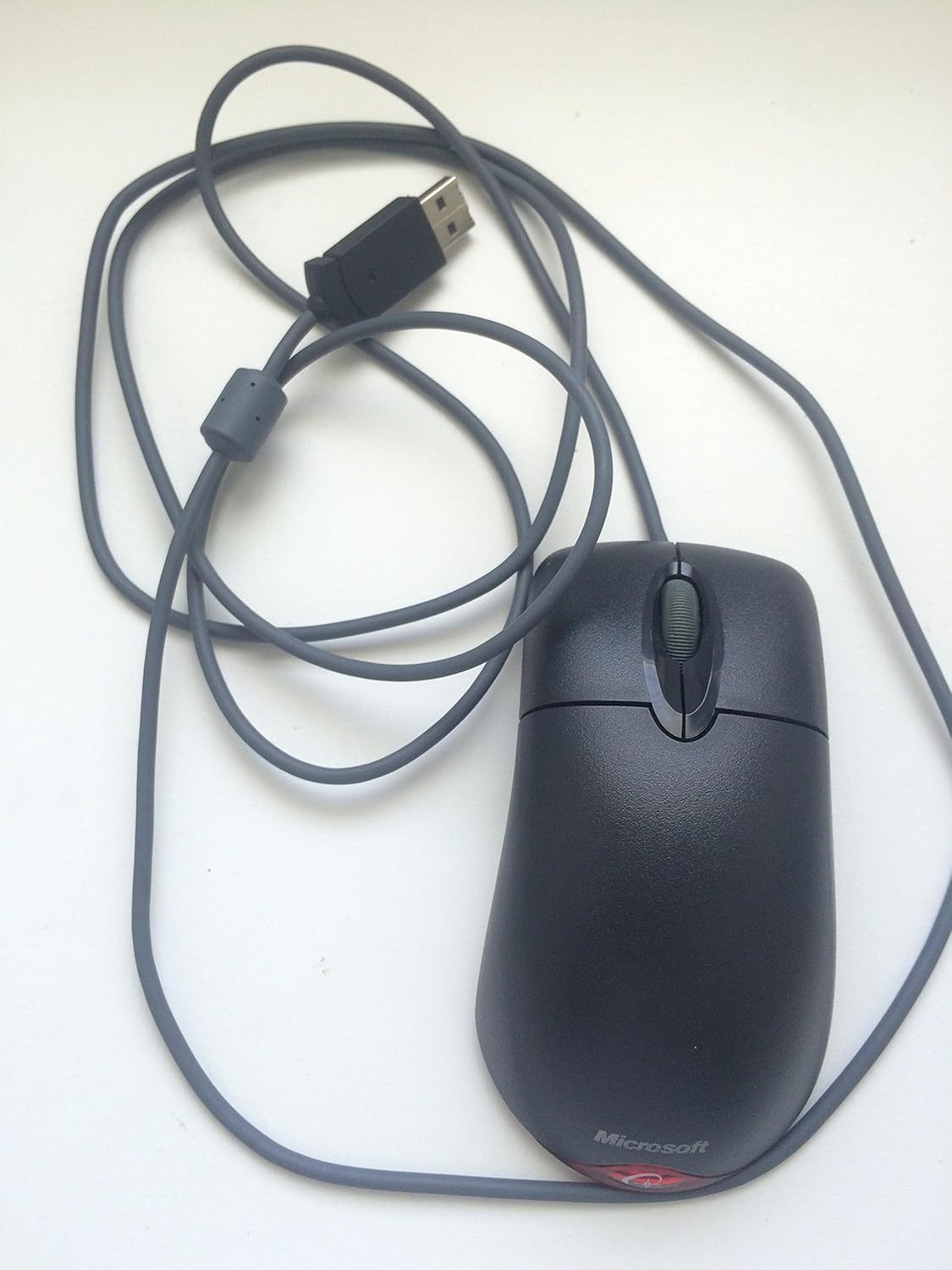
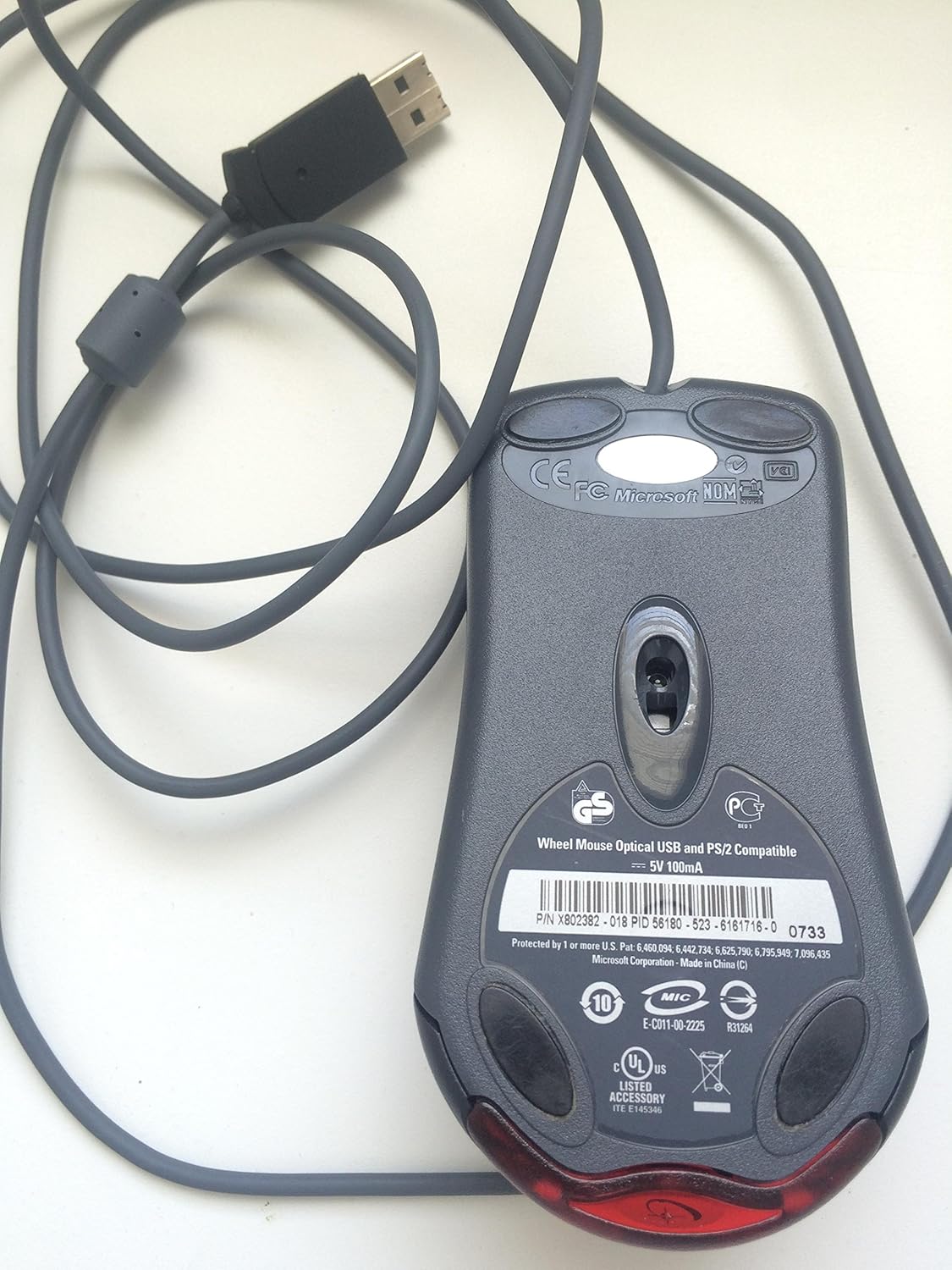
Bu video genel bir bakış sağlarview of the Microsoft Wheel Optical Mouse, demonstrating its physical features and basic functionality.
3. Fareyi Çalıştırma
The Microsoft Wheel Optical Mouse is designed for intuitive and precise control.
3.1 Temel Fonksiyonlar
- Sol Tıklama Düğmesi: Öğeleri seçmek, açmak için kullanılır. files ve etkinleştirme fonksiyonları.
- Sağ Tıklama Düğmesi: Used to open context menus for additional options.
- Kaydırma tekerleği: Belgeler arasında gezinmek için tekerleği yukarı veya aşağı kaydırın. web pages. Press the wheel down to activate the customizable middle-click function, often used for auto-scrolling or opening links in new tabs.
3.2 IntelliEye Optical Technology
The mouse utilizes IntelliEye optical technology, which tracks mouse movement 6000 times per second. This provides smooth, precise motion on almost any surface, eliminating the need for a mouse pad in most cases.
3.3 Özelleştirilebilir Düğmeler
The buttons and scroll wheel can be customized using the Microsoft mouse software. This allows you to assign new commands or repetitive tasks to suit your workflow, such as opening a file or web page with a single click.
4. Bakım
To ensure the longevity and optimal performance of your mouse, follow these simple maintenance guidelines:
- Temizlik: Hafifçe yumuşak, tüy bırakmayan bir bez kullanın.ampFare yüzeyini silmek için su veya hafif bir temizleme solüsyonu kullanın. Sert kimyasallardan veya aşındırıcı malzemelerden kaçının.
- Optik sensör: Farenin altındaki optik sensörü temiz tutun ve toz veya kirden arındırın. Fareyi açmaya çalışmayın.asing.
- Kablo Bakımı: Avoid sharply bending or twisting the mouse cable to prevent internal damage.
5. Sorun Giderme
If you encounter issues with your Microsoft Wheel Optical Mouse, try the following solutions:
- Fare Yanıt Vermiyor:
- Ensure the USB or PS/2 connector is securely plugged into the correct port on your computer.
- Try plugging the mouse into a different USB or PS/2 port.
- Bilgisayarınızı yeniden başlatın.
- Düzensiz İmleç Hareketi:
- Farenin alt kısmındaki optik sensörü temizleyin.
- Fareyi uygun bir yüzeyde kullandığınızdan emin olun. Yüksek yansıtıcı veya şeffaf yüzeyler sorunlara neden olabilir.
- Check for any software conflicts or outdated drivers. Reinstalling the mouse software may resolve the issue.
- Düğmeler veya Kaydırma Tekerleği Çalışmıyor:
- Verify that the mouse software is correctly installed and configured.
- Sorunun farede mi yoksa sisteminizde mi olduğunu belirlemek için fareyi başka bir bilgisayarda deneyin.
6. Özellikler
| Özellik | Detay |
|---|---|
| Marka | Microsoft |
| Seri | Wheel Mouse Optical |
| Model Numarası | D66-00069 |
| Donanım Platformu | PC, Tablet |
| İşletim Sistemi Uyumluluğu | Mac OS X v10.1x–10.4x, Windows Vista/XP/Pro/Home/Media Center Edition/Tablet PC Edition/Windows 2000 SP4 + |
| Ürün Ağırlığı | 14.2 ons |
| Ürün Boyutları (UxGxY) | 9.5 x 9 x 2.25 inç |
| Renk | Siyah |
| Güç Kaynağı | Kablolu Elektrik |
| Bağlantı Teknolojisi | USB |
| Hareket Algılama Teknolojisi | Optik |
7. Garanti Bilgileri
Bu ürün bir 3 yıllık üretici garantisi. For specific terms and conditions, please refer to the warranty documentation included with your purchase or visit the official Microsoft support webalan.
Yasal Uyarı: Bu ürün olduğu gibi satılmaktadır.
8. Destek
For further assistance, technical support, or to download the latest drivers and software, please visit the official Microsoft support website or contact their customer service. Ensure you have your product model number (D66-00069) available when seeking support.


