giriiş
This manual provides instructions for the setup, operation, maintenance, and troubleshooting of your Microsoft Wireless Optical Mouse Blue, Model K80-00004. Please read this manual thoroughly before using your device.
Kutuda Neler Var?
Paketin içinde tüm öğelerin mevcut olduğundan emin olun:
- Microsoft Wireless Optical Mouse
- Kablosuz Alıcı
- 2 adet AA pil (önceden takılı veya ayrı olarak dahil)
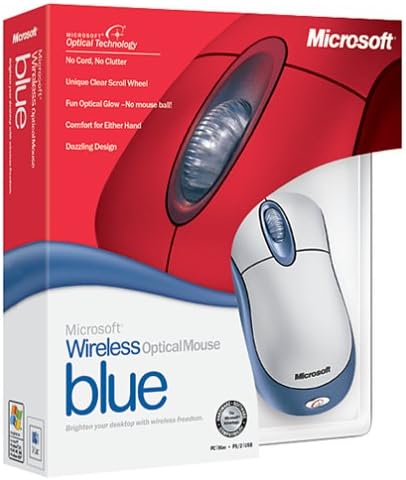
Image: Retail packaging of the Microsoft Wireless Optical Mouse Blue, showing the mouse and receiver.
Kurmak
1. Pilleri Takın
- Farenin alt tarafındaki pil bölmesini bulun.
- Pil bölmesinin kapağını açın.
- İki adet AA pili kutupların doğru olmasına dikkat ederek (+/-) yerleştirin.
- Pil bölmesinin kapağını kapatın.

Resim: Ön view of the Microsoft Wireless Optical Mouse Blue, showing the top buttons and scroll wheel. The battery compartment is on the underside.
2. Connect the Wireless Receiver
- USB kablosuz alıcıyı bilgisayarınızdaki kullanılabilir bir USB bağlantı noktasına takın.
- Allow your operating system to detect and install the necessary drivers. This process is usually automatic.
- For optimal performance, ensure the receiver is placed at least 12 inches away from other wireless devices or large metal objects.
3. Optional Software Installation (IntelliPoint)
- While not required for basic functionality, installing Microsoft IntelliPoint software provides advanced customization options for your mouse buttons and scroll wheel.
- Refer to the Microsoft support website for the latest IntelliPoint software compatible with your operating system.
4. Set Orientation (Calibration)
- After initial setup, it is recommended to perform an "Orientation Set" or calibration if available through the IntelliPoint software or your operating system's mouse settings. This helps optimize tracking performance.
Kullanım Talimatları
The Microsoft Wireless Optical Mouse Blue is designed for comfortable and precise navigation.
Temel Fonksiyonlar
- Sol tık: Öğeleri seçmek ve açmak için kullanılan ana düğme. fileve yazılımla etkileşim kurma.
- Sağ tık: Bağlam menülerine ve ek seçeneklere erişim için ikincil düğme.
- Kaydırma tekerleği: Belgeler arasında gezinmek için tekerleği yukarı veya aşağı kaydırın. web pages. The scroll wheel may also function as a clickable button for additional commands, depending on software configuration.
Kablosuz Çalışma
- The mouse operates wirelessly up to 6 feet (approximately 1.8 meters) from its receiver.
- Optical technology scans the desktop surface for precise cursor movement without the need for a mouse pad on most surfaces.
- The mouse is designed for comfortable use with either the right or left hand.

Resim: Açısal view of the Microsoft Wireless Optical Mouse Blue, highlighting its ergonomic shape and blue/silver design.
Bakım
Pil Değişimi
- The mouse requires two AA batteries.
- When battery power is low, your computer may display a notification (if IntelliPoint software is installed) or mouse performance may degrade.
- Replace batteries as described in the "Install Batteries" section under Setup.
- En iyi performans için her zaman yeni ve yüksek kaliteli piller kullanın.
Temizlik
- To clean the mouse, gently wipe the surface with a soft, damp Kumaş.
- Cilaya zarar verebilecek sert kimyasallar veya aşındırıcı temizleyiciler kullanmaktan kaçının.
- Farenin iç bileşenlerine sıvı girmemesine dikkat edin.
Travel Considerations
- The Microsoft Wireless Optical Mouse is a transmitting device. When traveling by air, it is recommended to remove the batteries from the mouse before boarding to comply with airline regulations regarding electronic devices.
Sorun giderme
Mouse Not Responding or Lagging
- Pilleri Kontrol Edin: Pillerin doğru şekilde takıldığından ve yeterli şarja sahip olduğundan emin olun. Gerekirse değiştirin.
- Check Receiver Connection: Ensure the wireless receiver is securely plugged into a functioning USB port. Try a different USB port.
- Yakınlık: Ensure the mouse is within 6 feet of the receiver. Reduce obstacles between the mouse and receiver.
- Parazit yapmak: Other wireless devices (e.g., Wi-Fi routers, cordless phones) can cause interference. Move the receiver away from such devices.
- Yüzey: Ensure the mouse is used on a suitable surface. Highly reflective or transparent surfaces may affect optical tracking.
- Re-sync: Some wireless mice have a re-sync button on both the mouse and receiver. Consult the full product manual or Microsoft support for specific re-sync procedures for this model if issues persist.
Clicking Issues
- If clicks are not registering or require multiple presses, check for physical obstructions or debris around the buttons.
- Farenin açık ve bağlı olduğundan emin olun.
Yazılım Uyumluluğu
- The IntelliPoint software may have specific operating system requirements. For example, older versions may not be compatible with newer operating systems like Windows Vista or later.
- Always download the latest software from the official Microsoft support webİşletim sisteminize özel site.
Özellikler
| Özellik | Detay |
|---|---|
| Model Numarası | K80-00004 |
| Marka | Microsoft |
| Bağlantı Teknolojisi | Kablosuz |
| Hareket Algılama | Optik |
| Renk | Blue / Silver |
| Piller | 2 adet AA pil (dahil) |
| Ürün Ağırlığı | 13.6 ons (yaklaşık 385.5 gram) |
| Ürün Boyutları | 9.3 x 8.9 x 2.1 inç (yaklaşık 23.6 x 22.6 x 5.3 cm) |
| İlk Mevcut Tarih | 1 Ağustos 2002 |
Garanti Bilgileri
According to the legal disclaimer, this product is sold without a warranty. Please refer to your point of purchase for any return or exchange policies.
Destek
For further assistance, driver downloads, or updated information regarding your Microsoft Wireless Optical Mouse Blue, please visit the official Microsoft support webalan.
You can typically find support resources by searching for "Microsoft support" and your product model number (K80-00004).


