
1. Giriş
This manual provides essential information for setting up, operating, maintaining, and troubleshooting your Lenovo IdeaCentre AIO 27 All-in-One Desktop PC. Please read this manual thoroughly before using your device to ensure proper functionality and to maximize its lifespan.

Figure 1: Lenovo IdeaCentre AIO 27 All-in-One Desktop PC
2. Paket İçeriği
Ürün ambalajınızda tüm öğelerin mevcut olduğundan emin olun:
- Lenovo IdeaCentre AIO 27 Desktop PC
- Güç Adaptörü (90W)
- Keyboard (may be wired or wireless, depending on configuration)
- Mouse (may be wired or wireless, depending on configuration)
- Belgeler (Hızlı Başlangıç Kılavuzu, Garanti Bilgileri)
3. Ürün Bittiview
3.1 Temel Bileşen
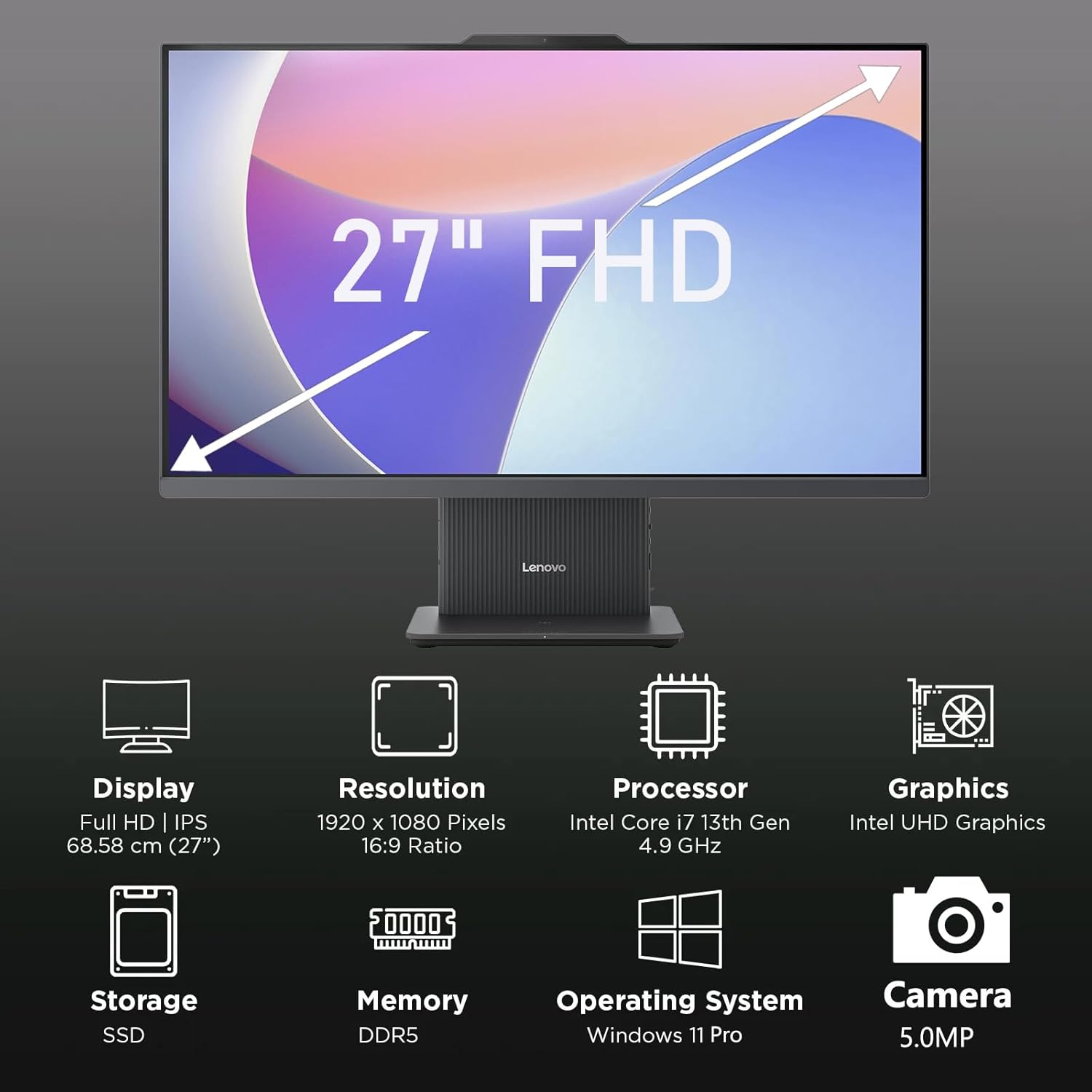
Şekil 2: Üzeriview of key features including Display, Resolution, Processor, Graphics, Storage, Memory, Operating System, and Camera.
- Görüntülemek: 27-inch Full HD (1920x1080) IPS, 300 nits, anti-glare.
- Webkam: Integrated 5.0MP webcam with dual microphones.
- Konuşmacılar: Integrated 3W x2 HARMAN speakers.
- İşlemci: Intel Core i7-13620H.
- Hafıza: DDR5 RAM.
- Depolamak: PCIe NVMe SSD.
3.2 Bağlantı Noktaları ve Konektörler

Figure 3: Detailed diagram of ports and connectors on the Lenovo IdeaCentre AIO 27.
- E-shutter (for webcam privacy)
- Güç düğmesi
- HDMI girişi 1.4
- Güç DC girişi
- USB-A 480Mbps (USB 2.0)
- Ethernet (RJ-45)
- USB-A 480Mbps (USB 2.0)
- USB-A 10Gbps (USB 3.2 Gen 2)
- HDMI çıkışı 2.1 TMDS
- USB-C 10Gbps (data transfer only)
- Kulaklık / mikrofon kombo jakı
4. Kurulum
4.1 Kutudan Çıkarma ve Yerleştirme
- Carefully remove the AIO PC and all accessories from the packaging.
- Place the AIO PC on a stable, flat surface with adequate ventilation around the device.
4.2 Gücün Bağlanması
- Connect the power adapter cable to the DC-in port (4) on the rear of the AIO PC.
- Güç adaptörünü topraklı bir elektrik prizine takın.
4.3 Çevre Birimlerini Bağlama
- Connect your keyboard and mouse to the available USB-A ports (5, 7, 8) on the rear of the AIO PC.
- If using wired Ethernet, connect the cable to the RJ-45 port (6).
- For external displays, use the HDMI-out port (9). To use the AIO as a display for another device, use the HDMI-in port (3).
4.4 İlk Önyükleme ve Windows Kurulumu
- Press the power button (2) to turn on the PC.
- Dil, bölge, ağ bağlantısı ve kullanıcı hesabı oluşturma dahil olmak üzere Windows 11 Pro'nun ilk kurulumunu tamamlamak için ekrandaki talimatları izleyin.
4.5 Standın Ayarlanması

Figure 4: The AIO stand allows for ergonomic tilt adjustment.
The integrated stand allows for tilt adjustment from -5° to 15° to optimize your viewing angle and posture. Gently adjust the display to your preferred position.
5. Bilgisayarınızı Çalıştırma
5.1 Temel İşlemler
- Güç Açma/Kapatma: Press the power button (2) to turn on. To shut down, click Start > Power > Shut down in Windows.
- Uyku modu: Press the power button briefly or select Sleep from the Start menu.
5.2 Webkamera ve ses

Figure 5: The 5MP webcam and Harman audio enhance video conferencing.
- Webkam: Entegre 5.0MP webcam is ideal for video conferencing and online communication. Use the E-shutter (1) to physically block the camera for privacy.
- Mikrofonlar: Dual microphones provide clear audio input.
- Konuşmacılar: HARMAN speakers deliver high-quality audio output.
5.3 Bağlantı
- Kablosuz 6: Connect to wireless networks for high-speed internet access.
- Bluetooth 5.2: Pair with Bluetooth-enabled devices such as headphones, speakers, or mobile phones.
- USB Bağlantı Noktaları: Utilize the various USB-A and USB-C ports for connecting external drives, printers, and other peripherals.
5.4 Windows 11 Pro Özellikleri
Your AIO PC comes pre-installed with Windows 11 Pro, offering advanced features for productivity and security:
- BitLocker: For advanced data encryption.
- Uzak Masaüstü: Access your PC from another device.
- Alan Adına Katılım: Integrate into corporate networks.
- Windows Hello: Secure and fast login using facial recognition (if IR camera is present) or PIN.
6. Bakım
6.1 Cleaning Your PC
- Görüntülemek: Yumuşak, tiftiksiz bir bez kullanın ve hafifçe kurulayın.ampSu veya aşındırıcı olmayan bir ekran temizleyici ile temizleyin. Sıvıyı doğrudan ekrana püskürtmeyin.
- Şasi: Wipe with a soft, dry cloth. Avoid harsh chemicals or abrasive materials.
- Havalandırma: Aşırı ısınmayı önlemek için havalandırma açıklıklarının toz ve engellerden arındırılmış olduğundan emin olun.
6.2 Yazılım Güncellemeleri
Regularly check for and install Windows updates and driver updates to ensure optimal performance and security. Go to Settings > Windows Update to check for updates.
6.3 Veri Yedekleme
Veri kaybını önlemek için önemli verilerinizi düzenli olarak harici bir sürücüye veya bulut depolama alanına yedekleyin.
7. Sorun Giderme
This section addresses common issues you might encounter with your IdeaCentre AIO 27.
| Sorun | Olası Çözüm |
|---|---|
| Bilgisayar açılmıyor | Ensure the power adapter is securely connected to both the PC and a working electrical outlet. Test the outlet with another device. |
| Ekranda görüntü yok | Check power connection. Ensure the PC is powered on. If using HDMI-in, verify the external device is on and correctly connected. |
| İnternet bağlantısı yok (Wi-Fi) | Check if Wi-Fi is enabled in Windows settings. Verify your router is working. Reconnect to the Wi-Fi network. |
| Ses yok | Check volume levels in Windows. Ensure speakers are not muted. Verify audio drivers are up to date. |
| Webkamera çalışmıyor | Ensure the E-shutter (1) is open. Check privacy settings in Windows. Verify webcam drivers are installed and up to date. |
8. Özellikler

Figure 6: Details of the Intel Core i7-13620H processor.

Figure 7: The 27-inch FHD display offers comfortable viewIng.
| Özellik | Şartname |
|---|---|
| Marka | Lenovo |
| Model Adı | Fikir Merkezi AIO 27 |
| İşletim Sistemi | Windows 11 Pro |
| İşlemci | Intel Core i7-13620H (10 Çekirdek, 16 İş Parçacığı, 4.9GHz'e kadar) |
| Grafikler | Entegre Intel UHD Grafikleri |
| Görüntülemek | 27-inch FHD (1920x1080) IPS, 300 nits, Anti-glare, 99% sRGB |
| Hafıza | 32GB DDR5 RAM (5200 MT/s) |
| Depolamak | 1TB M.2 PCIe 4.0x4 NVMe SSD |
| Ses | High Definition (HD) Audio, Realtek ALC233-CG codec, 3W x2 HARMAN speakers |
| Webkam | 5.0MP with Dual Microphones |
| Kablosuz Bağlantı | Wi-Fi 6 (802.11ax 2x2), Bluetooth 5.2 |
| Bağlantı Noktaları (Arka) | 1x USB-A 10Gbps, 2x USB-A 480Mbps, 1x HDMI-in 1.4, 1x HDMI-out 2.1 TMDS, 1x RJ-45, 1x Power Connector |
| Ports (Left) | 1x USB-C 10Gbps (data transfer only), 1x 3.5mm combo audio jack |
| Güvenlik Çipi | Yazılım TPM 2.0 |
| Güç Adaptörü | 90W 89% adapter |
| Boyutlar (G x D x Y) | 611.72 x 192 x 473.16 mm (24.08 x 7.55 x 18.62 inç) |
| Ağırlık | Yaklaşık 7.1 kg (15.65 lbs) |
9. Garanti Bilgileri
Your Lenovo IdeaCentre AIO 27 PC comes with a standard manufacturer's warranty. The specific terms and duration of your warranty may vary by region and purchase agreement. Please refer to the warranty documentation included in your product packaging or visit the official Lenovo support webDetaylı bilgi için sitemizi ziyaret edebilirsiniz.
Typically, the warranty covers defects in materials and workmanship under normal use. It does not cover damage caused by misuse, accidents, unauthorized modifications, or external factors.
10. Destek ve İletişim Bilgileri
For technical support, service, or additional information, please contact Lenovo customer support through the following channels:
- Lenovo Desteği Webalan: Ziyaret etmek support.lenovo.com sürücüler, kılavuzlar ve sorun giderme kılavuzları için.
- Telefon Desteği: Refer to your warranty card or the Lenovo support webbölgesel iletişim numaraları için site.
- Çevrim içi sohbet: Available on the Lenovo support webGerçek zamanlı yardım için site.
Please have your product's serial number ready when contacting support. The serial number is typically located on a label on the back or bottom of your AIO PC.